Quick answer: in the Exchange Management Shell, give an existing Active Directory user a mailbox with:
Enable-Mailbox -Identity Ayla
In Exchange Online the same cmdlet only adds archives. To turn on a user's archive mailbox:
Enable-Mailbox -Identity ayla@contoso.com -Archive
What does Enable-Mailbox do?
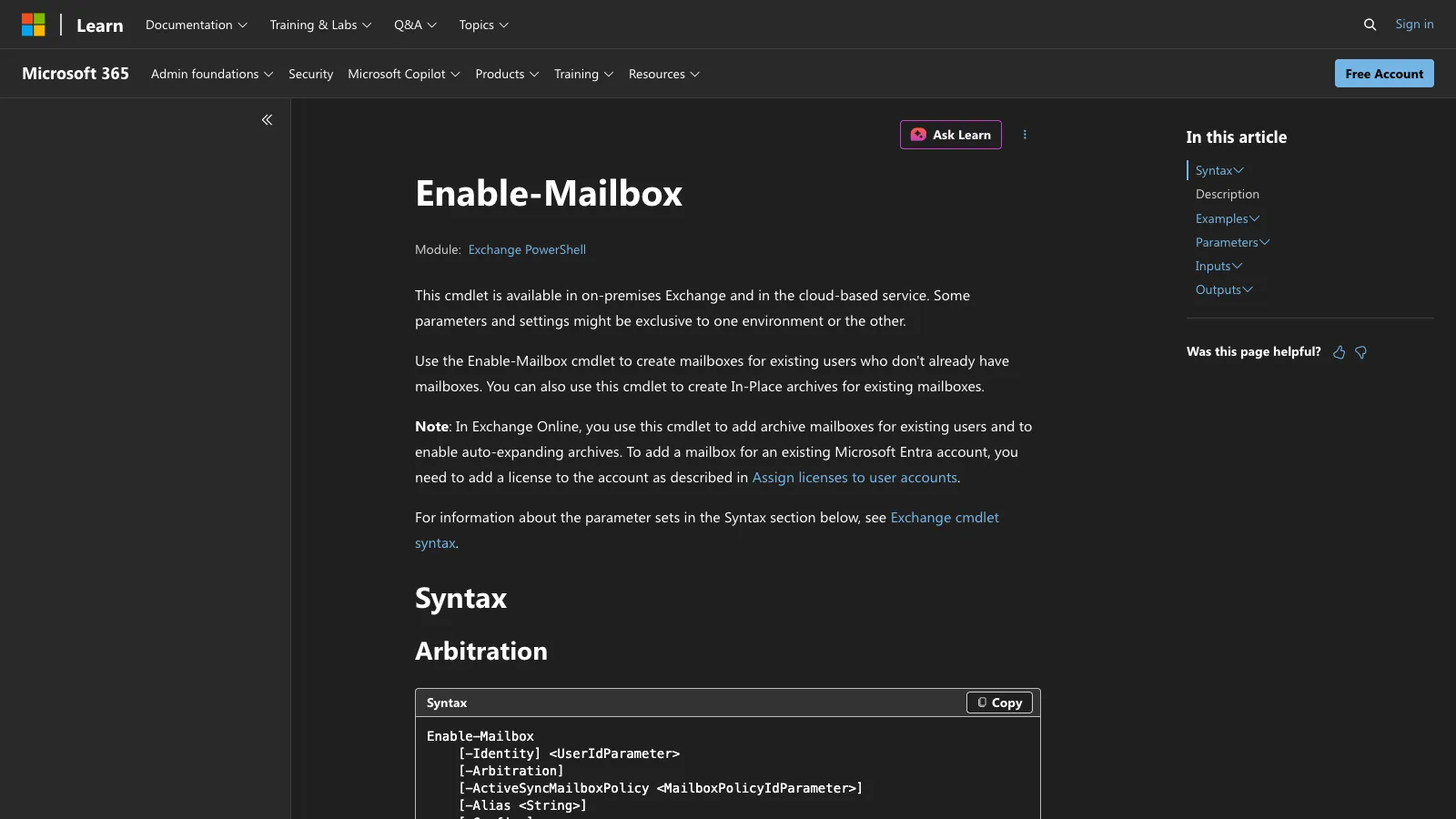
It adds a mailbox to a user account that already exists but doesn't have one yet. It can also create an In-Place archive for a mailbox that already exists. It works in on-premises Exchange Server 2010 through Exchange Server SE, and in Exchange Online with a smaller set of parameters.
| Cmdlet | Use it when |
|---|---|
| Enable-Mailbox | The user account exists and needs a mailbox or an archive |
| New-Mailbox | You want to create the user account and the mailbox together |
| Enable-RemoteMailbox | Hybrid: an existing on-premises user needs a mailbox in Exchange Online |
| New-RemoteMailbox | Hybrid: create the on-premises user and the cloud mailbox together |
| Disable-Mailbox | Remove the mailbox or the archive from the user |
Does Enable-Mailbox work in Exchange Online?
In Exchange Online you use it only to add archive mailboxes and to turn on auto-expanding archiving. To give an existing Microsoft Entra account a mailbox, you assign it a license that includes Exchange Online. Enable-Mailbox doesn't do that.
Parameters such as -Room, -Shared, -Equipment, -Database and -PrimarySmtpAddress exist only in on-premises Exchange.
To connect to Exchange Online first:
Connect-ExchangeOnline -UserPrincipalName admin@contoso.com
If the module isn't installed, see how to install the Exchange Online PowerShell module.
Examples
| Task | Where | Command |
|---|---|---|
| Mailbox for an existing user | On-premises | Enable-Mailbox -Identity Ayla |
| Mailbox in a chosen database | On-premises | Enable-Mailbox -Identity Ayla -Database DB01 |
| Room mailbox | On-premises | Enable-Mailbox -Identity "Boardroom" -Room |
| Equipment mailbox | On-premises | Enable-Mailbox -Identity "Projector 2" -Equipment |
| Shared mailbox | On-premises | Enable-Mailbox -Identity "Sales Team" -Shared |
| Archive mailbox | Both | Enable-Mailbox -Identity ayla@contoso.com -Archive |
| Archive in the cloud for an on-premises mailbox | On-premises | Enable-Mailbox -Identity ayla@contoso.com -RemoteArchive -ArchiveDomain "archive.contoso.com" |
| Auto-expanding archive | Exchange Online | Enable-Mailbox -Identity ayla@contoso.com -AutoExpandingArchive |
| Preview any of the above | Both | Add -WhatIf |
-Identity takes any value that identifies the user, such as the name, distinguished name or GUID. -Database accepts the database name, distinguished name or GUID.
-Room is for resources tied to a place, such as conference rooms. -Equipment is for resources with no fixed location, such as vehicles or computers. A shared mailbox is one that several users can open. It's tied to a disabled user account, not to any of those users.
How do I enable archives for many users at once?
Microsoft lists this command for Exchange Online. It enables the archive for every user mailbox that has no archive and no disabled archive:
Get-Mailbox -Filter {ArchiveGuid -Eq "00000000-0000-0000-0000-000000000000" -AND DisabledArchiveGuid -Eq "00000000-0000-0000-0000-000000000000" -AND RecipientTypeDetails -Eq "UserMailbox"} | Enable-Mailbox -Archive
Run it with -WhatIf on the end first to see which mailboxes it would change.
What should I know about auto-expanding archives?
- The archive has to be enabled before you can turn on auto-expanding archiving.
- Once it's on for a mailbox, it can't be turned off.
- You can only turn it on with Exchange Online PowerShell, not in the admin centers.
- It can take up to 30 days for the extra storage to be added.
- In a hybrid setup, you can't use
Enable-Mailbox -AutoExpandingArchivefor a user whose primary mailbox is on-premises and whose archive is in the cloud. RunSet-OrganizationConfig -AutoExpandingArchivein Exchange Online instead, which turns it on for the whole organization.
Why is the alias full of question marks?
This happens on-premises when the user account or Name has characters Exchange doesn't support. If you don't set -Alias, Exchange turns each of them into ?. Set the alias yourself to avoid that:
Enable-Mailbox -Identity "Zoë Müller" -Alias zmuller
An alias can be up to 64 characters. It can use letters, numbers and ! # % * + - / = ? ^ _ ~. A period is allowed only between other characters, as in ayla.lee.
Why doesn't Enable-Mailbox work?
| Error or symptom | Fix |
|---|---|
| The term Enable-Mailbox is not recognized | Connect with Connect-ExchangeOnline, or open the Exchange Management Shell. |
-Room, -Shared or -Database is rejected |
Those parameters exist only in on-premises Exchange. |
| A cloud user still has no mailbox | Assign an Exchange Online license. Enable-Mailbox can't create it. |
| The mailbox doesn't show up in the database yet | Exchange creates the mailbox object when the user signs in or receives mail. |
| The re-enabled archive is empty | A disabled archive can be reconnected only within 30 days. After that, Enable-Mailbox creates a new archive. |
| Auto-expanding archiving won't turn on | Enable the archive first with -Archive. |
How do I check the result?
Get-Mailbox -Identity ayla@contoso.com | Format-List RecipientTypeDetails,ArchiveStatus,AutoExpandingArchiveEnabled
RecipientTypeDetails shows UserMailbox, RoomMailbox, EquipmentMailbox or SharedMailbox. ArchiveStatus shows None while the mailbox has no archive. AutoExpandingArchiveEnabled shows True once auto-expanding archiving is on. See Get-Mailbox for more filters. To change settings on the new mailbox, use Set-Mailbox.
Sources: Enable-Mailbox, Enable or disable archive mailboxes and Enable auto-expanding archiving on Microsoft Learn.
Meeting Room 365 turns any iPad or Android tablet into a room display for Exchange and Microsoft 365 calendars. See the features or pricing: $9 a display a month.