-
Trust Center, Privacy & GDPR Pages
We've launched a new Trust Center with detailed information about our security architecture, data handling practices, encryption, infrastructure, and compliance posture.
Alongside it, a new Privacy page outlines our privacy principles and commitments — including what data we collect, what we don't, and what third-party services we've removed.
The GDPR Compliance page has also been redesigned to match, with updated subprocessor information and a streamlined layout.
All three pages are interlinked and accessible from the site footer.
-
Removed Google Analytics, Hotjar, Headway & Other Third-Party Services
As part of our ongoing commitment to privacy, we've removed several third-party services from the Meeting Room 365 website and application:
- Google Analytics — replaced with EU-hosted PostHog
- Hotjar — session recordings and heatmaps removed entirely
- Headway — external changelog widget replaced with this internal changelog
- Cookiebot — fewer tracking cookies means less need for a consent manager
- Facebook Pixel & Bing UET — all ad retargeting scripts removed
- External ClickHouse — analytics moved to internal infrastructure
- Sentry (most usage) — moving toward internal error logging
Fewer third-party services means fewer places your data can end up. See our Privacy page for the full list of what we've removed and why.
-
Meeting Room TV
Introducing Meeting Room TV — a new way to display room schedules, availability, and office information on large-format displays and TVs throughout your workplace.
Meeting Room TV is designed for lobbies, hallways, and common areas where a full room schedule overview is more useful than a single-room display.
-
Bulk Display Utilities
We're adding a set of Bulk Display Utilities you can use to restart or clear cache on your displays in bulk.
Note the dropdown in the top right to select all displays, or those reporting online or offline.
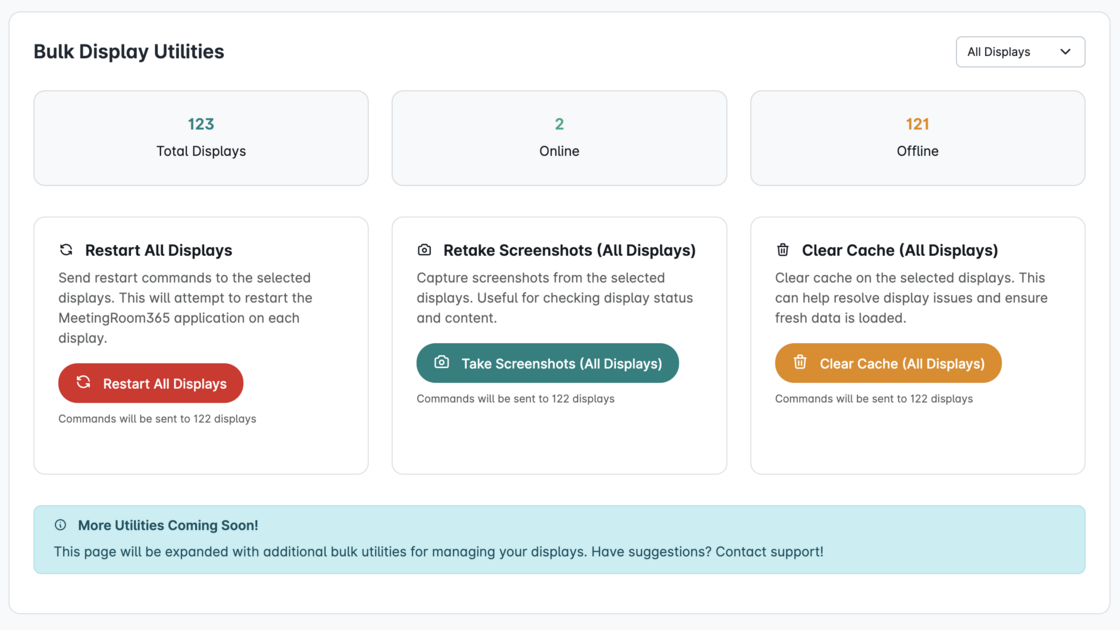
You can find this here (Under Utilities):
-
ATC Error Remediation
We experienced a cache error in Cloudflare earlier today. Devices which happened to restart during that period may be affected or stuck on an "ATC" page. On some devices it may appear a solid dark blue.
While many devices recovered automatically, other devices cached the error page and this cache is persistent on the tablet level.
Fortunately we have identified a work-around which busts the cache almost immediately without app reinstallation.
From the Admin Portal you can open any affected display and lock it to resolve the issue.
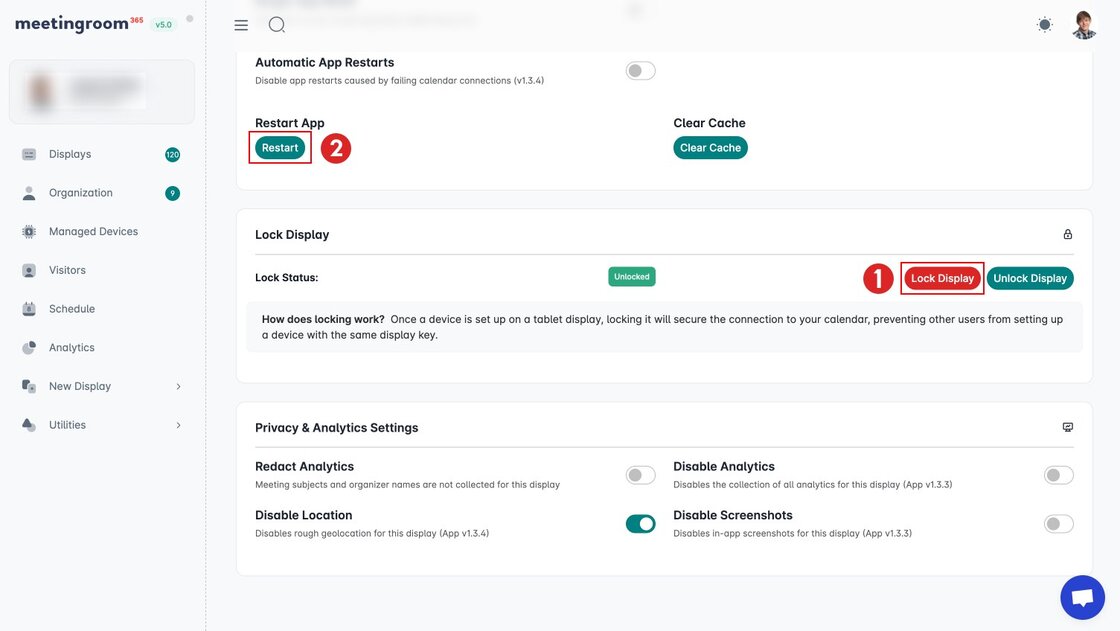
Scroll down to the Lock Display section of the display page, and press "Lock Device". If your device is already locked, you can try cycling to unlocked status for a couple of minutes, and back to locked status.
Because of how the app works internally this busts the problematic cache key on the device causing the issue, even though locking is unrelated to the issue.
Additionally, you can trigger a remote restart right after pressing lock to see the remediation (after about 1 minute) via the screenshot mechanism, to confirm without physically visiting each device. This is optional.
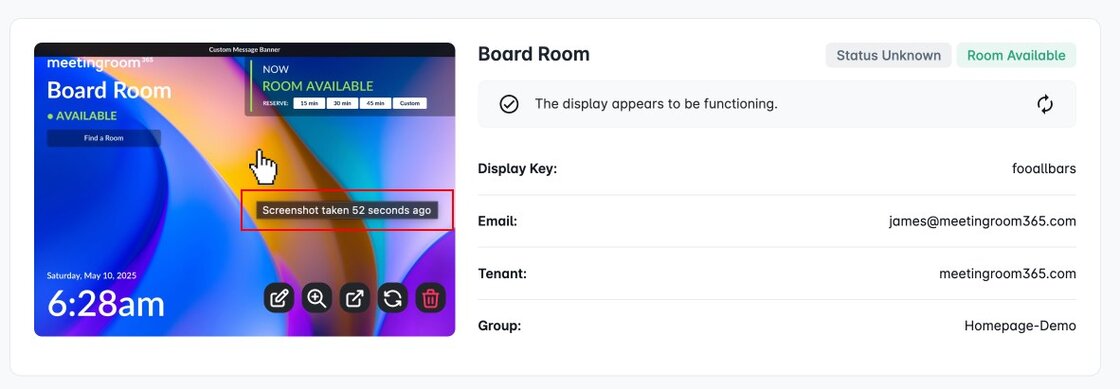
We can also trigger this on our end -- send us a quick note via support if you run into any issues or part of these instructions are unclear.
Devices do not need to remain locked afterwards. But device locking is generally a good idea if you have completed setup and do not need to set up new devices.
-
Visitor Kiosks
Introducing Visitor Kiosks — a self-service check-in experience for guests arriving at your office.
Visitor Kiosks can be deployed on tablets near your entrance to greet visitors, notify hosts, and keep a log of who’s on-site. Fully managed from the same admin portal you already use for room displays.
-
Improved MDM Support for Device Management
We've added additional features to Meeting Room 365 to make it easier than ever to manage hardware using popular MDM platforms.
Managed Configurations for Android and Android Enterprise are now supported, as well as the AppConfig standard (popular with iOS devices). These allow you to configure a domainKey and deviceId in your MDM software, and manage the hardware under the Devices tab in Meeting Room 365.
To get started, head to: https://admin.meetingroom365.com/devices
You can also view in-depth guides on our Blog and YouTube channel.
-
New Hardware Management & Analytics Settings
We've added additional settings to your display configuration page specific to Android and iOS. Once your device is online and has been identified as an iOS or Android device, additional options will appear, such as Pinned Mode and Kiosk Mode for Android.
Additionally, new privacy settings have been added to the configuration page for analytics. This enables either redacted analytics (no potentially sensitive details are collected), or it disables analytics for your display completely.
We sent an email a few weeks ago to notify users that a new domain has been added to our application. If you use a firewall to allow access to Meeting Room 365, you should now allow
*.meetingroom365.comand*.meetingroom365.net.We've also pushed an update to our iOS app to fix a certificate issue affecting iOS devices running iOS 9.3.5. This is required for the continued operation of the iPad Mini 2, which was released on October 23, 2013, and still works with Meeting Room 365.
Fun fact: The iPad Mini was the first device we developed the Meeting Room 365 application for. It ran as a web page pinned to the home screen, without a dedicated app in the App Store.
-
See & Restore Deleted Displays
We've added a new feature to the Admin portal under "Utilities" that allows you to Restore Deleted Displays.
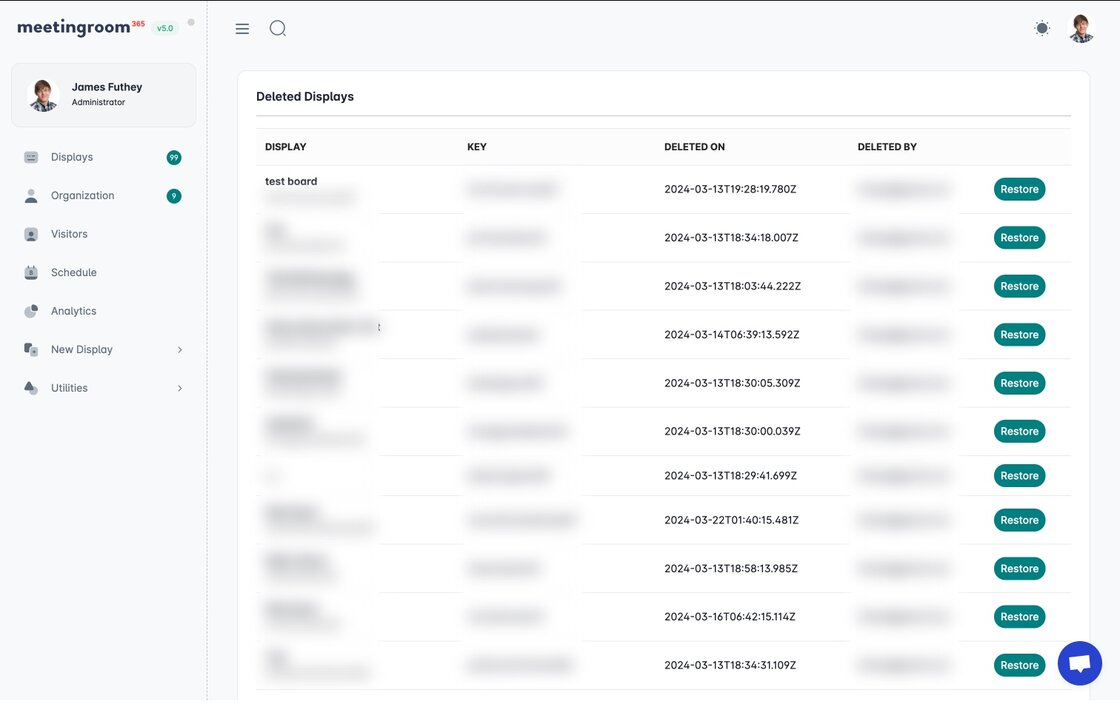
Now, when displays are deleted they are fully removed (and no longer "pending deletion"). Also, you can view a list of displays you've previously deleted, and restore them.
Please reach out if you have any questions.
Thanks!
-
New Admin Portal
We've launched a new Admin Portal for Meeting Room 365, to replace the existing collection of admin websites for all products.
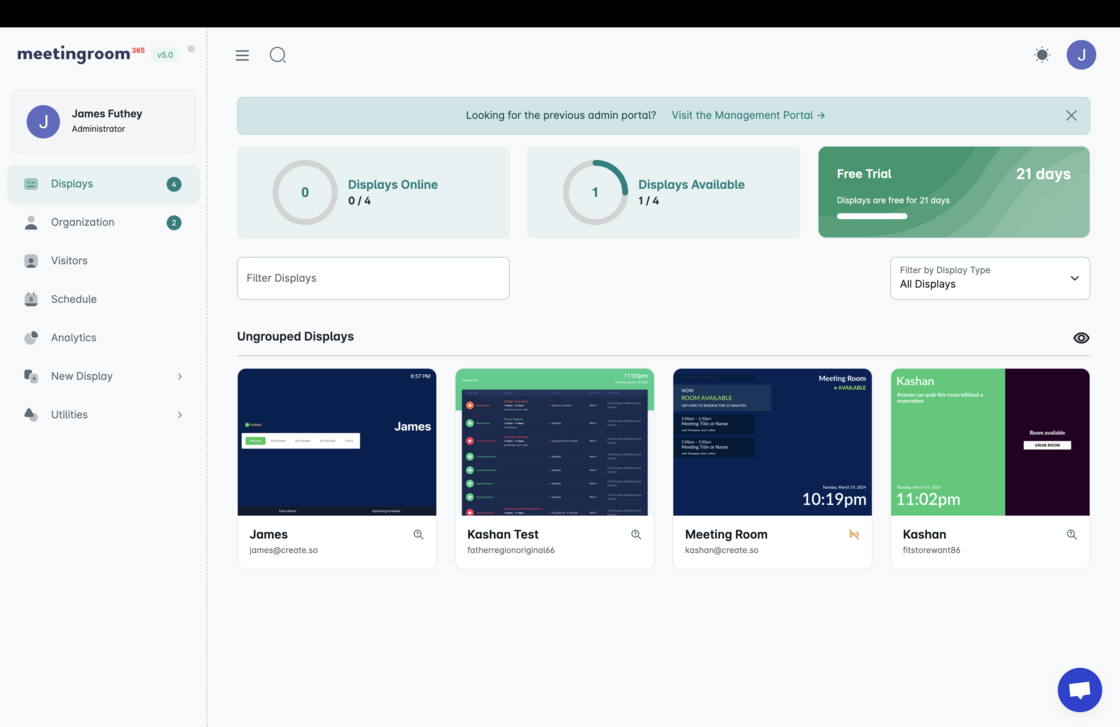
New Features include:
- Ability to filter displays
- Search function for displays
- Instant Documentation search
- Improvements to the display editor
- Improved troubleshooting and help features
Note: The old admin portal isn't going away immediately, and you can continue to use it.
Let us know what you think. We hope you like it!
FAQS
Do I need to migrate my displays?
No. If you do not see your displays, please refresh the page or contact support.
Can I continue to use the old admin portal?
Yes, there's no need to switch immediately. The old admin portal will still be available for several months.
I have another question
Please reach out to support and let us know!
-
Modern Authentication for PowerShell Executor
We've rewritten our PowerShell executor and enabled Modern Authentication, now that Basic Authentication has been deprecated. We have also updated our guide, here, if you would like to run it locally. Windows, macOS, and Linux now all support PowerShell 7 for managing your resource mailboxes in Office 365 environments!
-
EU Data Processing Region
We care a lot about Privacy. So, we've made substantial changes to our infrastructure over the past year, allowing us to process Office 365, G Suite, and Exchange data entirely in the EU.
An update earlier this year has successfully moved users with European IPs to process calendar data on our Frankfurt servers (hosted by DigitalOcean). As a reminder, no calendar data or sensitive person data (PII) is stored.
Now, if you display is located in the EU, it connects to a separate set of backend services, which may fetch and process your calendar data before bringing it to your display.
You can check your IP here to confirm our system is properly placing you in the EU for data processing purposes: https://api.mr365.co/location

-
CSV Export, EWS Health Check, Multiple Bug Fixes, Higher-quality Dashboard Screenshots
Wanted to release a small update to the Changelog mentioning some routine improvements / fixes we've put together over the past 3 months.
CSV Export
We've Added CSV Export to the top right menu. JSON should still be your primary backup if you just want peace of mind for easy account restoration, but now CSV is an option as well (previously only available in Enterprise).
EWS Health Check
You will now get a warning when opening a display if your EWS connection fails
Better Screenshots
We wrote our own service to perform higher-quality screenshots for dashboards with many displays.
Multiple Bug Fixes
- Addressed an issue for some types of G Suite authorization tokens
- Fixed a datetime bug in Safari for custom (future) reservations
- Fixed several minor analytics bugs in the dashboard
- Addressed an issue for users who add an Office 365 service user but wish to add a display without using it
- Better test / code coverage for automated error reporting, traceable to a specific display
- Several translation issues have been addressed for the Status Board
- Fixed a Stripe bug affecting some users on initial subscription
- Dibs rooms now report status to status boards
- Added a fallback method for image uploads
- We now show your default billing method on the billing page
- A rotation timing issue was addressed for multiple future meetings on the status board
- New Android apps were published to meet new Google Play store requirements
- A Workaround was released for an Apple bug in iOS 13
Thanks!
-
Display Groups (For Room Finder & Status Boards)
You can now group your displays into locations, which will create isolated slices automatically for the Room Finder feature, and can be used to set up a status board display for a particular group of displays.
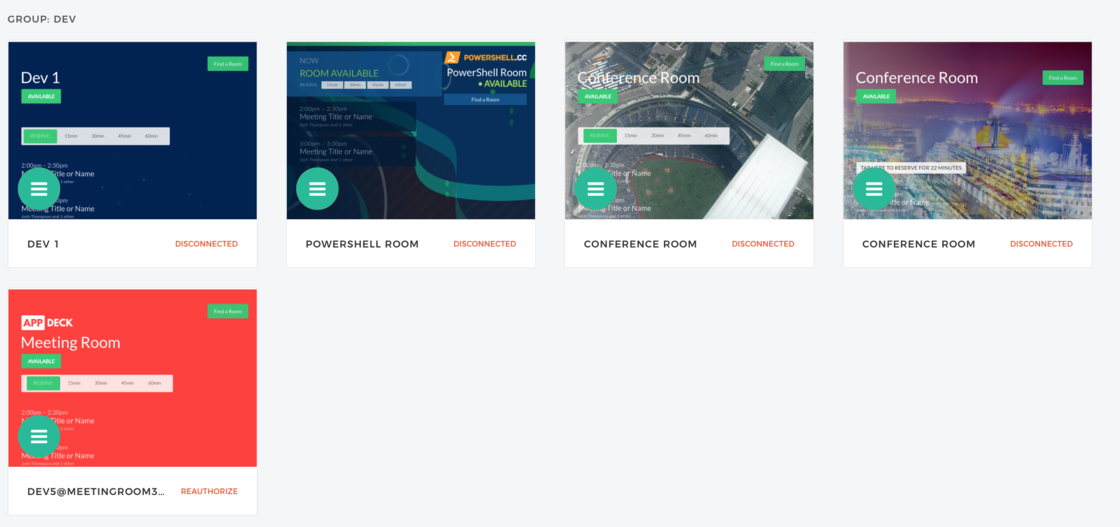
This will also keep your displays organized on your dashboard.
How it works
Just set a "Room Finder Location Key" for each group of displays (for example, if you have multiple buildings or floors you wish to keep separate, you might create keys like
seattle, andsf. Or, if you had multiple buildings, you might create keys likehq-north,hq-south,floor-1, etc.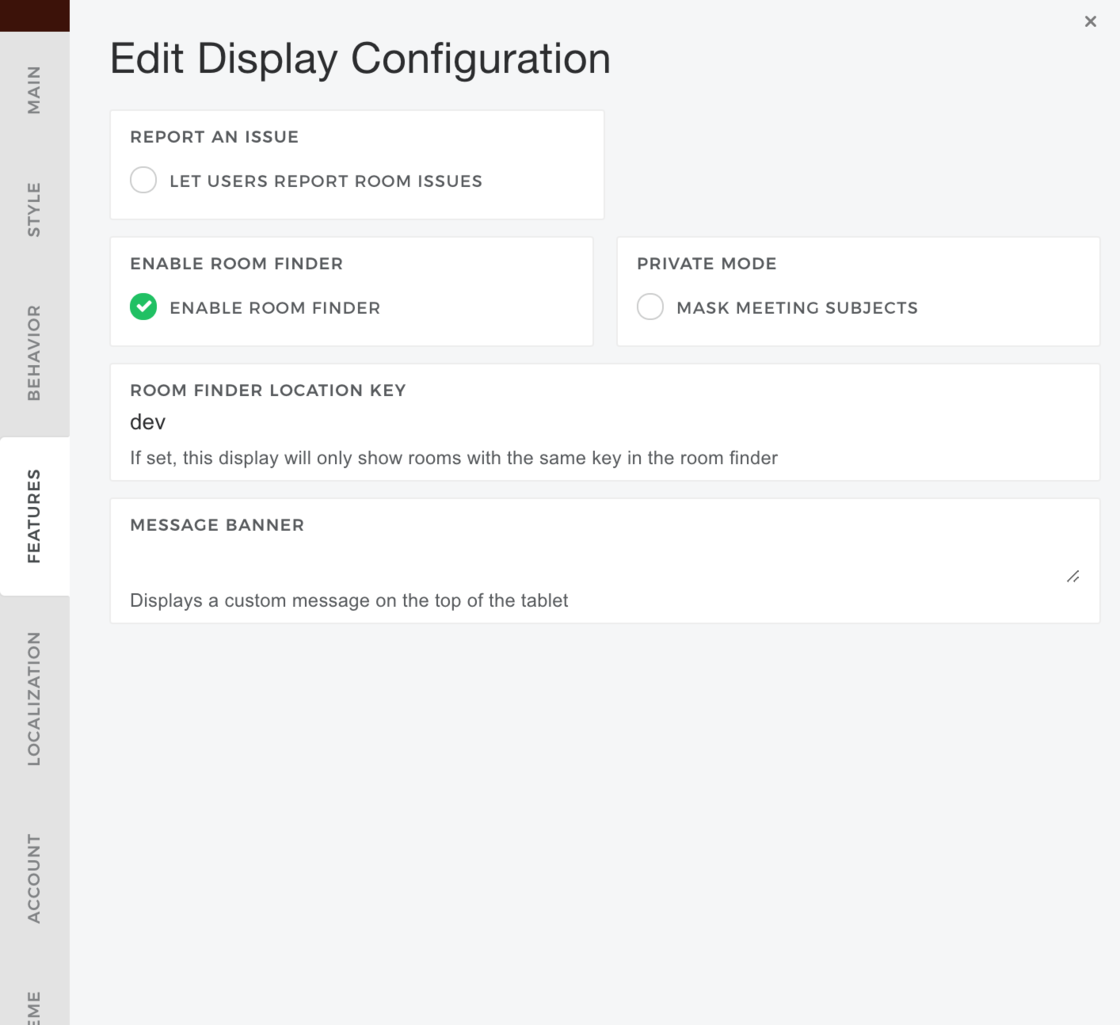
You can come up with any keys you like. But, when the room finder appears, only those rooms with the same key will be shown.
When creating a status board display, you can set a URL Parameter
&locationKey=<location-key>in your URL to filter a display to a specific location key. -
Display Configuration Backups
We've released a new feature, display configuration backups!
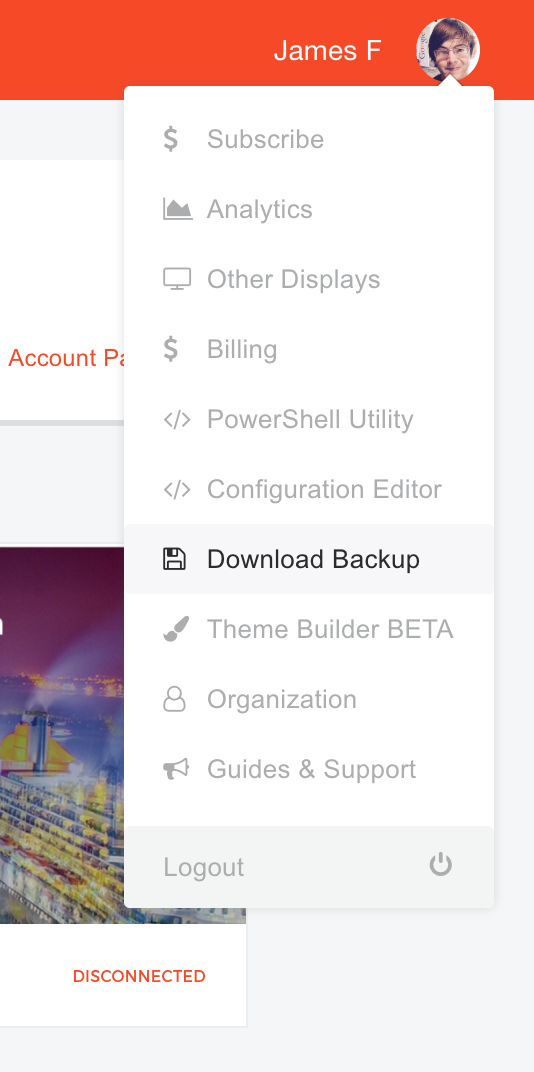
This allows you to download a
.JSONrepresentation of your organization's displays at any time (which we can restore in the event of an emergency, or you can use to retrieve theme and style data).In the event that you need to restore a backup, just reach out to us via chat with your backup file in hand, and we can take care of it.
-
Clone Display Properties across all rooms
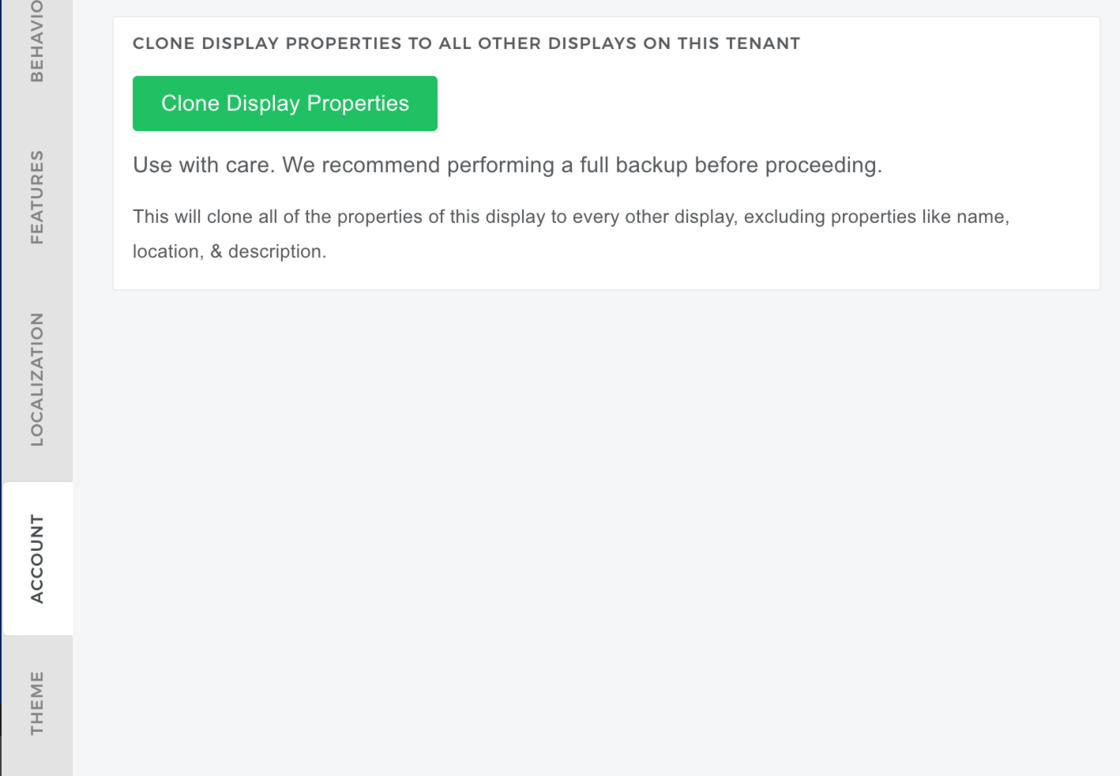
We've released a new feature publicly, that's actually been around for a while. You can now clone all of your display settings from a single display across all displays in your account.
How it works
First, you should create a backup of your displays before proceeding.
We start by making a copy of your display configuration, and stripping out certain details that should only apply to a single room (such as display name, email, key, type, hardware integrations, etc.
What's left is your behavior, styles, and theme settings.
Then, we apply those settings to every other display on your tenant domain.
This is perfect for large deployments, although it may not fit every need.
-
Native Support for Exchange (including Delegates & Hosted Exchange)
We've now moved support for Exchange out of our legacy platform, and into the native application. This means there is no longer a need to use the Legacy platform for Exchange support, or to store your credentials on our servers. Everything is supported from one native application!
This means you'll be able to opt-in to new features as they're released, including animated (and video) backgrounds, new themes, and new localization options.
Getting Started
To get started, simply download our application from one of the three supported App Stores, or start the display provisioning wizard at https://manage.meetingroom365.com/
Delegated Access
We also now support Exchange Delegate access, which means you can create a single service account from the Exchange Management console, which is designated as a delegate on each Resource Mailbox you've created on your tenant. This lets you use a single username and password to configure all of your displays.
Hosted Exchange
We now also support most Hosted Exchange environments. In most cases, this has been as simple as adding support for delegated access on our end. In some cases, you may need to contact your host via email support to enable access. Reach out to support and we can give you an email template to facilitate the process.
Credential Management
Resource Mailbox Credentials, including your EWS Username, Password, & Host are now stored securely on each tablet display, instead of our servers. No on-premises data is stored on our servers.
What we're still working on
We're still working on support for forced check-in and early cancellations. But, they should be coming soon!
Fair warning: It is a bit tricker to setup an Exchange environment and configure a display. Mostly, this is due to the minor differences between versions of Exchange. But, the Resource Mailbox provisioning process is also a bit more complicated for Exchange in general.
Feel free to reach out to support for guidance and help along the way!
We've tested a large number of Exchange environments over the past couple of months, and can help you get started as quickly as possible.
-
Improved G Suite Provisioning Process
Now that we have added Autodiscover for G Suite, we have eliminated the need for G Suite Display keys during the provisioning process.
This means that, just like for Office 365 users, the provisioning process in the admin portal is completely optional. You can begin directly from your tablet if you like.
Once you sign in on your tablet, you will see a list of Resource Calendars associated with that G Suite tenant. This should be the same list you see when looking for rooms to add to calendar events in Google Calendar.
You then select the calendar you wish to display, and you're all set!
You can optionally add an "owner email" to the display, to configure styles and other settings from your Admin Portal.
-
Autodiscover for Office 365 & G Suite
Tired of provisioning displays? Tired of running into bugs with conflicting tenant domains, or incorrect resource calendar emails?
So are we!
We're adding a new feature, called Autodiscover Displays for Office 365 & G Suite.
This allows you to connect an Office 365 account with Admin privileges, or any G Suite account with Calendar.read.all permissions, and read a list of resource mailbox calendars associated with that account. Then, you can choose which calendars to import, and add them to your account.
There are safeguards to prevent calendars from being added multiple times, and adding calendars which already exist in another account.
Try it now:
Office 365
https://manage.meetingroom365.com/#/autodiscover
G Suite
-
Theme Builder (BETA!)
We've added an incremental release of a feature we're working on, even though it's still in development, and there's still more work to do.
Try it now: https://beta.meetingroom365.com/#/style
Theme Builder

From here, you can preview various styling and customization options, including animated backgrounds, color changes, and CSS tweaks.
Just use the menu on the right, and you'll see the result on the left. When you're done, copy and paste the CSS and background image/video URL into your display configuration.

And be sure to reach out if you run into any issues customizing your display! We've added a ton of features and flexibility, which can be a bit daunting (especially if you're not an expert in Web Development technologies).
Send us a message & let us know what you'd like to do!
-
Bulk Upload / Update via CSV
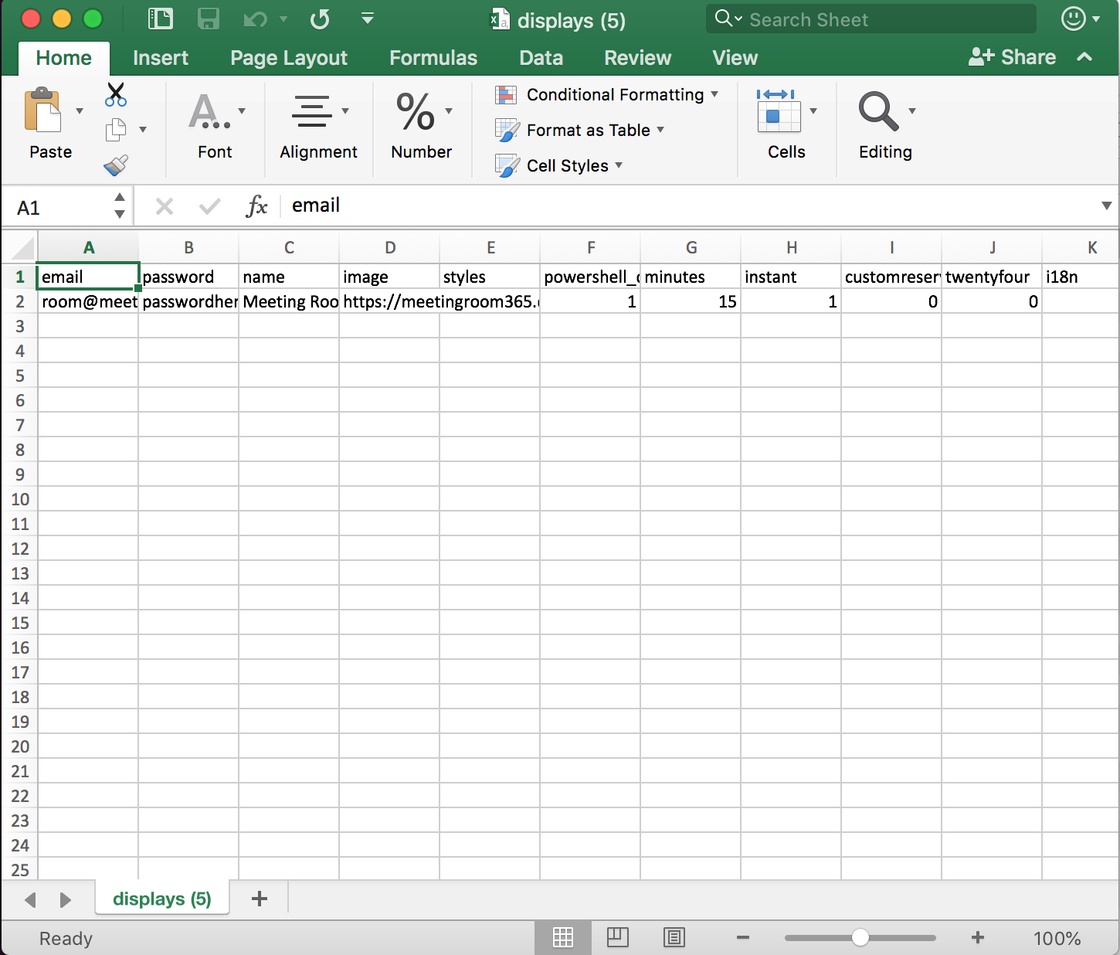
Use the new .CSV format to upload or update your Meeting Room 365 displays in bulk
The Problem
Many tools make it easy to perform a task once or twice. And, I believe Meeting Room 365 handles smaller tenants relatively well.
But, let’s say you have a dozen or more displays to add and maintain? What do you do then?
For many tools, the answer is a bulk upload / bulk update tool. Ours is modeled after a few tools we’ve worked on in the past, which handle this via CSV.
Why use the .CSV Template?
With the .CSV template, you can maintain and update your displays outside of the Meeting Room 365 app, and email us your changes, which we will update at your convenience.
You can use this to queue display creation, run PowerShell updates, change / sync i18n localization, update styles, and more. Anything you can do in the Meeting Room 365 app can be automated via CSV import.
Our CSV template is designed to be both backwards-compatible with our Legacy display application, and forwards-compatible with new versions of our software, such as the current public beta. It is also designed to be forward-looking, so that as we add new display types, and tenants, the format will not change (although new columns may be added in the future).
How to use the CSV Template
We have a full guide to using the CSV template, which you can read here: https://medium.com/meeting-room-365/bulk-meeting-room-display-upload-update-via-csv-c715e3a33abc
-
Meeting Room Analytics (Beta)
We've added a new feature (Analytics)
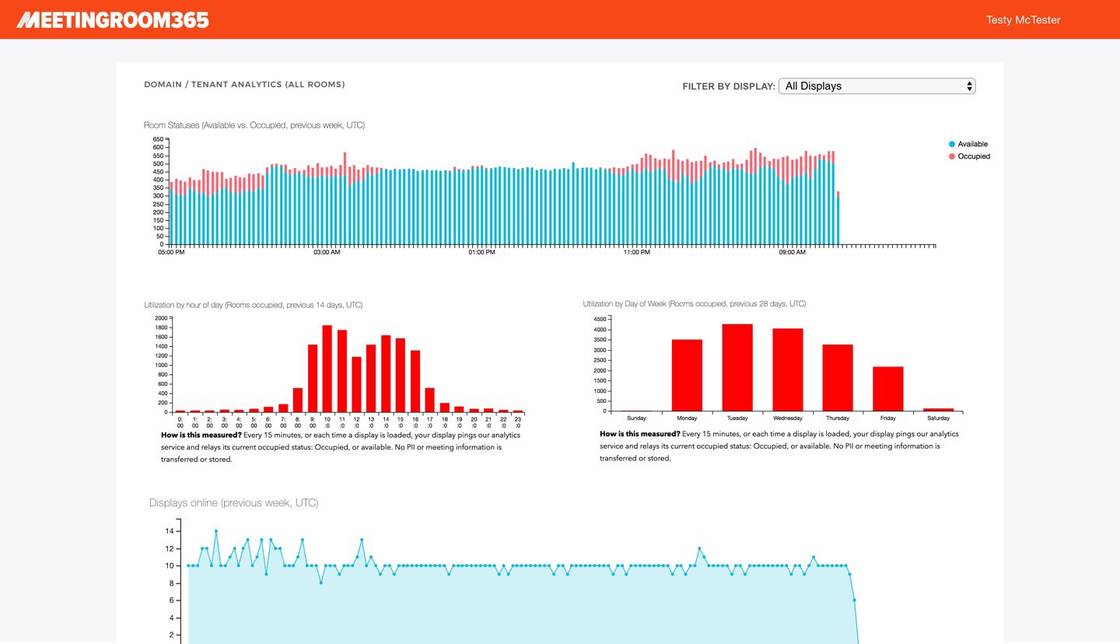
Now, you can see uptime and utilization statistics for your rooms, from the Meeting Room 365 dashboard. Just select Analytics in the upper-right menu.
Uptime
In the first chart, you can see the last seven days of uptime, to better understand outages and errors, and how often they occur.
Room Availability
The next chart tracks seven days of room availability, to help understand patterns in room utilization.
Room utilization by day of week and hour of day
The final two charts break-down utilization by hour of day and day of week, so you can better understand when your peak utilization times are, and how you can adjust bookings in your organization to more effectively utilize your space.

Tracking utilization to determine if you need to create more meeting room space
If you realize that over the past quarter, your staff and managers are holding more meetings that you have space, it is time to look for more meeting space. Fortunately, if you integrate with Meeting Room 365, this utilization is easier to track than one might think.
Use analytics to understand when meetings are held most, and exactly what type of space that you need.
For example, take a close look at the time of day and days of week you reach 100% utilization. You can use this information to communicate to your office when “rush hour” occurs– and encourage managers to move recurring meetings outside of this period.
Another great use of analytics is to see which conference rooms are free– when employees feel like there aren’t enough rooms to go around. Often, it boils down to a communications issue, and an employee-all message can communicate which spaces might secretly be available, even during busy periods.
Interested in reading more on this subject? Check out our latest article, https://medium.com/meeting-room-365/how-to-organize-your-office-to-prevent-meeting-room-theft-69f3c9571d5c
Privacy
We put a great deal of effort into privacy when designing this feature, and do not store meeting data, at all.
We track all utilization using anonymous identifiers, to avoid the leakage of any data through third-party services.
Specifically, to support this feature, we store the following data in an analytics service:
- An anonymous tenant identifier
- An anonymous display identifier
- Whether the display is online / offline
- Whether the display is occupied / available
- A Timestamp
-
Display Configurations Automatically Deployed
A small but useful update: When you save a display configuration in the admin panel, it should automatically update the selected display after a couple of minutes (our tablet app checks for an updated display configuration every 5 minutes).
That means you no longer need to restart the Meeting Room 365 app for most admin tasks. Hopefully this saves you a few trips around your building, tapping on displays!
-
Billing Panel
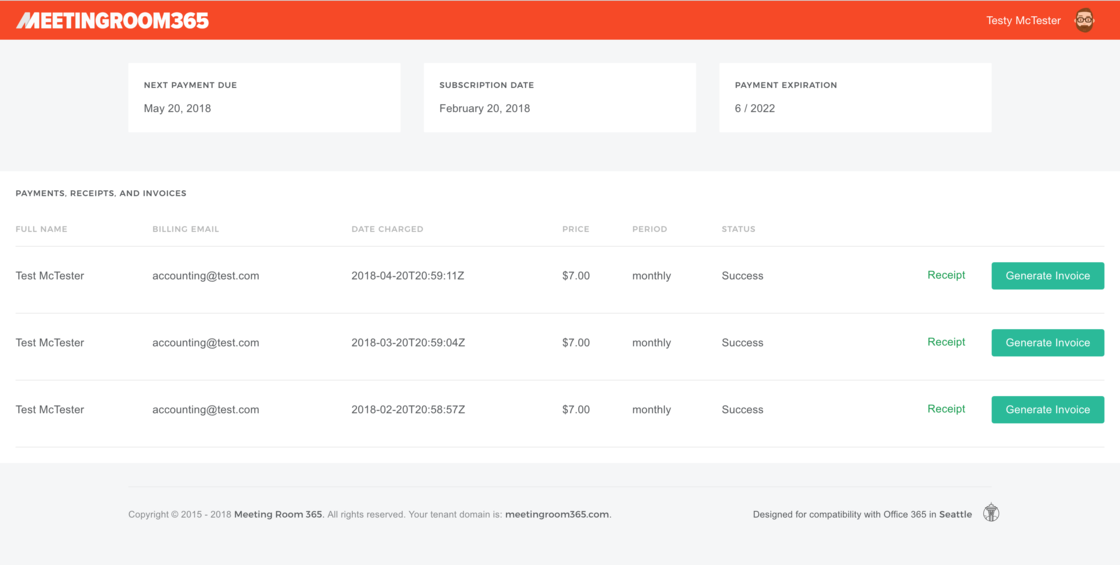
We've added a basic billing panel and subscribe link to the upper-right menu, so you can manage subscriptions, generate invoices, and view your subscription payments.
-
You an delete displays now
Small change, but now you can delete displays in the Beta app.
Note: This is permanent & cannot be undone.
-
Exchange Support is Here!
Exchange support isn't often-requested feature, but it's proven to be very useful for a small number of customers. So, we made some improvements to our Exchange 2007+ connector, so that the webapp is completely supported for Exchange environments running Exchange Web Services. This includes almost all setups running Exchange 2007+.
To get started, we need to know your Exchange version (year + service pack), and your Exchange Web Services URL. This is typically mail.yourdomain.com.
Simply send us a support email, and we'll associate this information with your account, and test your connection. Then, you set up your displays as you normally would in Meeting Room 365, and everything should work as expected.
We've written a short guide to explain the process. You can find that here: https://medium.com/meeting-room-365/how-to-add-a-meeting-room-display-to-on-premises-exchange-in-5-minutes-diy-8a7c79f2a5b4
Thanks for reading!
-
Public Beta for Native Meeting Room apps
We've launched a public beta for the 2.0 version of our app, which uses native apps for iOS, Android, and FireOS, takes advantage of new Microsoft APIs, and will provide new functionality in the future.

You can read more here: https://medium.com/@jamesfuthey/introducing-the-meeting-room-365-public-beta-2-0-app-77d844d46a35
Note: You will need to sign up for a new beta account.
-
Guide for Custom Display Styling
We've written a guide to help you get started with customizing your display's look & feel, using CSS, with examples and an interactive CodePen.
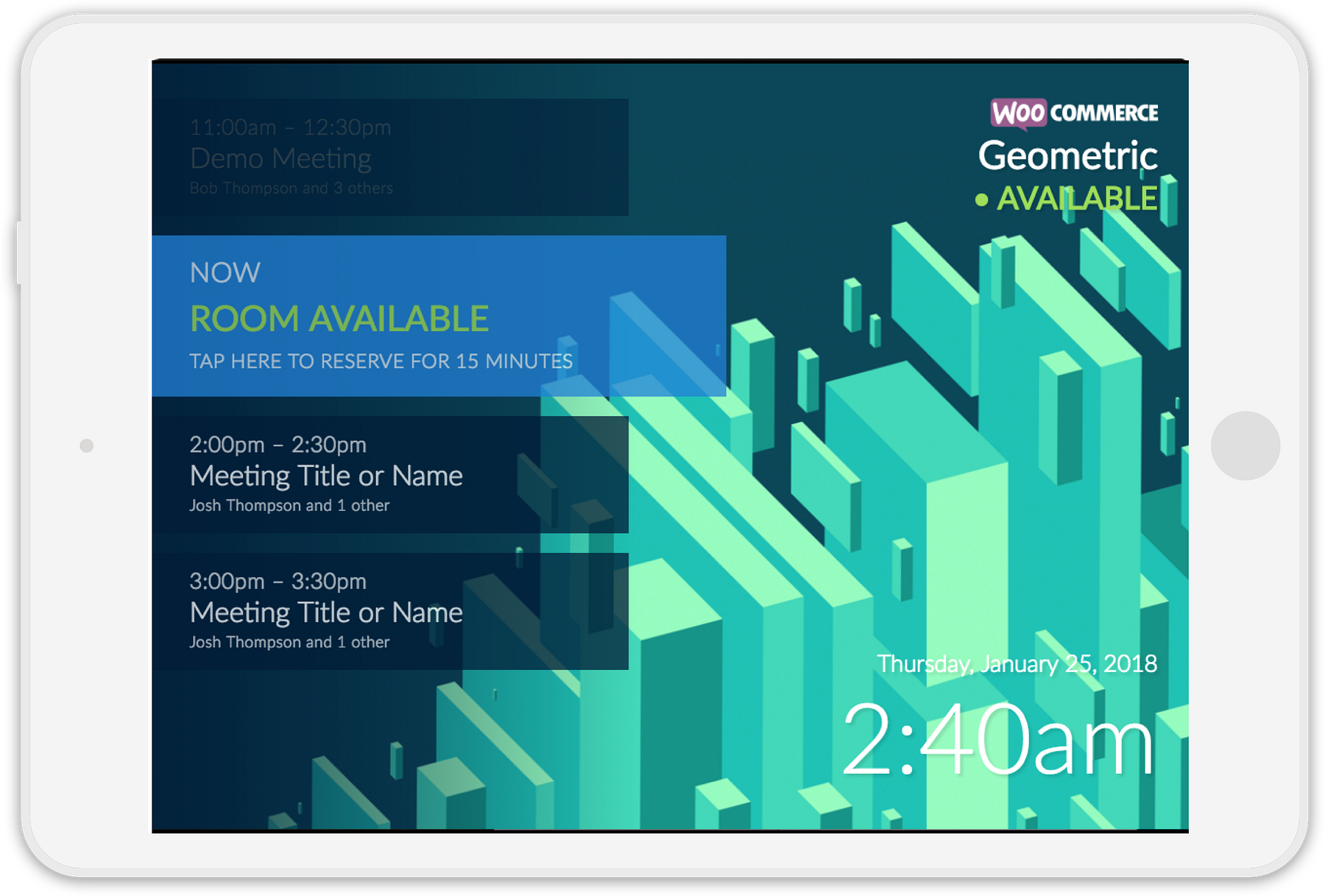
Check it out here: https://medium.com/p/customizing-your-displays-look-feel-meeting-room-365-16939dce8aec
-
New Options for Instant Booking
One of our most requested features is here, the ability to configure how Instant Booking works on a per-display basis.
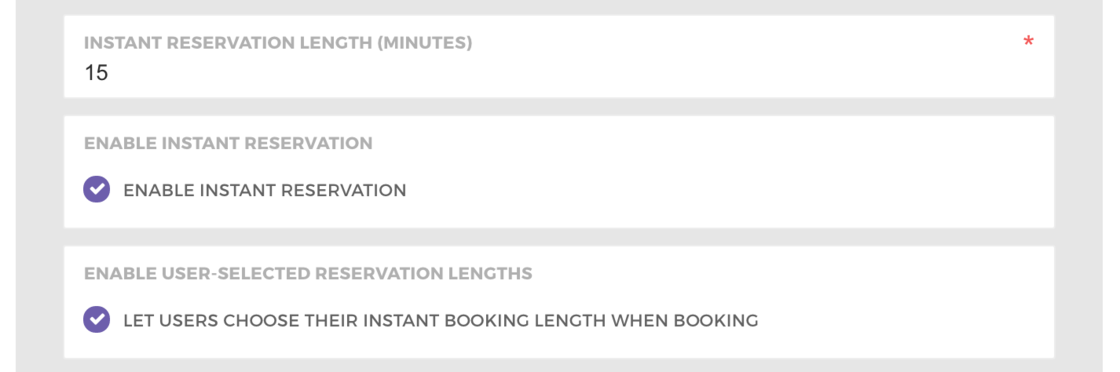
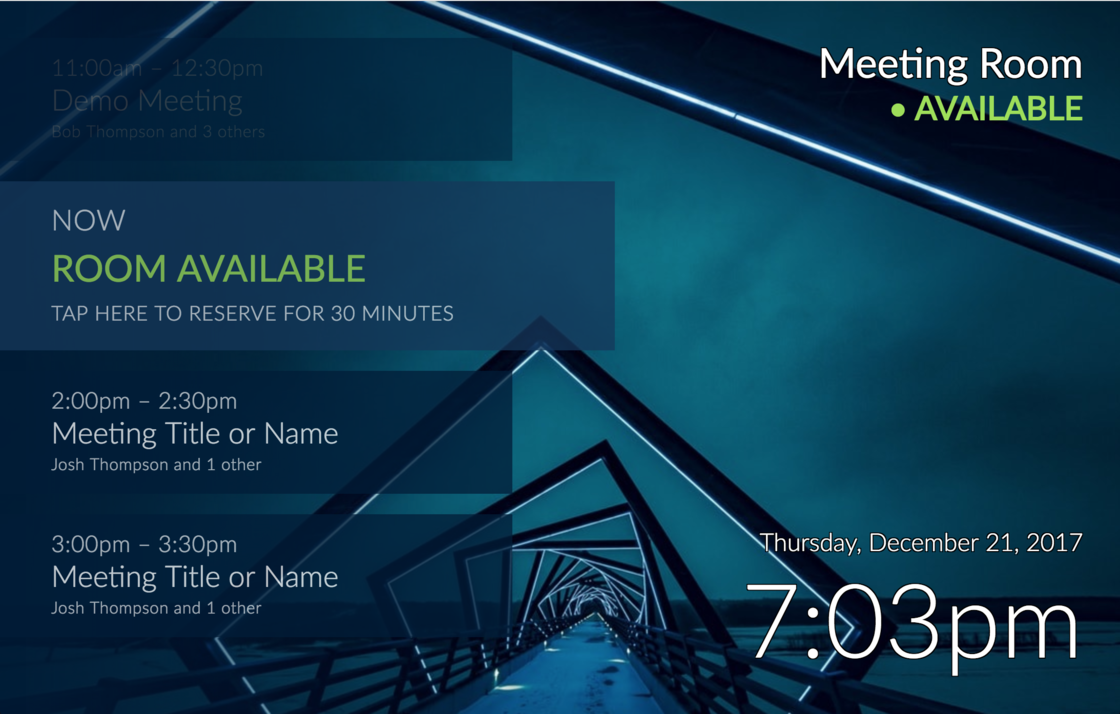
For those of you who haven't explored these options yet, Instant Booking is a feature which allows a visitor to book an open room directly from the display, as they're walking up to the room.
Now, you can change the default reservation length (it was originally 15 minutes).
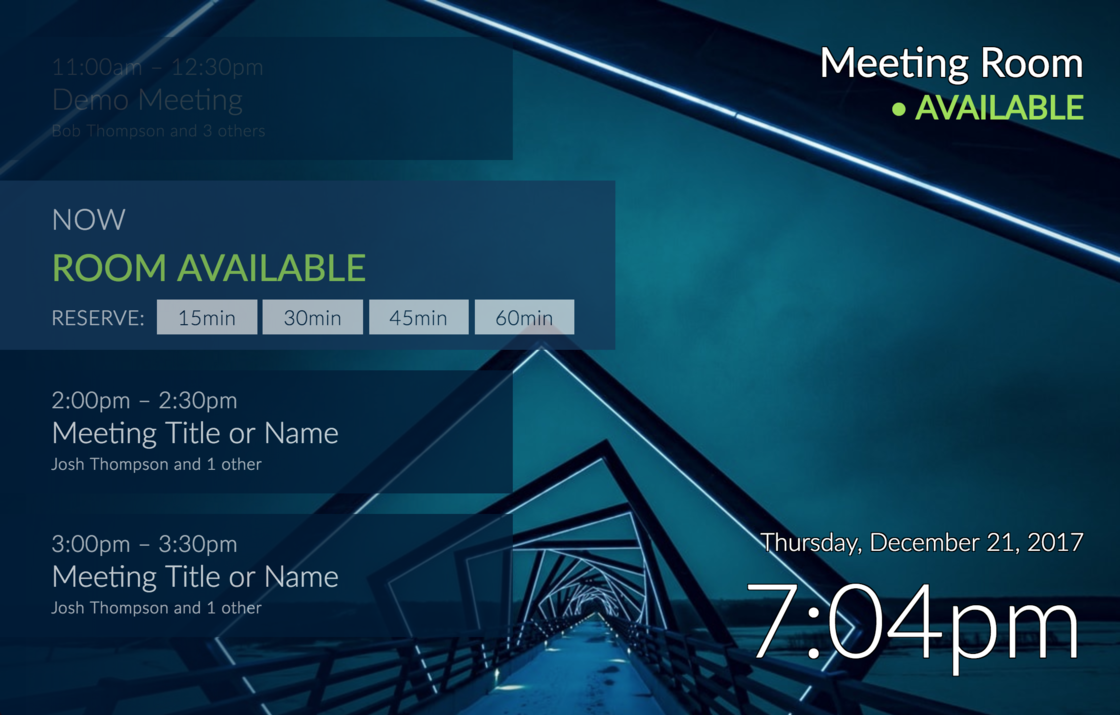
Additionally, you can allow your visitors to choose the length they wish to reserve the room.
You can also disable this feature entirely.
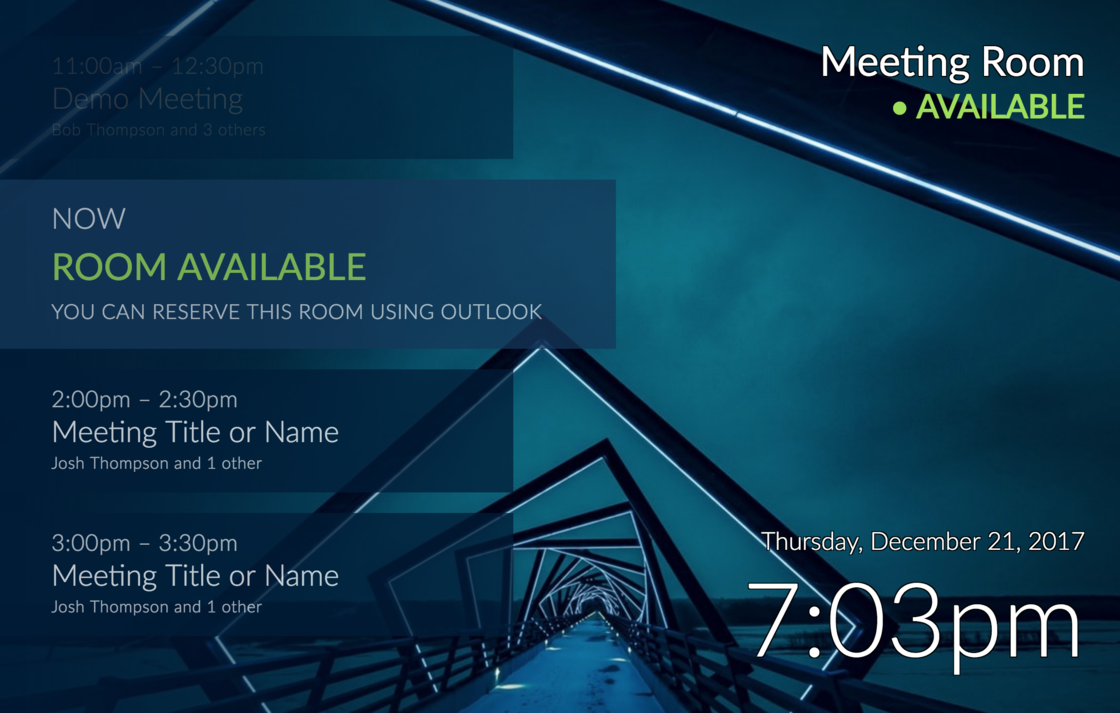
Let us know if you have any feedback. Thanks for reading!
-
QR Codes to quickly launch displays
We've added QR codes to the provisioning app, to quickly launch your custom display app(s) on supported devices.
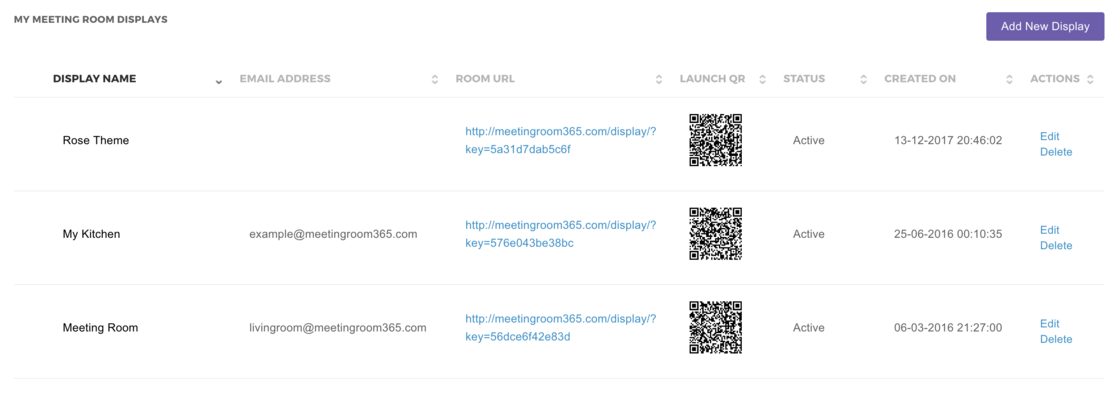
Currently, this feature is being added to iOS, and is available on Samsung devices with Bixby. Both sets of devices allow you to scan a QR code from the camera app, and launch the URL attached, which is a much better alternative to pecking out names using the on-screen keyboard!
Unfortunately, many other devices require a separate app download to utilize QR codes.
We've also added QR code support to the Fire Tablet app we will be launching early next year, which makes it easier to use low-cost Fire Tablets as meeting room displays.
Additionally, we've switched to using a human-readable Unique ID to identify each display. Now, you can access your displays using keys like horsebatterystaple, vs. 576e043be38bc. This provides a similar level of entropy as the previous system, so your displays are still private, and virtually impossible for hackers to guess. Relevant XKCD.
Shoot us an email if you have any feedback. Thanks for reading!
-
Localization Options in Beta
Quick update, we're testing out a few Localization features. You will see this in your dashboard, but it requires a change on our end to enable, since we're still testing the service.
This lets you create a custom i18n file that overrides any strings you want to customize. We also added a couple of date formatting options (although I'm sure we haven't covered every locale sufficiently).
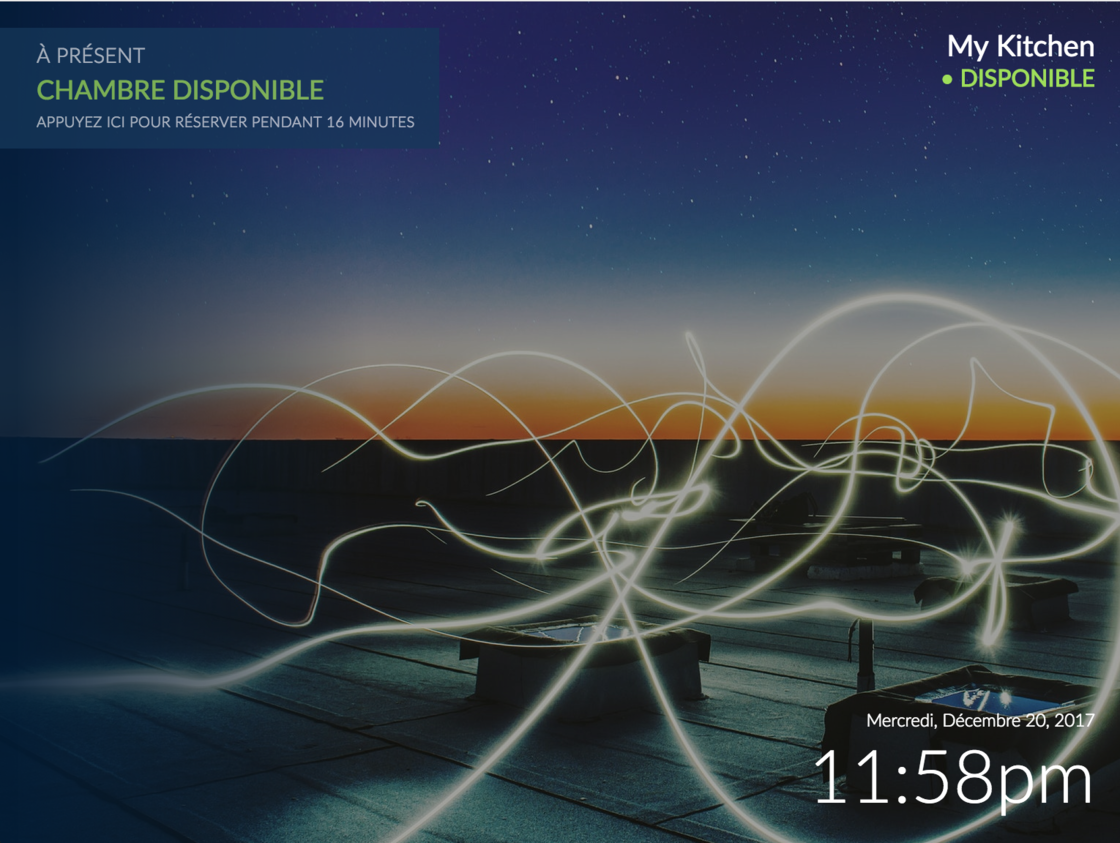 We used French for testing, but it all comes from Google Translate.
You can see an example of the i18n file at the end of this post.
The override is applied on a per-display basis, so you can also use it for small changes, even if you're not interested in localization.
Send us a message if you would like to test any of these features now, or stay tuned for the full rollout.
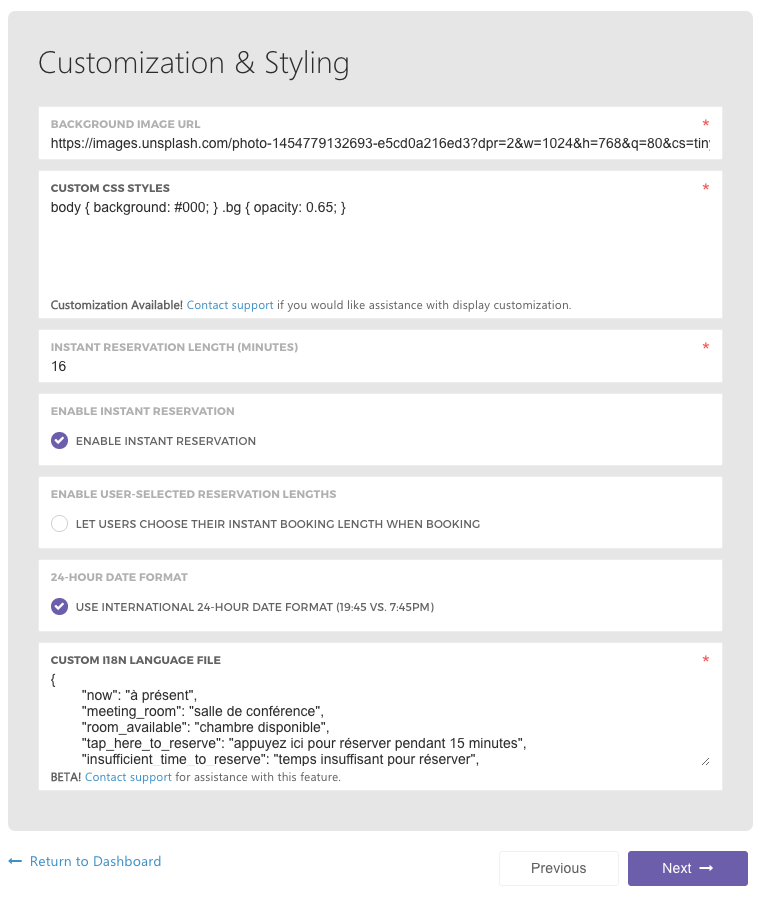
Example (Spanish, Latin America):
{
      "now": "Ahora",
      "meeting_room": "sala de reuniones",
      "room_available": "sala disponible",
      "tap_here_to_reserve": "haga click aquí para reservar esta sala por 15 minutos",
      "insufficient_time_to_reserve": "no hay disponibilidad suficiente para reservar esta sala",
      "you_can_reserve_this_room_using_outlook": "puede reservar esta sala utilizando Outlook",
    "available": "Disponible",
      "occupied": "Ocupada",
    "reserve": "reservar",
      "reserving_room": "Creando Reservación",
    "tap_to_cancel": "Click para cancelar",
      "reserved_for_15_minutes": "Reservada por 15 minutos",
      "and": "y",
      "other": "otro",
      "others": "otros",
      "min": "min",
      "private_appointment": "Reunión Privada",
      "daysOfWeek": ["Domingo", "Lunes", "Martes", "Miércoles", "Jueves", "Viernes", "Sábado"],
      "months": ["Enero", "Febrero", "Marzo", "Abril", "Mayo", "Junio", "Julio", "Agosto", "Setiembre", "Octubre", "Noviembre", "Diciembre"]
}
Contributed by Santiago Burgues
-
We're starting a changelog
Today, we're starting a public changelog so you're always up to date with new features, improvements and fixes that are made in Meeting Room 365.
Even though we work on Meeting Room 365 all the time, sometimes it may seem that not much is happening. This changelog is here to improve that very important communication between us and you.
Updates will appear when you log in, or you can view all of our recent changes on our public changelog page.
Thanks!
James Futhey
Meeting Room 365