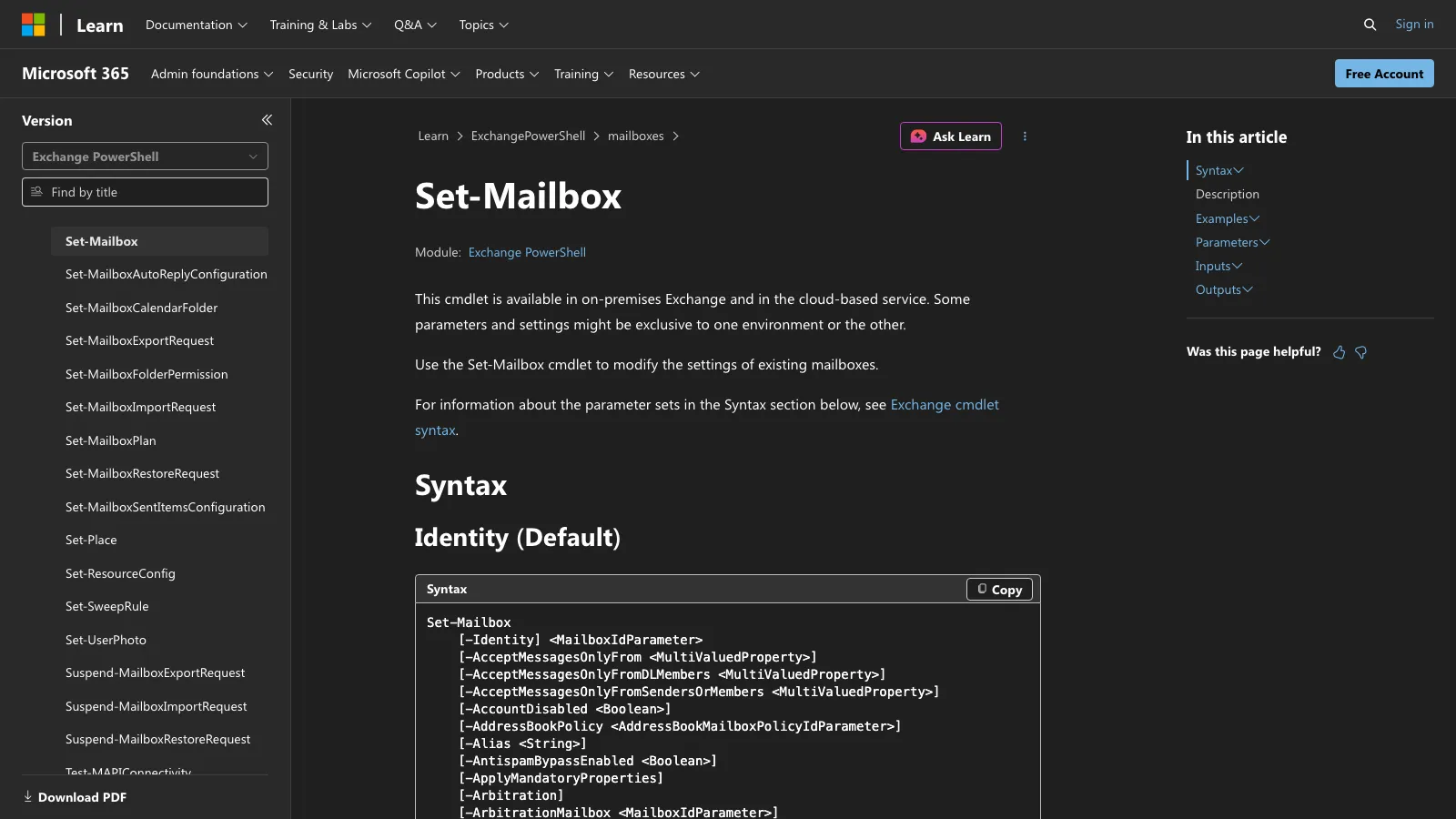
Set-Mailbox changes the settings of an existing mailbox in Exchange Online and on-premises Exchange. Admins use it when a mailbox needs a new address, a forwarding rule, a different type, a smaller quota, or a delegate who can send on its behalf.
The cmdlet works on one mailbox at a time. To change many mailboxes in one line, pipe the output of Get-Mailbox or Get-User into it.
The examples here come from or build on Microsoft Learn's Set-Mailbox reference, which lists every parameter.
Before You Start
Connect to Exchange Online PowerShell first. If the module isn't installed yet, follow how to install the Exchange Online PowerShell module, then run:
Connect-ExchangeOnline -UserPrincipalName admin@contoso.com
You need permissions assigned before you can run Set-Mailbox. Microsoft notes that you might not have access to every parameter if it isn't included in the roles assigned to you.
To see the current values before you change anything, use Get-Mailbox:
Get-Mailbox -Identity alex@contoso.com | Format-List Name,RecipientTypeDetails,PrimarySmtpAddress,EmailAddresses,ForwardingSmtpAddress,DeliverToMailboxAndForward
Basic Syntax
Set-Mailbox -Identity <MailboxIdParameter> [-Parameter <Value>]
-Identity accepts any value that uniquely identifies the mailbox, such as the name, alias, email address, GUID, or user principal name.
Common Set-Mailbox Parameters
| Parameter | What it controls | Default |
|---|---|---|
-Type |
Mailbox type: Regular, Shared, Room, Equipment, or Workspace |
|
-EmailAddresses |
All proxy addresses, including the primary SMTP address | |
-ForwardingAddress |
Forwarding to a recipient in your organization | $null |
-ForwardingSmtpAddress |
Forwarding to any SMTP address, usually external | $null |
-DeliverToMailboxAndForward |
Keep a copy in the mailbox when forwarding | $false |
-GrantSendOnBehalfTo |
Who can send on behalf of the mailbox | Blank |
-MessageCopyForSentAsEnabled |
Save a copy of "send as" messages in the mailbox | $false |
-MessageCopyForSendOnBehalfEnabled |
Save a copy of "send on behalf" messages in the mailbox | $false |
-HiddenFromAddressListsEnabled |
Hide the mailbox from address lists | $false |
-RecipientLimits |
Maximum recipients per message | 500 in Exchange Online |
-IssueWarningQuota, -ProhibitSendQuota, -ProhibitSendReceiveQuota |
Mailbox size limits | Set by license in Exchange Online |
-MaxSendSize, -MaxReceiveSize |
Maximum message size | Set by license in Exchange Online |
-AuditEnabled, -AuditOwner |
Mailbox audit logging | On by default in Exchange Online |
-LitigationHoldEnabled |
Place the mailbox on litigation hold | $false |
12 Set-Mailbox Examples
1. Convert a Mailbox to a Shared Mailbox
The -Type parameter changes the mailbox type. Valid values are Regular, Room, Equipment, Shared, and the cloud-only Workspace and Desk.
Set-Mailbox -Identity sales@contoso.com -Type Shared
To convert it back to a user mailbox, use Regular:
Set-Mailbox -Identity sales@contoso.com -Type Regular
The same parameter turns a mailbox into a room mailbox:
Set-Mailbox -Identity boardroom@contoso.com -Type Room
Microsoft notes that -Type Desk doesn't create a desk that people can book. Create the desk in Places PowerShell with New-Place, then link it to the mailbox with Set-PlaceV3. For room details like capacity and floor, see Set-Place.
2. Add a Secondary Email Address
This is Example 7 on Microsoft Learn. The @{add=...} hash table adds an address without touching the existing ones:
Set-Mailbox -Identity "John Woods" -EmailAddresses @{add="Jwoods@contoso.com"}
To remove an address, use Remove:
Set-Mailbox -Identity "John Woods" -EmailAddresses @{Remove="smtp:jwoods.old@contoso.com"}
If you pass a plain list instead of a hash table, it replaces every existing proxy address with the values you give.
3. Change the Primary SMTP Address
Exchange reads the address type prefix to pick the primary address. Uppercase SMTP: marks the primary address, and lowercase smtp: marks secondary addresses. You can use SMTP: only once in a command.
Set-Mailbox -Identity "John Woods" -EmailAddresses @{Add="SMTP:john.woods@contoso.com"}
The -PrimarySmtpAddress parameter is available only in on-premises Exchange. It updates the primary address and the WindowsEmailAddress property to the same value, and you can't use it in the same command as -EmailAddresses:
Set-Mailbox -Identity "John Woods" -EmailAddressPolicyEnabled $false -PrimarySmtpAddress john.woods@contoso.com
On-premises, email address policies usually set the primary address. Setting -EmailAddressPolicyEnabled $false lets you choose it yourself, but the mailbox's addresses then stop updating from those policies.
4. Forward Email and Keep a Copy
This is Example 1 on Microsoft Learn. It delivers John's mail to his mailbox and also forwards it to Manuel:
Set-Mailbox -Identity "John Woods" -DeliverToMailboxAndForward $true -ForwardingSMTPAddress manuel@contoso.com
With -DeliverToMailboxAndForward $false, messages go only to the forwarding address and aren't delivered to the mailbox.
Use -ForwardingAddress for a recipient inside your organization and -ForwardingSmtpAddress for an external address. If both are set, Exchange ignores -ForwardingSmtpAddress and forwards to the -ForwardingAddress recipient.
To turn forwarding off:
Set-Mailbox -Identity "John Woods" -ForwardingSmtpAddress $null -DeliverToMailboxAndForward $false
5. Grant Send on Behalf Permission
Set-Mailbox -Identity sales@contoso.com -GrantSendOnBehalfTo @{Add="alex@contoso.com"}
Messages sent this way show "Alex on behalf of Sales" in the From field, and replies go to the mailbox, not to Alex. The delegate must be a mailbox, mail user, or mail-enabled security group.
To remove one delegate, or clear the list:
Set-Mailbox -Identity sales@contoso.com -GrantSendOnBehalfTo @{Remove="alex@contoso.com"}
Set-Mailbox -Identity sales@contoso.com -GrantSendOnBehalfTo $null
"Send as" is a different permission. In Exchange Online you grant it with Add-RecipientPermission. Full access to the mailbox is granted with Add-MailboxPermission.
6. Save Sent Items in a Shared Mailbox
These two parameters control whether Exchange keeps a copy of messages that delegates send from the mailbox with "send as" or "send on behalf" permission. Both default to $false.
Set-Mailbox -Identity sales@contoso.com -MessageCopyForSentAsEnabled $true -MessageCopyForSendOnBehalfEnabled $true
In Exchange Online and Exchange 2016 CU6 or later, both parameters also work on user mailboxes. They aren't available for linked user mailboxes.
7. Hide a Mailbox from the Global Address List
Set-Mailbox -Identity former.employee@contoso.com -HiddenFromAddressListsEnabled $true
Set it back to $false to show the mailbox in address lists again.
8. Set Mailbox Quotas
This is Example 2 on Microsoft Learn. It sets custom limits for every mailbox in the Marketing organizational unit and ignores the database defaults:
Get-Mailbox -OrganizationalUnit "Marketing" | Set-Mailbox -UseDatabaseQuotaDefaults $false -IssueWarningQuota 200MB -ProhibitSendQuota 250MB -ProhibitSendReceiveQuota 280MB
The three limits work together:
- IssueWarningQuota sends the user a warning.
- ProhibitSendQuota stops the mailbox from sending.
- ProhibitSendReceiveQuota stops sending and receiving, and sets the effective maximum mailbox size.
Each quota accepts up to 1.999999999 TB or unlimited. The warning and send limits must be less than or equal to ProhibitSendReceiveQuota.
In Exchange Online, the license assigned to the user sets the maximum. You can lower a quota, and you might be able to raise it, but never past what the license allows. -UseDatabaseQuotaDefaults defaults to $false in Exchange Online. On-premises it defaults to $true, so you must set it to $false there for custom quotas to apply.
9. Change the Maximum Message Size
This is Example 3 on Microsoft Learn. It sets a 2 MB send limit for every user in the Customer Service department:
Get-User -Filter "Department -eq 'Customer Service'" | Set-Mailbox -MaxSendSize 2MB
-MaxReceiveSize works the same way for incoming messages. Both accept values up to 1.999999 GB. To set defaults for new mailboxes in Exchange Online, change the mailbox plan with Set-MailboxPlan instead.
10. Limit Recipients per Message
Set-Mailbox -Identity alex@contoso.com -RecipientLimits 100
In Exchange Online, the value is an integer from 1 to 1,000 and the default is 500. On-premises, the default is unlimited, which leaves the limit to organization, server, or connector settings. The limit doesn't apply to meeting messages.
11. Configure Mailbox Audit Logging
Mailbox auditing has been on by default for all Exchange Online organizations since January 2019. Use -AuditOwner to add or remove the owner actions that get logged:
Set-Mailbox -Identity alex@contoso.com -AuditEnabled $true -AuditOwner @{Add="MailboxLogin","HardDelete"}
A plain list replaces the existing actions, and the @{Add=...} form keeps them. -AuditAdmin and -AuditDelegate set the logged actions for admins and delegates. To search the results, see Search-MailboxAuditLog.
12. Place a Mailbox on Litigation Hold
Set-Mailbox -Identity alex@contoso.com -LitigationHoldEnabled $true -LitigationHoldDuration 2555
While the mailbox is on litigation hold, deleted items and all versions of changed items are kept in the Recoverable Items folder. -LitigationHoldDuration is the number of days to hold each item, counted from when it was received or created. The default is unlimited. Public folder mailboxes can't be placed on litigation hold.
Change Many Mailboxes at Once
Pipe Get-Mailbox into Set-Mailbox to apply one change to a filtered set. This hides every shared mailbox from the address list:
Get-Mailbox -RecipientTypeDetails SharedMailbox -ResultSize Unlimited | Set-Mailbox -HiddenFromAddressListsEnabled $true
Run the Get-Mailbox part on its own first to check which mailboxes it returns. Adding -WhatIf to Set-Mailbox shows what would change without changing it.
Set-Mailbox vs Related Cmdlets
| Task | Cmdlet |
|---|---|
| Create a mailbox | New-Mailbox |
| Turn POP, IMAP, OWA, or ActiveSync on or off | Set-CASMailbox |
| Set defaults for new Exchange Online mailboxes | Set-MailboxPlan |
| Set how a room mailbox handles meeting requests | Set-CalendarProcessing |
| Add custom properties to rooms and equipment | Set-ResourceConfig |
| Remove full access from a mailbox | Remove-MailboxPermission |
Common Problems
Using -PrimarySmtpAddress in Exchange Online
-PrimarySmtpAddress exists only in on-premises Exchange. In Exchange Online, set the primary address through -EmailAddresses with the uppercase SMTP: prefix.
Replacing Addresses When You Meant to Add One
-EmailAddresses "alex@contoso.com" replaces every proxy address on the mailbox. Use @{Add="alex@contoso.com"} to keep the existing ones.
Forwarding That Seems to Ignore the SMTP Address
If both -ForwardingAddress and -ForwardingSmtpAddress are set, the SMTP address is ignored. Clear -ForwardingAddress with $null if you want the external address to win.
Quotas That Don't Change On-Premises
When -UseDatabaseQuotaDefaults is $true, which is the on-premises default, the mailbox uses the database limits and your custom values are ignored. Set it to $false in the same command.