Quick answer: open the Exchange Management Shell on your on-premises Exchange server and run:
Set-RemoteMailbox -Identity boardroom -Type Room
This turns the cloud mailbox linked to the on-premises mail user boardroom into a room mailbox. The change reaches Exchange Online at the next directory synchronization.
What does Set-RemoteMailbox do?
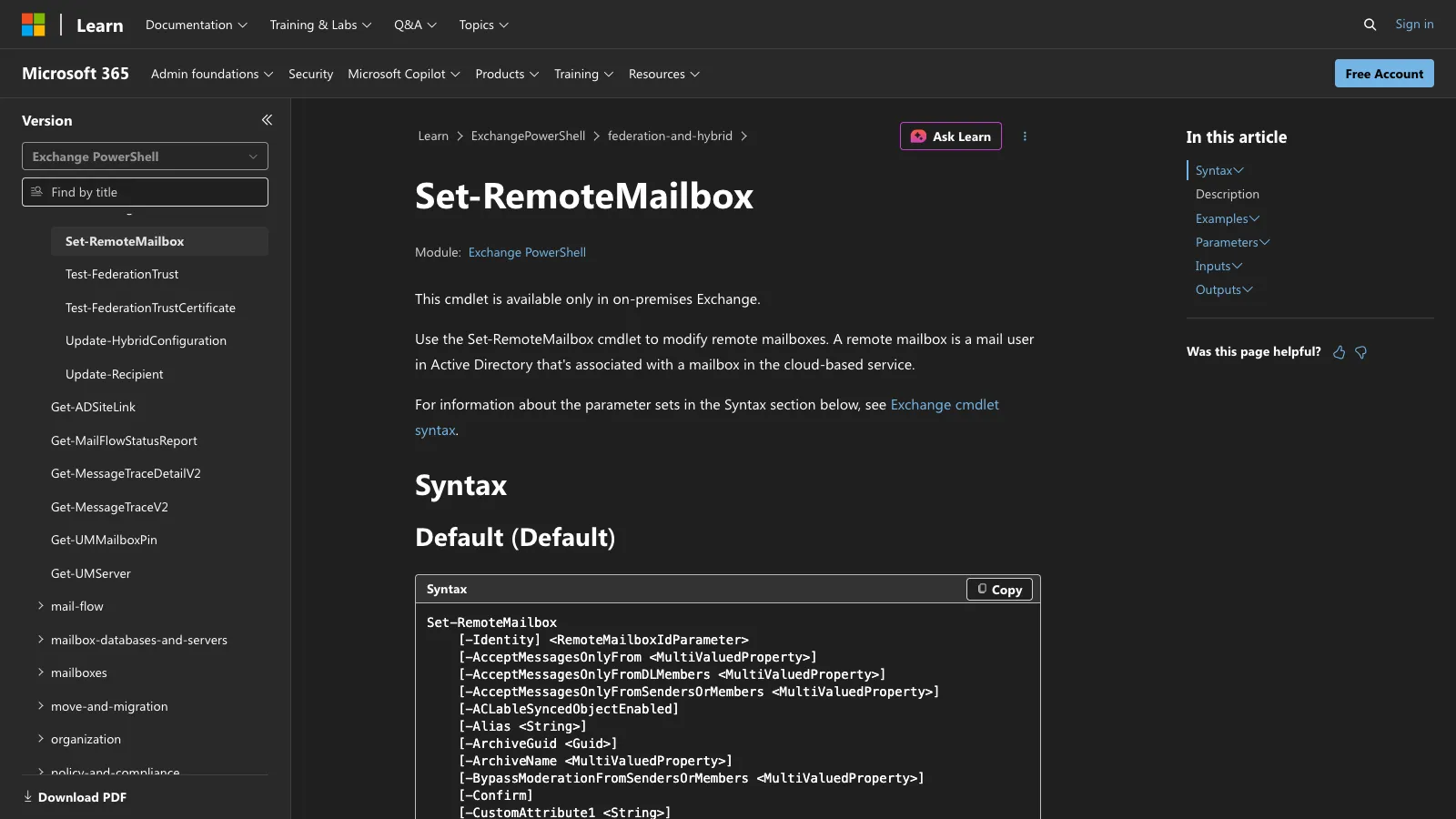
It modifies a remote mailbox. In a hybrid setup, a remote mailbox is a mail user in on-premises Active Directory that's linked to a mailbox in Exchange Online. You change the settings on the mail user, and directory synchronization copies them to the cloud mailbox.
The cmdlet is available only in on-premises Exchange. You won't find it in Exchange Online PowerShell.
| Cmdlet | Use it when |
|---|---|
| New-RemoteMailbox | You want to create a new user and their cloud mailbox |
| Enable-RemoteMailbox | You want to give an existing on-premises user a cloud mailbox |
| Get-RemoteMailbox | You want to read the settings of a remote mailbox |
| Set-RemoteMailbox | You want to change them |
| Set-Mailbox | You want to change a setting that only Exchange Online holds |
-Identity accepts the alias, UPN, email address, distinguished name, domain\username, GUID and other unique values.
Why don't my changes show up in Exchange Online?
Changes aren't immediate. They depend on the directory synchronization schedule, and directory synchronization has to be set up correctly for them to reach the cloud at all.
Microsoft also notes that some settings of the cloud mailbox can only be set by connecting to Exchange Online and running Set-Mailbox there. Use Set-RemoteMailbox for what lives on the on-premises mail user, and Set-Mailbox for the rest.
Examples
| Task | Command |
|---|---|
| Make the cloud mailbox a room | Set-RemoteMailbox -Identity boardroom -Type Room |
| Make it an equipment mailbox | Set-RemoteMailbox -Identity projector1 -Type Equipment |
| Hide it from the address lists | Set-RemoteMailbox -Identity ayla -HiddenFromAddressListsEnabled $true |
| Add an email address and keep the others | Set-RemoteMailbox -Identity ayla -EmailAddresses @{Add="smtp:ayla.lee@contoso.com"} |
| Change the display name | Set-RemoteMailbox -Identity ayla -DisplayName "Ayla Lee" |
| Set a custom attribute | Set-RemoteMailbox -Identity ayla -CustomAttribute1 "Facilities" |
| Accept mail only from some senders | Set-RemoteMailbox -Identity ayla -AcceptMessagesOnlyFrom kai,"Facilities Team",ren@contoso.com |
| Set a MailTip | Set-RemoteMailbox -Identity boardroom -MailTip "This room is for client meetings." |
| Preview a change | Add -WhatIf |
A plain list on -AcceptMessagesOnlyFrom replaces the existing list. To add or remove senders without touching the others, use @{Add="kai"; Remove="ren@contoso.com"}. The same syntax works on -EmailAddresses and the other list parameters.
A MailTip can't be longer than 175 displayed characters.
How do I change the type to Room, Equipment or Shared?
-Type takes Regular, Room, Equipment or Shared. It sets the type of the mailbox in Exchange Online.
Shared needs Exchange 2013 CU21 or later, Exchange 2016 CU10 or later, or Exchange 2019. On Exchange 2013 and 2016 you also need to run setup.exe /PrepareAD.
If the mailbox was migrated from on-premises, change the type on both sides:
# Exchange Online PowerShell
Set-Mailbox -Identity ayla@contoso.com -Type Shared

# Exchange Management Shell, on-premises
Set-RemoteMailbox -Identity ayla -Type Shared
If directory synchronization turns a shared mailbox back into a user mailbox, check the type on both sides first. For a meeting room, use -Type Room the same way. If you haven't connected to Exchange Online before, see how to install the Exchange Online PowerShell module.
How do I change the primary email address?
By default an email address policy sets the addresses, so your own primary address gets overwritten. Turn the policy off for the user and set the address in one command:
Set-RemoteMailbox -Identity ayla -EmailAddressPolicyEnabled $false -PrimarySmtpAddress ayla.lee@contoso.com
-PrimarySmtpAddress also updates WindowsEmailAddress to the same value. You can't use it in the same command as -EmailAddresses.
To replace the whole list with -EmailAddresses, mark the primary with uppercase SMTP: and the others with lowercase smtp:. Only one address can be the primary.
If you change the alias of a user that's still under an email address policy, the primary address changes with it.
What about RemoteRoutingAddress and ExchangeGuid?
-RemoteRoutingAddress is the SMTP address of the linked mailbox in Exchange Online. If Exchange set it when it created the remote mailbox, you shouldn't need to change it.
-ExchangeGuid should match the ExchangeGuid of the mailbox in Exchange Online. It's stored in the msExchMailboxGuid attribute and isn't the same as the GUID property. To copy the value from the cloud:
# Exchange Online PowerShell
Get-Mailbox -Identity ayla@contoso.com | Format-List ExchangeGuid

# Exchange Management Shell, on-premises
Set-RemoteMailbox -Identity ayla -ExchangeGuid "<the ExchangeGuid from Exchange Online>"
-ArchiveGuid is reserved for internal Microsoft use. Leave it alone.
Can I skip Set-RemoteMailbox and change the mailbox in the cloud?
Yes, once you move the source of authority for the mailbox's Exchange attributes to the cloud. Microsoft calls this cloud-based management of Exchange attributes. Run this in Exchange Online PowerShell, signed in as an admin:
Set-Mailbox -Identity ayla@contoso.com -IsExchangeCloudManaged $true
After that, the mailbox's Exchange attributes stop updating from on-premises. You change settings such as HiddenFromAddressListsEnabled and the custom attributes with Set-Mailbox in Exchange Online. Identity settings such as the first and last name still come from Active Directory.
For a mailbox you just moved to the cloud, wait for the move to finish and sync, then wait another 24 hours before you set this. Setting it back to $false returns the mailbox to on-premises management.
Why doesn't Set-RemoteMailbox work?
| Error or symptom | Fix |
|---|---|
| The term Set-RemoteMailbox is not recognized | You're in Exchange Online PowerShell. Run it in the Exchange Management Shell on-premises. |
| The change doesn't show in Exchange Online | Wait for directory synchronization, or check that it's working. |
| The change never reaches a mailbox that used to sync | The mailbox may be cloud managed. Check IsExchangeCloudManaged with Get-Mailbox in Exchange Online. |
-Type Shared fails on Exchange 2013 or 2016 |
Update Exchange to a CU that supports it, and run setup.exe /PrepareAD on 2013 or 2016. |
| remoteMailbox.RemoteRecipientType must include ProvisionMailbox | Follow Step 3 of the Resolution section in Microsoft's KB2710029, which Microsoft points to for this error. |
| A shared mailbox turns back into a user mailbox | Set the type on both sides, then follow the same KB2710029 step if it still happens. |
| Your primary address keeps changing | Set -EmailAddressPolicyEnabled $false. |
| A command with both EmailAddresses and PrimarySmtpAddress fails | They can't go in the same command. Run two. |
How do I check the result?
Get-RemoteMailbox -Identity ayla | Format-List DisplayName,RecipientTypeDetails,RemoteRecipientType,PrimarySmtpAddress,RemoteRoutingAddress,HiddenFromAddressListsEnabled
See Get-RemoteMailbox for more on reading remote mailboxes. After the next sync, check the same settings in Exchange Online with Get-Mailbox.
Sources: Set-RemoteMailbox and Cloud-based management of Exchange attributes for Remote Mailboxes in hybrid environments on Microsoft Learn.
Meeting Room 365 turns any iPad or Android tablet into a room display for Exchange and Microsoft 365 calendars. See the features or pricing: $9 a display a month.