Google Chromebit
Add Meeting Room 365 to your Google Chromebit and connect it to your meeting room display.
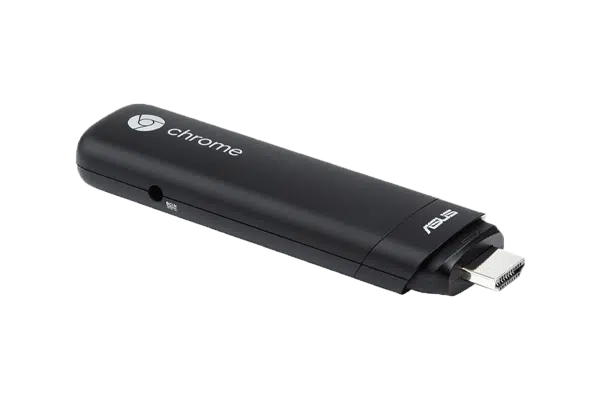
The Google Chromebit is a compact Chrome OS stick that plugs directly into any HDMI-equipped TV or monitor, turning it into a meeting room display. Running Chrome OS, it supports the Meeting Room 365 Chrome Web Store extensions and can be managed remotely through the Google Admin console. Its small form factor makes it easy to hide behind a display for a clean installation, and Chrome OS kiosk mode provides reliable, unattended operation.
At a glance
- Platform
- Chrome OS
- Category
- Media players
- App
- Runs in the browser
- Best for
- Status board
Where the Chromebit does well, and what to weigh.
Where it shines
- Centrally managed kiosk
Things to watch
- Discontinued; legacy fleets only
One device, part of the connected workplace.
The same Chromebit and the same account can run more than one screen, and every screen reads from one calendar.
Status Board
Stand it in a lobby or hallway as an at-a-glance board for every room on the floor.
Live in four steps.
Create Your Account
Sign up for a free trial at admin.meetingroom365.com. Connect your Office 365, Exchange, or Google Workspace calendar.
Add Your Room
Add your meeting room calendar in the Meeting Room 365 admin portal. Configure display settings and themes.
Install the Extension
Plug your Chromebit into your TV or monitor's HDMI port. Install the Meeting Room 365 Signage extension from the Chrome Web Store.
Configure Kiosk Mode
Set up Chrome OS kiosk mode to auto-launch Meeting Room 365 on boot. Use the Google Admin console for centralized management.
Requirements & best practices.
Requirements
- Google Chromebit (or compatible Chrome OS stick)
- TV or monitor with HDMI input
- Wi-Fi connection
- Meeting Room 365 account
- Office 365, Microsoft Exchange, or Google Workspace calendar
Tips & best practices
- Use Chrome Enterprise enrollment for centralized kiosk management
- The Chromebit can be powered from the TV's USB port in some cases
- Pair with a touchscreen monitor for interactive room booking
- Consider a Chromebox for higher performance requirements
Need detailed instructions?
Deeper guides live in the Support Center.
Other devices that fit the same job.
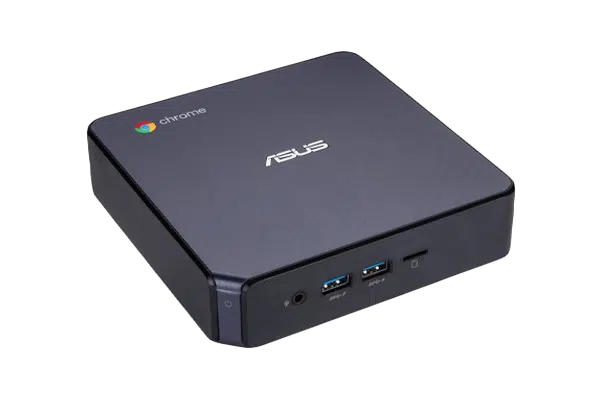 Chrome OS
Chromebox
The reliable signage workhorse, managed in Google Admin.
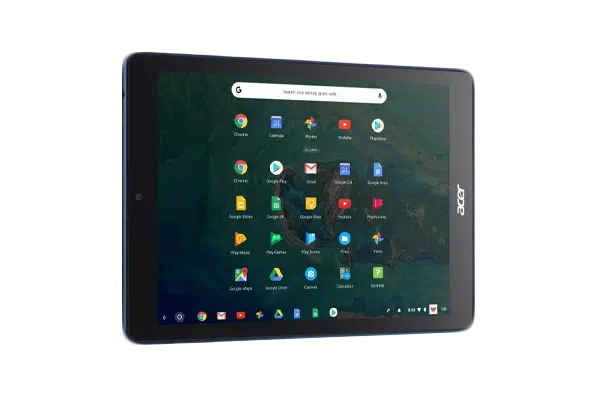 Chrome OS
Chrome OS Devices
Managed through the Google Admin console your team already runs.
 Cast
CastChromecast
Cast the board straight to a TV from the admin dashboard.
Start with the device on your desk.
Spin up a free trial, install the app on whatever you’ve got, and see your first room go live today. Add purpose-built panels whenever you’re ready.