Quick answer
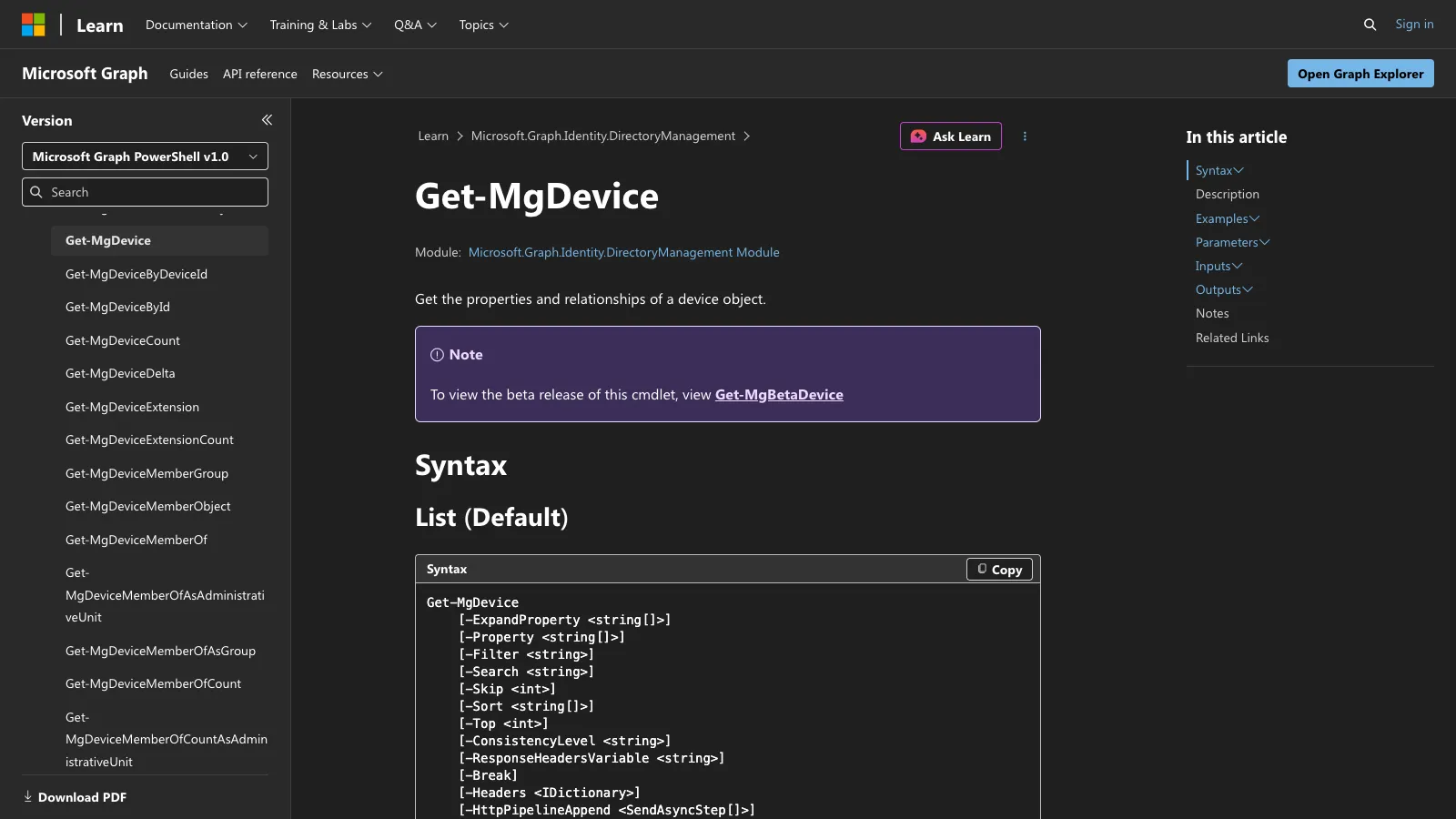
Get-MgDevice lists the device objects registered in your organization's Microsoft Entra ID. Connect with a device read permission, then run it:
Connect-MgGraph -Scopes 'Device.Read.All'
Get-MgDevice -All
For one device, pass its object ID:
Get-MgDevice -DeviceId "6fa60d52-01e7-4b18-8055-4759461fc16b"
It's in the Microsoft.Graph.Identity.DirectoryManagement module. See Connect-MgGraph if you can't connect.
What does Get-MgDevice do?
It reads device objects from Microsoft Graph. It doesn't change anything. It has three forms:
| Form | Parameter | Returns |
|---|---|---|
| List (default) | -Filter, -Search, -Top, -All and others |
Many devices |
| Get | -DeviceId |
One device |
| GetViaIdentity | -InputObject |
One device |
A device has two IDs, and they're easy to mix up:
| Property | What it is |
|---|---|
id |
The object's unique identifier in the directory |
deviceId |
An identifier set by the Azure Device Registration Service when the device registered |
-DeviceId takes the object id. To look a device up by its deviceId property, filter on it:
Get-MgDevice -Filter "deviceId eq '00000000-0000-0000-0000-000000000000'"
Which permission does it need?
| Permission type | Least privileged | Higher privileged |
|---|---|---|
| Delegated (work or school account) | Device.Read.All |
Directory.Read.All, Directory.ReadWrite.All |
| Delegated (personal Microsoft account) | Not supported | Not supported |
| Application | Device.Read.All |
Device.ReadWrite.All, Directory.Read.All, Directory.ReadWrite.All |
With delegated access, the signed-in user also needs a supported Microsoft Entra role, such as Directory Readers, Global Reader or Device Managers.
Examples
| Goal | Command |
|---|---|
| Every device | Get-MgDevice -All |
| One device by object ID | Get-MgDevice -DeviceId $id |
| One device by name | Get-MgDevice -Filter "displayName eq 'PC01'" |
| Names that start with a word | Get-MgDevice -Filter "startswith(displayName, 'Conf')" -All |
| Android devices | Get-MgDevice -Filter "operatingSystem eq 'Android'" -All |
| Disabled devices | Get-MgDevice -Filter "accountEnabled eq false" -All |
| Compliant devices | Get-MgDevice -Filter "isCompliant eq true" -All |
| Entra joined devices | Get-MgDevice -Filter "trustType eq 'AzureAd'" -All |
| Only some properties | Get-MgDevice -All -Property "id,displayName,operatingSystem" |
| Count every device | Get-MgDevice -All -ConsistencyLevel eventual -CountVariable n then $n |
Why don't I get every device?
-All lists all pages. Without it you get only the first page of results. Add -All to every list, count or export that should cover the whole tenant.
-Top does the opposite: it returns only the first n devices.
How do I filter devices?
-Filter takes an OData filter. These properties are the most useful:
| Property | Filter operators |
|---|---|
displayName |
eq, ne, not, ge, le, in, startsWith, eq on null |
operatingSystem |
eq, ne, not, ge, le, startsWith, eq on null |
operatingSystemVersion |
eq, ne, not, ge, le, startsWith, eq on null |
accountEnabled |
eq, ne, not, in |
isCompliant |
eq, ne, not |
isManaged |
eq, ne, not |
trustType |
eq, ne, not, in |
deviceId |
eq, ne, not, startsWith |
approximateLastSignInDateTime |
eq, ne, not, ge, le, eq on null |
trustType is one of Workplace (personal devices people bring), AzureAd (cloud-only joined) or ServerAd (on-premises domain joined devices joined to Microsoft Entra ID). Only Intune, or an approved MDM app on Windows, updates isCompliant and isManaged.
Some queries need advanced query parameters: -ConsistencyLevel eventual and -CountVariable. That includes -Search, the ne and not operators, and counts. Microsoft's own example:
Get-MgDevice -Filter "startswith(displayName, 'a')" -CountVariable CountVar -Top 1 -Sort "displayName" -ConsistencyLevel eventual
How do I search for a device?
-Search matches words in the display name. It needs the advanced query parameters, and the search string goes in double quotes inside single quotes:
Get-MgDevice -Search '"displayName:Android"' -CountVariable CountVar -ConsistencyLevel eventual
How do I find stale devices?
approximateLastSignInDateTime holds the approximate time the device last signed in, in UTC. Filter on it with le and an ISO 8601 date:
Get-MgDevice -All -Filter "approximateLastSignInDateTime le 2026-05-01T00:00:00Z" -ConsistencyLevel eventual -CountVariable n |
  Select-Object DisplayName,OperatingSystem,ApproximateLastSignInDateTime
Check the list before you disable or delete anything.
How do I export devices to CSV?
Pick the columns, then write the file:
Get-MgDevice -All |
  Select-Object DisplayName,OperatingSystem,OperatingSystemVersion,TrustType,AccountEnabled,ApproximateLastSignInDateTime |
  Export-Csv devices.csv -NoTypeInformation
Why doesn't Get-MgDevice work?
| Symptom | Likely cause | Fix |
|---|---|---|
| The term Get-MgDevice isn't recognized | The module isn't installed | Run Install-Module Microsoft.Graph.Identity.DirectoryManagement -Scope CurrentUser |
| Insufficient privileges | The session lacks a device read permission, or the user lacks a supported role | Reconnect with Connect-MgGraph -Scopes 'Device.Read.All' and check the user's Entra role |
| Only some devices come back | No -All |
Add -All |
A filter with ne or not fails |
It needs advanced query parameters | Add -ConsistencyLevel eventual -CountVariable n |
-Search fails |
It needs advanced query parameters | Add -ConsistencyLevel eventual -CountVariable n |
-DeviceId can't find a device |
You passed the deviceId property, not the object id |
Filter with -Filter "deviceId eq '...'" instead |
| It fails with a personal Microsoft account | Personal accounts aren't supported | Sign in with a work or school account |
How do I check the result?
Count the devices, then look at one you know:
Get-MgDevice -All -ConsistencyLevel eventual -CountVariable n | Out-Null
$n
Get-MgDevice -Filter "displayName eq 'PC01'" | Format-List DisplayName,Id,DeviceId,OperatingSystem,TrustType,AccountEnabled
Sources
- Get-MgDevice on Microsoft Learn
- List devices on Microsoft Learn
- Get device on Microsoft Learn
- device resource type on Microsoft Learn
- Advanced query capabilities on directory objects on Microsoft Learn
Meeting Room 365 turns any iPad or Android tablet into a room display for Exchange and Microsoft 365 calendars. See the features or pricing: $9 a room a month.