In Microsoft Exchange Server, managing and filtering email effectively is central to maintaining a secure and efficient communication system. One of the important tools in an admin's toolkit for this purpose is the Set-RecipientFilterConfig cmdlet.
This cmdlet is specifically designed for configuring the Recipient Filter agent, which plays a pivotal role in controlling how incoming emails are filtered based on recipient addresses. By leveraging this cmdlet, administrators can fine-tune their email filtering processes, contributing to more effective spam control and better mail flow management.
The Set-RecipientFilterConfig cmdlet is only available in on-premises Exchange environments, reflecting its role in managing the intricacies of server-based email filtering. It provides a robust framework for defining recipient validation protocols, enabling or disabling certain filter features, and managing blocked recipient lists.
Understanding how to use this cmdlet effectively can significantly enhance an Exchange administrator's ability to manage spam and ensure that only legitimate emails reach their intended recipients.
What is the Set-RecipientFilterConfig Cmdlet?
The Set-RecipientFilterConfig cmdlet is utilized to enable and configure the Recipient Filter agent within the Exchange Server environment. This agent is a critical component for filtering incoming email messages based on recipient criteria, providing an additional layer of security against unwanted or potentially harmful emails.
The cmdlet allows administrators to specify parameters such as blocked recipients, whether recipient validation should be enabled, and if external or internal mail should be filtered.
Syntax
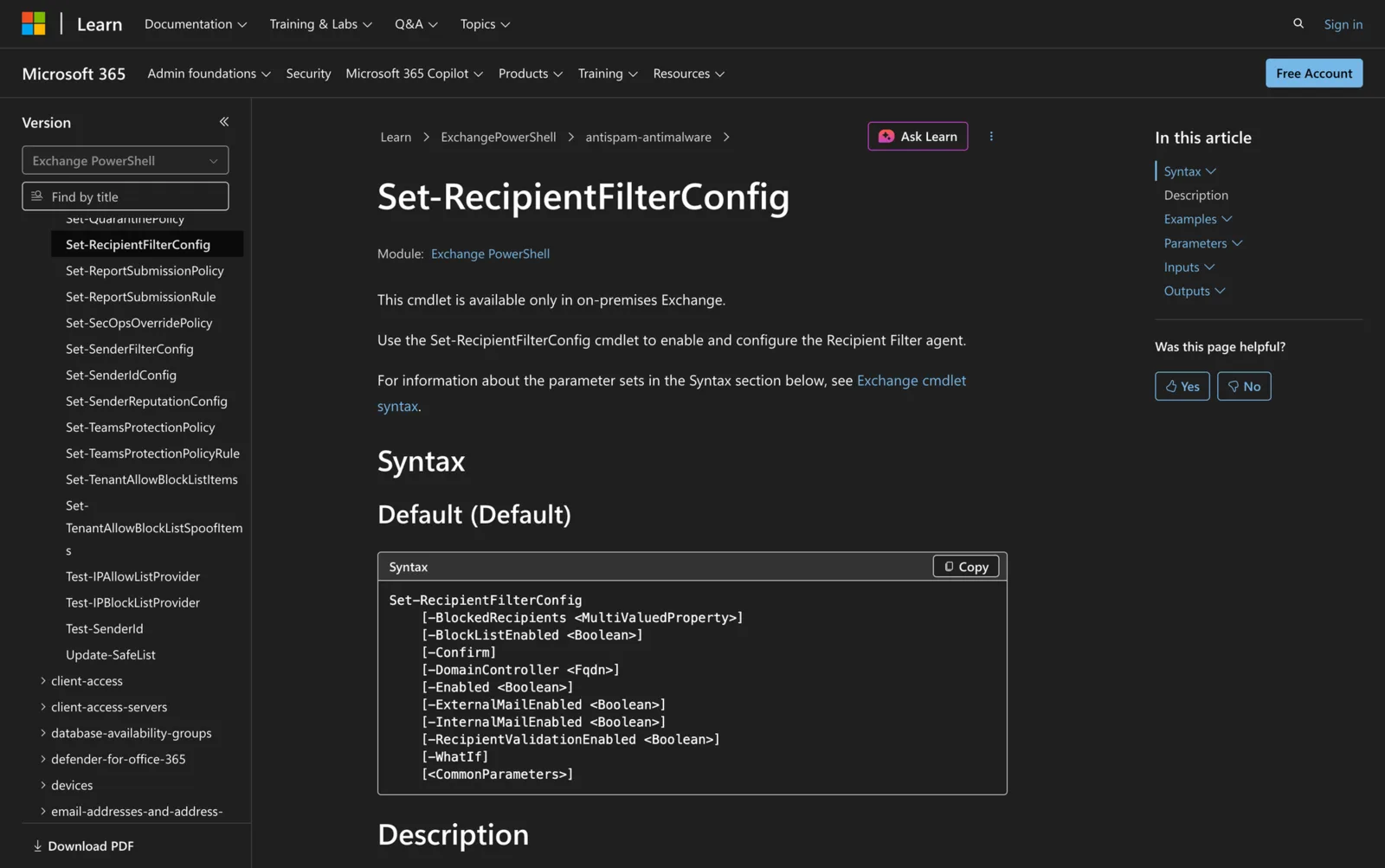
Here's syntax as per official Microsoft source.
Set-RecipientFilterConfig
[-BlockedRecipients <MultiValuedProperty>]
[-BlockListEnabled <Boolean>]
[-Confirm]
[-DomainController <Fqdn>]
[-Enabled <Boolean>]
[-ExternalMailEnabled <Boolean>]
[-InternalMailEnabled <Boolean>]
[-RecipientValidationEnabled <Boolean>]
[-WhatIf]
[<CommonParameters>]
Parameters
- BlockedRecipients: Specifies one or more SMTP addresses to block. You can specify up to 800 individual SMTP addresses.
- BlockListEnabled: Enables or disables the blocking of recipients listed in the BlockedRecipients.
- Confirm: Controls the confirmation prompt.
- DomainController: Specifies the domain controller used by the cmdlet to read data from or write data to Active Directory. This parameter isn't supported on Edge Transport servers.
- Enabled: Enables or disables the Recipient Filter agent.
- ExternalMailEnabled: Determines if messages from unauthenticated external servers are filtered.
- InternalMailEnabled: Determines if messages from authenticated sender domains are filtered.
- RecipientValidationEnabled: Specifies whether the Recipient Filter agent blocks messages addressed to recipients that don't exist in the organization.
- WhatIf: Simulates the actions of the command without applying changes.
Practical Uses
1. Enhancing Spam Control
In a business environment, filtering spam is essential to protect users from unsolicited and potentially harmful emails. By utilizing the Set-RecipientFilterConfig cmdlet, administrators can enable recipient validation, ensuring that emails sent to non-existent recipients are blocked. This reduces the risk of spam and phishing emails reaching users, enhancing overall security.
2. Managing Internal and External Mail Flow
Organizations often need different filtering rules for internal and external emails. With Set-RecipientFilterConfig, administrators can configure separate filtering processes for authenticated internal emails and unauthenticated external emails. This differentiation helps in maintaining the integrity of internal communications while keeping external threats at bay.
3. Configuring Blocked Recipient Lists
Occasionally, there may be a need to block specific recipients from receiving emails, such as former employees or compromised accounts. The Set-RecipientFilterConfig cmdlet allows for the creation and management of a blocked recipients list, ensuring that messages sent to these addresses are blocked by the Recipient Filter agent, thus maintaining a cleaner and more secure email environment.
Prerequisites
Before using the Set-RecipientFilterConfig cmdlet, ensure the following requirements are met:
- You must have appropriate permissions assigned in Exchange.
- The cmdlet is available in:
- Exchange Server 2010
- Exchange Server 2013
- Exchange Server 2016
- Exchange Server 2019
- Exchange Server SE
- Access to the Exchange Management Shell is required.
- If used, specify the domain controller by FQDN, for example dc01.meetingroom365.com. This parameter isn't supported on Edge Transport servers.
How to Use Set-RecipientFilterConfig: 7 Practical Uses
The Set-RecipientFilterConfig cmdlet is a versatile tool that can be applied in various administrative scenarios. Below are practical examples illustrating its usage to improve your Exchange Server's email filtering capabilities.
1. Enable Recipient Validation
Command:
Set-RecipientFilterConfig -RecipientValidationEnabled $true
Enabling recipient validation is a proactive measure to block emails directed to non-existent recipients within your organization. This capability helps to reduce spam and prevent directory harvesting attacks, which can occur when spammers attempt to discover valid email addresses through trial and error.
By enabling this setting, you ensure that only emails directed to existing, valid recipients are processed, thereby safeguarding your organization's email infrastructure.
2. Enable Block List and Add Blocked Recipients
Command:
Set-RecipientFilterConfig -BlockListEnabled $true -BlockedRecipients [email protected],[email protected]
This command enables the blocked recipients list and blocks messages sent to the specified SMTP addresses. This feature is particularly useful for blocking emails to compromised accounts or former employees, thereby preventing unauthorized access or communication.
By maintaining a block list, administrators can exercise control over which recipients are accessible, further enhancing the security and manageability of the email system.
3. Enable Filtering for External Mail
Command:
Set-RecipientFilterConfig -ExternalMailEnabled $true
Filtering external mail is crucial for organizations that face a high volume of unsolicited emails from outside sources. By enabling this setting, the Recipient Filter agent will process all incoming emails from external, unauthenticated connections.
This setup helps in mitigating risks associated with phishing and spam emails, ensuring that external threats are scrutinized before reaching the user mailboxes.
4. Enable Filtering for Internal Mail
Command:
Set-RecipientFilterConfig -InternalMailEnabled $true
In certain scenarios, organizations might need to filter internal emails, especially in environments where internal threats are a concern.
Enabling internal mail filtering ensures that even emails coming from authenticated sender domains within the enterprise are subject to the same scrutiny as external emails. This setup can be part of a broader internal security policy aimed at monitoring and controlling internal communications.
5. Disable the Recipient Filter Agent
Command:
Set-RecipientFilterConfig -Enabled $false
Disabling the Recipient Filter agent might be necessary during troubleshooting or when making significant configuration changes.
This command allows administrators to temporarily halt the filtering process, providing a clean slate for testing or diagnosing issues without interference from pre-existing filters. Once the issues are resolved, the agent can be re-enabled to resume normal operations.
6. Specify a Domain Controller
Command:
Set-RecipientFilterConfig -DomainController dc01.meetingroom365.com
Specifying a domain controller is useful in environments where precise control over data replication is required. This parameter directs the cmdlet to use the specified FQDN domain controller to read from or write to Active Directory. It isn't supported on Edge Transport servers.
7. Simulate Changes with WhatIf
Command:
Set-RecipientFilterConfig -WhatIf
The WhatIf parameter is a powerful feature for simulating changes without applying them. By using this option, administrators can preview the impact of their commands, ensuring that the desired outcomes are achieved without unintended consequences.
This simulation capability is invaluable during planning stages or when implementing changes to critical filtering rules, providing a safety net before committing to actual adjustments.
Final Note
The Set-RecipientFilterConfig cmdlet is a vital tool for Exchange administrators aiming to fine-tune their email filtering strategies. By leveraging its various parameters, you can significantly enhance your organization's ability to manage spam, control mail flow, and secure your email infrastructure against external and internal threats.
Knowledge of this cmdlet can lead to more streamlined and effective email management within your Exchange Server environment.