Quick answer: connect to Security & Compliance PowerShell, run a content search, then purge what it found:
Connect-IPPSSession -UserPrincipalName admin@contoso.com -EnableSearchOnlySession
New-ComplianceSearchAction -SearchName "Remove Phishing Message" -Purge -PurgeType SoftDelete
The search named in -SearchName has to exist and have finished running. The purge removes at most 10 items from each mailbox per run.
What does New-ComplianceSearchAction do?
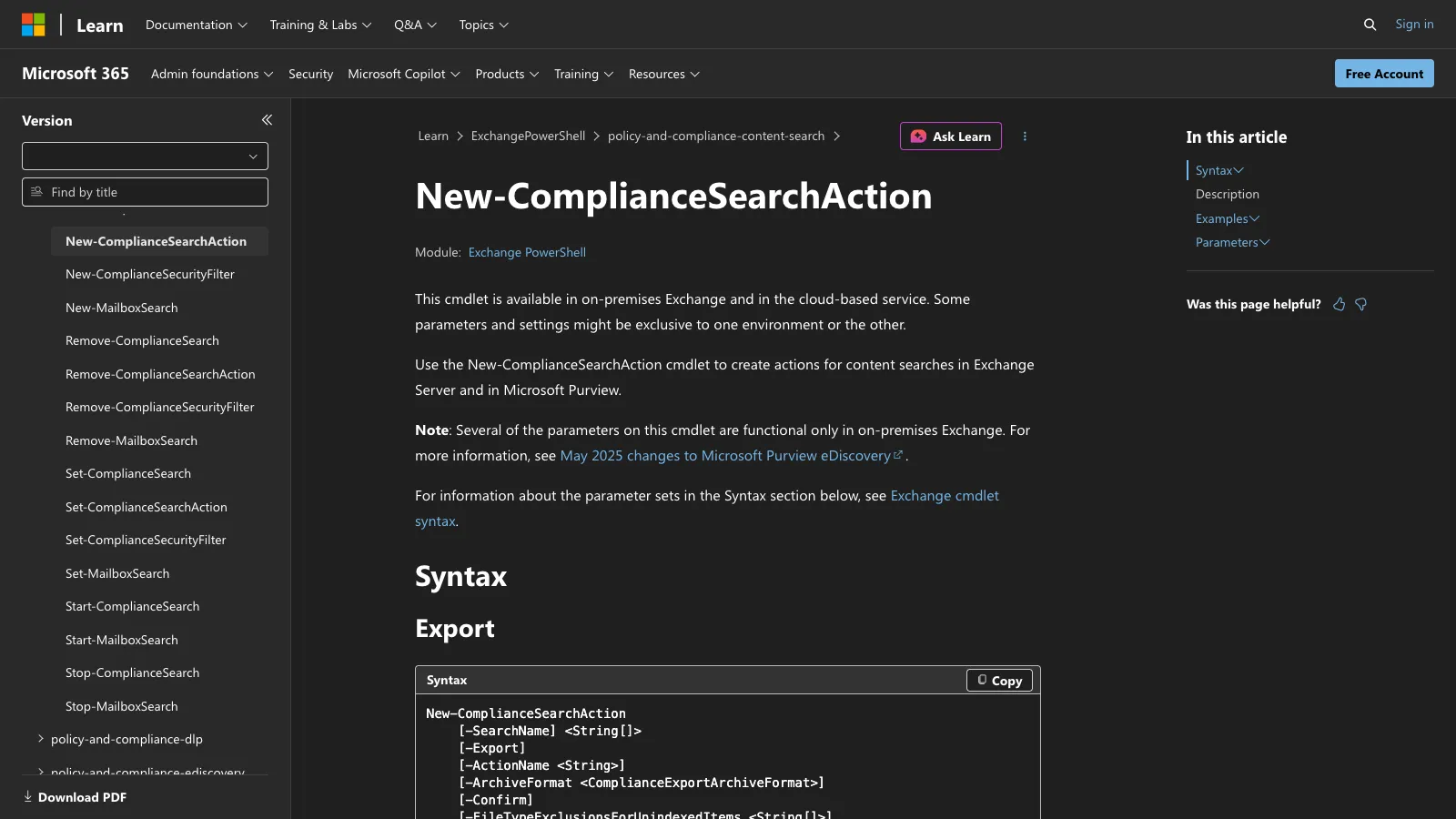
It adds an action to a content search you already created with New-ComplianceSearch and ran with Start-ComplianceSearch. In Microsoft 365 the main action that still works from PowerShell is Purge, which deletes the messages the search found.
| Cmdlet | Use it when |
|---|---|
| New-ComplianceSearch | You want to define what to search for and where |
| Start-ComplianceSearch | You want to run the search |
| Get-ComplianceSearch | You want to see the item count before you act |
| New-ComplianceSearchAction | You want to purge the results |
| Get-ComplianceSearchAction | You want the status of the purge |
Microsoft built search and purge for incidents such as a phishing message, a dangerous attachment or sensitive data sent to the wrong people. It isn't meant for cleaning out mailboxes, reducing quota or enforcing retention. Use retention and archive policies for that.
What about -Preview and -Export?
The cmdlet still has -Preview, -Export and -Report, but Microsoft says they now work only in on-premises Exchange, after the May 2025 changes to Microsoft Purview eDiscovery. The same applies to -ExchangeArchiveFormat, -SharePointArchiveFormat, -Scope and -NotifyEmail.
In Microsoft 365, preview and export results from the eDiscovery search in the Microsoft Purview portal. Microsoft recommends exporting a report of the matching items there before you purge, so you can check exactly what will be deleted.
How do I connect?
To purge in Microsoft 365 you need two things:
- Exchange Online PowerShell module version 3.9.0 or later (August 2025).
- The
-EnableSearchOnlySessionswitch onConnect-IPPSSession.
Update-Module -Name ExchangeOnlineManagement
Connect-IPPSSession -UserPrincipalName admin@contoso.com -EnableSearchOnlySession
Connect-ExchangeOnline doesn't load this cmdlet. If the module isn't installed, see how to install the Exchange Online PowerShell module.
Which permissions do I need?
| To | You need |
|---|---|
| Create and run the search | eDiscovery Manager role group, or the Compliance Search role |
| Purge the results | Organization Management role group, or the Search And Purge role |
Both roles are assigned in the Microsoft Purview portal. Organization Management in Exchange Online is a different role group and doesn't give you the purge. Without Search And Purge you get "A parameter cannot be found that matches parameter name 'Purge'".
How do I find and delete a phishing message?
Create and start a search that matches only the message:
$Search = New-ComplianceSearch -Name "Remove Phishing Message" -ExchangeLocation All -ContentMatchQuery '(Received:4/13/2024..4/14/2024) AND (Subject:"Action required")'
Start-ComplianceSearch -Identity $Search.Identity
Wait for it to finish, then check the count:
Get-ComplianceSearch -Identity "Remove Phishing Message" | Format-List Status,ItemsPurge the results:
New-ComplianceSearchAction -SearchName "Remove Phishing Message" -Purge -PurgeType SoftDelete
To narrow the query, use the Subject, Received and From properties, for example (From:billing@fabrikam.com) AND (Subject:"Update your account information"). Microsoft warns not to use message ID, sensitivity label or sensitive information type conditions for search and delete in cases without premium features. They can delete more than you expect.
If you built or checked the search in the Purview portal, run it again in PowerShell and wait for it to finish before the purge. A search run in the portal shows 0 items and no end time to the cmdlet.
The cmdlet asks you to confirm before it purges. Add -Confirm:$false to skip the prompt in a script. -WhatIf doesn't work in Security & Compliance PowerShell.
SoftDelete or HardDelete?
| PurgeType | What happens |
|---|---|
| SoftDelete | Messages move to the Recoverable Items folder. Users can recover them until the deleted item retention period ends. |
| HardDelete | Messages are marked for permanent removal and users can't get them back. They're removed the next time the Managed Folder Assistant processes the mailbox, or after the deleted item retention period if single item recovery is on. HardDelete is cloud only. |
Single item recovery is on by default for new Microsoft 365 mailboxes. If a mailbox is on hold, purged messages are kept until the hold ends or is removed. To see what's in the Recoverable Items folder afterwards, use Get-RecoverableItems.
What are the limits?
- 10 items per mailbox per run. If a mailbox has more matches, the rest stay. Microsoft's eDiscovery cases with premium features can purge up to 100 items per location through Microsoft Graph instead. Don't mix PowerShell and Graph purges on the same data.
- 50,000 mailboxes per search. A search across more mailboxes fails at the purge, even if fewer mailboxes have matches. Split it with search permissions filters, for example by department or country.
- Mailboxes and public folders only. A search that includes SharePoint or OneDrive sites fails at the purge. Teams chats aren't deleted either.
- Unindexed items aren't purged.
Microsoft advises against rerunning the purge over and over to get past the 10 item limit. To delete more from one mailbox, it points to Defender for Office 365 remediation or zero-hour auto purge.
How do I check the purge?
The action is named after the search with _Purge on the end:
Get-ComplianceSearchAction -Identity "Remove Phishing Message_Purge" | Format-List
See Get-ComplianceSearch for more on reading actions.
Why didn't New-ComplianceSearchAction delete anything?
| Error or symptom | Fix |
|---|---|
| The term New-ComplianceSearchAction is not recognized | Connect with Connect-IPPSSession, not Connect-ExchangeOnline. |
| A parameter cannot be found that matches parameter name 'Purge' | Get the Search And Purge role in the Purview portal. |
| Purge fails on a search that includes sites | Search only mailboxes and public folders. |
| Purge fails on an organization-wide search | The search covers more than 50,000 mailboxes. Split it. |
| Some messages are still there | Each run removes at most 10 items per mailbox. |
| Messages still show up in the search after the purge | The mailbox is on a hold, so they moved to Recoverable Items. |
To check a mailbox for holds:
Get-Mailbox -Identity ayla@contoso.com | Format-List *Hold*,*Recovery*
Get-OrganizationConfig | Format-List *Hold*
InPlaceHolds should be empty or hold only values that start with a minus sign, and DelayHold and SingleItemRecovery should be False. See Get-Mailbox for other properties.
Sources: New-ComplianceSearchAction, Find and delete email messages in eDiscovery and Connect to Security & Compliance PowerShell on Microsoft Learn.
Meeting Room 365 turns any iPad or Android tablet into a room display for Exchange and Microsoft 365 calendars. See the features or pricing: $9 a display a month.