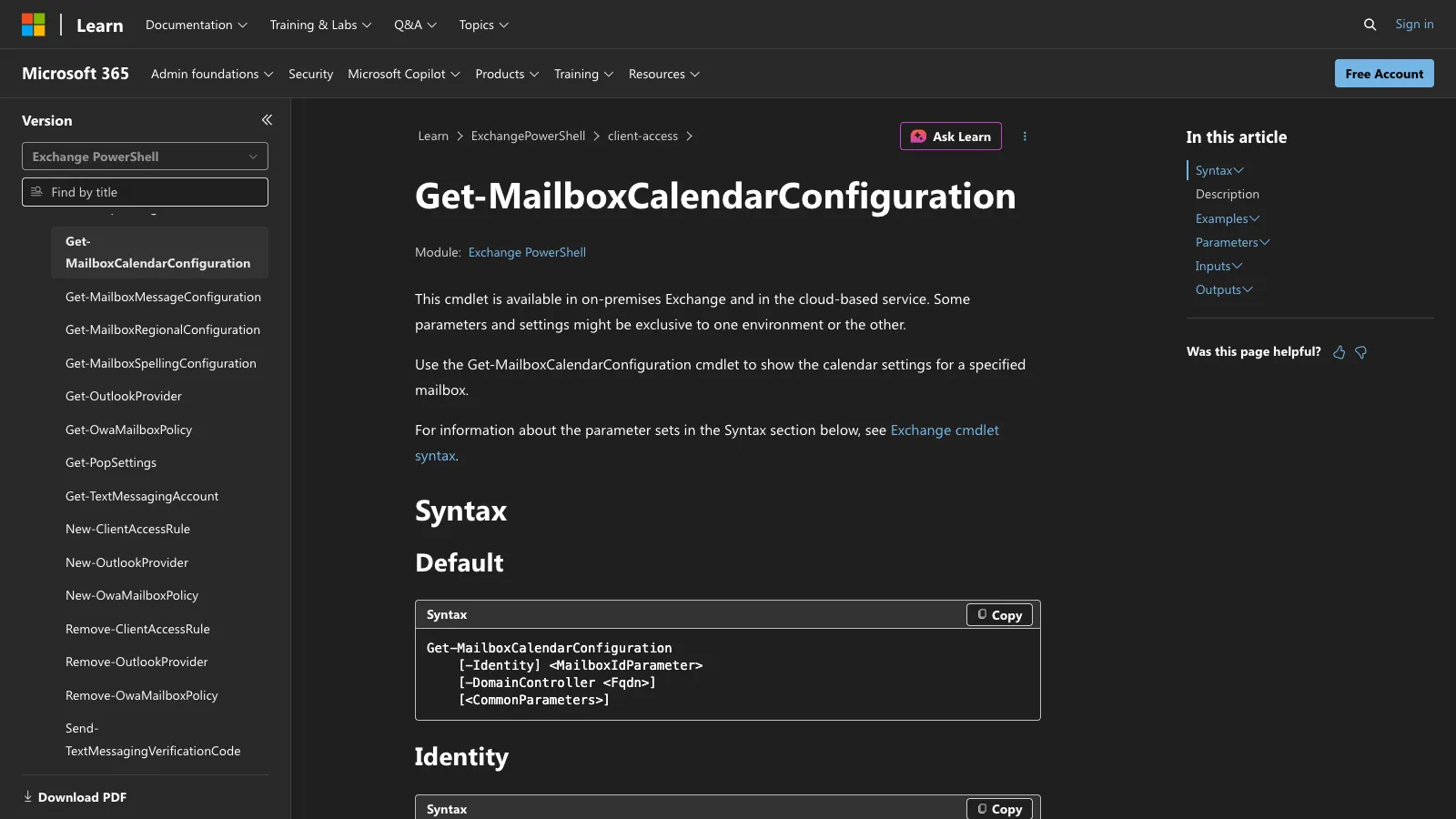
Quick answer: Get-MailboxCalendarConfiguration shows the calendar settings of one mailbox: work days, working hours and their time zone, the first day of the week and reminders. Pipe it to Format-List to see every setting.
Get-MailboxCalendarConfiguration -Identity kai@contoso.com | Format-List
Source: Get-MailboxCalendarConfiguration on Microsoft Learn.
Where does it run?
It runs in both on-premises Exchange (Exchange Server 2010, 2013, 2016, 2019 and Subscription Edition) and Exchange Online. For Exchange Online, connect first with the Exchange Online PowerShell module. On-premises, use the Exchange Management Shell.
You need the right permissions assigned before you can run it. To find the role, see Microsoft's article Find the permissions required to run any Exchange cmdlet.
Which parameters does it take?
| Parameter | What it does | Where |
|---|---|---|
-Identity |
The mailbox to read. Name, alias, email address, UPN, domain\username, DN, GUID and other unique values work. |
Both |
-DomainController |
The domain controller to read from, as an FQDN such as dc01.contoso.com. |
On-premises only |
-MailboxLocation |
Microsoft lists it but doesn't describe it yet. | Exchange Online only |
-Identity also accepts pipeline input, so you can pipe mailboxes into the cmdlet.
Which settings does it show?
Microsoft lists these as the main settings the cmdlet returns:
| Property | What it holds |
|---|---|
WorkDays |
The days shown as work days in Outlook on the web |
WorkingHoursStartTime |
When the work day starts |
WorkingHoursEndTime |
When the work day ends |
WorkingHoursTimeZone |
The time zone for the start and end times |
WeekStartDay |
The first day of the week |
ShowWeekNumbers |
Whether week numbers show in month view in Outlook on the web |
TimeIncrement |
The time scale of the Outlook on the web calendar |
RemindersEnabled |
Whether Outlook on the web shows a visual cue for a due reminder |
ReminderSoundEnabled |
Whether a sound plays for a due reminder |
DefaultReminderTime |
How long before a meeting the reminder shows |
The default output shows only some of them. Microsoft says to pipe to Format-List to see all of the settings returned.
Microsoft gives the defaults on the Set-MailboxCalendarConfiguration page: work days Weekdays, 08:00 to 17:00, week start Sunday, a 30 minute time increment and a 15 minute reminder. The working-hours time zone defaults to the time zone of the Exchange server.
Examples
Every setting for one mailbox:
Get-MailboxCalendarConfiguration -Identity kai@contoso.com | Format-List
A user in domain\username format:
Get-MailboxCalendarConfiguration -Identity contoso\tony
Only the working hours:
Get-MailboxCalendarConfiguration -Identity kai@contoso.com | Format-List WorkDays,WorkingHoursStartTime,WorkingHoursEndTime,WorkingHoursTimeZone
Read from one domain controller (on-premises):
Get-MailboxCalendarConfiguration -Identity kai -DomainController dc01.contoso.com
Working hours for every user mailbox, as a table:
Get-Mailbox -RecipientTypeDetails UserMailbox -ResultSize Unlimited | Get-MailboxCalendarConfiguration | Format-Table Identity,WorkingHoursStartTime,WorkingHoursEndTime,WorkingHoursTimeZone -AutoSize
For a large organization, test the pipeline on a few mailboxes first. Get-Mailbox with -ResultSize 10 is a quick way.
Export the same data to a CSV file:
Get-Mailbox -RecipientTypeDetails UserMailbox -ResultSize Unlimited | Get-MailboxCalendarConfiguration | Select-Object Identity,WorkDays,WorkingHoursStartTime,WorkingHoursEndTime,WorkingHoursTimeZone | Export-Csv C:\Temp\working-hours.csv -NoTypeInformation
How do I change a setting?
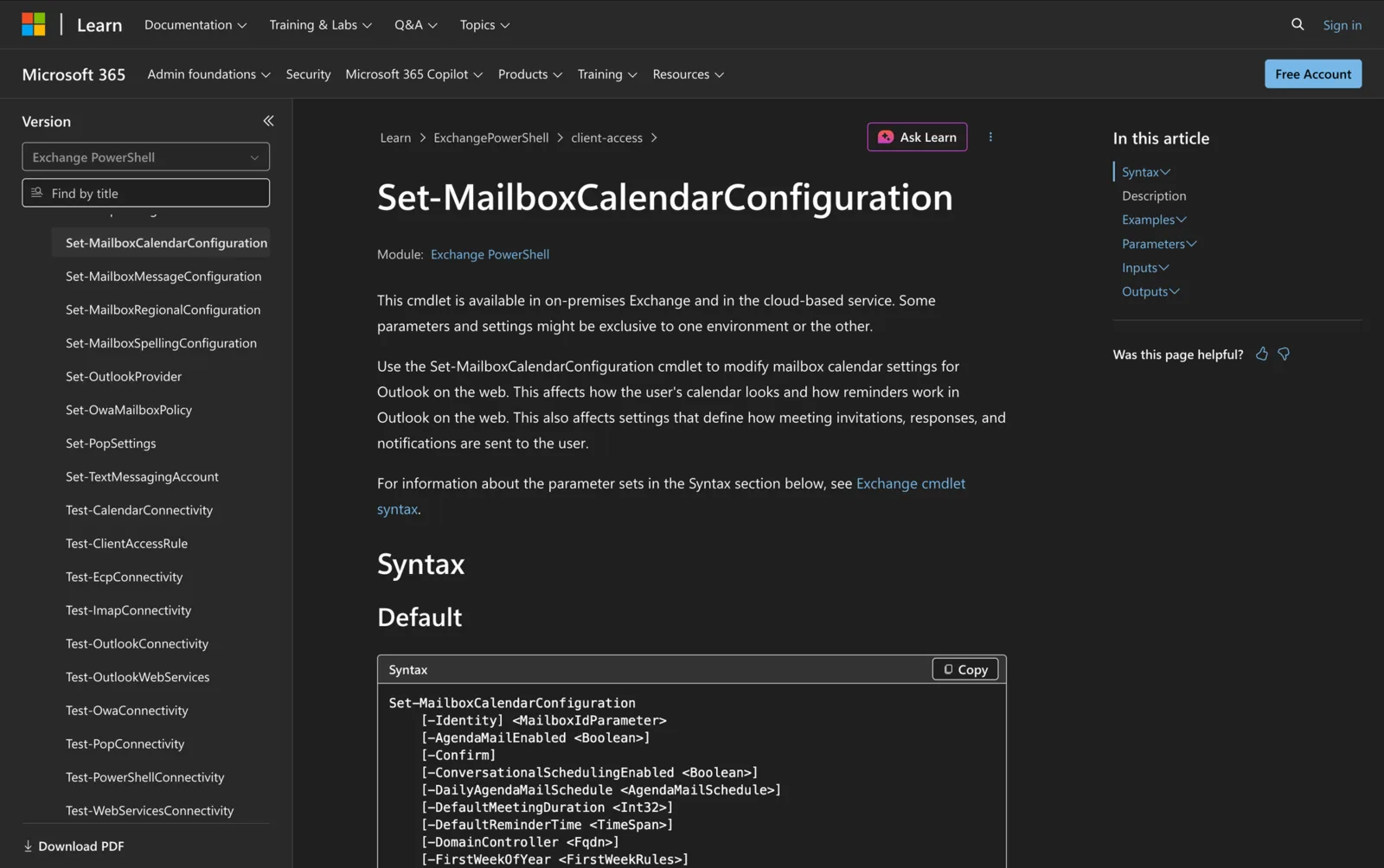
Use Set-MailboxCalendarConfiguration with the same identity, then run Get-MailboxCalendarConfiguration again to confirm the new value:
Set-MailboxCalendarConfiguration -Identity kai@contoso.com -WorkingHoursStartTime 09:00:00 -WorkingHoursEndTime 18:00:00 -WorkingHoursTimeZone "Pacific Standard Time"
Get-MailboxCalendarConfiguration -Identity kai@contoso.com | Format-List WorkingHours*
For more on working hours, see Outlook working hours with PowerShell. To turn off calendar events created from email, see events from email.
Is this the same as a room's booking settings?
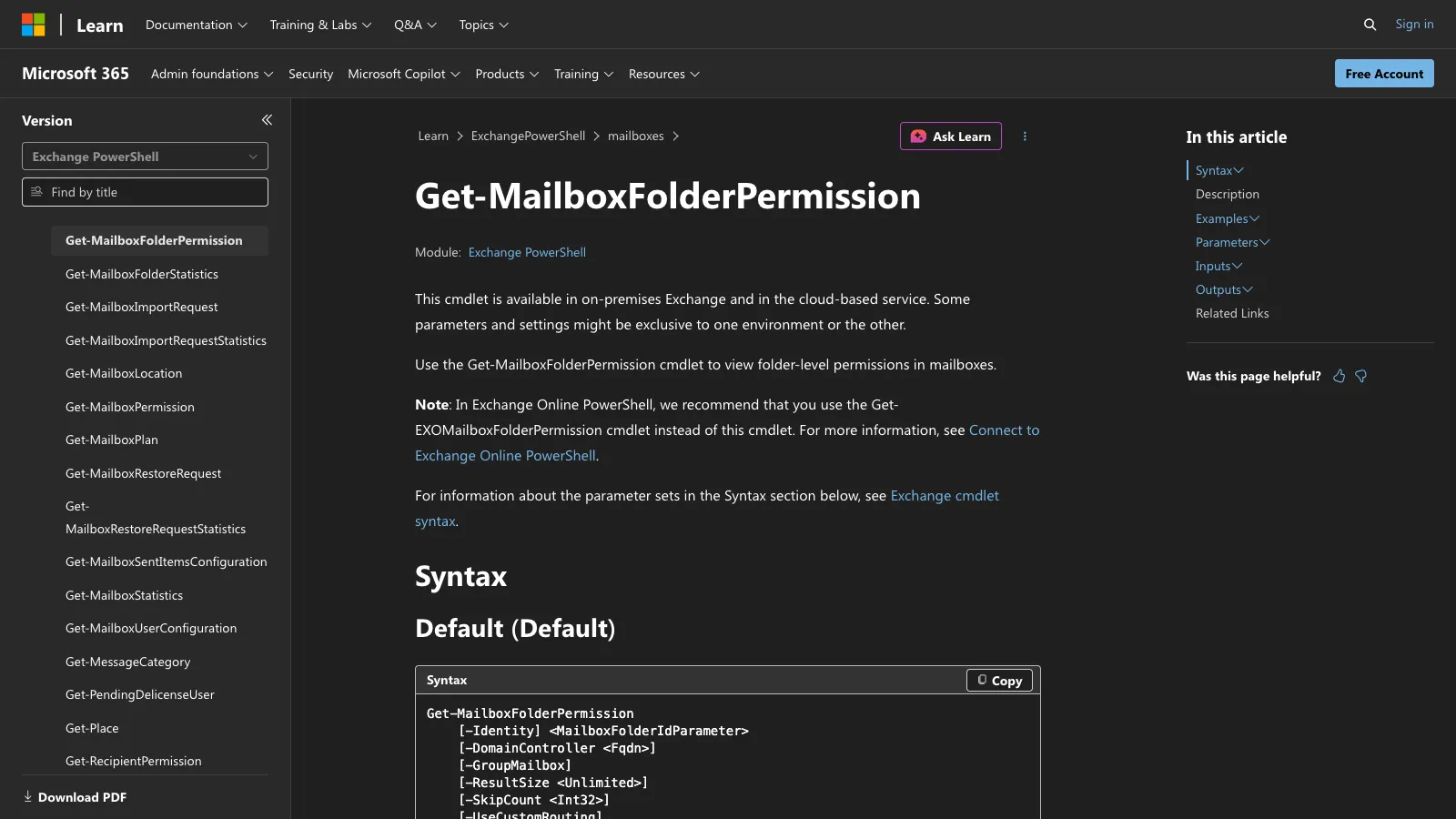
No. Get-MailboxCalendarConfiguration reads how a mailbox's calendar looks and behaves for its user. A room mailbox's booking rules, such as auto-accept and the booking window, come from Get-CalendarProcessing and change with Set-CalendarProcessing.
Troubleshooting
| Problem | Fix |
|---|---|
| Settings for every mailbox came back | The -Identity value was $null or didn't match a mailbox. Microsoft warns that this returns all objects. Check the value, especially in a script loop. |
| Most properties are missing | Pipe to Format-List. |
| "A parameter cannot be found that matches parameter name 'DomainController'" | You're in Exchange Online. -DomainController is on-premises only. |
| Working hours look off by some hours | Check WorkingHoursTimeZone. The start and end times use that time zone. |
| Cmdlet not found | Connect to Exchange Online PowerShell or open the Exchange Management Shell, and check your role assignments. |
Summary
- Get-MailboxCalendarConfiguration reads a mailbox's calendar settings in Exchange Online and on-premises Exchange.
- Pipe to
Format-Listto see every setting. - An empty or wrong
-Identityreturns every mailbox. - Change the settings with Set-MailboxCalendarConfiguration and room booking rules with Set-CalendarProcessing.
Related: Set-MailboxCalendarConfiguration, Get-CalendarProcessing, Outlook working hours.
Meeting Room 365 turns any iPad or Android tablet into a room display for Exchange and Microsoft 365 calendars. See the features or pricing: $9 a display a month.