Mailbox calendar settings often become inconsistent after migrations, account provisioning, policy changes, or user edits in Outlook on the web. One mailbox may show the wrong working hours, another may have reminders disabled, and another may create online meetings or events from email differently from the rest of the organization.
For administrators, correcting those settings manually through each user interface is slow and difficult to audit. Set-MailboxCalendarConfiguration provides a PowerShell method for changing supported calendar options on a specified mailbox, while Get-MailboxCalendarConfiguration lets you inspect the current values before and after the update.
What Is Set-MailboxCalendarConfiguration?
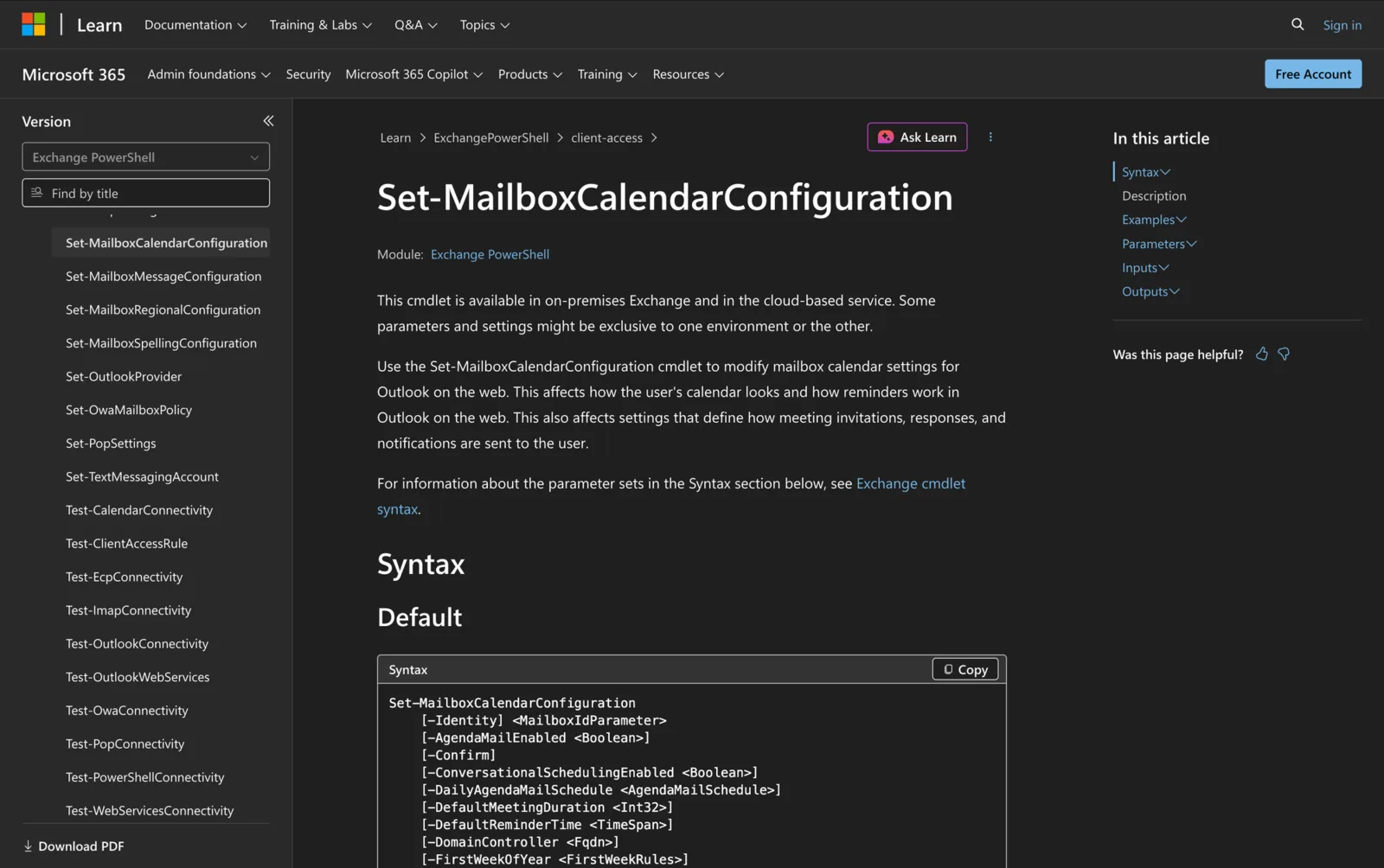
Set-MailboxCalendarConfiguration modifies calendar settings stored for a mailbox. Microsoft describes the cmdlet as controlling how the calendar looks, how reminders work in Outlook on the web, and how some meeting invitations, responses, and notifications are handled. Administrators in the Organization Management or Recipient Management role groups can use it to configure settings for users.
The cmdlet does not grant access to a calendar. Use Set-MailboxFolderPermission when you need to change who can open a calendar and what they can do in it.
It also does not control calendar processing or room-mailbox booking rules. Settings such as AutomateProcessing, AutoAccept, and AllowRecurringMeetings belong to calendar processing for resource mailboxes, not mailbox calendar preferences. Likewise, regional settings such as language, date format, time format, time zone, and default folder names are handled through Set-MailboxRegionalConfiguration.
This separation matters. A command can run successfully and still fail to solve the administrator's actual problem if the issue belongs to permissions, regional settings, or resource booking rather than mailbox calendar configuration.
Exchange Online and Exchange Server Availability
Microsoft lists Set-MailboxCalendarConfiguration for Exchange Online and on-premises Exchange. The shared core includes settings such as WorkDays, WorkingHoursStartTime, WorkingHoursEndTime, WorkingHoursTimeZone, RemindersEnabled, WeekStartDay, and ShowWeekNumbers. Several core parameters are listed for Exchange Server 2010, Exchange Server 2013, Exchange Server 2016, Exchange Server 2019, Exchange Server Subscription Edition, and Exchange Online.
Parameter availability is not identical across environments. DomainController is available only in on-premises Exchange because it directs the cmdlet to a specific Active Directory domain controller. Cloud-focused settings such as OnlineMeetingsByDefaultEnabled, EventsFromEmailEnabled, and LocationDetailsInFreeBusy are listed as Exchange Online only. They support Microsoft 365 service features that are not exposed through the on-premises version of this cmdlet.
Do not assume that a parameter shown in one tenant or Exchange version exists everywhere. Check the current Microsoft Learn page and the command metadata available in your own PowerShell session before using it in scripts or organizational policies.
How to Check Existing Calendar Settings
Use Get-MailboxCalendarConfiguration to return the current calendar settings for a mailbox. Microsoft lists the cmdlet for both Exchange Online and on-premises Exchange. Its output includes working days, working-hour times, the working-hours time zone, week layout, reminders, and other available properties.
To inspect every property returned for James, pipe the result to Format-List:
Get-MailboxCalendarConfiguration -Identity [email protected] | Format-List *
Read the configuration before making a change. This gives you a baseline, confirms that Identity resolves to the intended mailbox, and shows the exact property names you should verify later. Read it again after the command completes so you can confirm the stored value rather than relying only on the absence of an error.
For a smaller output, select only the properties related to the task:
Get-MailboxCalendarConfiguration -Identity [email protected] | Select-Object WorkDays, WorkingHoursStartTime, WorkingHoursEndTime, WorkingHoursTimeZone
Core Parameters
| Parameter | Purpose | Availability |
|---|---|---|
| Identity | Selects the mailbox to modify. Accepted identifiers include a name, alias, email address, UPN, GUID, distinguished name, Domain\Username, SamAccountName, and other unique mailbox identifiers. | Exchange Online and on-premises Exchange |
| WhatIf | Shows what the command would do without writing the change. It is a SwitchParameter, so no value is required. | Exchange Online and on-premises Exchange |
| Confirm | Adds an interactive confirmation prompt. Set cmdlets do not normally pause, so adding -Confirm requires approval before the command proceeds. | Exchange Online and on-premises Exchange |
| DomainController | Tells the cmdlet which Active Directory domain controller to use for reads or writes. Supply the controller's fully qualified domain name. | On-premises Exchange only |
Microsoft states that Identity is mandatory in the standard parameter sets and can receive pipeline input. WhatIf makes no changes, while Confirm can introduce a prompt for a Set cmdlet that would otherwise run immediately.
Microsoft also lists MailboxLocation in a separate parameter set, but its current documentation contains no usable description. Do not infer its purpose, build production procedures around it, or copy an unverified example from another source. Check Microsoft Learn again before using it.
Calendar Setting Categories
| Category | Representative settings | Focused guide |
|---|---|---|
| Working hours and calendar layout | WorkDays WorkingHoursStartTime WorkingHoursEndTime WorkingHoursTimeZone | See how to configure Outlook working hours with PowerShell for time spans, workdays, and time-zone handling. |
| Online meeting defaults | OnlineMeetingsByDefaultEnabled | See how to manage Outlook online meeting defaults with PowerShell for Exchange Online behavior and organization-level considerations. |
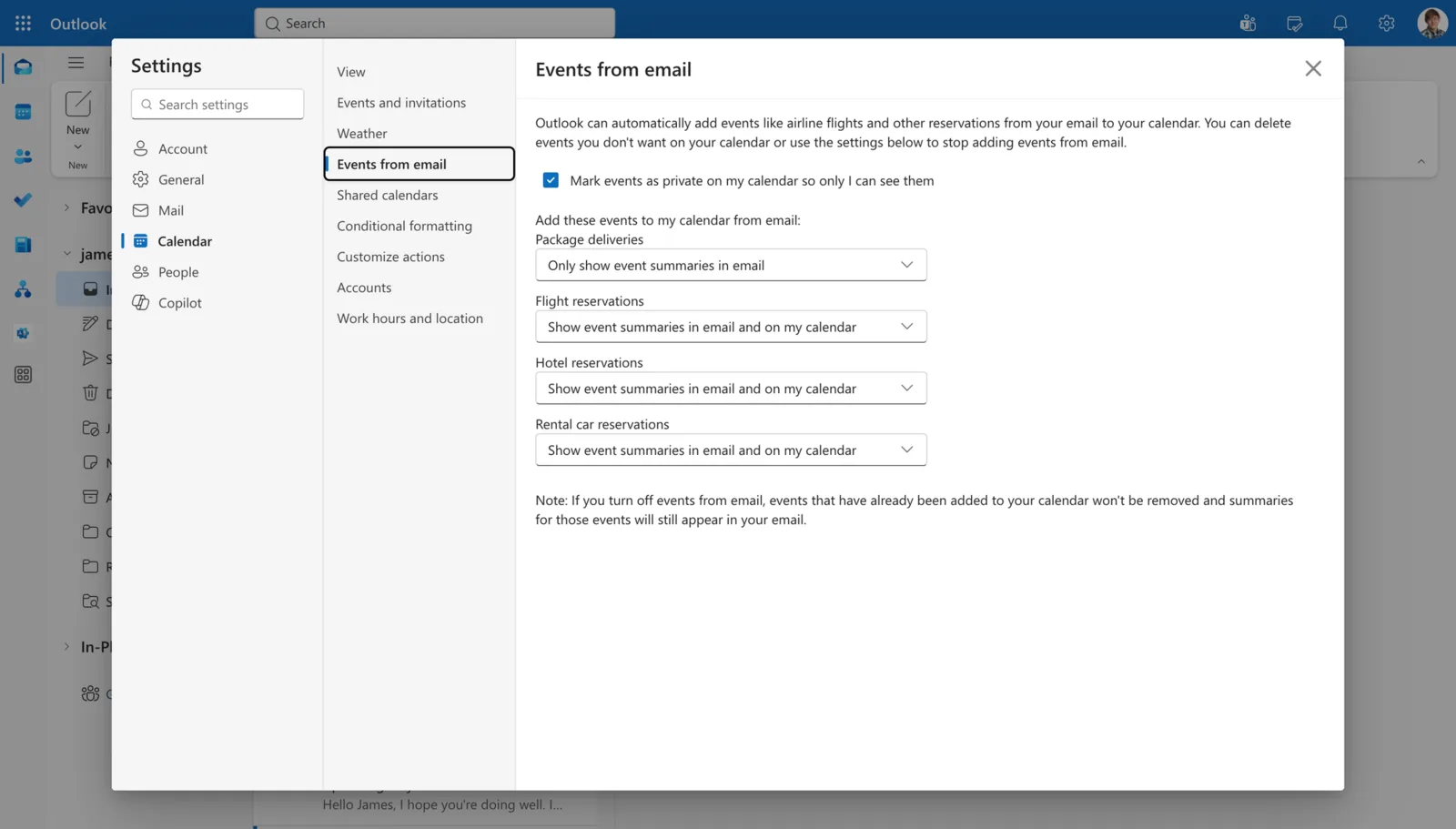
| Events created from email | EventsFromEmailEnabled | See how to control Events from Email with PowerShell for the main switch and event-type settings. |
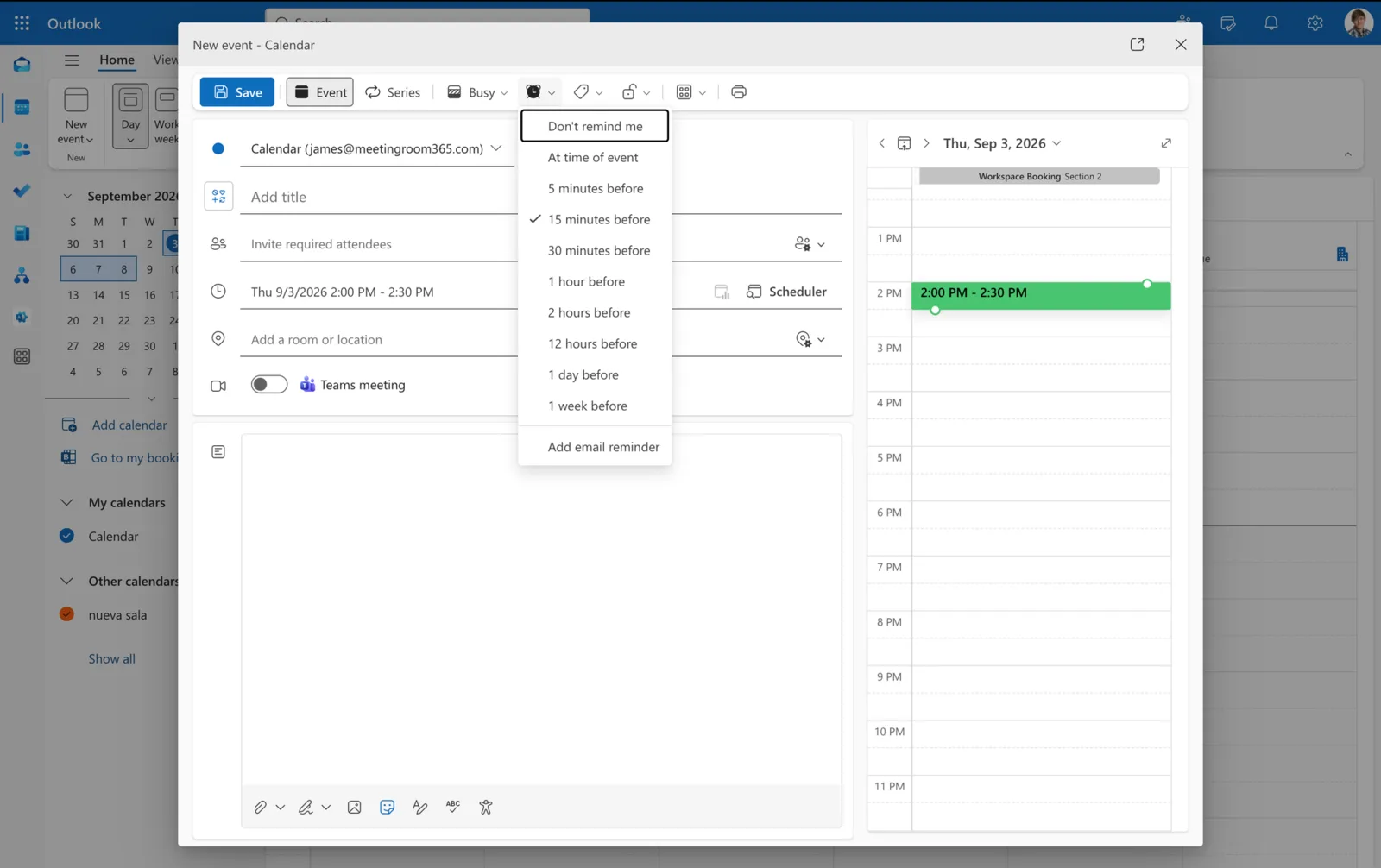
| Reminders and calendar display | RemindersEnabled , DefaultReminderTime , ReminderSoundEnabled , ShowWeekNumbers , TimeIncrement | See how to configure Outlook calendar reminders with PowerShell for reminder and display options. |
| Work-location visibility | LocationDetailsInFreeBusy | See how to manage Outlook work-location visibility in free/busy data for the Exchange Online visibility levels. |
Working-hours settings define which days and times the mailbox treats as working time. WorkingHoursTimeZone supplies the time-zone key used with the start and end times, such as Pacific Standard Time. Microsoft documents Windows time-zone key names under HKLM:\Software\Microsoft\Windows NT\CurrentVersion\Time zones.
Online meeting defaults and Events from Email belong to Exchange Online. Reminder and layout options are more widely available, but their visible effect can vary by Outlook client. Work-location visibility controls how much location detail is returned with a user's availability in supported Microsoft 365 experiences.
How to Use Set-MailboxCalendarConfiguration: 8 Practical Examples
1. Retrieve All Calendar Configuration Properties
The first step is to inspect the complete configuration for James before changing anything.
Command:
Get-MailboxCalendarConfiguration -Identity [email protected] | Format-List *
This command does not modify the mailbox. It returns every property exposed by the cmdlet in the current environment, which is useful when Exchange Online and Exchange Server return different property sets.
2. Change One Basic Setting for a team member
To disable calendar reminders for a team member (James), setRemindersEnabled to $false.
Command:
Set-MailboxCalendarConfiguration -Identity [email protected] -RemindersEnabled $false
The command changes the mailbox-level reminder setting. Microsoft notes that DefaultReminderTime is ignored while reminders are disabled.
Verify the value:
Get-MailboxCalendarConfiguration -Identity [email protected] | Select-Object RemindersEnabled, DefaultReminderTime
3. Change Several Related Settings in One Command
Administrators can update several related properties in one call. The following command sets James's workdays, start time, end time, and working-hours time zone.
Command:
Set-MailboxCalendarConfiguration -Identity [email protected] -WorkDays Weekdays -WorkingHoursStartTime 08:30:00 -WorkingHoursEndTime 17:30:00 -WorkingHoursTimeZone "Pacific Standard Time"
The start and end values are time spans. The time-zone value is a Windows time-zone key name, not a free-text city or region.
Verify the related properties together:
Get-MailboxCalendarConfiguration -Identity [email protected] | Select-Object WorkDays, WorkingHoursStartTime, WorkingHoursEndTime, WorkingHoursTimeZone
4. Preview a Change with WhatIf
Use WhatIf when you want PowerShell to show the intended operation without saving the change.
Command:
Set-MailboxCalendarConfiguration -Identity [email protected] -RemindersEnabled $true -WhatIf
The cmdlet reports the proposed action but leaves the mailbox configuration unchanged. This is useful before running scripts against many mailboxes, but it does not replace checking parameter availability and permissions.
5. Request a Confirmation Prompt with Confirm
Use Confirm when you want an explicit approval step before a Set command runs.
Command:
Set-MailboxCalendarConfiguration -Identity [email protected] -RemindersEnabled $true -Confirm
PowerShell displays a confirmation prompt before applying the update. This differs from WhatIf: Confirm can still make the change after approval, while WhatIf only previews it.
6. Apply a Reviewed Setting to Several Mailboxes
After testing the command on one mailbox, use a controlled list to apply the same reviewed setting to James and Simon.
Command:
"[email protected]", "[email protected]" | ForEach-Object { Set-MailboxCalendarConfiguration -Identity $_ -RemindersEnabled $true }
This approach makes the target list visible in the script and avoids changing mailboxes selected by an overly broad filter. For a larger rollout, log each mailbox, command result, and verification output.
7. Verify Selected Properties After a Change
A focused verification query is easier to review than the full property list.
Command:
Get-MailboxCalendarConfiguration -Identity [email protected] | Select-Object Identity, RemindersEnabled, WorkDays, WorkingHoursStartTime, WorkingHoursEndTime
The returned values show the properties currently stored for Simon. Check the exact property you changed. A successful Set command does not prove that a different, similarly named setting was modified.
8. Use DomainController On-Premises
On-premises Exchange only: Use DomainController when the cmdlet must read from or write through a specific Active Directory domain controller.
Command:
Set-MailboxCalendarConfiguration -Identity [email protected] -WorkingHoursStartTime 08:00:00 -DomainController dc01.meetingroom365.local
This command sends the operation through the domain controller identified by its fully qualified domain name. Do not use DomainController in Exchange Online because Microsoft marks it as on-premises only.
Verify through the same controller:
Get-MailboxCalendarConfiguration -Identity [email protected] -DomainController dc01.meetingroom365.local | Select-Object WorkingHoursStartTime
5 Common Problems
1. A parameter is unavailable in the current environment
An Exchange Online-only parameter will fail in on-premises Exchange, and an on-premises-only parameter such as DomainController is not available in Exchange Online. Compare the parameter's applicability section in Microsoft Learn with the environment where the command runs.
2. The assigned role does not expose a parameter
Microsoft notes that a user may have access to the cmdlet but not every listed parameter. Exchange role assignments control cmdlet and parameter access. Confirm that the administrator has the required Organization Management, Recipient Management, or custom role assignment for the intended operation.
3. Identity resolves incorrectly or not at all
Use a unique value such as the primary email address, UPN, or GUID. Display names and aliases can be ambiguous, especially in hybrid or long-lived Exchange organizations. Test the value with Get-MailboxCalendarConfiguration before running the Set command.
4. The setting appears unchanged because the wrong property was checked
Read back the same property that you modified. Do not verify RemindersEnabled by looking only at DefaultReminderTime, and do not confuse WorkingHoursTimeZone with the mailbox's regional TimeZone setting.
5. Microsoft lists the parameter but does not document its behavior
Do not invent a value or operational procedure for parameters whose description is blank, incomplete, or marked as reserved for internal Microsoft use. That includes the currently undocumented MailboxLocation behavior. Recheck the current official documentation before adding such parameters to scripts.
Final Note
Treat Get-MailboxCalendarConfiguration and Set-MailboxCalendarConfiguration as a read-change-read workflow. Test the exact parameter in the target Exchange environment, use WhatIf or Confirm when appropriate, and verify the same property after the command runs.