Quick answer: Get-MailboxFolderPermission lists who has access to one folder in a mailbox and what they can do there. Put the mailbox, then :\, then the folder:
Get-MailboxFolderPermission -Identity john@contoso.com:\Calendar
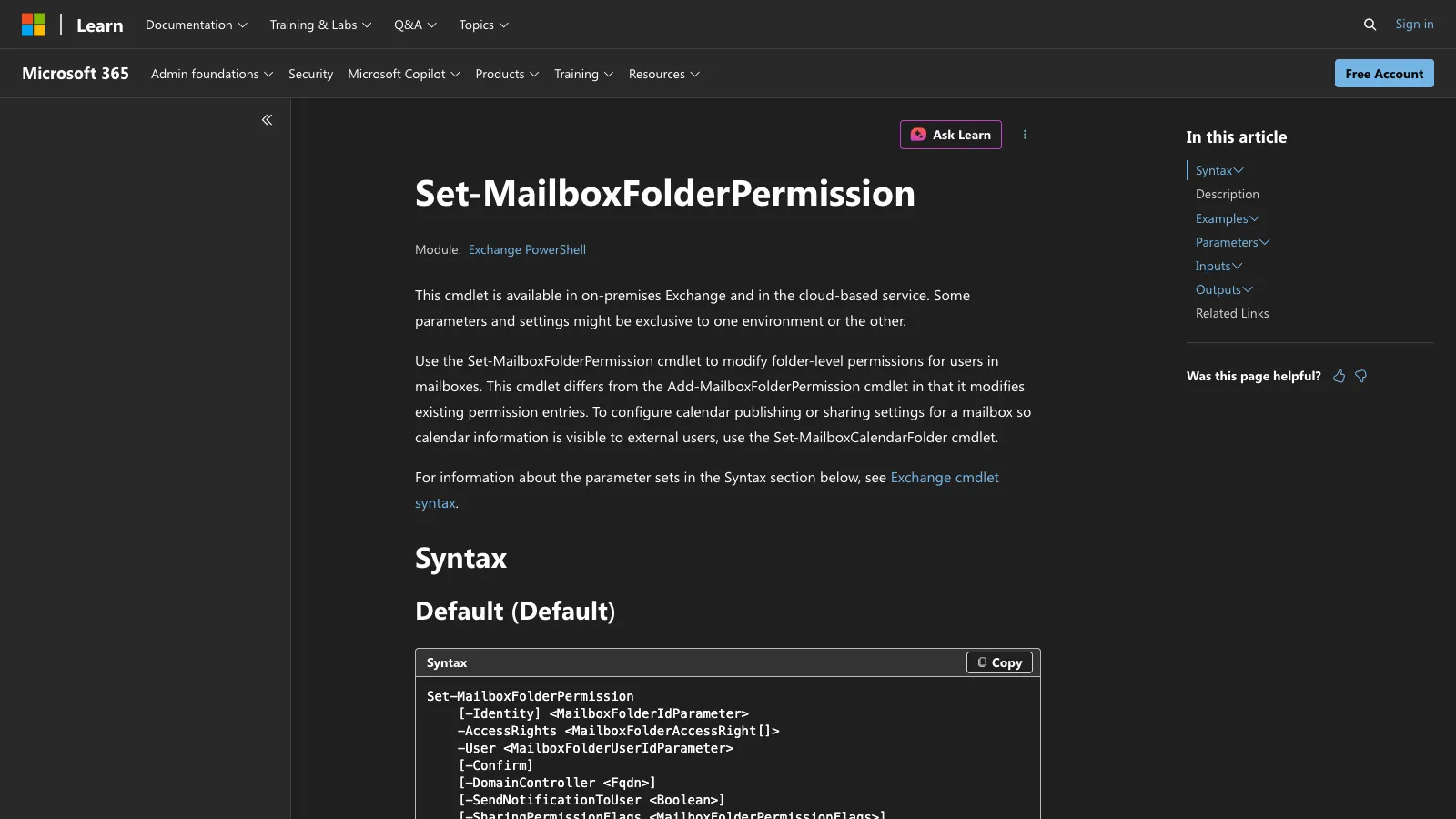
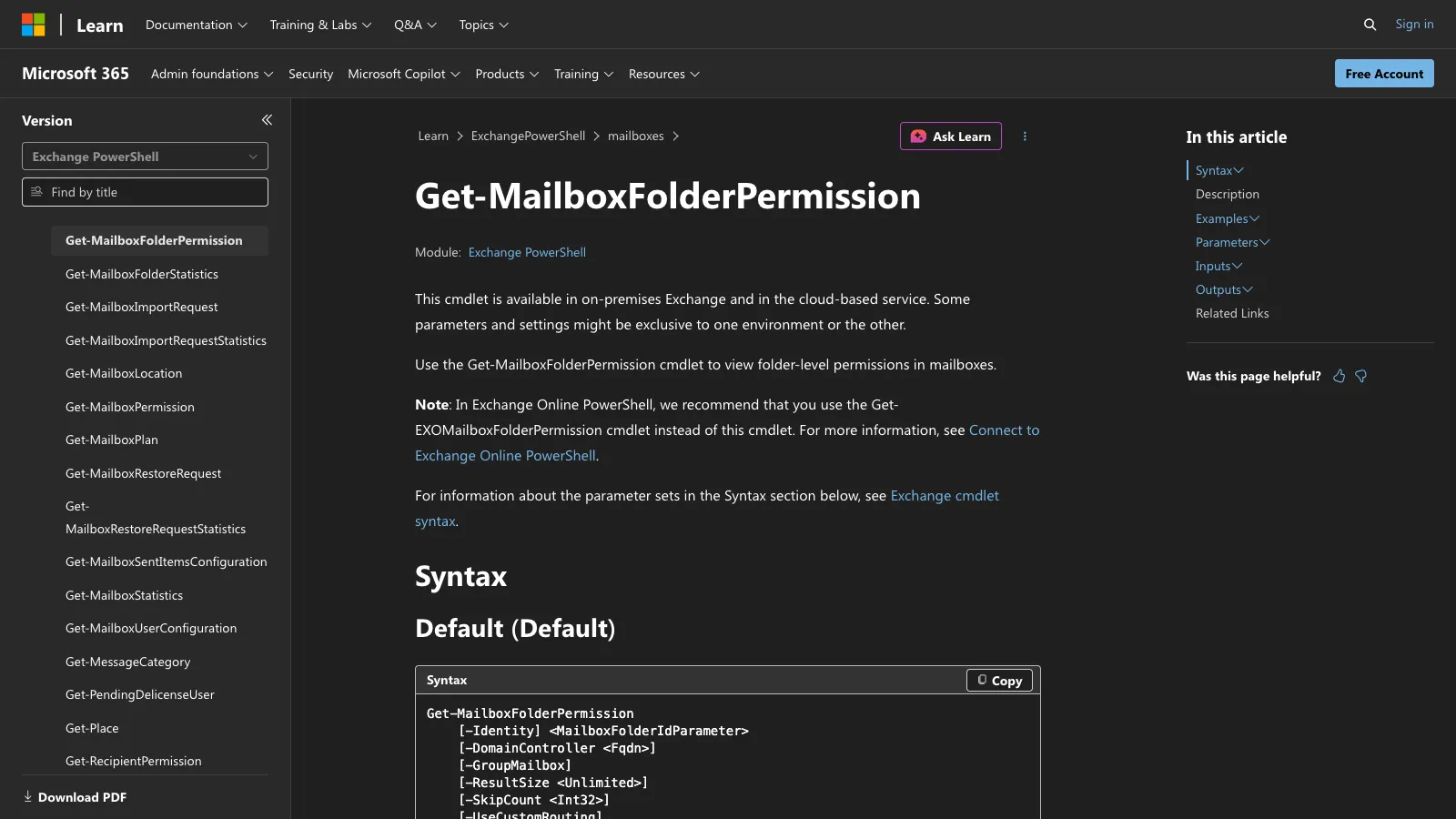
Source: Get-MailboxFolderPermission on Microsoft Learn.
Where does it run?
It runs in Exchange Server 2010 through Exchange Server SE and in Exchange Online. In Exchange Online PowerShell, Microsoft recommends Get-EXOMailboxFolderPermission instead. Connect first with the Exchange Online PowerShell module:
Connect-ExchangeOnline -UserPrincipalName admin@contoso.com
You need permissions assigned before you can run it. To find the role, see Microsoft's article Find the permissions required to run any Exchange cmdlet.
Which parameters does it take?
| Parameter | What it does |
|---|---|
-Identity |
Required. The folder, as MailboxID:\ParentFolder[\SubFolder], for example john@contoso.com:\Calendar or John:\Inbox\Reports. Accepts pipeline input. |
-User |
Shows only the entry for one user, mail user or mail-enabled security group. |
-GroupMailbox |
Required to return Microsoft 365 Groups (Exchange 2016 and later, and Exchange Online). |
-ResultSize |
Cloud only. Maximum results. The default is 1000. Use Unlimited for all. |
-DomainController |
On-premises only. The domain controller to read from, such as dc01.contoso.com. |
For -User, Microsoft recommends the UPN (user@contoso.com) or Domain\SamAccountName for the best results.
Examples
Everyone with access to a calendar:
Get-MailboxFolderPermission -Identity john@contoso.com:\Calendar
One user's access to that calendar:
Get-MailboxFolderPermission -Identity john@contoso.com:\Calendar -User ayla@contoso.com
A subfolder:
Get-MailboxFolderPermission -Identity john@contoso.com:\Marketing\Reports
The calendar of a Microsoft 365 group:
Get-MailboxFolderPermission -Identity marketing@contoso.com:\Calendar -GroupMailbox
What do the access rights mean?
The AccessRights value is either a role or a list of individual permissions. These are the roles Microsoft lists for Add-MailboxFolderPermission:
| Role | Permissions |
|---|---|
Owner |
Everything, including creating subfolders and being the folder owner and contact |
PublishingEditor |
Create, read, edit and delete all items, create subfolders |
Editor |
Create, read, edit and delete all items |
PublishingAuthor |
Create and read items, create subfolders, edit and delete own items |
Author |
Create and read items, edit and delete own items |
NonEditingAuthor |
Create and read items, delete own items |
Reviewer |
Read items |
Contributor |
Create items only |
None |
No access |
Two more roles apply to calendar folders only:
| Role | What the user sees |
|---|---|
AvailabilityOnly |
Free and busy time only |
LimitedDetails |
Free and busy time plus subject and location |
Source: the AccessRights section of Add-MailboxFolderPermission on Microsoft Learn.
How do I audit every room calendar?
Loop over the room mailboxes and read each calendar:
Get-Mailbox -RecipientTypeDetails RoomMailbox -ResultSize Unlimited | ForEach-Object {
    $room = $_.PrimarySmtpAddress
    Get-MailboxFolderPermission -Identity "${room}:\Calendar" |
        Select-Object @{n='Room';e={$room}},User,AccessRights
} | Export-Csv "C:\temp\room-calendar-permissions.csv" -NoTypeInformation
Open the CSV and look for rooms where people have more access than they need.
Get-MailboxFolderPermission or Get-EXOMailboxFolderPermission?
In Exchange Online, Microsoft recommends the Get-EXO version. It takes the same MailboxID:\Folder identity and adds other ways to name the mailbox:
| Get-MailboxFolderPermission | Get-EXOMailboxFolderPermission | |
|---|---|---|
| Runs in | Exchange Server and Exchange Online | Exchange Online |
| Name the mailbox by | -Identity |
-Identity, -UserPrincipalName, -PrimarySmtpAddress or -ExternalDirectoryObjectId |
-User |
Yes | Yes |
-GroupMailbox |
Yes | Yes |
Get-EXOMailboxFolderPermission -Identity john@contoso.com:\Marketing\Reports -User kim@contoso.com
Source: Get-EXOMailboxFolderPermission on Microsoft Learn. For more Get-EXO cmdlets, see Get-EXOMailbox.
How do I change what I find?
| To | Use |
|---|---|
| Give a user access they don't have | Add-MailboxFolderPermission |
| Change a user's existing access | Set-MailboxFolderPermission |
| Take a user's access away | Remove-MailboxFolderPermission |
| Check access to the whole mailbox | Get-MailboxPermission |
Troubleshooting
| Problem | Fix |
|---|---|
| Folder not found | Check the :\ syntax. The colon and backslash go between the mailbox and the folder. |
| Every folder's permissions came back | The -Identity value was $null or didn't match. Microsoft warns that this returns all objects. Check the value, especially in a loop. |
Error with -User in Get-EXOMailboxFolderPermission |
Microsoft notes that the command returns an error when that user has no permission on the folder. Run it without -User to see who does. |
| Group calendar missing | Add -GroupMailbox. |
| Results cut off at 1000 in Exchange Online | Add -ResultSize Unlimited. |
Summary
- Get-MailboxFolderPermission shows who can open one folder and with which rights.
- The identity is
MailboxID:\Folder, such asjohn@contoso.com:\Calendar. - Add
-Userfor one person and-GroupMailboxfor Microsoft 365 Groups. - In Exchange Online, Microsoft recommends Get-EXOMailboxFolderPermission.
Related: Add-MailboxFolderPermission, Remove-MailboxFolderPermission, Get-MailboxPermission, resource mailbox delegates.
Meeting Room 365 turns any iPad or Android tablet into a room display for Exchange and Microsoft 365 calendars. See the features or pricing: $9 a display a month.