Quick answer
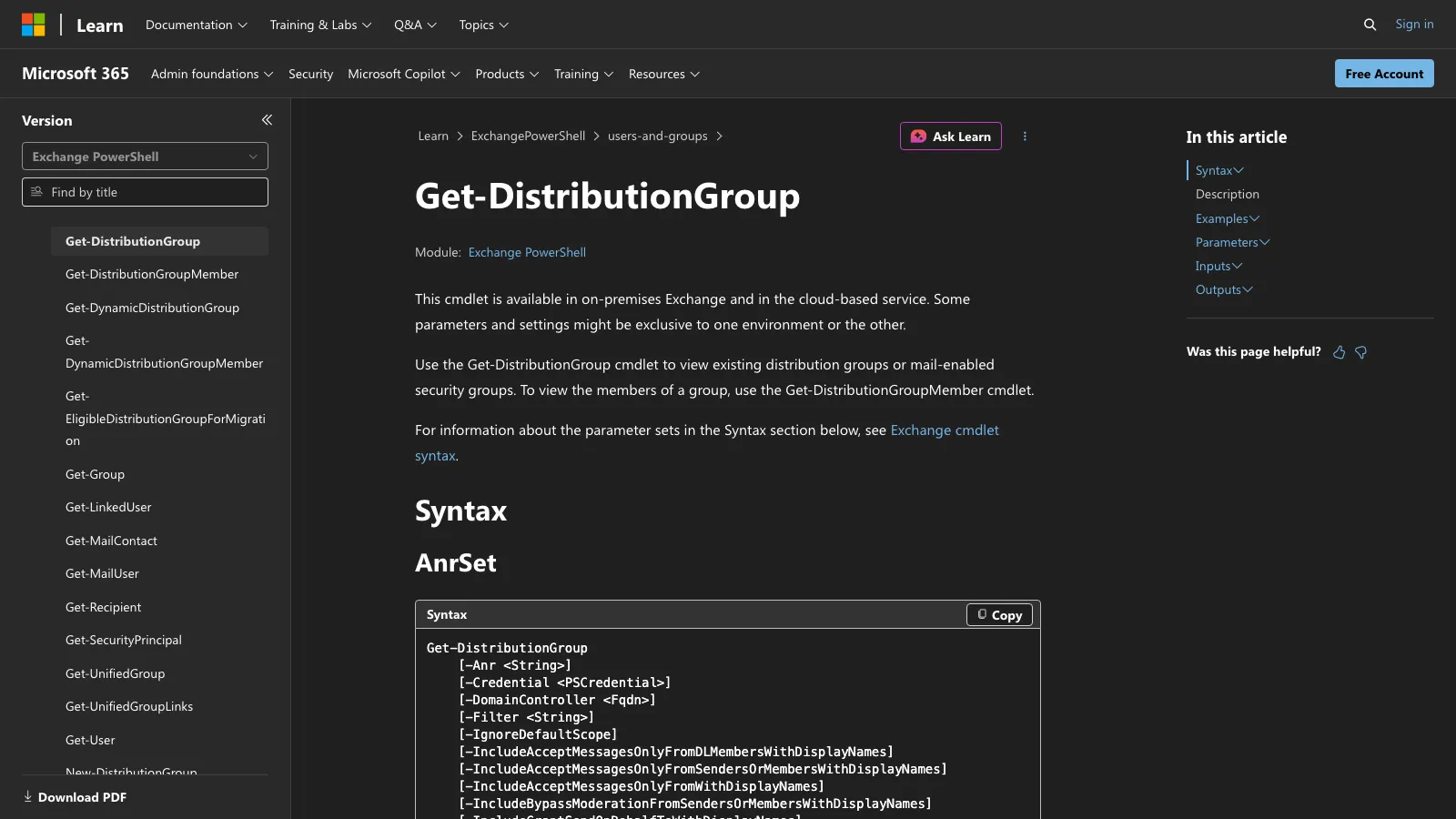
Get-DistributionGroup lists the distribution groups and mail-enabled security groups in Exchange. With no parameters it returns a summary of every one:
Get-DistributionGroup
For one group with all its settings, name it and pipe to Format-List:
Get-DistributionGroup -Identity "Marketing Reports" | Format-List
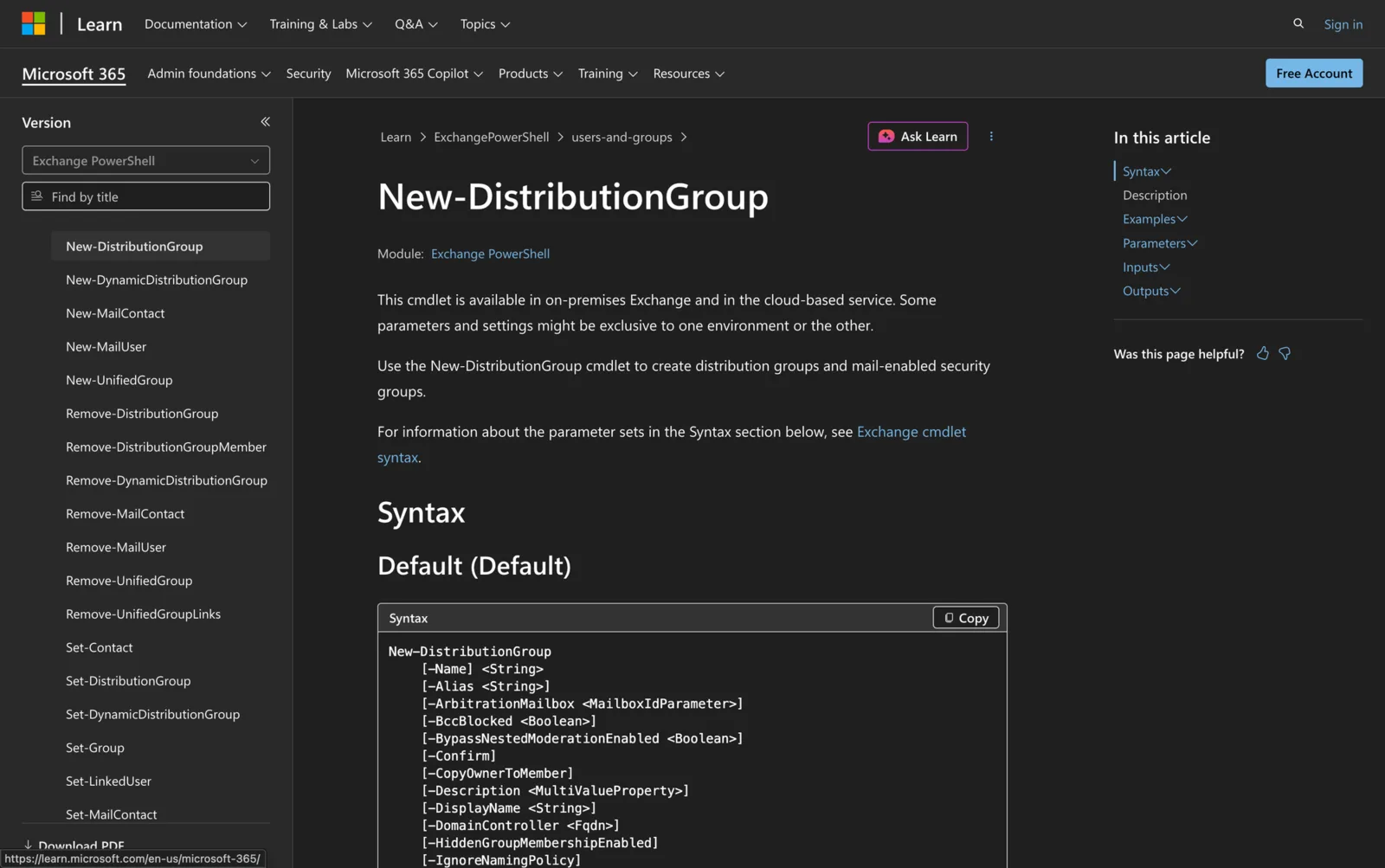
It works in Exchange Online and in on-premises Exchange. In Exchange Online, run Connect-ExchangeOnline first. On-premises, open the Exchange Management Shell. See Connect to Exchange Online PowerShell if you can't connect.
What does Get-DistributionGroup do?
It reads group settings: name, email address, owners, who can join and who can send to it. It doesn't list members. Use Get-DistributionGroupMember for that.
-Identity accepts any value that identifies one group: name, alias, distinguished name, canonical DN, email address or GUID. It's positional, so Get-DistributionGroup "Marketing Reports" works too.
Related cmdlets:
| Cmdlet | What it does |
|---|---|
Get-DistributionGroupMember |
Lists the members of a group |
| New-DistributionGroup | Creates a group or room list |
| Set-DistributionGroup | Changes a group's settings |
| Add-DistributionGroupMember | Adds members to a group |
Get-DynamicDistributionGroup |
Lists dynamic distribution groups |
| Get-UnifiedGroup | Lists Microsoft 365 Groups |
Examples
| Goal | Command |
|---|---|
| All groups | Get-DistributionGroup -ResultSize Unlimited |
| One group, every property | Get-DistributionGroup -Identity "Marketing Reports" | Format-List |
| Names that contain a word, with owners | Get-DistributionGroup -Anr marketing | Format-Table Name,ManagedBy -Auto |
| Groups one person owns | Get-DistributionGroup -ManagedBy amyc |
| Mail-enabled security groups only | Get-DistributionGroup -RecipientTypeDetails MailUniversalSecurityGroup |
| Room lists only | Get-DistributionGroup -RecipientTypeDetails RoomList |
| Groups that need approval to join | Get-DistributionGroup -Filter "MemberJoinRestriction -eq 'ApprovalRequired'" |
| Groups hidden from the address list | Get-DistributionGroup -Filter 'HiddenFromAddressListsEnabled -eq $true' |
| Sorted by display name | Get-DistributionGroup -SortBy DisplayName |
| Count them | (Get-DistributionGroup -ResultSize Unlimited).Count |
Why does it stop at 1000 groups?
-ResultSize defaults to 1000. In a large organization that cuts the list short. Use Unlimited to get them all:
Get-DistributionGroup -ResultSize Unlimited
Add it to any count or export, or the numbers will be wrong once you pass 1000 groups.
How do I search for a group?
| Parameter | Use it for |
|---|---|
-Identity |
One group you can name exactly |
-Anr |
A partial string. It matches against the common name, display name, first name, last name and alias |
-Filter |
Any filterable property, in OPATH syntax |
-ManagedBy |
Groups owned by one person |
-RecipientTypeDetails |
One group subtype |
-OrganizationalUnit |
Groups in one OU or domain |
A filter is a property, an operator and a value: "Property -Operator 'Value'". Put the whole filter in double quotes and text values in single quotes. If the filter uses $true, $false or $null, wrap the filter in single quotes instead:
Get-DistributionGroup -Filter "Name -like 'Sales*'"
Get-DistributionGroup -Filter 'HiddenFromAddressListsEnabled -eq $true'
Join conditions with -and and -or. Name, PrimarySmtpAddress, ManagedBy, MemberJoinRestriction and HiddenFromAddressListsEnabled are all filterable. Microsoft keeps the full list in Filterable properties for the Filter parameter.
-RecipientTypeDetails takes these values, and you can give several separated by commas:
| Value | What it is |
|---|---|
MailUniversalDistributionGroup |
A distribution group |
MailUniversalSecurityGroup |
A mail-enabled security group |
MailNonUniversalGroup |
A mail-enabled non-universal group |
RoomList |
A room list |
How do I list room lists?
Room lists are distribution groups whose members are all room mailboxes. List them with:
Get-DistributionGroup -RecipientTypeDetails RoomList
To create one, see New-DistributionGroup. If rooms are missing from the Outlook room finder, see Outlook Room Finder Not Showing Rooms.
Why do owners show as GUIDs?
Exchange Online shows the recipients in some properties as GUIDs. Each of these properties has a switch that fills a matching WithDisplayNames property with SMTP addresses and display names instead:
| Switch | Fills |
|---|---|
-IncludeManagedByWithDisplayNames |
ManagedByWithDisplayNames |
-IncludeModeratedByWithDisplayNames |
ModeratedByWithDisplayNames |
-IncludeGrantSendOnBehalfToWithDisplayNames |
GrantSendOnBehalfToWithDisplayNames |
-IncludeAcceptMessagesOnlyFromWithDisplayNames |
AcceptMessagesOnlyFromWithDisplayNames |
-IncludeAcceptMessagesOnlyFromSendersOrMembersWithDisplayNames |
AcceptMessagesOnlyFromSendersOrMembersWithDisplayNames |
-IncludeAcceptMessagesOnlyFromDLMembersWithDisplayNames |
AcceptMessagesOnlyFromDLMembersWithDisplayNames |
-IncludeBypassModerationFromSendersOrMembersWithDisplayNames |
BypassModerationFromSendersOrMembersWithDisplayNames |
Without the switch, the WithDisplayNames property is empty. These switches exist only in Exchange Online.
Get-DistributionGroup -Identity "Marketing Reports" -IncludeManagedByWithDisplayNames |
  Select-Object Name,ManagedByWithDisplayNames
How do I export groups to CSV?
Get every group, pick the columns, then write the file:
Get-DistributionGroup -ResultSize Unlimited |
  Select-Object Name,PrimarySmtpAddress,RecipientTypeDetails,MemberJoinRestriction |
  Export-Csv groups.csv -NoTypeInformation
To export members too, loop over the groups and call Get-DistributionGroupMember for each one.
Which parameters work only on-premises?
| Parameter | What it does |
|---|---|
-DomainController |
Reads from one domain controller, by FQDN, such as dc01.contoso.com |
-IgnoreDefaultScope |
Searches the whole forest instead of the session's default recipient scope |
-ReadFromDomainController |
Reads from a domain controller in the user's domain instead of a global catalog |
With -IgnoreDefaultScope, -Identity accepts only a distinguished name, and you can't use -DomainController. If you've run Set-AdServerSettings -ViewEntireForest $true, add -ReadFromDomainController, or the command might read outdated information from a global catalog.
Why doesn't Get-DistributionGroup work?
| Symptom | Likely cause | Fix |
|---|---|---|
| The term Get-DistributionGroup isn't recognized | You aren't connected to Exchange | Run Connect-ExchangeOnline, or use the Exchange Management Shell |
| The list stops at 1000 | -ResultSize defaults to 1000 |
Add -ResultSize Unlimited |
A variable you passed to -Identity returns every group |
The variable is $null or names no group |
Check the variable before you run the command |
| Owners or allowed senders show as GUIDs | The WithDisplayNames properties are empty by default |
Add the matching -Include...WithDisplayNames switch |
A filter with $true or $null fails |
The filter is in double quotes | Wrap the filter in single quotes |
-IgnoreDefaultScope can't find the group |
Only a distinguished name is accepted with that switch | Pass the group's DN |
| A parameter isn't found | Your role doesn't include it | Ask an admin for the right Exchange role |
| A Microsoft 365 Group is missing | It isn't a distribution group | Use Get-UnifiedGroup |
To run with another account, build a credential first. See Get-Credential.
How do I check the result?
Count the groups, then look at one you know:
(Get-DistributionGroup -ResultSize Unlimited).Count
Get-DistributionGroup -Identity "Marketing Reports" | Format-List Name,PrimarySmtpAddress,RecipientTypeDetails,ManagedBy
If a group you expect is missing, check whether it's a dynamic distribution group or a Microsoft 365 Group. List those with Get-DynamicDistributionGroup and Get-UnifiedGroup.
Sources
- Get-DistributionGroup on Microsoft Learn
- Filterable properties for the Filter parameter on Microsoft Learn
Meeting Room 365 turns any iPad or Android tablet into a room display for Exchange and Microsoft 365 calendars. See the features or pricing: $9 a room a month.