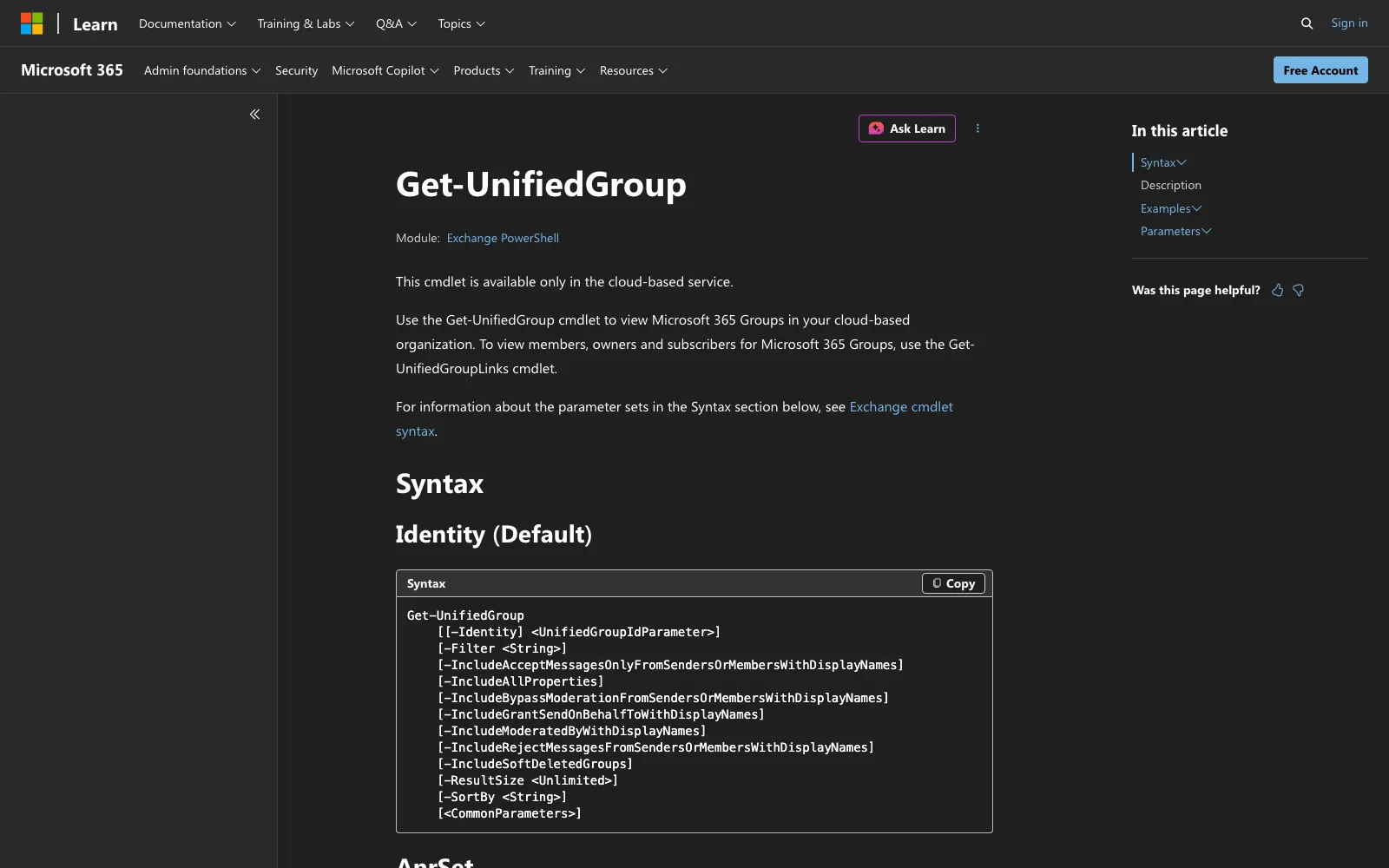
Quick answer: Get-UnifiedGroup lists the Microsoft 365 Groups in your Exchange Online organization. Run it with no parameters for all of them, or name one group with -Identity:
Get-UnifiedGroup -Identity "Marketing Department" | Format-List
Source: Get-UnifiedGroup on Microsoft Learn.
Where does it run?
It runs only in Exchange Online. It isn't in on-premises Exchange Server. Connect first with the Exchange Online PowerShell module:
Connect-ExchangeOnline -UserPrincipalName admin@contoso.com
You need permissions assigned before you can run it. To find the role, see Microsoft's article Find the permissions required to run any Exchange cmdlet.
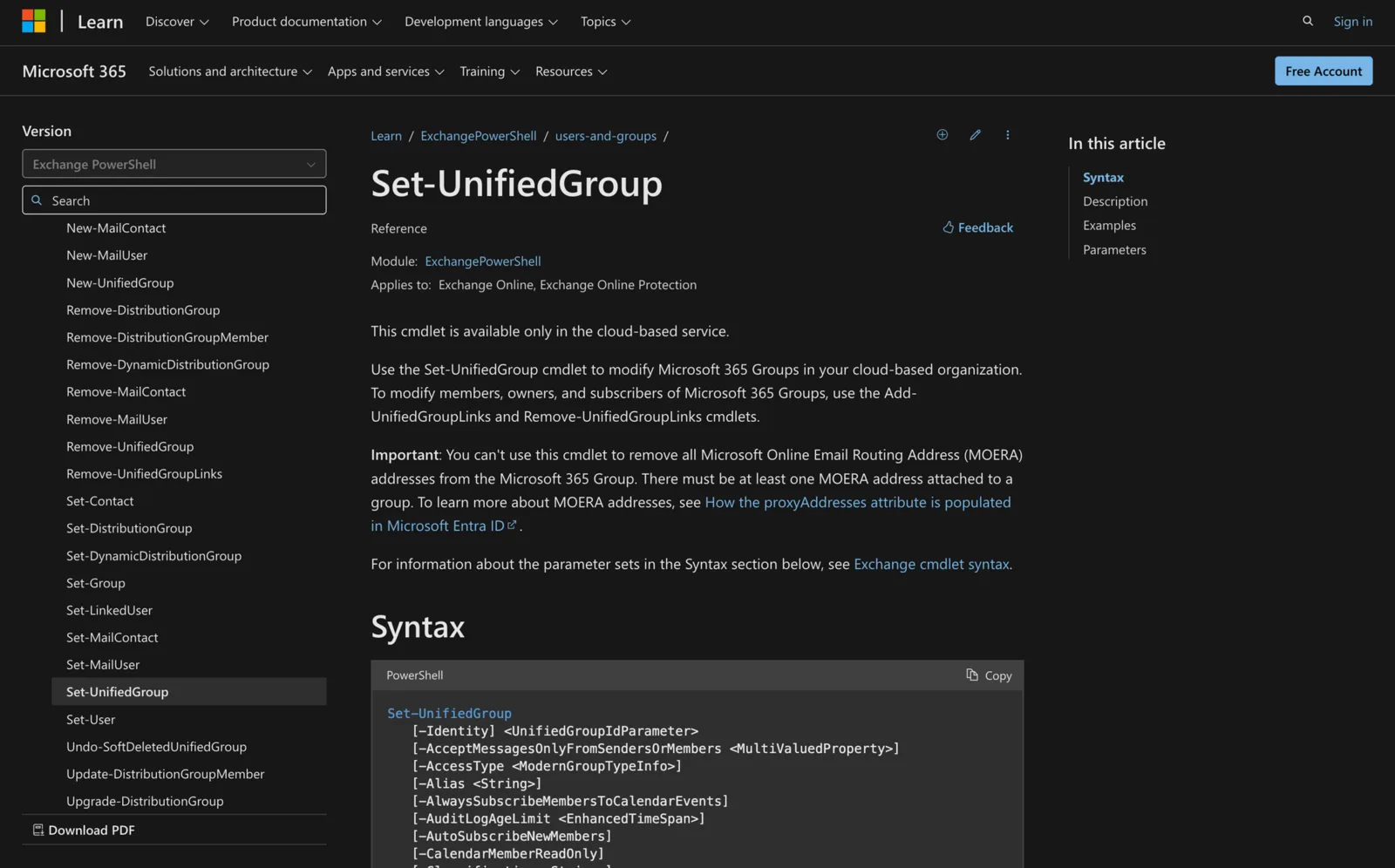
Get-UnifiedGroup shows the group itself. For members, owners and subscribers, use Get-UnifiedGroupLinks.
Which parameters does it take?
| Parameter | What it does |
|---|---|
-Identity |
The group to show, by name, alias, DN, canonical DN, email address or GUID. Leave it out to get every group. |
-Filter |
An OPATH filter, such as "DisplayName -like 'Sales*'". |
-ResultSize |
Maximum results. The default is 1000. Use Unlimited for all. |
-SortBy |
Sorts ascending by Name, DisplayName or Alias. One property at a time. |
-IncludeAllProperties |
Fills in values that might otherwise be blank, such as CalendarUrl, InboxUrl and PhotoUrl. |
-IncludeSoftDeletedGroups |
Adds deleted groups that can still be recovered. |
-IncludeGrantSendOnBehalfToWithDisplayNames |
Shows Send on Behalf users as addresses and names instead of GUIDs. |
Four more -Include...WithDisplayNames switches do the same for the accept, reject, moderated by and bypass moderation lists. Microsoft marks -Anr as reserved for internal Microsoft use.
You can use the display name as -Identity, but Microsoft warns that it might not be unique. Use the email address or GUID when you need exactly one group.
Examples
All groups:
Get-UnifiedGroup
Name, address, description, owners and privacy for every group:
Get-UnifiedGroup | Format-List DisplayName,EmailAddresses,Notes,ManagedBy,AccessType
Groups with no owner:
Get-UnifiedGroup | Where-Object {-Not $_.ManagedBy}
Groups that were created with a Microsoft Team:
Get-UnifiedGroup -Filter {ResourceProvisioningOptions -eq "Team"}
Groups whose name starts with Sales, sorted by name:
Get-UnifiedGroup -Filter "DisplayName -like 'Sales*'" -SortBy DisplayName
The first four are Microsoft's examples from Learn.
How do I export every group to CSV?
Get-UnifiedGroup -ResultSize Unlimited |
    Select-Object DisplayName,PrimarySmtpAddress,AccessType,@{n='Owners';e={$_.ManagedBy -join ';'}} |
    Export-Csv "C:\temp\m365-groups.csv" -NoTypeInformation
Without -ResultSize Unlimited the list stops at 1000 groups.
How do I list the members of a group?
Use Get-UnifiedGroupLinks with -LinkType:
Get-UnifiedGroupLinks -Identity "Human Resources Department" -LinkType Members
Get-UnifiedGroupLinks -Identity "Human Resources Department" -LinkType Owners
| LinkType | Who |
|---|---|
Members |
People who take part in conversations, files and the connected Teams and SharePoint site |
Owners |
People who add and remove members and manage the group. A group needs at least one owner. |
Subscribers |
Members who get the group's conversation and calendar notifications |
Every subscriber is a member, but not every member is a subscriber. Get-UnifiedGroupLinks also stops at 1000 results unless you add -ResultSize Unlimited. Source: Get-UnifiedGroupLinks on Microsoft Learn.
To count the members of every group:
Get-UnifiedGroup -ResultSize Unlimited | ForEach-Object {
    [pscustomobject]@{
        Group   = $_.DisplayName
        Members = (Get-UnifiedGroupLinks -Identity $_.Identity -LinkType Members -ResultSize Unlimited).Count
    }
}
How do I change what I find?
| To | Use |
|---|---|
| Change a group's settings | Set-UnifiedGroup |
| Read groups through Microsoft Graph | Get-MgGroup |
| Read group members through Microsoft Graph | Get-MgGroupMember |
| Work with distribution groups instead | Set-DistributionGroup |
Troubleshooting
| Problem | Fix |
|---|---|
| Cmdlet not found | It's Exchange Online only. Run Connect-ExchangeOnline first. |
| Every group came back when you asked for one | The -Identity value was $null or didn't match. Microsoft warns that this returns all objects. Check the value, especially in a loop. |
| Results stop at 1000 | Add -ResultSize Unlimited. |
| CalendarUrl or PhotoUrl is blank | Add -IncludeAllProperties. |
| Send on Behalf shows GUIDs | Add -IncludeGrantSendOnBehalfToWithDisplayNames. |
| A deleted group is missing | Add -IncludeSoftDeletedGroups. |
| No members in the output | Get-UnifiedGroup doesn't list members. Use Get-UnifiedGroupLinks. |
Summary
- Get-UnifiedGroup lists Microsoft 365 Groups in Exchange Online.
- Use
-Identityfor one group,-Filterfor a set, and-ResultSize Unlimitedfor more than 1000. Where-Object {-Not $_.ManagedBy}finds groups with no owner.- Get-UnifiedGroupLinks lists members, owners and subscribers.
Related: Set-UnifiedGroup, Get-MgGroup, Get-MgGroupMember.
Meeting Room 365 turns any iPad or Android tablet into a room display for Exchange and Microsoft 365 calendars. See the features or pricing: $9 a display a month.