Quick answer
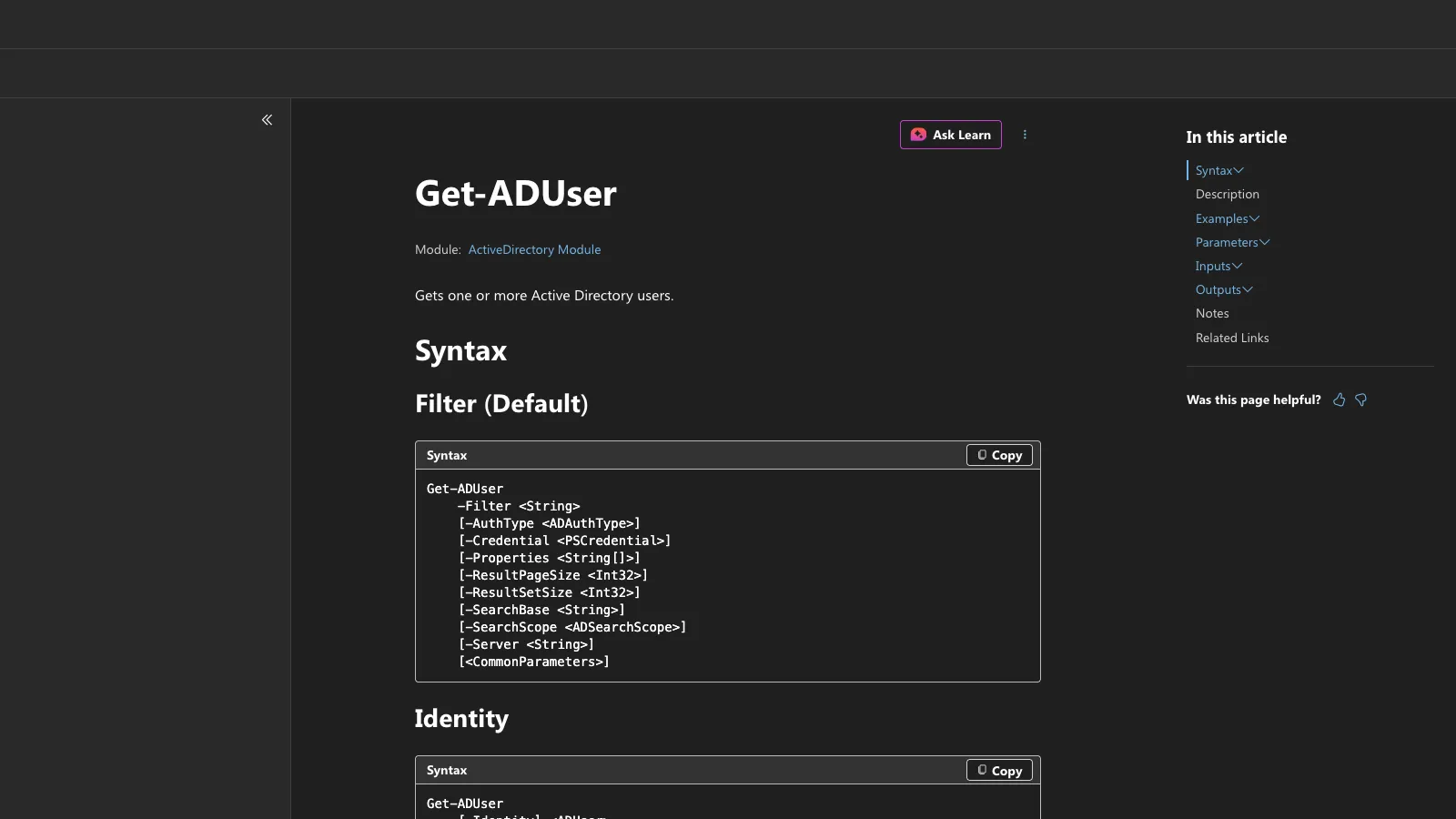
Get-ADUser gets one Active Directory user, or searches for many. To get one user, pass a SAM account name, distinguished name, GUID or SID:
Get-ADUser -Identity amyc
To search, use -Filter. This returns every user in one OU:
Get-ADUser -Filter * -SearchBase "OU=Finance,OU=UserAccounts,DC=CONTOSO,DC=COM"
The cmdlet is part of the ActiveDirectory module. If PowerShell doesn't recognize it, install the Remote Server Administration Tools (RSAT). On Windows 10 from the October 2018 Update onward, RSAT is a set of Features on Demand: open Manage optional features in Settings, choose Add a feature and pick the Active Directory tools.
What does Get-ADUser do?
It reads user objects from Active Directory Domain Services or an AD LDS instance. It returns a default set of properties for each user. To get anything outside that set, such as mail, name it in -Properties.
It has three parameter sets:
| Parameter set | Required parameter | Use it for |
|---|---|---|
| Filter (default) | -Filter |
Searching with the PowerShell filter syntax |
| Identity | -Identity |
Getting one known user |
| LDAPFilter | -LDAPFilter |
Running an existing LDAP query |
Related cmdlets in the same module:
| Cmdlet | What it does |
|---|---|
Set-ADUser |
Changes properties on an existing user |
New-ADUser |
Creates a user |
Remove-ADUser |
Deletes a user |
For cloud users in Microsoft Entra ID, use Get-MgUser instead. For the Exchange side of a user, such as display name and phone fields, see Set-User.
Examples
| Goal | Command |
|---|---|
| One user, default properties | Get-ADUser -Identity amyc |
| One user, every property that is set | Get-ADUser -Identity amyc -Properties * |
| All users in an OU | Get-ADUser -Filter * -SearchBase "OU=Finance,OU=UserAccounts,DC=CONTOSO,DC=COM" |
| Names ending in SvcAccount | Get-ADUser -Filter 'Name -like "*SvcAccount"' | Format-Table Name,SamAccountName -A |
| Enabled users only | Get-ADUser -LDAPFilter '(!userAccountControl:1.2.840.113556.1.4.803:=2)' |
| Disabled users only | Get-ADUser -LDAPFilter '(userAccountControl:1.2.840.113556.1.4.803:=2)' |
| A user in AD LDS | Get-ADUser -Filter "Name -eq 'AmyCole'" -SearchBase "DC=AppNC" -Properties "mail" -Server lds.contoso.com:50000 |
| List the default properties | Get-ADUser -Identity amyc | Get-Member |
| List the common extended properties | Get-ADUser -Identity amyc -Properties Extended | Get-Member |
How do I write a -Filter?
-Filter takes the PowerShell Expression Language. The pattern is a property, an operator and a value:
Get-ADUser -Filter 'Name -like "*SvcAccount"'
Supported operators are -eq, -ne, -lt, -le, -gt, -ge, -like, -notlike, -approx, -band, -bor and -recursivematch. Join conditions with -and or -or, and negate with -not. For the full grammar, run Get-Help about_ActiveDirectory_Filter.
The only wildcard is *. Other PowerShell wildcards such as ? aren't supported in a filter.
Using a variable in a filter
PowerShell expands the variable only if you quote it the right way. With a double-quoted filter, put the variable in single quotes:
$UserName = "Amy*"
Get-ADUser -Filter "Name -like '$UserName'"
With a script block in braces, don't quote the variable at all:
Get-ADUser -Filter {Name -like $UserName}
When to use -LDAPFilter
Use -LDAPFilter when you already have an LDAP query, for example from another tool. Microsoft says -Filter supports the same functionality, so pick whichever syntax you know.
How do I get more properties?
Add them to -Properties as a comma-separated list:
Get-ADUser -Identity amyc -Properties mail,telephoneNumber
Use an extended property's own name. For an attribute that isn't a default or extended property, use its LDAP display name. -Properties * returns every attribute that is set on the object, which is handy for finding the name you need.
To save the result, pipe it on:
Get-ADUser -Filter * -SearchBase "OU=Finance,OU=UserAccounts,DC=CONTOSO,DC=COM" -Properties mail |
  Select-Object Name,SamAccountName,mail |
  Export-Csv finance-users.csv -NoTypeInformation
To keep full objects for later, see Export-Clixml.
How do I limit where it searches?
| Parameter | What it does | Default |
|---|---|---|
-SearchBase |
The AD path to search under | The current path on an AD provider drive, otherwise the domain's default naming context |
-SearchScope |
Base (0), OneLevel (1) or Subtree (2) |
Not documented |
-Server |
The domain or domain controller to ask, by FQDN or NetBIOS name, with an optional port | The domain of the computer running PowerShell |
-ResultSetSize |
The most users to return | $Null, meaning all |
-ResultPageSize |
Users per page in the query | 256 |
OneLevel searches only the direct children of the -SearchBase, and only works when the search base is an OU. Base searches only the object itself, so a filter run against an OU with Base returns no users.
How do I run it as another account?
Pass -Credential with a credential object. Without it, the cmdlet runs as the signed-in user, or as the account mapped to the AD provider drive if you run it from there.
$cred = Get-Credential
Get-ADUser -Identity amyc -Credential $cred -Server dc01.contoso.com
See Get-Credential for ways to build that object. -AuthType is Negotiate by default. Basic needs an SSL connection.
Why doesn't Get-ADUser work?
| Symptom | Likely cause | Fix |
|---|---|---|
| The term Get-ADUser isn't recognized | The ActiveDirectory module isn't installed | Add the RSAT Active Directory tools from Manage optional features |
| A property shows as empty or is missing | It isn't in the default property set | Name it in -Properties, or use -Properties * to find it |
A filter with ? finds nothing |
Only * works as a wildcard in -Filter |
Rewrite the pattern with * |
| A filter with a variable finds nothing | The variable is quoted the wrong way and isn't expanded | Single-quote it inside a double-quoted filter, or leave it unquoted inside braces |
-SearchScope OneLevel returns nothing |
The search base is a user, not an OU | Point -SearchBase at an OU |
An empty -SearchBase throws an error |
An empty search base only works over a global catalog port | Give a real path, or connect to a global catalog port |
-Identity returns an error about more than one object |
Two objects match the value | Use the distinguished name, GUID or SID instead |
| Access is denied | The account has no rights to read the directory | Run with -Credential for an account that does |
| Nothing works against a snapshot | Get-ADUser doesn't support Active Directory snapshots | Query a live domain controller |
How do I check the result?
Count what came back before you act on it:
(Get-ADUser -Filter * -SearchBase "OU=Finance,OU=UserAccounts,DC=CONTOSO,DC=COM").Count
Then spot-check one user with -Properties * and compare it with what you expect. When the list looks right, pass it to Set-ADUser or export it.
Sources
- Get-ADUser on Microsoft Learn
- ActiveDirectory module on Microsoft Learn
- Set-ADUser on Microsoft Learn
Meeting Room 365 turns any iPad or Android tablet into a room display for Exchange and Microsoft 365 calendars. See the features or pricing: $9 a display a month.