Quick answer: run Set-ExecutionPolicy -ExecutionPolicy RemoteSigned -Scope CurrentUser to let your own scripts run without admin rights. Check the result with Get-ExecutionPolicy -List. For one session only, use Set-ExecutionPolicy -ExecutionPolicy Bypass -Scope Process; it's gone when you close the window.
What does Set-ExecutionPolicy do?
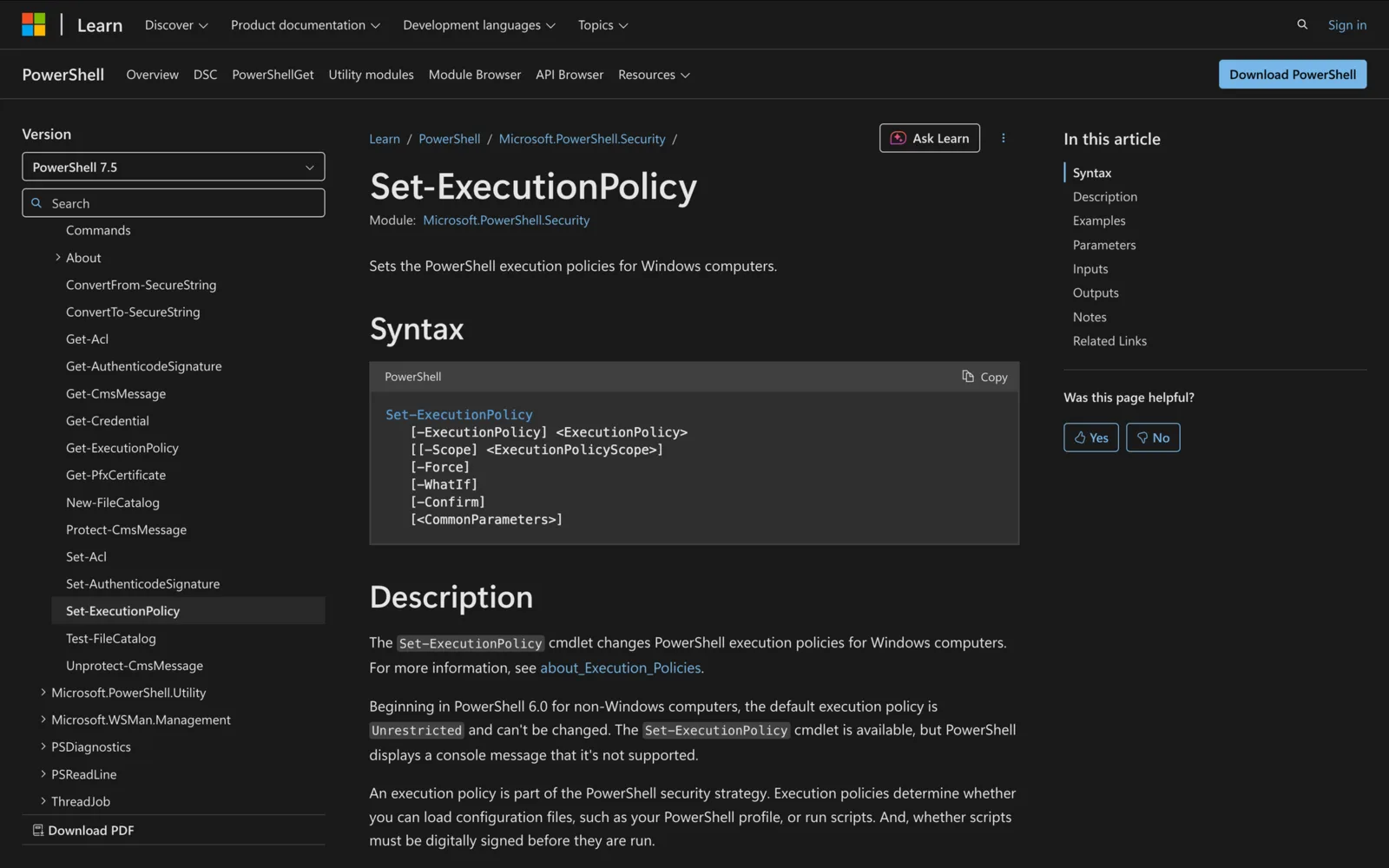
Set-ExecutionPolicy changes the PowerShell execution policy on Windows. The policy decides whether PowerShell loads configuration files (such as your profile) and runs scripts, and whether those scripts must be signed.
Microsoft is clear that the execution policy isn't a security boundary. It's a safety feature that stops you running scripts by accident, not a control that stops a determined user.
On macOS and Linux (PowerShell 6.0 and later), the policy is Unrestricted and can't be changed. The cmdlet exists there, but it prints a message that it's not supported.
Syntax
Set-ExecutionPolicy
    [-ExecutionPolicy] <ExecutionPolicy>
    [[-Scope] <ExecutionPolicyScope>]
    [-Force]
    [-WhatIf]
    [-Confirm]
- -ExecutionPolicy (required, position 0): the policy to apply. Accepts pipeline input.
- -Scope (position 1): where to apply it. Defaults to
LocalMachine. - -Force: skips the confirmation prompt.
- -WhatIf / -Confirm: preview or confirm the change.
Which execution policy should I use?
| Policy | What it does |
|---|---|
Restricted |
Allows single commands, but no scripts or profiles. The effective policy on Windows clients when nothing else is set. |
RemoteSigned |
Local scripts run. Scripts downloaded from the internet must be signed or unblocked. The Windows Server default. |
AllSigned |
Every script and configuration file must be signed by a trusted publisher, including your own. |
Unrestricted |
All scripts run. Warns before running files that aren't from the local intranet zone. |
Bypass |
Nothing is blocked; no warnings or prompts. Meant for apps that embed PowerShell. |
Undefined |
Removes the policy from that scope. |
Default |
Resets to the Windows default policy. |
For most admins, RemoteSigned on CurrentUser is the right balance: your own scripts run, and downloaded ones need a signature or an explicit unblock.
What are the execution policy scopes?
| Scope | Affects | Set by |
|---|---|---|
MachinePolicy |
All users of the computer | Group Policy |
UserPolicy |
The current user | Group Policy |
Process |
The current PowerShell session only | Set-ExecutionPolicy or -ExecutionPolicy at launch |
CurrentUser |
The current user | Set-ExecutionPolicy |
LocalMachine |
All users of the computer (the default scope) | Set-ExecutionPolicy, run as administrator |
Group Policy scopes win over everything. Without Group Policy, the order is Process, then CurrentUser, then LocalMachine. If every scope is Undefined, Windows clients fall back to Restricted.
CurrentUser doesn't need admin rights. LocalMachine does: start PowerShell with Run as administrator.
How to check the current execution policy
# Effective policy for this session
Get-ExecutionPolicy

# Policy set at every scope, in precedence order
Get-ExecutionPolicy -List
        Scope ExecutionPolicy
        ----- ---------------
MachinePolicy       Undefined
   UserPolicy       Undefined
      Process       Undefined
  CurrentUser    RemoteSigned
 LocalMachine       AllSigned
Here the effective policy is RemoteSigned, because CurrentUser outranks LocalMachine.
Set-ExecutionPolicy examples
Let your own scripts run (no admin needed)
Set-ExecutionPolicy -ExecutionPolicy RemoteSigned -Scope CurrentUser
Set the policy for everyone on the computer
Run PowerShell as administrator:
Set-ExecutionPolicy -ExecutionPolicy RemoteSigned -Scope LocalMachine
Bypass the policy for one session
Set-ExecutionPolicy -ExecutionPolicy Bypass -Scope Process
The setting lives in $Env:PSExecutionPolicyPreference and is deleted when the session closes. Nothing is saved to disk.
You can also start a new session with its own policy:
pwsh.exe -ExecutionPolicy Bypass -File .\Deploy.ps1
powershell.exe -ExecutionPolicy Bypass -File .\Deploy.ps1
Skip the confirmation prompt
Set-ExecutionPolicy -ExecutionPolicy RemoteSigned -Scope CurrentUser -Force
Remove a policy from a scope
Set-ExecutionPolicy -ExecutionPolicy Undefined -Scope CurrentUser
Copy the policy from a remote computer
Invoke-Command -ComputerName Server01 -ScriptBlock { Get-ExecutionPolicy } | Set-ExecutionPolicy
Set-ExecutionPolicy takes the policy from the pipeline and applies it to the local LocalMachine scope.
How to run a downloaded script without changing the policy
Browsers mark downloaded files as coming from the internet. Under RemoteSigned, PowerShell refuses to run them unsigned:
File .\Start-ActivityTracker.ps1 cannot be loaded.
The file .\Start-ActivityTracker.ps1 is not digitally signed.
Read the script first. If it's safe, unblock it:
Unblock-File -Path .\Start-ActivityTracker.ps1
.\Start-ActivityTracker.ps1
Unblock-File changes the file, not the policy. Files fetched with curl.exe, Invoke-WebRequest or Invoke-RestMethod may not be marked at all.
Why didn't my change take effect?
Three common reasons:
- Group Policy overrides it. PowerShell saves your preference but warns that "the setting is overridden by the Group Policy applied to your system." The Turn on Script Execution setting under
Administrative Templates\Windows Components\Windows PowerShellcontrols this. - A higher scope wins. Setting
LocalMachinedoes nothing ifCurrentUserorProcesshas its own policy. Check withGet-ExecutionPolicy -List. - Wrong PowerShell. Windows PowerShell 5.1 (
powershell.exe) and PowerShell 7 (pwsh.exe) store their policies separately. Set it in the one you run scripts with.
Troubleshooting
| Problem | Cause | Fix |
|---|---|---|
| "Running scripts is disabled on this system" | Effective policy is Restricted |
Set-ExecutionPolicy RemoteSigned -Scope CurrentUser |
| Access denied setting the policy | LocalMachine needs admin |
Run as administrator, or use -Scope CurrentUser |
| "Overridden by the Group Policy" | MachinePolicy or UserPolicy is set |
Ask your Group Policy admin; use Unblock-File or a signed script |
| "Is not digitally signed" | Downloaded script under RemoteSigned |
Review it, then Unblock-File -Path .\script.ps1 |
| Policy reverts after closing PowerShell | Set with -Scope Process |
Use -Scope CurrentUser to keep it |
| Works in pwsh, fails in powershell.exe | Separate settings per edition | Set the policy in both |
| "Not supported" on macOS or Linux | Policy is fixed at Unrestricted |
Nothing to change; scripts already run |
Summary
Set-ExecutionPolicy RemoteSigned -Scope CurrentUseris the usual fix, and needs no admin rights.-Scope ProcesswithBypasschanges one session only.Get-ExecutionPolicy -Listshows every scope; Group Policy beatsProcess, which beatsCurrentUser, which beatsLocalMachine.Unblock-Fileruns a reviewed downloaded script without loosening the policy.- The execution policy is a safety net, not a security boundary.
Related: Get-ChildItem in PowerShell, Get-Content in PowerShell and Get-Service in PowerShell.
Meeting Room 365 turns any iPad or Android tablet into a room display for Exchange and Microsoft 365 calendars. See the features or pricing: $9 a display a month.