Quick answer
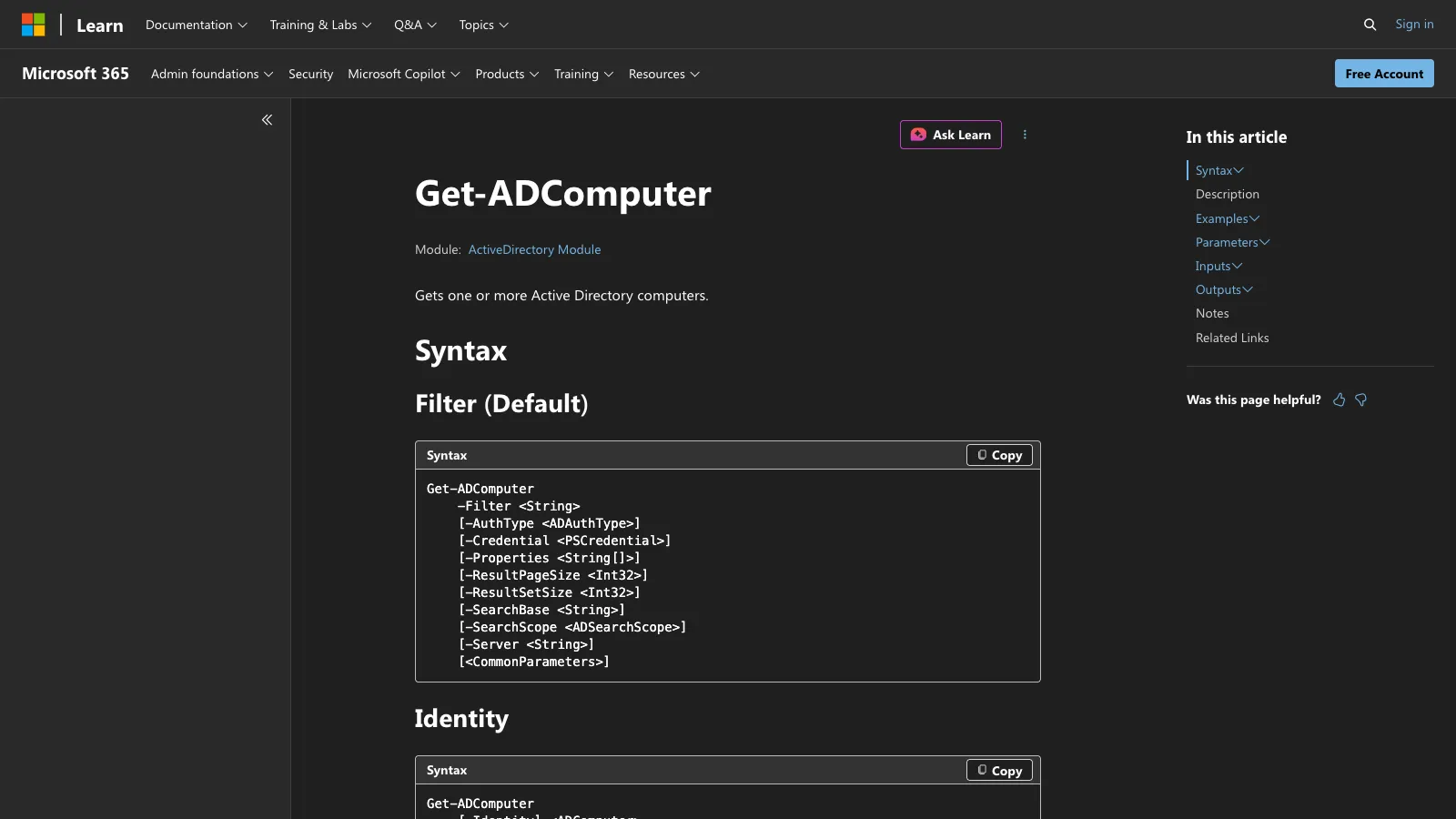
Get-ADComputer gets one computer account from Active Directory, or searches for many. For one computer, pass its name, distinguished name, GUID or SID:
Get-ADComputer -Identity PC-0042
To search, use -Filter. This returns every computer account:
Get-ADComputer -Filter *
The cmdlet is part of the ActiveDirectory module. If PowerShell doesn't recognize it, install the Remote Server Administration Tools (RSAT). On Windows 10 from the October 2018 Update onward, RSAT is a set of Features on Demand: open Manage optional features in Settings, choose Add a feature and pick the Active Directory tools.
What does Get-ADComputer do?
It reads computer objects from Active Directory Domain Services. It has three parameter sets, and you pick one by which of these you pass:
| Parameter | Use it for |
|---|---|
-Identity |
One known computer, by distinguished name, GUID, SID or SAM account name |
-Filter |
A search written in the PowerShell Expression Language |
-LDAPFilter |
A search written as an LDAP query string you already have |
-Identity is positional, so Get-ADComputer PC-0042 works too. You can also pipe a computer object into it.
Related cmdlets in the same module:
| Cmdlet | What it does |
|---|---|
New-ADComputer |
Creates a computer account |
Set-ADComputer |
Changes a computer account's properties |
Remove-ADComputer |
Deletes a computer account |
Get-ADComputerServiceAccount |
Lists the service accounts tied to a computer |
For user accounts, the matching cmdlet is Get-ADUser.
Examples
| Goal | Command |
|---|---|
| One computer with every property | Get-ADComputer -Identity PC-0042 -Properties * |
| All computers | Get-ADComputer -Filter * |
| Names that start with a string | Get-ADComputer -Filter 'Name -like "PC-04*"' |
| Names that start with one of two strings | Get-ADComputer -Filter 'Name -like "PC-04*" -or Name -like "LAB-*"' |
| Name, DNS name and IP address | Get-ADComputer -Filter 'Name -like "PC-04*"' -Properties IPv4Address | Format-Table Name,DNSHostName,IPv4Address -AutoSize |
| Computers in one OU, by LDAP filter | Get-ADComputer -LDAPFilter "(name=*laptop*)" -SearchBase "OU=Laptops,DC=contoso,DC=com" |
| Password changed in the last 90 days | $Date = [DateTime]::Today.AddDays(-90); Get-ADComputer -Filter 'PasswordLastSet -ge $Date' -Properties PasswordLastSet |
| Count them | (Get-ADComputer -Filter *).Count |
How do I write a -Filter?
A filter is a property name, an operator and a value, in that order:
Get-ADComputer -Filter 'OperatingSystem -like "*Server*"' -Properties OperatingSystem
| Part | Options |
|---|---|
| Operators | -eq, -ne, -lt, -le, -gt, -ge, -like, -notlike, -approx, -band, -bor, -recursivematch |
| Joins | -and, -or |
| Negation | -not |
| Wildcard | * only. ? isn't supported |
| Property names | The PowerShell property name or the attribute's LDAP display name |
Put the whole filter in single quotes. A variable like $Date inside the quotes is read by the cmdlet, as in the 90-day example above. For the full grammar, run Get-Help about_ActiveDirectory_Filter.
Why is a property empty?
The cmdlet returns a default set of properties. Anything else, such as OperatingSystem, IPv4Address, PasswordLastSet or LastLogonDate, has to be asked for with -Properties:
Get-ADComputer -Identity PC-0042 -Properties OperatingSystem,OperatingSystemVersion,IPv4Address
Use -Properties * to see every attribute that's set on the object. To list the property names you can ask for, pipe the result to Get-Member:
Get-ADComputer -Identity PC-0042 -Properties * | Get-Member
How do I limit where it searches?
| Parameter | What it does | Default |
|---|---|---|
-SearchBase |
The AD path to search under, such as an OU | The domain's default naming context, or the current path on an AD provider drive |
-ResultSetSize |
The most objects to return | $Null, which returns all of them |
-ResultPageSize |
Objects per page of the query | 256 |
-Server |
The domain or domain controller to ask | The server of a piped-in object, then the provider drive's server, then the domain of the computer running PowerShell |
-SearchScope sets the depth: Base searches only that path or object, OneLevel its direct children, and Subtree the path and everything below it. This lists only the computers directly in one OU, not the ones in its child OUs:
Get-ADComputer -Filter * -SearchBase "OU=Workstations,DC=contoso,DC=com" -SearchScope OneLevel
An empty -SearchBase searches every partition, but only when you're connected to a global catalog port. Otherwise it throws an error.
How do I export computers to CSV?
Ask for the extra properties, pick the columns, then write the file:
Get-ADComputer -Filter * -Properties OperatingSystem,IPv4Address,PasswordLastSet |
  Select-Object Name,DNSHostName,OperatingSystem,IPv4Address,PasswordLastSet |
  Export-Csv computers.csv -NoTypeInformation
To keep full objects instead of a flat file, use Export-Clixml.
How do I find stale computer accounts?
By default, a domain member submits a computer account password change every 30 days. If PasswordLastSet is much older than that, the computer probably hasn't contacted the domain since then. This lists accounts with no password change in 90 days, oldest first:
$Date = [DateTime]::Today.AddDays(-90)
Get-ADComputer -Filter 'PasswordLastSet -lt $Date' -Properties PasswordLastSet |
  Sort-Object PasswordLastSet |
  Format-Table Name,PasswordLastSet
Check the list before you disable or remove anything. If a computer that's still in use can't sign in to the domain, Test-ComputerSecureChannel checks and repairs its trust.
Why doesn't Get-ADComputer work?
| Symptom | Likely cause | Fix |
|---|---|---|
| The term Get-ADComputer isn't recognized | The ActiveDirectory module isn't installed | Add the RSAT Active Directory tools from Manage optional features |
OperatingSystem or IPv4Address is blank |
It isn't in the default property set | Add -Properties with the names you need |
A filter with ? returns nothing |
The filter syntax supports only the * wildcard |
Use * |
| An error about more than one object | Two objects match the identity | Use the distinguished name, GUID or SID |
| An access error stops the command | The account has no directory-level rights for the task | Run with -Credential for an account that does |
An error with an empty -SearchBase |
You aren't connected to a global catalog port | Give an OU or domain path, or connect to a global catalog |
| It fails against AD LDS | The default AD LDS schema has no computer class | Extend the schema with the computer class, or query AD DS |
To run as another account, build a credential first. See Get-Credential.
$cred = Get-Credential
Get-ADComputer -Identity PC-0042 -Credential $cred -Server dc01.contoso.com
How do I check the result?
Count the results, then look at one computer you know:
(Get-ADComputer -Filter 'Name -like "PC-04*"').Count
Get-ADComputer -Identity PC-0042 -Properties DNSHostName,OperatingSystem | Select-Object Name,DNSHostName,OperatingSystem
If a computer you know is missing, check -SearchBase and -SearchScope.
Sources
- Get-ADComputer on Microsoft Learn
- Domain member: Maximum machine account password age on Microsoft Learn
- ActiveDirectory module on Microsoft Learn
Meeting Room 365 turns any iPad or Android tablet into a room display for Exchange and Microsoft 365 calendars. See the features or pricing: $9 a room a month.