Quick answer: Install the Teams module once, then connect:
Install-Module -Name MicrosoftTeams -Force -AllowClobber
Connect-MicrosoftTeams
A sign-in window opens. Sign in with your work account, MFA included, and the Teams cmdlets work until you run Disconnect-MicrosoftTeams. It needs Windows PowerShell 5.1 or PowerShell 7.2 or later.
How do I install the Microsoft Teams PowerShell module?
Per Microsoft Learn:
- Check your version with
$PSVersionTable.PSVersion. You need 5.1, or 7.2 or later. On Windows PowerShell 5.1 you also need .NET Framework 4.7.2 or later. - Update PowerShellGet:
Install-Module -Name PowerShellGet -Force -AllowClobber. - Install the module:
Install-Module -Name MicrosoftTeams -Force -AllowClobber. - If asked about an untrusted repository (PSGallery), answer Yes or Yes to All.
To update later, run Update-Module MicrosoftTeams in a fresh PowerShell window. It fails if the module is already loaded in that session.
How do I connect to Microsoft Teams in PowerShell?
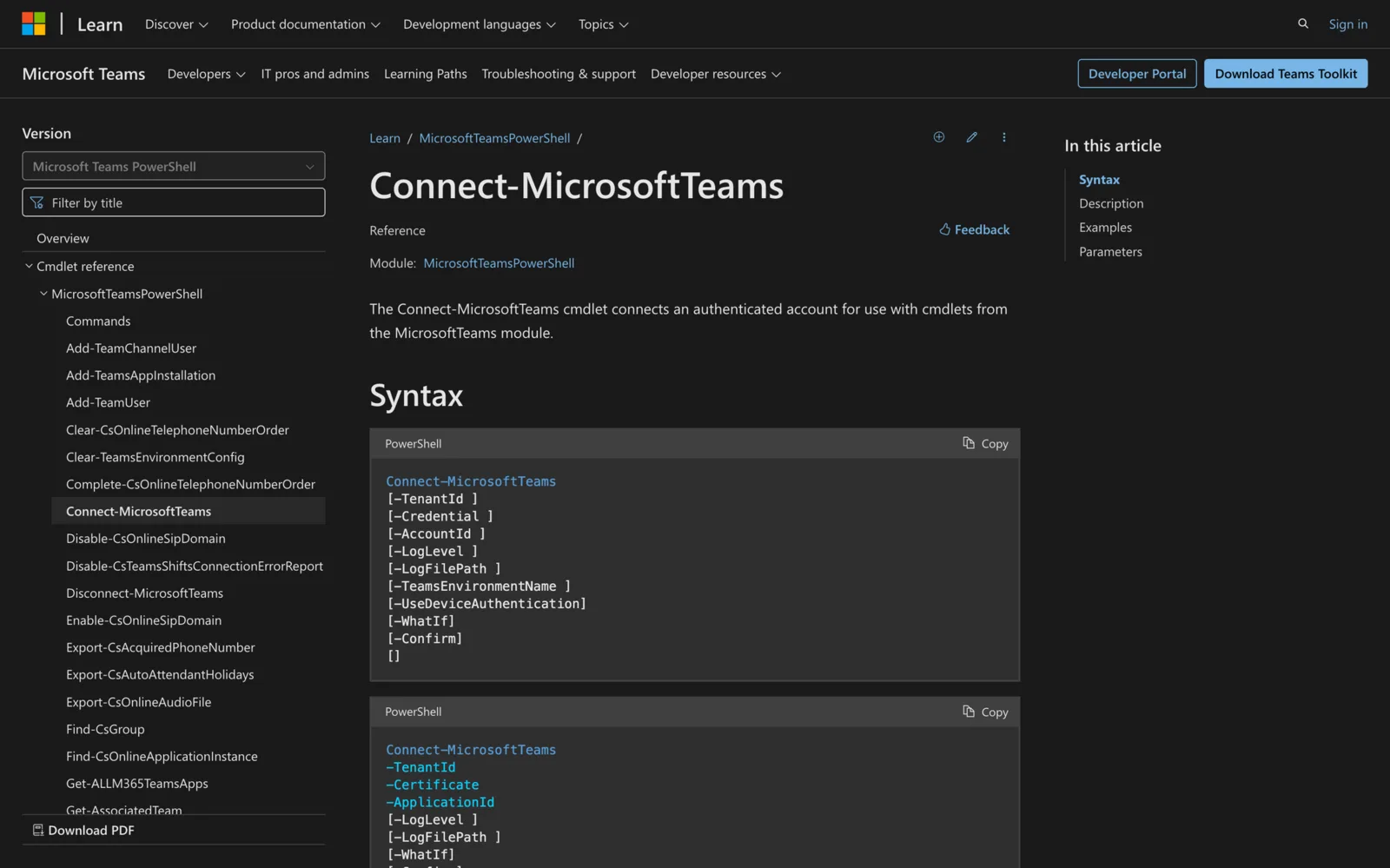
Run Connect-MicrosoftTeams with no parameters. It opens a sign-in window and connects you to your home tenant. On success it prints your account, environment and tenant ID.
Useful options, all from the Connect-MicrosoftTeams reference:
-TenantId <id>: connect to a specific tenant instead of your home one.-AccountId user@contoso.com: pick which account to sign in with.-TeamsEnvironmentName TeamsGCCH: for GCC High. UseTeamsDODfor DoD andTeamsChinafor Teams operated by 21Vianet. Commercial and GCC tenants leave it out.-Credential (Get-Credential): user name and password, without a browser. It doesn't work for accounts with MFA.
How do I connect with MFA, or without a browser?
MFA accounts must sign in interactively, so use plain Connect-MicrosoftTeams and complete MFA in the window.
On a server or remote session with no browser, use device code sign-in:
Connect-MicrosoftTeams -UseDeviceAuthentication
It prints a code. Open the address it shows on any device, enter the code and sign in there.
On Windows, module version 7.8.1-preview and later sign in through Web Account Manager (WAM). If that errors, for example under RunAs or a scheduled task, add -DisableWAM.
How do I connect in a script without signing in?
Use application-based authentication: an app registration in Microsoft Entra ID with a certificate.
Connect-MicrosoftTeams -CertificateThumbprint "<thumbprint>" -ApplicationId "<app id>" -TenantId "<tenant id>"
You can pass a certificate object with -Certificate instead of a thumbprint. In Azure Automation or on an Azure VM, Connect-MicrosoftTeams -Identity signs in with the managed identity (commercial tenants only). A third route, -AccessTokens, takes two tokens you fetch yourself: one for Microsoft Graph and one for the Skype and Teams Tenant Admin API.
Not every cmdlet supports app sign-in. Microsoft lists which do in application-based authentication in Teams PowerShell.
Why is Connect-MicrosoftTeams not recognized?
The error means PowerShell can't find the MicrosoftTeams module in this session. Check:
- Is it installed here? Run
Get-Module -ListAvailable MicrosoftTeams. No output means it isn't installed for this PowerShell. Windows PowerShell 5.1 and PowerShell 7 keep separate module folders, so install it in the one you're using. - Installed for another user? Install it for yourself with
Install-Module -Name MicrosoftTeams -Scope CurrentUser. - Blocked from loading? If
Import-Module MicrosoftTeamssays running scripts is disabled, allow signed scripts for your account:Set-ExecutionPolicy RemoteSigned -Scope CurrentUser. More in Set-ExecutionPolicy in PowerShell.
Then open a new PowerShell window and run Connect-MicrosoftTeams again.
How do I check the connection and disconnect?
Run a read-only cmdlet. Get-Team lists the teams in your tenant:
Get-Team
When you're done, run Disconnect-MicrosoftTeams.
Summary
- Install:
Install-Module -Name MicrosoftTeams -Force -AllowClobber. - Connect:
Connect-MicrosoftTeams, with-UseDeviceAuthenticationwhen there's no browser. - Scripts: a certificate (
-CertificateThumbprint,-ApplicationId,-TenantId) or-Identity. - Not recognized: install the module in the PowerShell you're using, then open a new window.
Need Exchange or Graph too? See how to install the Exchange Online PowerShell module and use Connect-MgGraph.