Windows Tablets
Add your calendar to Meeting Room 365 and use your Windows Tablet as your meeting room display.
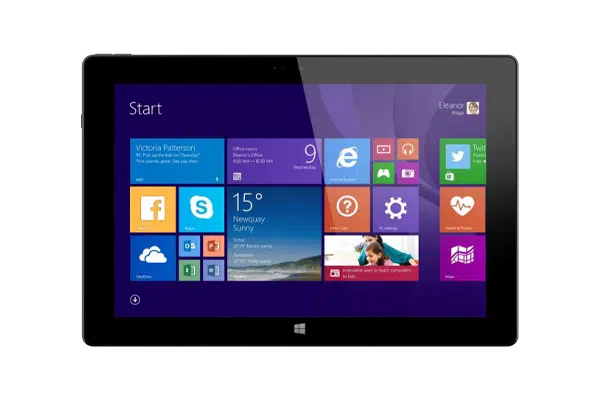
Windows tablets provide a versatile option for meeting room displays, especially in organizations already using Windows infrastructure. Meeting Room 365 runs in any modern browser, so you can use Chrome or Edge in kiosk mode to create a dedicated meeting room display.
Windows tablets support enterprise features like Assigned Access for managed kiosk mode, making them ideal for IT-managed deployments. Surface tablets and other Windows devices offer excellent display quality and touch responsiveness.
At a glance
- Platform
- Windows
- Category
- Tablets
- App
- Runs in the browser
- Best for
- Room displays
Where the Windows Tablets does well, and what to weigh.
Where it shines
- Familiar Intune / MDM management
Things to watch
- Pricier and heavier
One device, part of the connected workplace.
The same Windows Tablets and the same account can run more than one screen, and every screen reads from one calendar.
Room Displays
Mount it by the door as the live room sign: tap to book, check in, or release.
Live in four steps.
Create Your Account
Sign up for a free trial at admin.meetingroom365.com. Connect your Office 365, Exchange, or Google Workspace calendar.
Add Your Room
Add your meeting room calendar in the Meeting Room 365 admin portal. Configure display settings, themes, and branding.
Set Up Kiosk Mode
Launch Chrome or Edge in kiosk mode with your display URL. Create a shortcut with the --kiosk flag, or use Windows Assigned Access for managed deployments.
Configure Startup & Mount
Place the kiosk shortcut in the Startup folder (Win+R > shell:startup) so the display launches automatically on boot. Mount your tablet outside the meeting room.
Requirements & best practices.
Requirements
- Windows 10 or later tablet
- Google Chrome or Microsoft Edge browser
- Wi-Fi or Ethernet connection
- Meeting Room 365 account
- Office 365, Microsoft Exchange, or Google Workspace calendar
Tips & best practices
- Use Windows Assigned Access for enterprise-grade kiosk lockdown
- Disable keyboard shortcuts and restrict USB access for security in public areas
- Set up automatic login to a limited user account for unattended operation
- Surface Pro tablets offer excellent display quality and optional LTE connectivity
Need detailed instructions?
Deeper guides live in the Support Center.
Other devices that fit the same job.
 Android
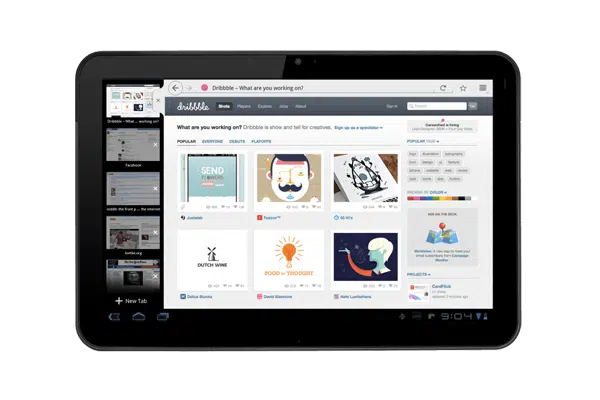
Android Tablets
Affordable and widely available; pick any size to fit the door.
 Windows
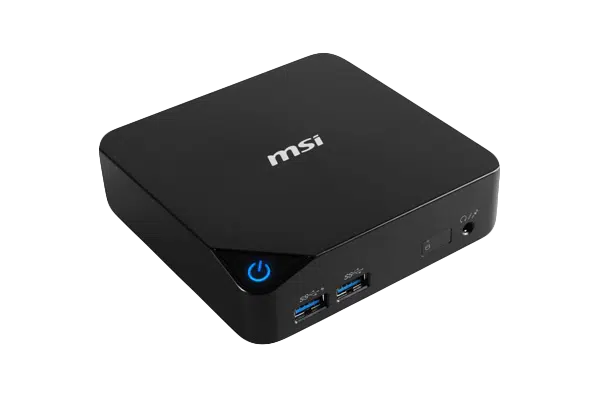
Windows PC
Any Windows mini-PC runs the kiosk in a browser tab.
Start with the device on your desk.
Spin up a free trial, install the app on whatever you’ve got, and see your first room go live today. Add purpose-built panels whenever you’re ready.