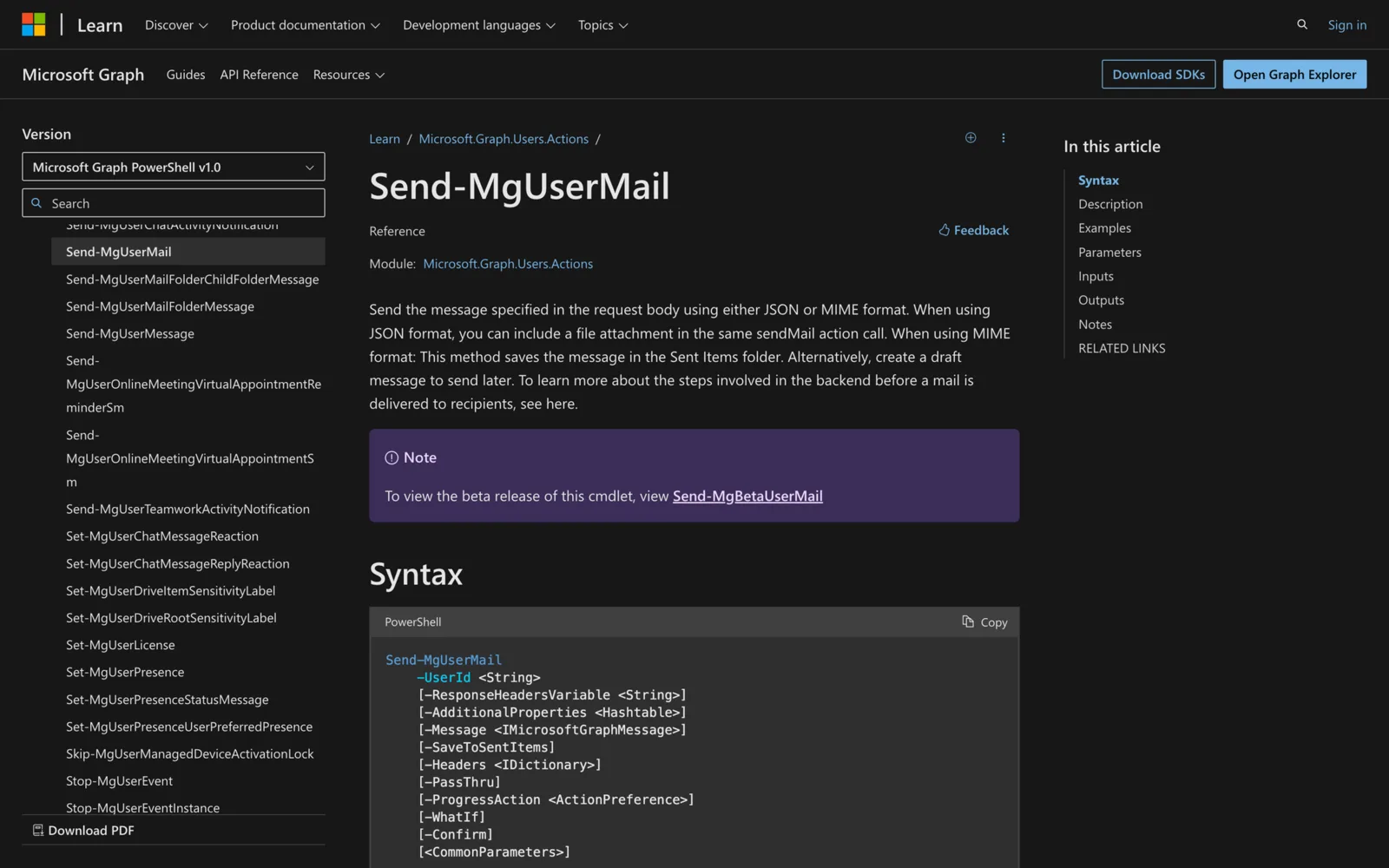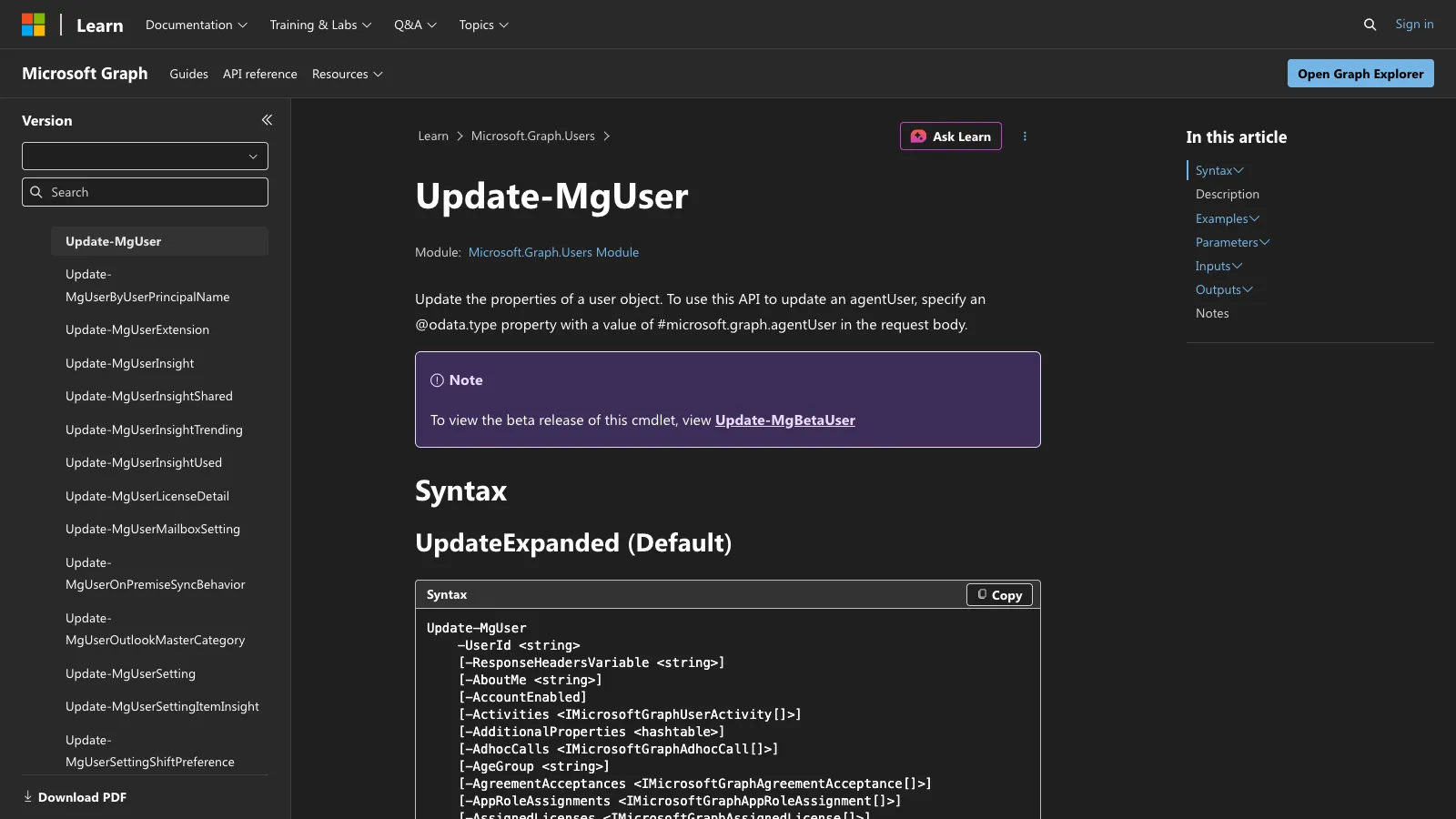
Quick answer: connect to Microsoft Graph with a write scope, then run:
Connect-MgGraph -Scopes "User.ReadWrite.All"
Update-MgUser -UserId ayla@contoso.com -JobTitle "Facilities Manager" -Department "Operations"
-UserId takes the user's object ID or their UPN. Properties you leave out keep their current values.
What does Update-MgUser do?
It updates the properties of a user object in Microsoft Entra ID through Microsoft Graph.
| Cmdlet | Use it when |
|---|---|
| Get-MgUser | You want to read a user's properties |
| Update-MgUser | You want to change them |
| Set-MgUserLicense | You want to add or remove a license |
| Set-MgUserManagerByRef | You want to set the user's manager |
| Set-User | You want to change the same kind of details from Exchange Online PowerShell |
Which permissions does Update-MgUser need?
For most properties, User.ReadWrite.All is enough. Microsoft lists User.ReadUpdate.All as the least privileged permission for the update call itself. A few properties need their own permission:
| Property | Least privileged permission |
|---|---|
| Most profile fields | User.ReadUpdate.All |
| AccountEnabled | User.EnableDisableAccount.All plus User.Read.All |
| BusinessPhones, MobilePhone | User-Phone.ReadWrite.All |
| OtherMails | User-Mail.ReadWrite.All |
| PasswordProfile | User-PasswordProfile.ReadWrite.All |
| Your own profile | User.ReadWrite |
Some of these properties are also sensitive actions. To change AccountEnabled, BusinessPhones, MobilePhone or OtherMails on an administrator, the signed-in user needs a higher admin role, such as Privileged Authentication Administrator. See Connect-MgGraph for how to sign in with scopes.
Examples
| Task | Command |
|---|---|
| Change the display name | Update-MgUser -UserId ayla@contoso.com -DisplayName "Ayla Lee" |
| Set job title, department and office | Update-MgUser -UserId ayla@contoso.com -JobTitle "Facilities Manager" -Department "Operations" -OfficeLocation "Building 2" |
| Set the usage location before licensing | Update-MgUser -UserId ayla@contoso.com -UsageLocation US |
| Set the office and mobile numbers | Update-MgUser -UserId ayla@contoso.com -BusinessPhones "+1 425 555 0109" -MobilePhone "+1 425 555 0110" |
| Block sign-in | Update-MgUser -UserId ayla@contoso.com -AccountEnabled:$false |
| Allow sign-in again | Update-MgUser -UserId ayla@contoso.com -AccountEnabled |
| Set the password to never expire | Update-MgUser -UserId ayla@contoso.com -PasswordPolicies DisablePasswordExpiration |
| Set the password to expire again | Update-MgUser -UserId ayla@contoso.com -PasswordPolicies None |
| Preview a change | Add -WhatIf |
-AccountEnabled is a switch, so write -AccountEnabled:$false with a colon to turn it off. Microsoft lists blocking sign-in this way as a first step when responding to a compromised account.
UsageLocation is a two-letter country code such as US, JP or GB. A user needs one before you can assign a license.
BusinessPhones is a list, but it holds only one number.
How do I reset a password with Update-MgUser?
Put the new password in a hash table and pass it with -BodyParameter:
$params = @{
    passwordProfile = @{
        forceChangePasswordNextSignIn = $true
        password = $newPassword
    }
}
Update-MgUser -UserId ayla@contoso.com -BodyParameter $params
Microsoft recommends setting forceChangePasswordNextSignIn to $true. The password has to meet the user's password policy, and you can't set it this way for federated users. To reset a non-admin's password, the signed-in user needs at least the User Administrator role.
How do I set an extension attribute?
ExtensionAttribute1 through ExtensionAttribute15 live in OnPremisesExtensionAttributes. These are the same as the Exchange custom attributes 1 to 15.
Update-MgUser -UserId ayla@contoso.com -OnPremisesExtensionAttributes @{ ExtensionAttribute1 = "Room booking admin" }
For a user synced from on-premises Active Directory, these attributes are read-only in Graph. Change them on-premises instead.
How do I update many users at once?
This follows Microsoft's example that sets the password policy for every user:
Get-MgUser -All | ForEach-Object { Update-MgUser -UserId $_.Id -PasswordPolicies DisablePasswordExpiration }
To change a filtered set, narrow the Get-MgUser call first, for example with -Filter "department eq 'Sales'". Run it once with -WhatIf on the Update-MgUser call.
Microsoft warns that if you switch passwords from DisablePasswordExpiration back to None, any user whose password is older than 90 days must change it at their next sign-in.
How do I set a user's manager?
The manager isn't one of the properties Update-MgUser changes. Use Set-MgUserManagerByRef with the manager's object ID:
$manager = @{ "@odata.id" = "https://graph.microsoft.com/v1.0/users/075b32dd-edb7-47cf-89ef-f3f733683a3f" }
Set-MgUserManagerByRef -UserId ayla@contoso.com -BodyParameter $manager
Why doesn't Update-MgUser work?
| Error or symptom | Fix |
|---|---|
| The term Update-MgUser is not recognized | Install the Microsoft.Graph.Users module and run Connect-MgGraph. |
| Insufficient privileges to complete the operation | Reconnect with the scope the property needs, from the permissions table above. |
| Fails only for admin accounts | AccountEnabled, phones, OtherMails and passwords on admins need a higher admin role. |
| Phone or extension attribute won't change | The user is synced from on-premises. Change it in Active Directory. |
| AboutMe or Skills fails when sent with other fields | AboutMe, Birthday, Interests, MySite, PastProjects, Responsibilities, Schools and Skills must each go in their own request. |
| Those same fields fail with app-only sign-in | They can't be updated with application permissions alone. Employee hire date can't either. |
| Mail can't be cleared | Mail can't be set to null. |
| OtherMails lost addresses | The new list replaces the old one. Pass every address the user should keep. |
How do I check the result?
Many properties are only returned when you ask for them:
Get-MgUser -UserId ayla@contoso.com -Property DisplayName,JobTitle,Department,UsageLocation,AccountEnabled,PasswordPolicies | Format-List DisplayName,JobTitle,Department,UsageLocation,AccountEnabled,PasswordPolicies
Sources: Update-MgUser, Update user in the Microsoft Graph API reference, Self-service password reset policies and Set-MgUserManagerByRef on Microsoft Learn.
Meeting Room 365 turns any iPad or Android tablet into a room display for Exchange and Microsoft 365 calendars. See the features or pricing: $9 a display a month.