Quick answer: connect to Exchange Online PowerShell, then run:
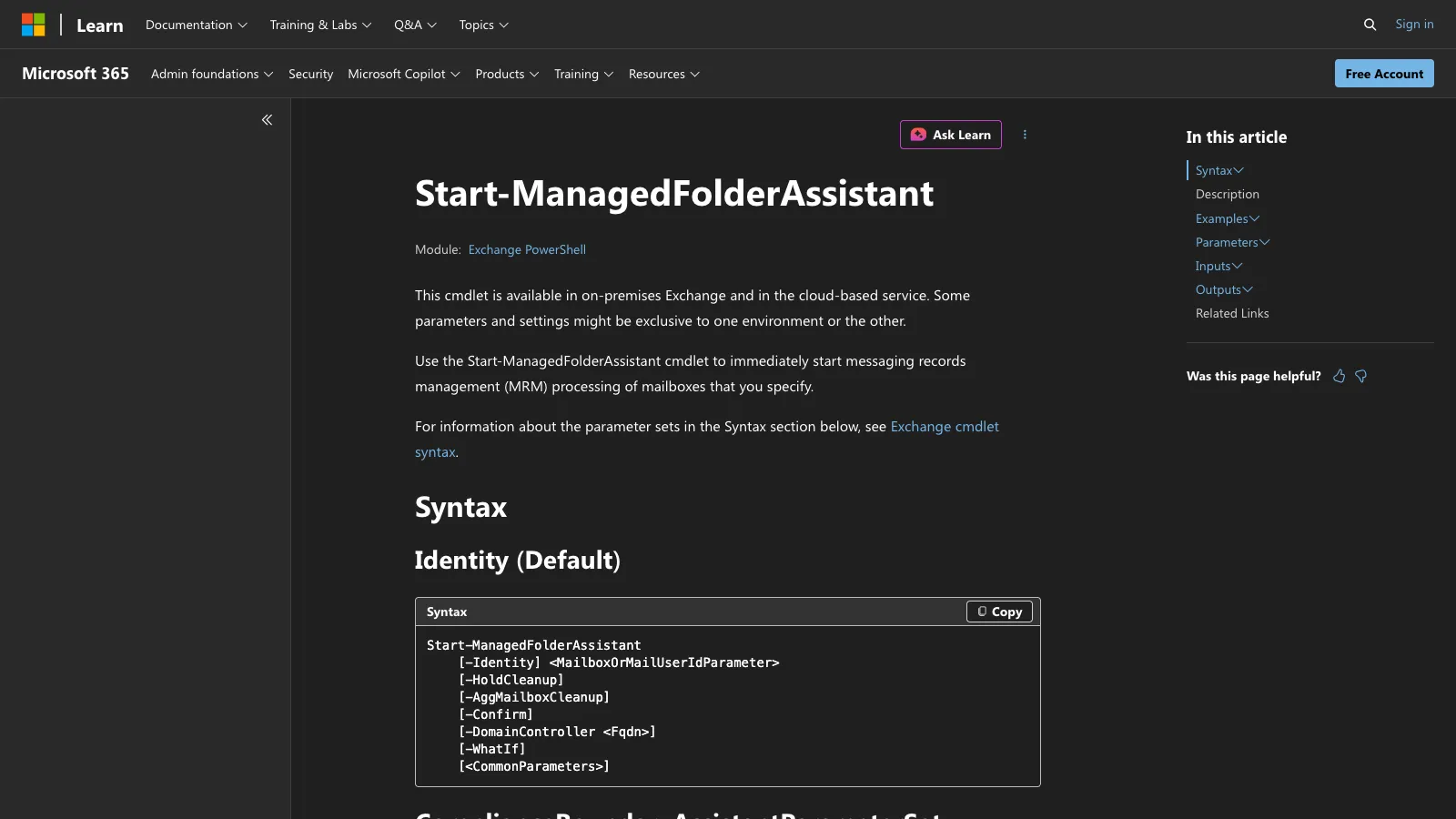
Start-ManagedFolderAssistant -Identity ayla@contoso.com
This tells the Managed Folder Assistant to process Ayla's mailbox now, so a new retention or archive policy applies without waiting for the next scheduled run.
What does Start-ManagedFolderAssistant do?
The Managed Folder Assistant applies retention policies to mailboxes. It checks each item, stamps it with the right retention tag, then moves or deletes items that are past their retention age. This is messaging records management (MRM).
The assistant runs on its own. In Exchange Online it processes each mailbox at least once every 7 days, and you can't predict when the next run will be. Start-ManagedFolderAssistant starts processing a mailbox right away. It works in Exchange Online and in on-premises Exchange Server 2010 through Exchange Server SE.
Run it after you:
- assign a new retention policy to a mailbox,
- change the tags in a policy,
- want to clean up duplicate items in Recoverable Items.
How do I connect first?
Connect-ExchangeOnline -UserPrincipalName admin@contoso.com
If the module isn't installed, see how to install the Exchange Online PowerShell module. On-premises, open the Exchange Management Shell.
Examples
| Task | Command |
|---|---|
| Process one mailbox | Start-ManagedFolderAssistant -Identity ayla@contoso.com |
| Recalculate tags across the whole mailbox (Exchange Online) | Start-ManagedFolderAssistant -Identity ayla@contoso.com -FullCrawl |
| Clean up duplicate items in Recoverable Items | Start-ManagedFolderAssistant -Identity ayla@contoso.com -HoldCleanup |
| Stop a stuck hold cleanup (Exchange Online) | Start-ManagedFolderAssistant -Identity ayla@contoso.com -StopHoldCleanup |
| Process only inactive mailboxes (Exchange Online) | Start-ManagedFolderAssistant -Identity ayla@contoso.com -InactiveMailbox |
| Clean up aggregate mailboxes, audits and calendar logging | Start-ManagedFolderAssistant -Identity ayla@contoso.com -AggMailboxCleanup |
-Identity accepts the name, alias, email address, UPN, GUID and other unique values. In a hybrid setup you can also give it a mail user whose mailbox is in the cloud.
-HoldCleanup removes duplicate versions of items that can build up when a mailbox is on Litigation Hold, In-Place Hold or has single item recovery turned on. That shrinks the Recoverable Items folder and can help it stay under its quota. If a hold cleanup gets stuck, it can block normal retention on the mailbox. -StopHoldCleanup abandons it so normal processing can continue.
How do I run it on every mailbox?
Microsoft lists these two commands for Exchange Online:
$Mailboxes = Get-Mailbox -ResultSize Unlimited -Filter {RecipientTypeDetails -eq "UserMailbox"}
$Mailboxes.Identity | Start-ManagedFolderAssistant
To include shared mailboxes or room mailboxes, change the filter. See Get-Mailbox for the RecipientTypeDetails values.
Why didn't Start-ManagedFolderAssistant do anything?
If nothing changes after a run, check these causes from Microsoft's troubleshooting guide:
| Cause | How to check and fix |
|---|---|
| Retention hold is on | Get-Mailbox ayla@contoso.com | Format-List RetentionHoldEnabled. If True, set it to False with Set-Mailbox. |
| Processing is turned off for the mailbox | Get-Mailbox ayla@contoso.com | Format-List ElcProcessingDisabled. If True, run Set-Mailbox ayla@contoso.com -ElcProcessingDisabled $false. |
| The mailbox is smaller than 10 MB | MRM doesn't process mailboxes this small. |
| The user account is disabled | MRM doesn't process a regular mailbox whose account is disabled, and items aren't moved to its archive. |
| The tag is disabled | Items with a disabled tag are never moved or deleted. Check with Get-RetentionPolicyTag. |
| The policy has only personal tags | MRM might not process the mailbox until the user applies one. |
| The mailbox is large | The assistant is throttled, so items move slowly. "Resource unhealthy" in the log means this. |
| An error when you run the command in Exchange Online | Use the mailbox GUID for -Identity. Get it with Get-Mailbox -Identity ayla@contoso.com | Format-List *GUID. |
To keep the assistant away from a mailbox for a while, run Set-Mailbox ayla@contoso.com -ElcProcessingDisabled $true. Set it back to $false when you're ready.
How do I check when it last ran?
Read the MRM log with Export-MailboxDiagnosticLogs:
Export-MailboxDiagnosticLogs ayla@contoso.com -ComponentName MRM
A "no logs were found" error means MRM processed the mailbox without errors. For the time of the last successful run and the item counts, read the extended properties:
$logProps = Export-MailboxDiagnosticLogs ayla@contoso.com -ExtendedProperties
$xmlprops = [xml]($logProps.MailboxLog)
$xmlprops.Properties.MailboxTable.Property | Where-Object {$_.Name -like "ELC*"}
ElcLastSuccessTimestamp is the last time the assistant processed the mailbox without errors. ElcLastRunArchivedFromRootItemCount is the number of items it moved to the archive on that run, and ElcLastRunTaggedWithExpiryItemCount is the number it stamped with a delete tag.
To see the oldest item left in each folder, run Get-MailboxFolderStatistics with -IncludeOldestAndNewestItems and compare the dates with the policy's retention age.
Sources: Start-ManagedFolderAssistant, Resolve email archive and deletion issues when using retention policies, Customize an archive and deletion policy for mailboxes and Retention tags and retention policies on Microsoft Learn.
Meeting Room 365 turns any iPad or Android tablet into a room display for Exchange and Microsoft 365 calendars. See the features or pricing: $9 a display a month.