When a user reports that a message was delayed, rejected, quarantined, or never arrived, Exchange Online message trace data is usually the fastest place to start. A trace lets you narrow the search by sender, recipient, date, message identifier, status, subject, or other supported fields and determine how Exchange Online handled the message.
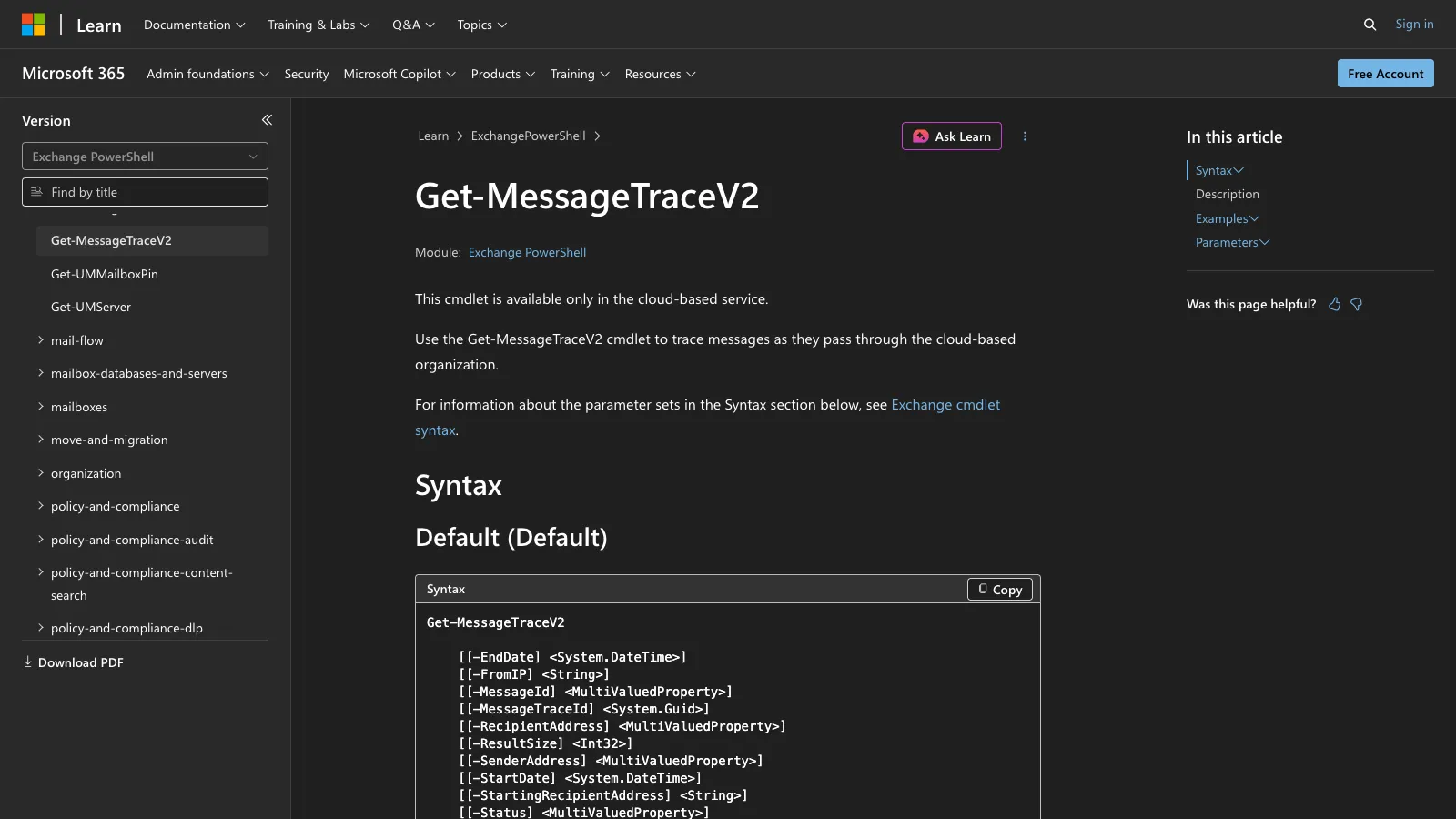
Get-MessageTraceV2 is the current Exchange Online PowerShell cmdlet for querying message trace data. It replaces the older Get-MessageTrace cmdlet and works alongside Get-MessageTraceDetailV2 for investigating individual message events. Administrators familiar with the older Get-MessageTraceDetail cmdlet should note that Microsoft has also introduced its V2 replacement.
The V2 cmdlet searches up to 90 days of message trace history, but each individual query can cover no more than 10 days. If no parameters are specified, it searches the last 48 hours.
What Is Get-MessageTraceV2?
Get-MessageTraceV2 searches message trace data for messages processed by a cloud-based Exchange organization. It is available in Exchange Online rather than traditional on-premises Exchange Server message tracking logs.
The cmdlet can help administrators identify messages based on criteria including:
- sender address
- recipient address
- date range
- Internet Message ID
- Message Trace ID
- delivery status
- source or destination IP address
- message subject
The returned trace records can be used to identify a specific message and check its delivery status. For the sequence of events associated with a message, use Get-MessageTraceDetailV2.
Get-MessageTraceV2 replaces the older Get-MessageTrace cmdlet. Microsoft states that Get-MessageTrace will eventually be deprecated. The V2 cmdlet also expands searchable history from the older cmdlet's 10-day limit to 90 days.
Basic Get-MessageTraceV2 Syntax
As per official Microsoft source, the simplest query is:
Command:
Get-MessageTraceV2
With no parameters, this returns message trace data from the last 48 hours, subject to the default 1,000-result limit.
In day-to-day troubleshooting, useful returned data includes the sender and recipient, message subject, delivery status, Message ID, Message Trace ID, and received time. Microsoft specifically uses the recipient address and received time from returned records when describing how to retrieve subsequent result sets.
Because unrestricted searches can return many records, most administrator queries should include at least a sender, recipient, or narrow date range.
Core Parameters
| Parameter | Purpose | Important notes |
|---|---|---|
-StartDate |
Sets the beginning of the trace period | Accepts a DateTime. Use the computer's configured short date format. |
-EndDate |
Sets the end of the trace period | One query can cover no more than 10 days. |
-SenderAddress |
Filters by sender | Supports multiple comma-separated values. Wildcards aren't supported. |
-RecipientAddress |
Filters by recipient | Supports multiple comma-separated values. Wildcards aren't supported. |
-MessageId |
Filters by the message's Message-ID header |
Use the complete Message ID. Wildcards aren't supported. |
-MessageTraceId |
Filters by the trace ID generated for a processed message | Value type is System.Guid. |
-Status |
Filters by delivery status | Supports documented status values such as Delivered, Failed, and Pending. |
-Subject |
Filters by subject text | Used with -SubjectFilterType. |
-SubjectFilterType |
Controls subject matching | Valid values are Contains, StartsWith, and EndsWith. |
-ResultSize |
Controls the maximum number of returned records | Valid range is 1 through 5,000. Default is 1,000. |
-StartingRecipientAddress |
Helps retrieve subsequent partial results | Used with -EndDate based on the last record from the previous query. |
Microsoft documents wildcard support as false for -SenderAddress, -RecipientAddress, -MessageId, -Subject, and the other parameters listed above.
Get-MessageTraceV2 Availability and Requirements
Get-MessageTraceV2 is part of Exchange PowerShell and is available only in Microsoft's cloud-based service. You need version 3.7.0 or later of the Exchange Online PowerShell V3 module, an Exchange Online PowerShell session, and an account with permission to run the cmdlet.
Exchange Online message trace permissions are provided through Exchange RBAC. Microsoft's Exchange permissions documentation identifies the View-Only Recipients role as allowing users to run message trace, and that role is included in several built-in role groups.
Several operational limits are important:
- Message trace data is retained for 90 days.
- One
Get-MessageTraceV2query can return data covering no more than 10 days. - Without parameters, the cmdlet returns data from the previous 48 hours.
- The default result limit is 1,000 records.
-ResultSizesupports values from 1 through 5,000.- Output timestamps are returned in UTC.
- Microsoft accepts a maximum of 100 message trace query requests within a running five-minute window before throttling applies.
The 90-day retention period is not configurable. Data older than 90 days is automatically removed from message trace.
How to Trace Emails with Get-MessageTraceV2: 9 Practical Examples
The following examples cover common Exchange Online message-tracing tasks.
1. Trace Recent Messages
To inspect recent message flow without specifying filters:
Command:
Get-MessageTraceV2
The cmdlet searches the previous 48 hours when no parameters are supplied. It returns up to 1,000 results by default.
This is useful for a quick inspection of a low-volume tenant, but a more specific query is preferable when troubleshooting a known sender or recipient.
2. Trace Messages Sent by One Sender
Use -SenderAddress when a user reports problems sending mail.
Command:
Get-MessageTraceV2 -SenderAddress james@meetingroom365.com
This searches recent message trace data for messages sent by james@meetingroom365.com.
-SenderAddress accepts multiple comma-separated addresses, but it doesn't support wildcards.
3. Trace Messages Sent to One Recipient
To investigate messages addressed to a particular mailbox:
Command:
Get-MessageTraceV2 -RecipientAddress simon@meetingroom365.com
The returned records are limited to messages where simon@meetingroom365.com is the recipient.
Like the sender parameter, -RecipientAddress accepts multiple values and doesn't support wildcards.
4. Trace Messages Between a Specific Sender and Recipient
Combining filters produces a much smaller result set.
Command:
Get-MessageTraceV2 `
   -SenderAddress james@meetingroom365.com `
   -RecipientAddress simon@meetingroom365.com
This returns trace records matching both addresses. It is useful when both parties are known but the exact Message ID or Message Trace ID isn't available.
5. Trace Messages Within a Specific Date Range
Use -StartDate and -EndDate when you know approximately when the message was sent.
Command:
Get-MessageTraceV2 `
   -SenderAddress james@meetingroom365.com `
   -StartDate "10/01/2026" `
   -EndDate "10/05/2026"
Each Get-MessageTraceV2 query can cover no more than 10 days, although data remains searchable for up to 90 days.
Microsoft documents -StartDate and -EndDate as System.DateTime values. Date strings are interpreted using the short date format configured in the computer's Regional Options settings. You can also specify both date and time. Returned timestamps are displayed in UTC.
6. Search by Internet Message ID
If you have the Message-ID header from the email, use -MessageId.
Command:
Get-MessageTraceV2 `
   -MessageId "<4f1d8912-8d17-4ac9-a4e6-123456789abc@meetingroom365.com>"
-MessageId searches the Message-ID header field, which Microsoft also refers to as the Client ID.
Use the complete value, including angle brackets when they're part of the header value. Wildcards aren't supported.
The Internet Message ID is different from MessageTraceId. The former comes from the message header, while the Message Trace ID is generated by Microsoft's message processing system.
7. Search Using Message Trace ID
When you already know the trace identifier for a message, query it directly.
Command:
Get-MessageTraceV2 `
   -MessageTraceId "c20e0f7a-f06b-41df-fe33-08d9da155ac1"
Microsoft defines MessageTraceId as a GUID generated for every message processed by the system. This identifier is particularly useful when moving from a broad message trace search to investigation of a specific message.
8. Filter Message Traces by Delivery Status
Use -Status to limit the output to messages in a particular delivery state.
Command:
Get-MessageTraceV2 `
   -SenderAddress james@meetingroom365.com `
   -Status Failed
Microsoft currently documents these valid -Status values:
DeliveredExpandedFailedFilteredAsSpamGettingStatusPendingQuarantined
Multiple status values can be specified as a comma-separated list.
For example:
Get-MessageTraceV2 `
   -RecipientAddress simon@meetingroom365.com `
   -Status Failed,Pending
This is useful when the administrator is interested only in messages that failed or are still being processed.
9. Retrieve Larger Result Sets
Get-MessageTraceV2 doesn't support traditional page-number pagination. The default result size is 1,000, and -ResultSize can increase it to a maximum of 5,000.
Command:
$results = Get-MessageTraceV2 `
   -SenderAddress james@meetingroom365.com `
   -StartDate "10/01/2026" `
   -EndDate "10/05/2026" `
   -ResultSize 5000
If the query still produces partial results, Microsoft documents a continuation method using the last record's recipient address and received time.
$last = $results[-1]
Get-MessageTraceV2 `
   -SenderAddress james@meetingroom365.com `
   -StartDate "10/01/2026" `
   -EndDate $last.Received `
   -StartingRecipientAddress $last.RecipientAddress `
   -ResultSize 5000
-StartingRecipientAddress and -EndDate use values from the last returned record to request subsequent data while avoiding duplicate results.
This replaces the -Page and -PageSize approach used by the older cmdlet.
Get-MessageTraceV2 vs Get-MessageTrace
Microsoft has replaced Get-MessageTrace with Get-MessageTraceV2, and the older cmdlet is scheduled for eventual deprecation.
| Feature | Get-MessageTraceV2 |
Get-MessageTrace |
|---|---|---|
| Microsoft status | Current replacement cmdlet | Replaced and eventually deprecated |
| Searchable history | Last 90 days | Last 10 days |
| Maximum period per query | 10 days | 10 days |
| Default results | 1,000 | 1,000 |
| Maximum result size | 5,000 with -ResultSize |
Uses older result handling |
-Page |
Not supported | Supported |
-PageSize |
Replaced by -ResultSize |
Supported |
| Subject filtering | -Subject and -SubjectFilterType |
Not listed in the older cmdlet syntax |
The V2 syntax shouldn't be mixed with examples written for Get-MessageTrace. In particular, -Page and -PageSize aren't Get-MessageTraceV2 parameters.
Common Problems
1. Searching a Date Range That Is Too Large
Although Get-MessageTraceV2 can search data from the previous 90 days, a single query can return only 10 days of data.
Split longer investigations into multiple queries with separate -StartDate and -EndDate ranges.
2. Searching Beyond the Available Trace History
Exchange Online retains message trace data for 90 days. The retention period isn't configurable, and older data is automatically removed.
A Get-MessageTraceV2 query therefore can't retrieve messages older than that retention window.
3. Assuming Get-MessageTraceV2 Searches Email Content
Get-MessageTraceV2 searches message trace fields exposed through its parameters. It doesn't provide a parameter for searching the body or attachment contents of an email.
Subject searching is supported through -Subject together with -SubjectFilterType. Valid filter types are Contains, StartsWith, and EndsWith.
4. Mixing Get-MessageTrace Syntax with Get-MessageTraceV2
Older scripts commonly use:
-Page
-PageSize
Those parameters belong to Get-MessageTrace, not Get-MessageTraceV2.
V2 uses -ResultSize for the number of results returned and -StartingRecipientAddress together with -EndDate when additional partial results must be queried.
5. Confusing MessageId and MessageTraceId
-MessageId searches the message's Message-ID header field.
-MessageTraceId searches the GUID generated by Microsoft's message-processing system for the trace record.
They aren't interchangeable identifiers.
6. Expecting More Than 5,000 Results from One Query
-ResultSize accepts values from 1 through 5,000, with 1,000 used by default. If a search produces more data, either narrow the sender, recipient, or date criteria, or continue the search using the documented -StartingRecipientAddress and -EndDatemethod.
Final Note
Start a message trace with the narrowest useful sender, recipient, and date criteria, then identify the individual message from the returned results. Once you have the relevant Message ID or Message Trace ID, use the related detail cmdlet when you need the individual delivery events behind that message's status.