Mailbox import requests do not always run with the settings you originally assigned. A request might encounter corrupt mailbox items, messages that exceed the maximum message size allowed by the target mailbox, or simply need a different priority or retention setting after it has already been created.
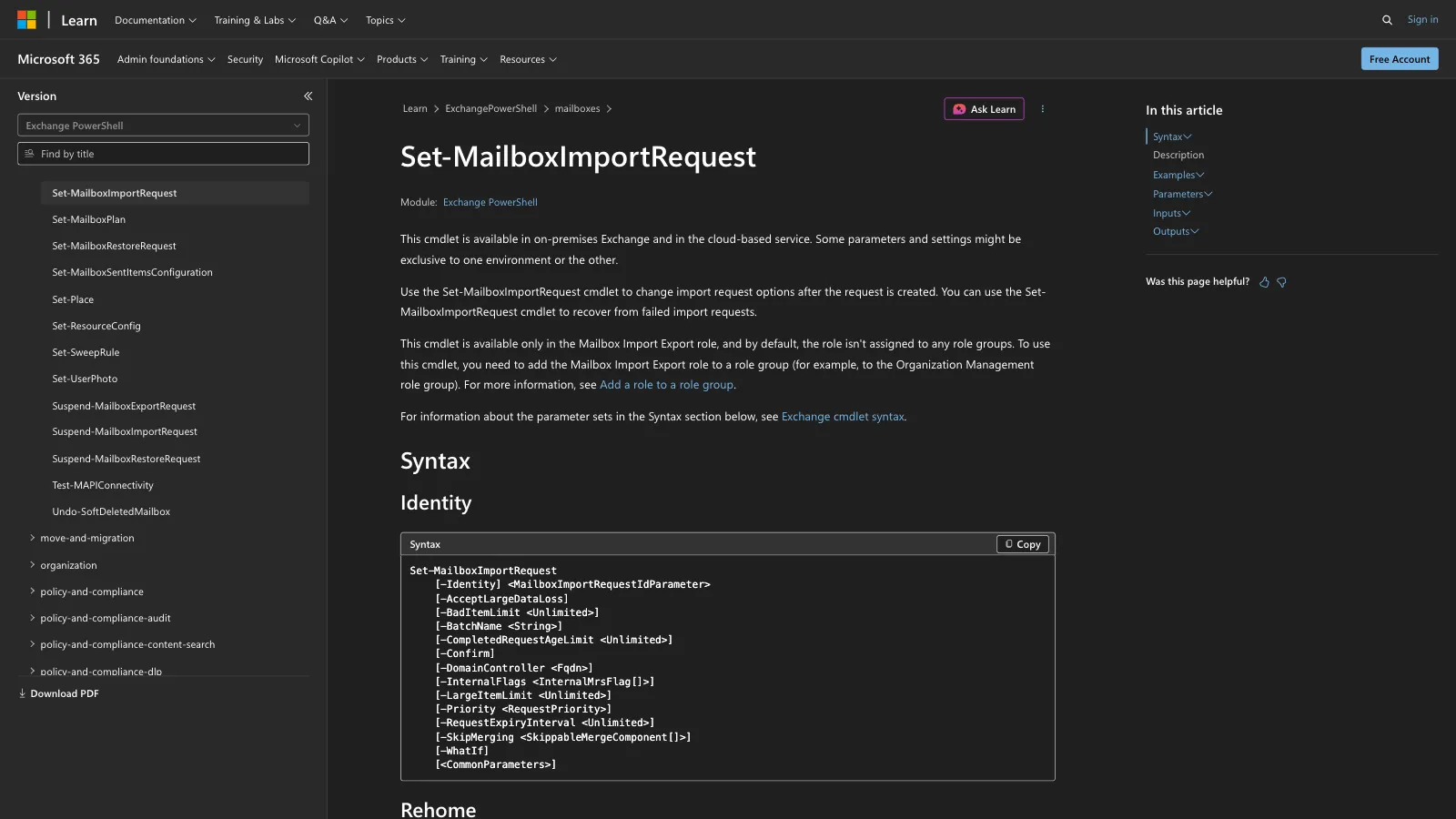
Set-MailboxImportRequest lets an Exchange administrator change supported properties on an existing mailbox import request that has not completed. It does not create the request or start a new PST import. Microsoft also documents the cmdlet as one way to change options when recovering from failed import requests.
The important part is identifying the correct existing request first, then changing only the settings that need adjustment.
What Is Set-MailboxImportRequest?
Set-MailboxImportRequest is an Exchange PowerShell cmdlet that changes options on an existing mailbox import request after that request has been created and before it has completed. Microsoft documents support for direct request identity and pipeline input from Get-MailboxImportRequest.
This distinction matters because Set-MailboxImportRequest does not create the import request itself. Creating a request is a separate operation used with New-MailboxImportRequest. For the initial PST import workflow, see how to use New-MailboxImportRequest in PowerShell.
Other related cmdlets also have separate jobs. Get-MailboxImportRequest retrieves existing requests, while request statistics are available through Get-MailboxImportRequestStatistics. Suspending, resuming, and removing requests are handled by their respective Exchange cmdlets.
Microsoft states that Set-MailboxImportRequest is available only to administrators who have the Mailbox Import Export management role. That role is not assigned to any role group by default.
Syntax and Core Parameters
The main identity-based syntax documented by Microsoft is:
Set-MailboxImportRequest -Identity <MailboxImportRequestIdParameter> [options]
The exact options available depend on the Exchange version and parameter set.
| Parameter | Purpose | Important notes |
|---|---|---|
Identity |
Specifies the import request to modify | Mandatory. Uses values such as Alias\Name. Accepts pipeline input. |
BadItemLimit |
Sets the maximum number of bad items allowed before the request fails | On-premises Exchange Server. Microsoft marks it deprecated in the cloud service. |
LargeItemLimit |
Sets the maximum number of oversized items allowed before failure | Exchange Server 2013 and later on-premises versions listed by Microsoft. |
AcceptLargeDataLoss |
Allows the request to continue when the documented high item-limit thresholds are used | Required with LargeItemLimit values of 51 or higher in Exchange 2013 or later, and with BadItemLimit values of 51 or higher in Exchange 2010. |
Priority |
Changes the request's queue priority | On-premises only. Values range from Lowest through Emergency. |
BatchName |
Assigns a batch name to the request | Available across the Exchange versions listed for the cmdlet. |
CompletedRequestAgeLimit |
Controls how long a completed request remains before automatic removal | Exchange Server 2013 and later plus Exchange Online. Default documented value is 30 days. |
RequestExpiryInterval |
Sets an age limit for completed or failed requests | Exchange Server 2016 and later listed versions plus Exchange Online. |
DomainController |
Specifies the Active Directory domain controller used by the cmdlet | On-premises only. Uses a fully qualified domain name. |
WhatIf |
Shows what the command would do without applying the change | Available across the listed Exchange environments. |
Confirm |
Adds a confirmation prompt | Set-* cmdlets do not normally pause automatically, so specifying -Confirm introduces the prompt. |
These are only the parameters most relevant to normal administrative work. Microsoft also lists parameters intended primarily for debugging or internal Microsoft use.
Exchange Server Availability
Microsoft currently lists Set-MailboxImportRequest as applicable to Exchange Server 2010, Exchange Server 2013, Exchange Server 2016, Exchange Server 2019, Exchange Server Subscription Edition, and Exchange Online. Parameter availability differs substantially between those environments.
For example:
BadItemLimitapplies to Exchange Server 2010 through Exchange Server SE, but Microsoft marks it as deprecated in the cloud-based service.LargeItemLimitapplies to Exchange Server 2013, Exchange Server 2016, Exchange Server 2019, and Exchange Server SE. It is an on-premises parameter.PriorityandDomainControllerare available only in on-premises Exchange.CompletedRequestAgeLimitbegins with Exchange Server 2013.RequestExpiryIntervalapplies to Exchange Server 2016, Exchange Server 2019, Exchange Server SE, and Exchange Online.- Some Exchange Online parameters listed by Microsoft are reserved for internal Microsoft use and should not be treated as normal administrator settings.
Microsoft separately states that New-MailboxImportRequest is no longer supported in Exchange Online and directs Exchange Online administrators to the network upload PST import process instead.
For that reason, commands copied from an older Exchange Server environment should not be assumed to work unchanged in Exchange Online.
How to Find an Existing Mailbox Import Request
Before modifying a request, retrieve it with Get-MailboxImportRequest.
For example:
Get-MailboxImportRequest
The command returns mailbox import requests that the current Exchange environment can retrieve.
If you know the target mailbox, you can filter the results:
Get-MailboxImportRequest -Mailbox james
Microsoft documents the Mailbox filter as functional only in on-premises Exchange. The mailbox alias is the simplest identifier to use for current Exchange Server versions.
Once you know the request name, retrieve it by identity:
Get-MailboxImportRequest -Identity "james\MailboxImport"
Mailbox import request identities use the mailbox alias followed by the request name. By default, Exchange uses MailboxImport as the request name and can generate request identities using the pattern:
<alias>\MailboxImportX
where X can be absent or a number from 0 through 9. If a custom name was specified when the request was created, the identity uses Alias\Name.
For example:
james\MailboxImport
is a request identity, while:
[email protected]
identifies the mailbox rather than a specific import request.
For more detailed request information, Microsoft documents Get-MailboxImportRequestStatistics:
Get-MailboxImportRequestStatistics -Identity "james\MailboxImport"
You can also use -IncludeReport when you need the detailed request report.
How to Use Set-MailboxImportRequest: 7 Practical Examples
The following examples change properties on requests that already exist and have not completed. Confirm the request identity with Get-MailboxImportRequest before modifying it.
1. Allow a Small Number of Bad Items
A mailbox import can encounter corrupt or missing items. The BadItemLimit parameter controls how many bad items can be encountered before the request fails.
Command:
Set-MailboxImportRequest -Identity "james\MailboxImport" -BadItemLimit 5
This changes the existing request so that up to five bad items are allowed. Microsoft defines bad items as corrupt source mailbox items that cannot be copied, along with missing items that cannot be found in the target mailbox when the request is ready to complete.
The default documented value is 0, meaning the request fails if bad items are detected. Microsoft recommends using a reasonable value of 10 or lower when leaving a small number of bad items behind is acceptable.
BadItemLimit applies to on-premises Exchange Server versions listed by Microsoft and is deprecated in the cloud-based service.
If the request is suspended or failed, resume it with Resume-MailboxImportRequest after changing the setting.
2. Allow Large Items in an Import Request
Messages can exceed the maximum message size allowed by the target mailbox. On supported on-premises Exchange versions, LargeItemLimit controls how many such items can be encountered before the request fails.
Command:
Set-MailboxImportRequest -Identity "james\MailboxImport" -LargeItemLimit 10
Microsoft defines a large item as a source mailbox message that exceeds the maximum message size allowed by the target mailbox. If the mailbox does not have its own maximum configured, the organization-wide limit is used.
The documented default is 0. Microsoft recommends a value of 10 or lower when leaving a small number of large items behind is acceptable.
LargeItemLimit applies to Exchange Server 2013, Exchange Server 2016, Exchange Server 2019, and Exchange Server SE. It is not available for Exchange Server 2010 and is deprecated from the cloud-based service.
If the request is suspended or failed, resume it with Resume-MailboxImportRequest after changing the setting.
3. Use AcceptLargeDataLoss with a High LargeItemLimit
When LargeItemLimit is set to 51 or higher in Exchange Server 2013 or later, Microsoft requires the AcceptLargeDataLossswitch.
Command:
Set-MailboxImportRequest -Identity "james\MailboxImport" -LargeItemLimit 60 -AcceptLargeDataLoss
Without -AcceptLargeDataLoss, Microsoft states that the command fails when LargeItemLimit is 51 or higher.
The switch tells Exchange that the request should continue even when a large number of large items cannot be copied to the target mailbox. It should therefore not be added mechanically to every import command.
Exchange 2010 uses a different documented rule. In that version, AcceptLargeDataLoss is required when BadItemLimit is set to 51 or higher.
4. Change the Priority of an Existing Request
If multiple mailbox import requests are queued, you can change the processing priority of a specific request.
Command:
Set-MailboxImportRequest -Identity "james\MailboxImport" -Priority High
Microsoft documents these priority values:
Lowest
Lower
Low
Normal
High
Higher
Highest
Emergency
Normal is the default. Request processing also depends on server health, request status, priority, and last update time, so assigning a higher priority does not mean that priority is the only queue-processing factor.
The Priority parameter is available only in on-premises Exchange.
5. Assign a Batch Name Using Pipeline Input
Set-MailboxImportRequest accepts mailbox import request objects through the pipeline. This is useful when the requests to modify can be selected with Get-MailboxImportRequest.
Command:
Get-MailboxImportRequest -Status Suspended |
   Set-MailboxImportRequest -BatchName "OctoberImports"
This follows the same pattern documented in Microsoft's own example. Get-MailboxImportRequest first retrieves suspended requests, and each returned request is then passed to Set-MailboxImportRequest, which sets the batch name.
Use filtering carefully when applying changes through a pipeline because every request returned by the first command is passed to the second command.
You can verify the result with:
Get-MailboxImportRequest -BatchName "OctoberImports"
6. Specify an Active Directory Domain Controller
In an on-premises Exchange environment, you can specify the domain controller used to read or write Active Directory data.
Command:
Set-MailboxImportRequest -Identity "james\MailboxImport" `
   -Priority High `
   -DomainController "dc01.meetingroom365.com"
The DomainController value must identify the server by its fully qualified domain name.
This parameter applies to Exchange Server 2010, Exchange Server 2013, Exchange Server 2016, Exchange Server 2019, and Exchange Server SE. It is not available in Exchange Online.
7. Preview a Change with WhatIf
Use WhatIf when you want PowerShell to show the proposed operation without making the modification.
Command:
Set-MailboxImportRequest -Identity "james\MailboxImport" `
   -Priority Higher `
   -WhatIf
Microsoft documents WhatIf as showing what the command would do without making changes.
After reviewing the output, rerun the command without -WhatIf if the proposed target and change are correct:
Set-MailboxImportRequest -Identity "james\MailboxImport" -Priority Higher
Common Problems
1. Using Set-MailboxImportRequest to Create a New PST Import
Set-MailboxImportRequest changes an existing request that has not completed. It does not create one.
If no request exists yet, the operation belongs to the PST import creation workflow rather than Set-MailboxImportRequest. On supported Exchange Server environments, that distinction means using New-MailboxImportRequest first, then using Set-MailboxImportRequest only if one of its exposed properties needs to be changed later.
2. Using a Mailbox Address Where a Request Identity Is Required
The Identity parameter identifies the import request, not merely its target mailbox.
For example:
james\MailboxImport
matches Microsoft's documented Alias\Name request identity syntax. If Exchange assigned a default request name, the identity follows the Alias\MailboxImportX pattern, where X can be absent or a number from 0 through 9.
Use Get-MailboxImportRequest first when the exact request name is unknown.
3. Using a Parameter That Is Not Available in That Exchange Version
Parameter support differs by Exchange release and between on-premises Exchange and Exchange Online.
For example, this is an on-premises setting:
Set-MailboxImportRequest -Identity "james\MailboxImport" -Priority High
Priority is not listed for Exchange Online. LargeItemLimit is also restricted to the supported on-premises versions documented by Microsoft.
Check the applicability section for the specific parameter rather than assuming that availability of the cmdlet means availability of every parameter.
4. Setting a High Item Limit Without AcceptLargeDataLoss
Microsoft requires AcceptLargeDataLoss for specific high-limit cases.
For Exchange Server 2013 and later supported versions, LargeItemLimit values of 51 or higher require the switch:
Set-MailboxImportRequest -Identity "james\MailboxImport" `
   -LargeItemLimit 60 `
   -AcceptLargeDataLoss
For Exchange 2010, the documented threshold applies to BadItemLimit instead.
Do not transfer the Exchange 2010 rule to later Exchange versions without checking the parameter documentation.
5. Expecting Set-MailboxImportRequest to Control Request Status
Request configuration and request state are handled by different cmdlets.
Set-MailboxImportRequest changes the supported properties exposed by its parameter sets. If you need detailed request information, use Get-MailboxImportRequestStatistics. Microsoft provides separate cmdlets for suspending, resuming, and removing mailbox import requests.
For example:
Get-MailboxImportRequestStatistics -Identity "james\MailboxImport"
After modifying a suspended or failed mailbox import request, you need to resume it with Resume-MailboxImportRequest.
Changing a setting with Set-MailboxImportRequest should not be confused with issuing a separate request-state operation.
Final Note
The practical workflow for Set-MailboxImportRequest is straightforward: identify the existing import request, modify only the supported properties you need before the request has completed, resume the request if it is suspended or failed, and then check the request with the appropriate Exchange retrieval or statistics cmdlet.
Pay particular attention to Exchange-version applicability and item-loss parameters, since the available settings and documented thresholds differ between Exchange releases and between on-premises Exchange and Exchange Online.