Get-Service lists the Windows services on a computer, running and stopped, with their status, name and display name. Run it with no parameters to get every service on the local machine.
Quick answer
# All services
Get-Service

# One service
Get-Service -Name WinRM

# Only running services
Get-Service | Where-Object { $_.Status -eq 'Running' }
gsv is a built-in alias for Get-Service. The cmdlet only runs on Windows.
Syntax
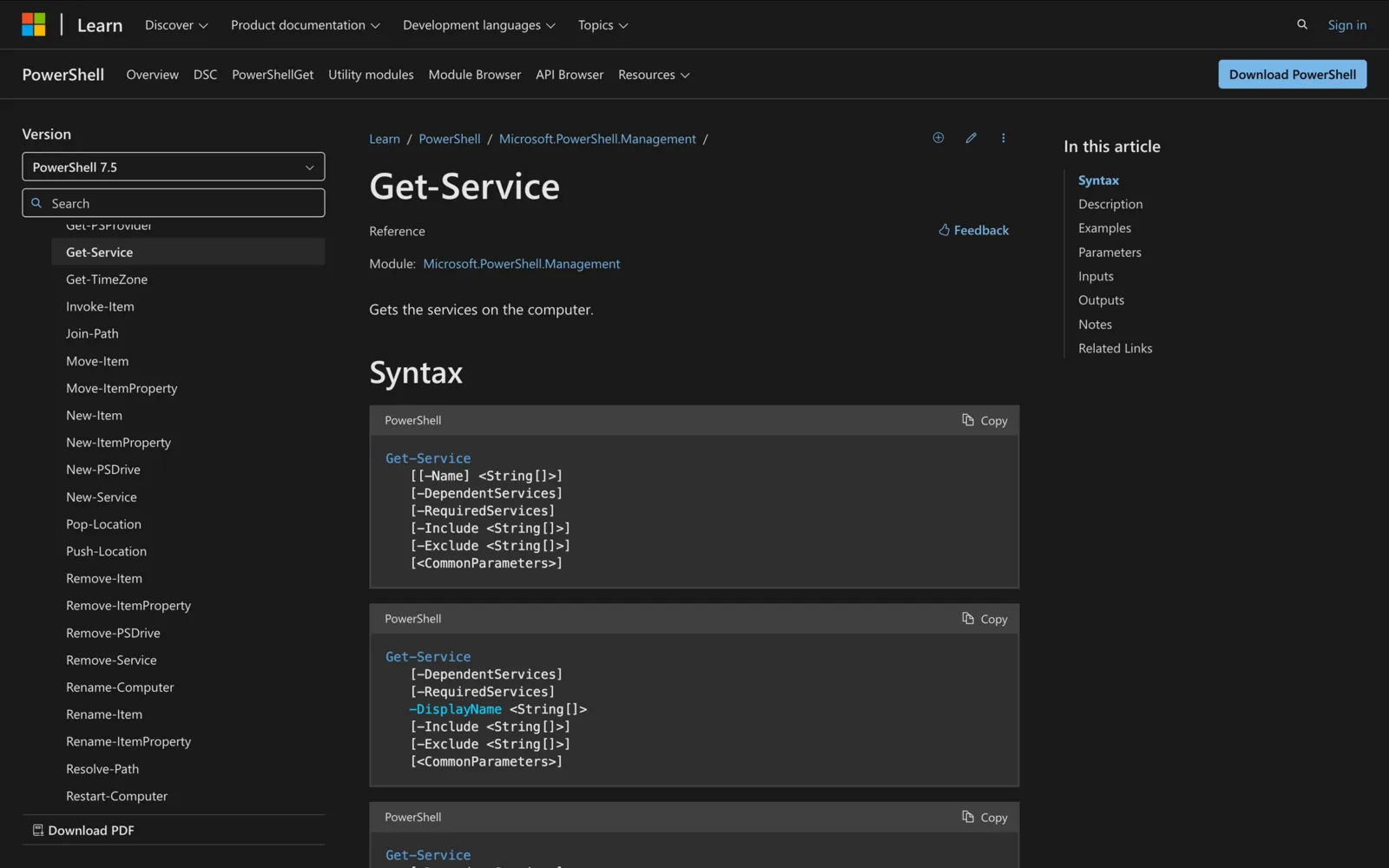
Get-Service has three parameter sets: by service name (the default), by display name, and by service object.
Get-Service [[-Name] <String[]>] [-DependentServices] [-RequiredServices]
 [-Include <String[]>] [-Exclude <String[]>] [<CommonParameters>]

Get-Service [-DependentServices] [-RequiredServices] -DisplayName <String[]>
 [-Include <String[]>] [-Exclude <String[]>] [<CommonParameters>]

Get-Service [-DependentServices] [-RequiredServices] [-Include <String[]>]
 [-Exclude <String[]>] [-InputObject <ServiceController[]>] [<CommonParameters>]
Windows PowerShell 5.1 also has -ComputerName in all three sets. PowerShell 6.0 and later removed it (see remote computers below).
Parameters
| Parameter | What it does | Wildcards |
|---|---|---|
-Name |
Service names to get. Position 0, so Get-Service WinRM works. Alias ServiceName. |
Yes |
-DisplayName |
Display names to get, as shown in the Services console. | Yes |
-DependentServices |
Gets only the services that depend on the specified service. Alias DS. |
No |
-RequiredServices |
Gets only the services this service needs (its ServicesDependedOn property). Alias SDO. |
No |
-Include |
Keeps only matches for these names. Qualifies -Name. |
Yes |
-Exclude |
Drops matches for these names. Qualifies -Name. |
Yes |
-InputObject |
ServiceController objects to get. Accepts pipeline input. | No |
-ComputerName |
Windows PowerShell 5.1 only. Remote computers to query, without PowerShell remoting. | No |
Examples
List all services
Get-Service
This behaves like Get-Service *. The default view shows Status, Name and DisplayName.
Check whether one service is running
Get-Service -Name WinRM
To get only the status as text:
(Get-Service -Name WinRM).Status
Find services by name pattern
Get-Service -Name "wmi*"
Add -Exclude to drop matches. This gets services starting with win, except WinRM:
Get-Service -Name "win*" -Exclude "WinRM"
Find services by display name
Display names often hold words the service name doesn't. This finds network services even when their name doesn't include "Net":
Get-Service -DisplayName "*network*"
List running or stopped services
Get-Service | Where-Object { $_.Status -eq 'Running' }
Get-Service | Where-Object { $_.Status -eq 'Stopped' }
Filter by startup type
Each service object has a StartType property: Automatic, Manual, Disabled, Boot or System. This lists automatic services that aren't running:
Get-Service | Where-Object { $_.StartType -eq 'Automatic' -and $_.Status -ne 'Running' }
Sort by status
Get-Service "s*" | Sort-Object Status
Stopped services sort first. Status is an enumeration, and Stopped (1) is lower than Running (4). Add -Descending to list running services first.
See what a service depends on
# Services WinRM needs to run
Get-Service -Name WinRM -RequiredServices

# Services that need WinRM
Get-Service -Name WinRM -DependentServices
To list every service that has dependents, with a count:
Get-Service | Where-Object { $_.DependentServices } |
    Format-List -Property Name, DependentServices, @{
        Label = "NoOfDependentServices"
        Expression = { $_.DependentServices.Count }
    }
See every property
Get-Service -Name WinRM | Select-Object -Property *
Get-Service | Get-Member
PowerShell 6.0 and later add UserName, Description, DelayedAutoStart, BinaryPathName and StartupType to each service object.
Export services to CSV
Get-Service |
    Select-Object Name, DisplayName, Status, StartType |
    Export-Csv -Path C:\Temp\services.csv -NoTypeInformation
Pipe to Start-Service, Stop-Service or Restart-Service
Get-Service -Name Spooler | Restart-Service
You can also pipe a name string: "WinRM" | Get-Service.
Get services on a remote computer
In PowerShell 7, run Get-Service on the remote machine with Invoke-Command. It uses PowerShell remoting, so WinRM must be set up on the target (see Enable-PSRemoting).
Invoke-Command -ComputerName Server01, Server02 -ScriptBlock {
    Get-Service -Name WinRM
}
In Windows PowerShell 5.1, -ComputerName still works and doesn't need remoting:
Get-Service -Name WinRM -ComputerName localhost, Server01, Server02 |
    Format-Table -Property MachineName, Status, Name, DisplayName -AutoSize
Get-Service vs related cmdlets
| Task | Cmdlet |
|---|---|
| List or inspect services | Get-Service |
| Start, stop or restart | Start-Service, Stop-Service, Restart-Service |
| Pause or resume | Suspend-Service, Resume-Service |
| Change startup type or description | Set-Service |
| Create or delete a service | New-Service, Remove-Service (PowerShell 6.0+) |
Common problems
"A parameter cannot be found that matches parameter name 'ComputerName'." You're on PowerShell 6.0 or later, which removed it. Use Invoke-Command as shown above, or run the command in Windows PowerShell 5.1.
"Cannot find any service with service name ..." The name is wrong, or you used the display name. Run Get-Service -DisplayName "*part of name*" and use the value in the Name column.
Some services are missing. Get-Service shows only services the current user has permission to see. Run PowerShell as administrator.
Get-Service isn't recognized on macOS or Linux. The cmdlet is Windows-only.
Related
- Enter-PSSession in PowerShell
- Enable-PSRemoting in PowerShell
- Test-NetConnection in PowerShell
- Get-Service reference on Microsoft Learn
Meeting Room 365 turns any iPad or Android tablet into a room display for Exchange and Microsoft 365 calendars. See the features or pricing: $9 a display a month.