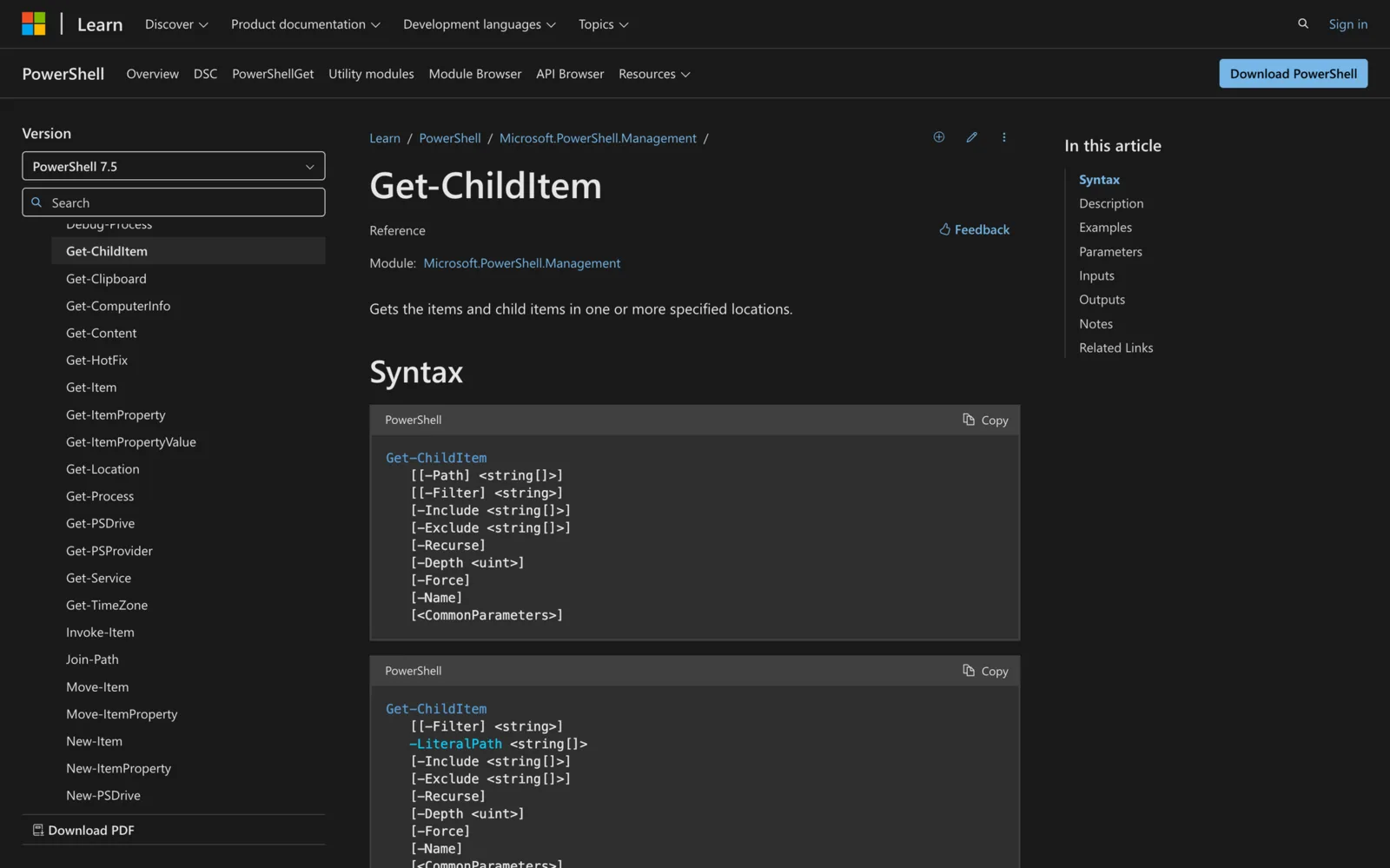
Quick answer: Get-ChildItem lists the items inside a location: files and folders in a directory, keys in a registry hive, or certificates in a store. Run it with no arguments to list the current directory. Add -File or -Directory to get only files or only folders, -Filter '*.log' to match one pattern, -Recurse to search subfolders, and -Depth 2 to limit how deep it goes. Its aliases are gci and dir on every platform, and ls on Windows.
Get-ChildItem -Path C:\Test -File -Filter '*.log' -Recurse
What does Get-ChildItem return?
By default, Get-ChildItem shows the Mode (attributes), LastWriteTime, Length (file size) and Name of each item. For empty folders it returns nothing.
Get-ChildItem -Path C:\Test
    Directory: C:\Test

Mode                LastWriteTime         Length Name
----                -------------         ------ ----
d-----        2/15/2019     08:29                Logs
-a----        2/13/2019     08:55             26 anotherfile.txt
-ar---        2/12/2019     14:31             27 ReadOnlyFile.txt
The letters in Mode mean: l link, d directory, a archive, r read-only, h hidden, s system.
In the file system, the results are FileInfo and DirectoryInfo objects, so you can pipe them to Select-Object, Where-Object or ForEach-Object. With -Name you get plain strings instead.
Get-ChildItem examples
| Task | Command |
|---|---|
| List the current folder | Get-ChildItem |
| Files only | Get-ChildItem -Path C:\Test -File |
| Folders only | Get-ChildItem -Path C:\Test -Directory |
| Names only | Get-ChildItem -Path C:\Test -Name |
| One extension | Get-ChildItem -Path C:\Test -Filter '*.log' |
| Several extensions | Get-ChildItem -Path C:\Test\* -Include '*.log','*.txt' |
| All subfolders | Get-ChildItem -Path C:\Test -Recurse -File |
| Two levels deep | Get-ChildItem -Path C:\Test -Depth 2 |
| Include hidden and system files | Get-ChildItem -Path C:\Windows -Force |
| Hidden files only | Get-ChildItem -Path C:\Test -Hidden |
| Skip names starting with A | Get-ChildItem -Path C:\Test\Logs -Exclude 'A*' |
| Registry keys | Get-ChildItem -Path HKLM:\HARDWARE |
| Code-signing certificates | Get-ChildItem -Path Cert:\* -Recurse -CodeSigningCert |
How do I get only files or only folders?
Use the -File or -Directory switch. Both work with -Recurse.
# Files only, including subfolders
Get-ChildItem -Path C:\Projects -File -Recurse

# Folders only, top level
Get-ChildItem -Path C:\Projects -Directory
-File, -Directory, -Hidden, -ReadOnly and -System only work in the file system. They don't apply to registry or certificate paths.
-Filter vs -Include: which should I use?
| -Filter | -Include and -Exclude | |
|---|---|---|
| Who filters | The file system provider, while it lists files | PowerShell, after every file is listed |
| Speed | Faster | Slower on large folders |
| Patterns | One string | An array of strings |
| Wildcards | * and ? |
*, ? and [] |
| Providers | File system only | All providers |
Use -Filter for a single pattern. Use -Include when you need several, such as *.log and *.txt.
The -Include gotcha: -Include only works on the contents of a path. Without a trailing \* or -Recurse, it returns nothing:
# Returns nothing
Get-ChildItem -Path C:\Test\ -Include '*.txt'

# Works
Get-ChildItem -Path C:\Test\* -Include '*.txt'
Get-ChildItem -Path C:\Test -Recurse -Include '*.txt'
When you use both, -Exclude is applied after -Include.
How do I search subfolders with -Recurse and -Depth?
-Recurse searches every level below the path. -Depth limits the number of levels. -Depth 2 returns the folder itself plus two levels of subfolders. -Depth was added in PowerShell 5.0.
Get-ChildItem -Path C:\Parent -Depth 2
By default, recursion lists symbolic links to folders but doesn't follow them. Add -FollowSymlink (PowerShell 6.0 and later) to search inside them.
Microsoft advises against combining -Path and -Recurse, because the last part of the path can trigger a recursive search for that name. For predictable results, give the folder with -LiteralPath and the pattern with -Filter or -Include:
Get-ChildItem -LiteralPath 'C:\Logs' -Filter '*.log' -Recurse
-LiteralPath takes the path exactly as typed, with no wildcards. Use it for folder names that contain [ or ].
How do I filter by attribute?
-Attributes matches file system attributes such as Hidden, ReadOnly, System, Archive, Compressed and Encrypted. Combine them with ! (NOT), + (AND) and , (OR), with no space between an operator and its attribute.
# Files that are not read-only and are marked archive
Get-ChildItem -Path C:\Reports -Attributes !ReadOnly+Archive -Recurse

# Non-system files that are encrypted or compressed
Get-ChildItem -Attributes !Directory+!System+Encrypted, !Directory+!System+Compressed
Short forms are D (Directory), H (Hidden), R (Read-only) and S (System).
Hidden files aren't listed by default. -Hidden returns only hidden items, and -Force adds them to the normal list. -Force doesn't override permissions.
Common Get-ChildItem tasks
Full paths: select the FullName property.
Get-ChildItem -Path C:\Test -Recurse -File | Select-Object FullName
Count files:
(Get-ChildItem -Path C:\Test -Recurse -File).Count
Exclude a folder from a recursive search: filter on the full path.
Get-ChildItem -Path C:\Projects -Recurse -File |
    Where-Object { $_.FullName -notlike '*\node_modules\*' }
Run a command on each file:
Get-ChildItem -Path C:\Logs -Filter '*.log' | ForEach-Object { $_.Name }
Search several paths: -Path accepts an array.
Get-ChildItem -Path C:\Logs, D:\Logs -Filter '*.log'
Get-ChildItem vs Get-Item
Get-Item returns the item at a path: the folder itself. Get-ChildItem returns what's inside it. Use Get-Item C:\Test to read a folder's properties, and Get-ChildItem C:\Test to list its contents.
Troubleshooting
| Symptom | Likely cause | Fix |
|---|---|---|
-Include returns nothing |
Path has no trailing \* and no -Recurse |
Use C:\Test\* or add -Recurse |
| Hidden files missing | Hidden items are excluded by default | Add -Force or -Hidden |
-File or -Directory not recognized |
Path isn't in the file system | Use these switches on file system paths only |
-Depth not recognized |
PowerShell older than 5.0 | Update PowerShell, or use -Recurse |
| Folder with brackets returns nothing | [ and ] are read as wildcards |
Use -LiteralPath |
| Symlinked folders not searched | Recursion doesn't follow links | Add -FollowSymlink |
Summary
Get-ChildItemlists the contents of a folder, registry key or certificate store. Aliases:gci,dir, andlson Windows.-Fileand-Directorylimit results to files or folders.-Filteris fastest for one pattern.-Includetakes several, but needs a trailing\*or-Recurse.-Recursesearches all subfolders.-Depthlimits how many levels.-Forceshows hidden and system files.
Related: Get-Content in PowerShell, Set-ExecutionPolicy, Get-Service.
Meeting Room 365 turns any iPad or Android tablet into a room display for Exchange and Microsoft 365 calendars. See the features or pricing: $9 a display a month.