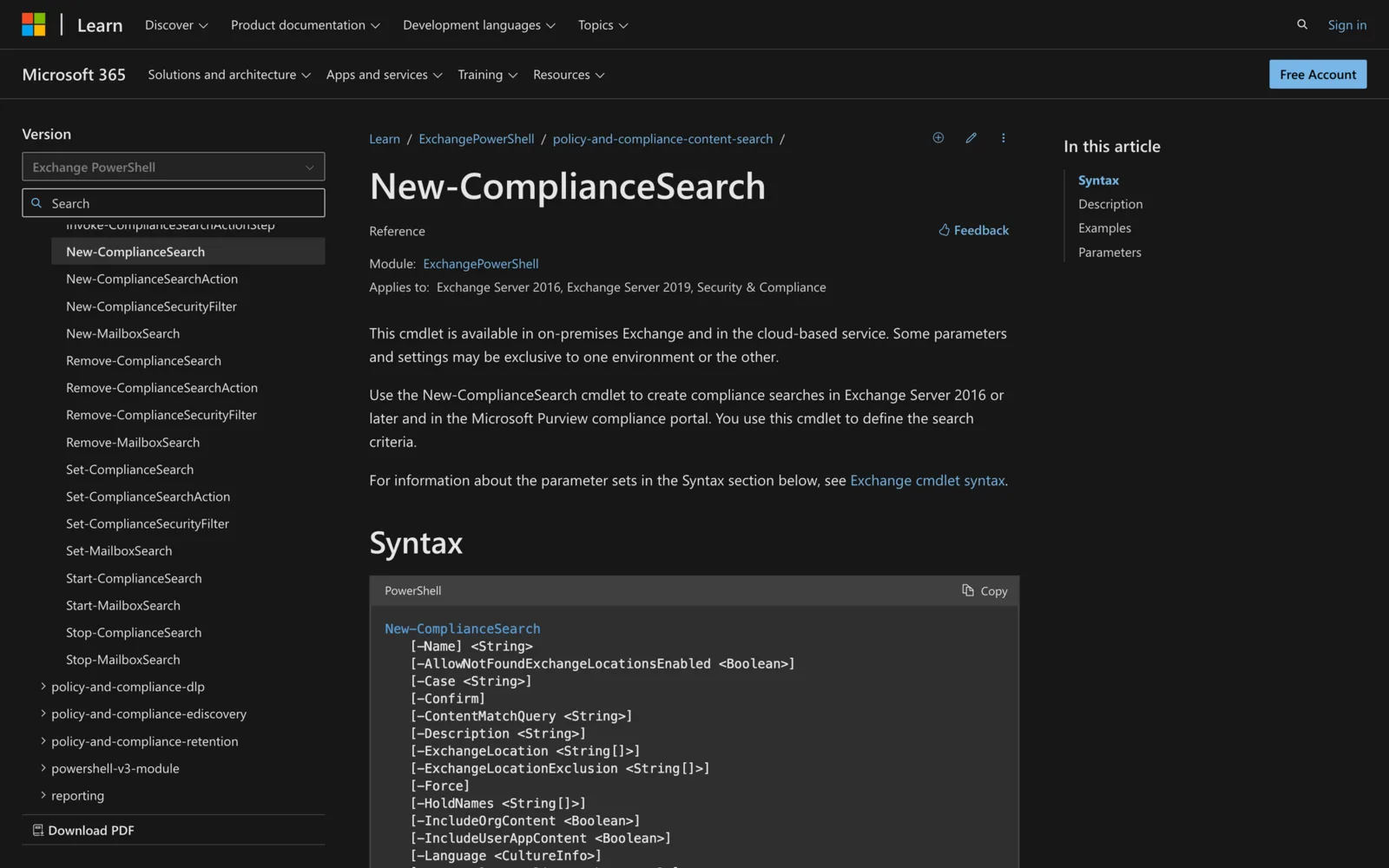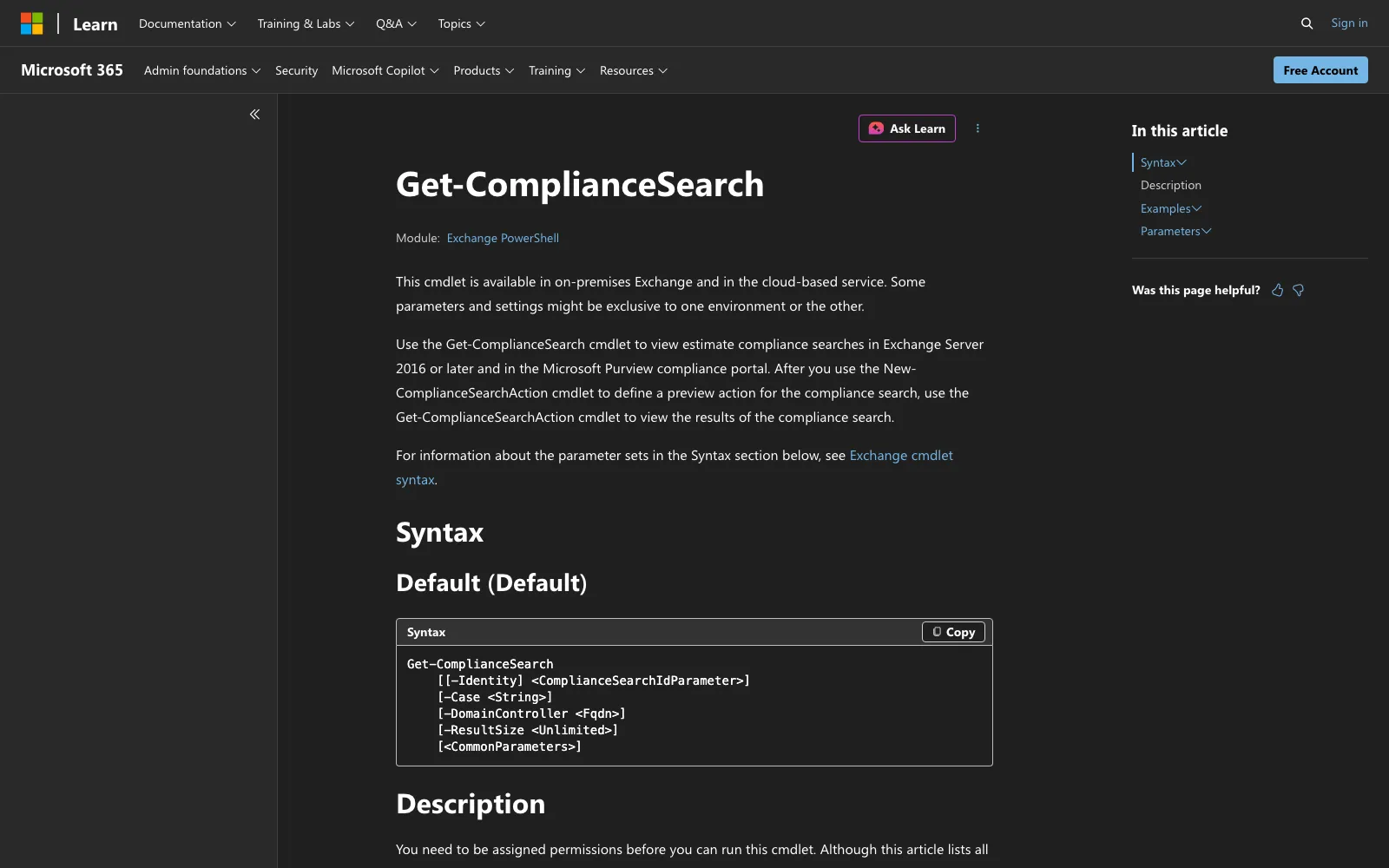
Quick answer: Get-ComplianceSearch shows the compliance searches (content searches) in Microsoft Purview or Exchange Server 2016 and later. Run it with no parameters for a summary of every search, or name one search with -Identity to see its item count and size:
Get-ComplianceSearch -Identity "Case 1234" | Format-List
Source: Get-ComplianceSearch on Microsoft Learn.
Where does it run?
It runs in Exchange Server 2016, 2019 and Subscription Edition, and in Security & Compliance PowerShell in Microsoft 365. In the cloud, connect with Connect-IPPSSession, not Connect-ExchangeOnline:
Connect-IPPSSession -UserPrincipalName admin@contoso.onmicrosoft.com
New to the module? See how to install Exchange Online PowerShell. On-premises, run it in the Exchange Management Shell.
Permissions:
- On-premises, the cmdlet is in the Mailbox Search role. By default, only the Discovery Management role group has that role.
- In Microsoft 365, you need Microsoft Purview compliance portal permissions.
Which parameters does it take?
| Parameter | Where | What it does |
|---|---|---|
-Identity |
Both | The search to show, by name or JobRunId (a GUID). Leave it out to list every search. |
-Case |
Cloud only | Only searches in one eDiscovery Standard case. It doesn't show searches in eDiscovery Premium cases. |
-ResultSize |
Both | Maximum results. The default is 1000. Use Unlimited for all. |
-DomainController |
On-premises only | The domain controller to read from, such as dc01.contoso.com. |
Examples
Every search, summary view:
Get-ComplianceSearch
One search, every property:
Get-ComplianceSearch -Identity "Case 1234" | Format-List
Name, JobRunId and status of every search, as a table:
Get-ComplianceSearch | Format-Table -Auto Name,JobRunId,Status
The first two are Microsoft's examples from Learn. Microsoft gives the third as the way to find a search's name or JobRunId.
Searches in one eDiscovery Standard case:
Get-ComplianceSearch -Case "Contoso Litigation"
Why are Items and Size blank?
To keep the command fast, Microsoft leaves some properties out when you don't name a search. These only show up when you use -Identity:
ItemsSizeSuccessResultsNumBindingsExchangeLocationSharePointLocationOneDriveLocation
Get-ComplianceSearch -Identity "Case 1234" | Format-List Name,Status,Items,Size,ExchangeLocation
NumBindings isn't the number of users. Microsoft notes that it counts each primary mailbox, main archive and additional archive in the search, and each user can have any mix of those.
To get counts for every search at once, pass each name to -Identity:
Get-ComplianceSearch -ResultSize Unlimited | ForEach-Object {
    Get-ComplianceSearch -Identity $_.Name
} | Select-Object Name,Status,Items,Size
How do I run or rerun a search?
Get-ComplianceSearch only reads. To start a search that's stopped, completed or never started, use Start-ComplianceSearch:
Start-ComplianceSearch -Identity "Case 1234"
In the cloud, Microsoft lists two requirements for Start-ComplianceSearch: version 3.9.0 or later of the Exchange Online PowerShell module (August 2025), and the -EnableSearchOnlySession switch on Connect-IPPSSession. Source: Start-ComplianceSearch on Microsoft Learn.
To create a search in the first place, see New-ComplianceSearch.
How do I see preview, export or purge actions?
Actions you add to a search with New-ComplianceSearchAction have their own cmdlet, Get-ComplianceSearchAction:
Get-ComplianceSearchAction
Get-ComplianceSearchAction -Identity "Case 1234_Preview" | Format-List
The first line lists every action and the second shows one. Use -Preview, -Export or -Purge (one at a time, without -Identity) to list only actions of that type, and -Details for more detail. Source: Get-ComplianceSearchAction on Microsoft Learn.
Troubleshooting
| Problem | Fix |
|---|---|
| "The term 'Get-ComplianceSearch' is not recognized" | In Microsoft 365, connect with Connect-IPPSSession, not Connect-ExchangeOnline. |
Items and Size are blank |
Add -Identity with the search name. |
| Every search came back when you asked for one | The -Identity value was $null or didn't match. Microsoft warns that this returns all objects. Check the value, especially in a loop. |
| A search in a case is missing | -Case covers eDiscovery Standard cases only, not eDiscovery Premium. |
| The list stops at 1000 | Add -ResultSize Unlimited. |
| Preview or export results aren't in the output | Those are search actions. Use Get-ComplianceSearchAction. |
Summary
- Get-ComplianceSearch lists content searches in Microsoft Purview and Exchange Server 2016 and later.
- In Microsoft 365, connect with
Connect-IPPSSessionfirst. - Name the search with
-Identityto seeItems,Sizeand the locations. - Start-ComplianceSearch runs a search, and Get-ComplianceSearchAction shows its preview, export and purge actions.
Related: New-ComplianceSearch, Search-Mailbox, Install Exchange Online PowerShell.
Meeting Room 365 turns any iPad or Android tablet into a room display for Exchange and Microsoft 365 calendars. See the features or pricing: $9 a display a month.