Quick answer: run Connect-MgGraph -Scopes GroupMember.Read.All, then Get-MgGroupMember -GroupId <id> -All. That lists every direct member, but only shows Id. For names and emails, use Get-MgGroupMemberAsUser -GroupId <id> -All instead.
What does Get-MgGroupMember return?
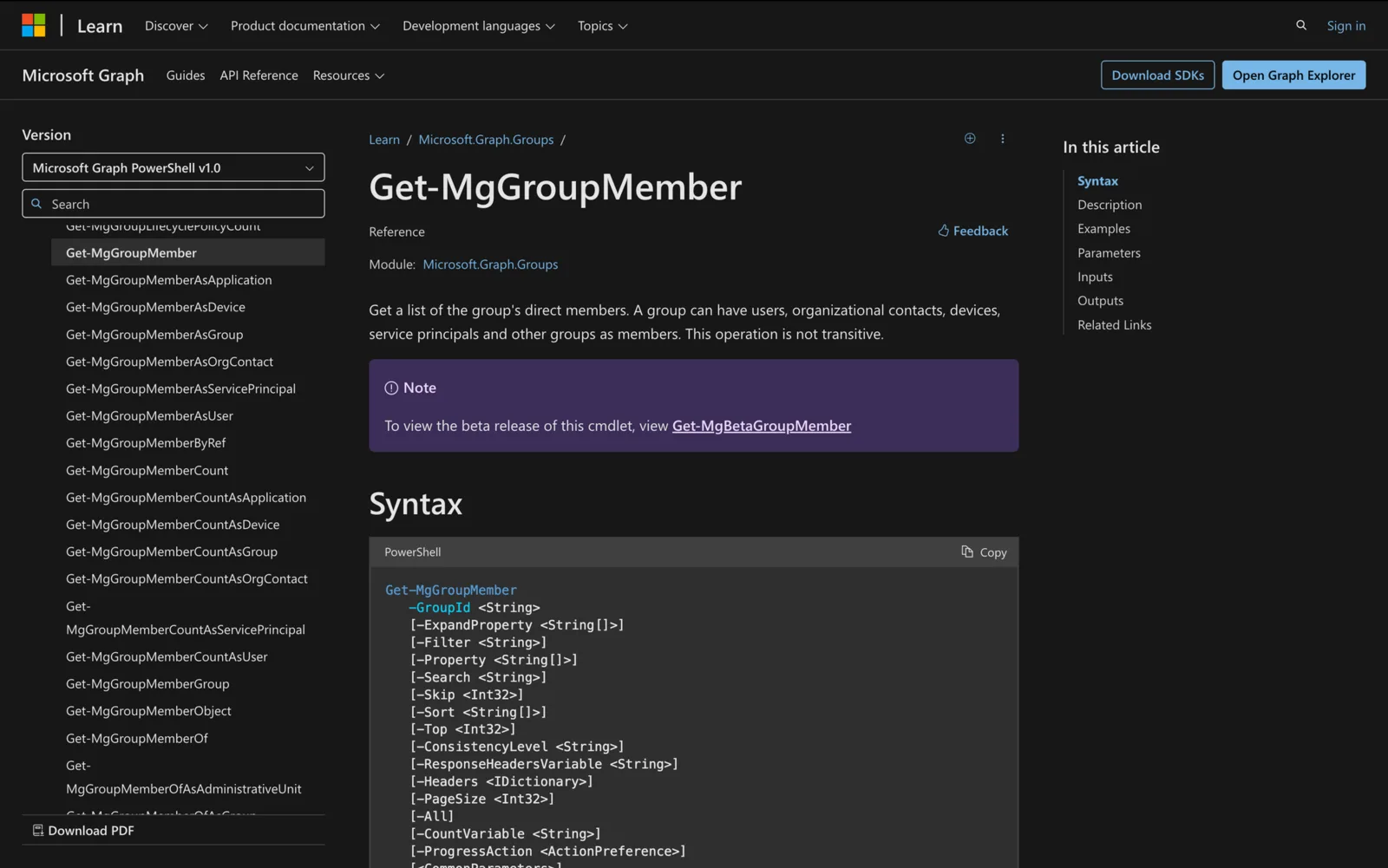
Get-MgGroupMember is in the Microsoft.Graph.Groups module. It lists a group's direct members: users, organizational contacts, devices, service principals and other groups. It does not expand nested groups.
Each result is a directory object. By default the table shows only Id and DeletedDateTime. Names, emails and other properties sit in AdditionalProperties.
| You want | Use |
|---|---|
| Every direct member, any type | Get-MgGroupMember -GroupId $id -All |
| Users only, with DisplayName and Mail | Get-MgGroupMemberAsUser -GroupId $id -All |
| Members of nested groups too | Get-MgGroupTransitiveMember -GroupId $id -All |
| A count | Get-MgGroupMemberCount -GroupId $id -ConsistencyLevel eventual |
How do I install and connect?
Install-Module Microsoft.Graph.Groups -Scope CurrentUser
Connect-MgGraph -Scopes "GroupMember.Read.All"
See Connect-MgGraph for app-only and certificate sign-in.
Which permissions does it need?
Microsoft lists these, least privileged first. Delegated and application permissions both work. Personal Microsoft accounts aren't supported.
| Permission | Notes |
|---|---|
| GroupMember.ReadBasic.All | Least privileged |
| GroupMember.Read.All | Common choice for scripts |
| Group.Read.All, Group.ReadBasic.All | Broader group read |
| Directory.Read.All | Whole directory |
| Group.ReadWrite.All, GroupMember.ReadWrite.All | Only if you also change membership |
Groups with hidden membership also need Member.Read.Hidden. If you can't read a member's type (for example devices), you get only its id and type.
How do I find the group ID?
-GroupId takes the object ID, not the name. Look it up with Get-MgGroup:
$group = Get-MgGroup -Filter "displayName eq 'Marketing'"
$group.Id
How do I list members with their names?
Add -All, or you get only the first page (100 by default).
Get-MgGroupMember -GroupId $group.Id -All |
  Select-Object Id,
    @{n='DisplayName';e={$_.AdditionalProperties.displayName}},
    @{n='Mail';e={$_.AdditionalProperties.mail}},
    @{n='Type';e={$_.AdditionalProperties.'@odata.type'}}
If the group holds only users, this is simpler:
Get-MgGroupMemberAsUser -GroupId $group.Id -All |
  Select-Object DisplayName, Mail, UserPrincipalName
Get-MgGroupMemberAsUser returns user objects, so DisplayName and Mail are real properties. Add -DirectoryObjectId <userId> to fetch one member.
How do I filter or search members?
-Filter, -Search and -Sort are advanced queries. They need -ConsistencyLevel eventual and a count variable:
Get-MgGroupMember -GroupId $group.Id -Filter "startswith(displayName, 'a')" `
  -ConsistencyLevel eventual -CountVariable count

Get-MgGroupMemberAsUser -GroupId $group.Id -Search '"displayName:Pr"' `
  -Sort "displayName" -Property "displayName,id" `
  -ConsistencyLevel eventual -CountVariable count
-Search works on displayName and description only. -ExpandProperty can't be combined with advanced queries.
How do I count members?
Get-MgGroupMemberCount -GroupId $group.Id -ConsistencyLevel eventual
Get-MgGroupMemberCountAsUser -GroupId $group.Id -ConsistencyLevel eventual
The second counts users only.
How do I export members to CSV?
Get-MgGroupMemberAsUser -GroupId $group.Id -All |
  Select-Object DisplayName, Mail, UserPrincipalName |
  Export-Csv .\marketing-members.csv -NoTypeInformation
For every group in the tenant, loop over Get-MgGroup -All and add the group name as a column.
How do I add a member?
Get-MgGroupMember only reads. To add someone, use New-MgGroupMember with the user's object ID and a GroupMember.ReadWrite.All scope:
New-MgGroupMember -GroupId $group.Id -DirectoryObjectId $userId
Troubleshooting
| Symptom | Cause | Fix |
|---|---|---|
| Output shows only Id | Results are directory objects | Read AdditionalProperties.displayName, or use Get-MgGroupMemberAsUser |
| Only 100 members | Default page size | Add -All |
| Nested group members missing | Lists direct members only | Use Get-MgGroupTransitiveMember |
| Service principals missing | Known v1.0 issue | Use the beta module, or Get-MgGroup with -ExpandProperty members |
| Request_UnsupportedQuery | Advanced query without headers, or a group cast on a Microsoft 365 group | Add -ConsistencyLevel eventual -CountVariable count |
| Insufficient privileges | Scope not consented | Reconnect with -Scopes GroupMember.Read.All |
| No members on a hidden-membership group | Missing permission | Add Member.Read.Hidden |
Summary
Get-MgGroupMember -GroupId $id -Alllists direct members.- Names live in
AdditionalProperties, or use Get-MgGroupMemberAsUser. - Filters and search need
-ConsistencyLevel eventual -CountVariable. - Use Get-MgGroupTransitiveMember for nested groups.
- GroupMember.Read.All covers most read scripts.
Related: Get-MgGroup, Get-MgUser, Connect-MgGraph, Set-MgUserLicense.
Meeting Room 365 turns any iPad or Android tablet into a room display for Exchange and Microsoft 365 calendars. See the features or pricing: $9 a display a month.