Quick answer: connect to Exchange Online PowerShell, then run:
Set-MailboxFolderPermission -Identity ayla@contoso.com:\Calendar -User ed@contoso.com -AccessRights Reviewer
The rights you give replace Ed's current rights on Ayla's calendar. Set only changes an entry that already exists. If Ed has no entry on that folder yet, use Add-MailboxFolderPermission instead.
What does Set-MailboxFolderPermission do?
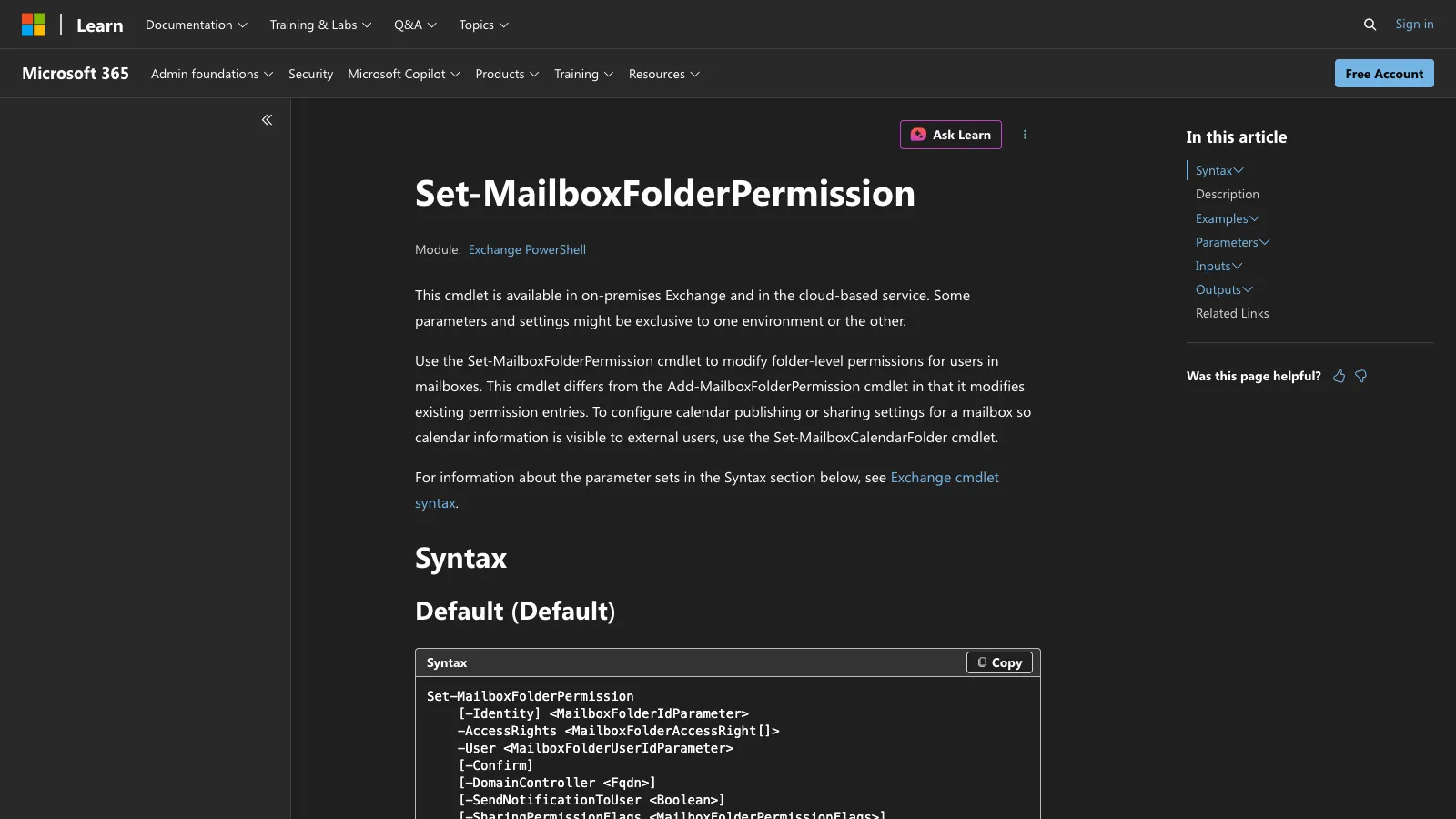
It changes the permissions a user or group already has on one folder inside a mailbox, such as the Calendar, the Inbox or a custom folder. It works in Exchange Online and in on-premises Exchange Server 2010 through Exchange Server SE.
| Cmdlet | What it does |
|---|---|
| Add-MailboxFolderPermission | Creates a new entry for a user on the folder |
| Set-MailboxFolderPermission | Replaces the rights on an entry that already exists |
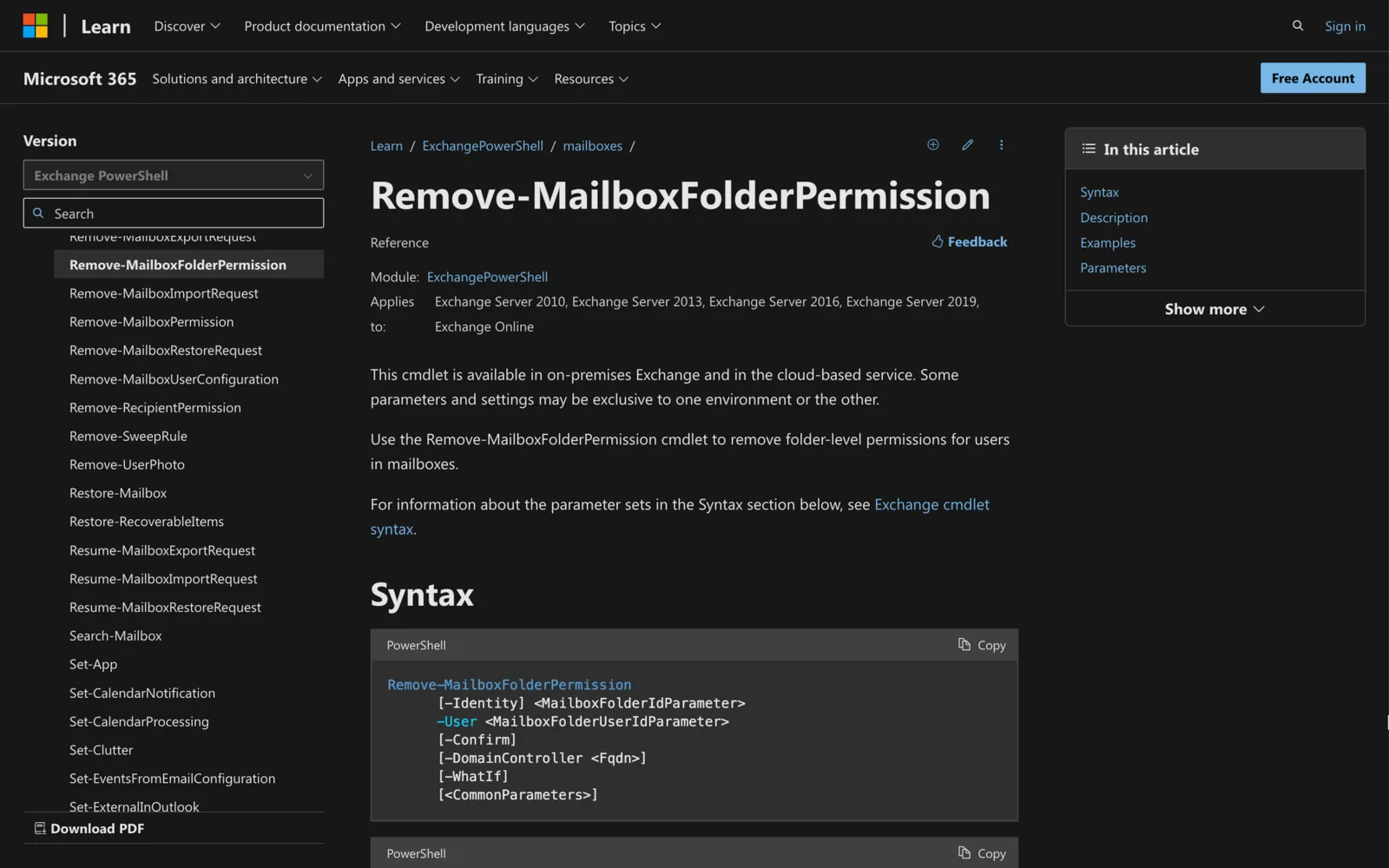
| Remove-MailboxFolderPermission | Removes the user's whole entry |
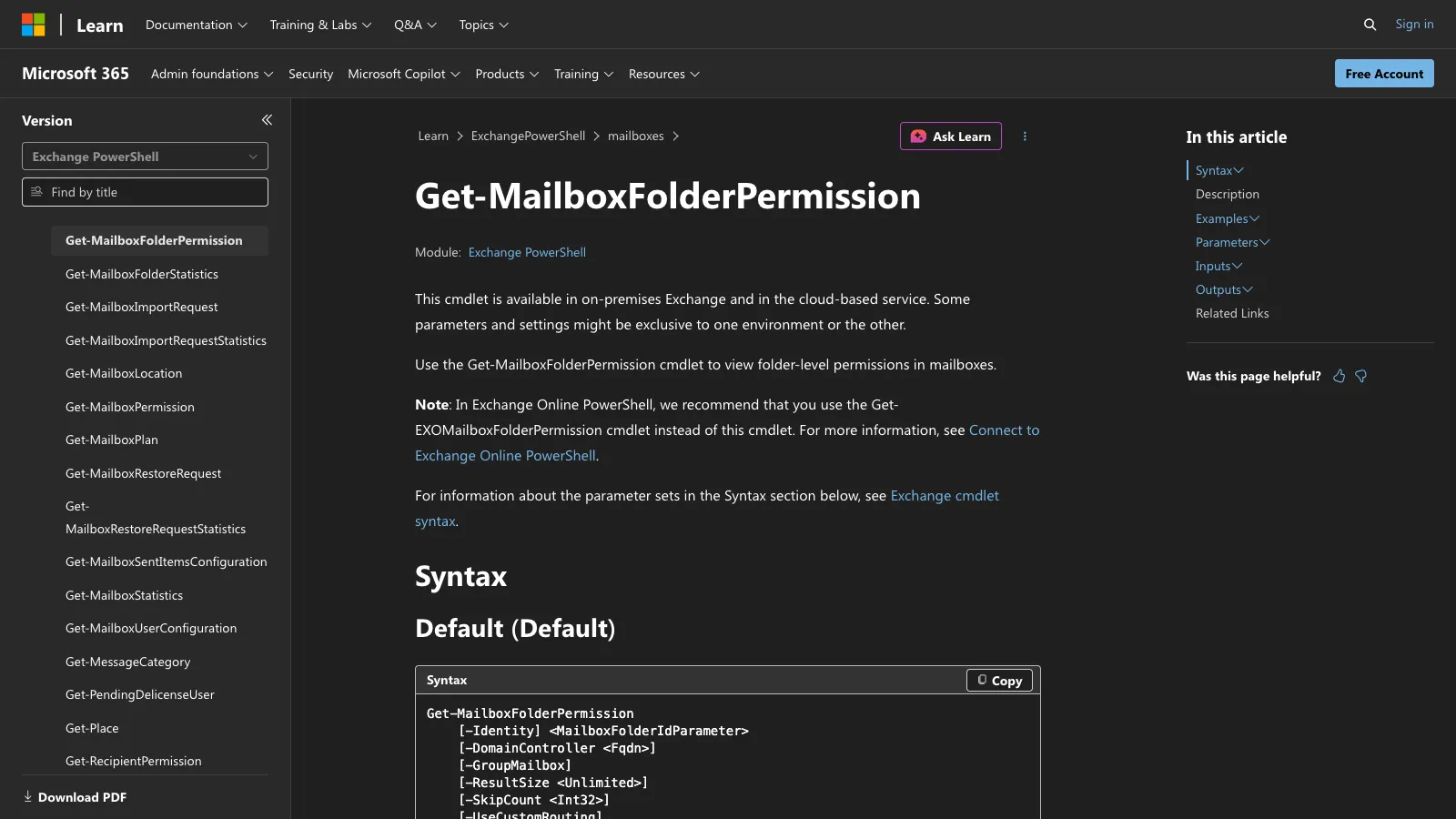
| Get-MailboxFolderPermission | Lists the entries on the folder |
To publish a calendar to people outside your organization, use Set-MailboxCalendarFolder instead.
How do I connect first?
Connect-ExchangeOnline -UserPrincipalName admin@contoso.com
If the module isn't installed, see how to install the Exchange Online PowerShell module. On-premises, open the Exchange Management Shell. Your account needs permission to manage mailbox folders.
Examples
| Task | Command |
|---|---|
| Change a user to read-only | Set-MailboxFolderPermission -Identity ayla@contoso.com:\Calendar -User ed@contoso.com -AccessRights Reviewer |
| Change a user to edit access | Set-MailboxFolderPermission -Identity ayla@contoso.com:\Calendar -User ed@contoso.com -AccessRights Editor |
| Show subject and location to everyone | Set-MailboxFolderPermission -Identity ayla@contoso.com:\Calendar -User Default -AccessRights LimitedDetails |
| Block unauthenticated access | Set-MailboxFolderPermission -Identity ayla@contoso.com:\Calendar -User Anonymous -AccessRights None |
| Make someone Owner of a custom folder | Set-MailboxFolderPermission -Identity ayla@contoso.com:\Marketing -User ed@contoso.com -AccessRights Owner |
| Preview a change | Add -WhatIf to any of the above |
The Identity format is Mailbox:\Folder\Subfolder, for example john@contoso.com:\Calendar or John:\Inbox\Reports. For -User, Microsoft recommends a UPN such as ed@contoso.com or contoso\ed. It also accepts mail users and mail-enabled security groups.
What AccessRights can I set?
| Role | What the user can do |
|---|---|
| Owner | Everything, including creating subfolders and managing the folder |
| PublishingEditor | Create, read, edit and delete all items, and create subfolders |
| Editor | Create, read, edit and delete all items |
| PublishingAuthor | Create and read items, edit and delete their own, create subfolders |
| Author | Create and read items, edit and delete their own |
| NonEditingAuthor | Create and read items, delete their own |
| Reviewer | Read items |
| Contributor | Create items |
| LimitedDetails | Calendars only: free/busy with subject and location |
| AvailabilityOnly | Calendars only: free/busy |
| None | No access |
The new value replaces the old one. It isn't added to it. You can also pass individual permissions such as ReadItems or CreateItems, separated by commas.
How do I change the Default permission on a calendar?
Every calendar has a Default entry. It applies to signed-in users in your organization who don't have an entry of their own. On a calendar it is AvailabilityOnly by default, so people see when the calendar is busy but not the meeting subject.
To show subject and location to everyone in the organization:
Set-MailboxFolderPermission -Identity boardroom@contoso.com:\Calendar -User Default -AccessRights LimitedDetails
This is a common change on room mailboxes, so people can see what a room is booked for. To do it for every room at once:
Get-Mailbox -RecipientTypeDetails RoomMailbox -ResultSize Unlimited | ForEach-Object {
    Set-MailboxFolderPermission -Identity "$($_.PrimarySmtpAddress):\Calendar" -User Default -AccessRights LimitedDetails
}
Microsoft warns that lowering Default below AvailabilityOnly can stop free/busy lookups for that calendar. The Anonymous entry covers people who aren't signed in. Leave it at None unless you have a reviewed reason to change it.
On rooms that auto-accept bookings, Exchange also replaces the subject with the organizer's name by default. To keep the real subject, see Set-CalendarProcessing.
How does Set-MailboxFolderPermission affect calendar delegates?
In Exchange Online, two parameters control delegates on a calendar:
-SharingPermissionFlagsmakes a user a delegate. It only works with-AccessRights Editor. The values are Delegate, CanViewPrivateItems (only together with Delegate) and None.-SendNotificationToUser $truesends a sharing invitation. It works with AvailabilityOnly, LimitedDetails, Reviewer and Editor.
If you leave out both parameters, the user's delegate status stays as it was. If you use -SendNotificationToUser without -SharingPermissionFlags, the flags reset to None and the user stops being a delegate.
| Goal | Command |
|---|---|
| Change rights, keep delegate status | Set-MailboxFolderPermission -Identity ayla@contoso.com:\Calendar -User ed@contoso.com -AccessRights Editor |
| Turn a delegate into a plain Editor | Set-MailboxFolderPermission -Identity ayla@contoso.com:\Calendar -User ed@contoso.com -AccessRights Editor -SharingPermissionFlags None |
| Stop a delegate seeing private items | Set-MailboxFolderPermission -Identity ayla@contoso.com:\Calendar -User ed@contoso.com -AccessRights Editor -SharingPermissionFlags Delegate |
| Resend the invitation to a delegate | Set-MailboxFolderPermission -Identity ayla@contoso.com:\Calendar -User ed@contoso.com -AccessRights Editor -SharingPermissionFlags Delegate -SendNotificationToUser $true |
Microsoft recommends setting up full delegate relationships in Outlook while the calendar owner is signed in. An Editor entry without the Delegate flag is edit access, not a complete delegate. For room and equipment mailboxes, see adding delegates to resource mailboxes.
Why does Set-MailboxFolderPermission fail?
| Error or symptom | Fix |
|---|---|
| "There is no existing permission entry found for user" | The user has no entry on that folder. Run Add-MailboxFolderPermission instead. |
| The term Set-MailboxFolderPermission is not recognized | Connect first with Connect-ExchangeOnline, or open the Exchange Management Shell. |
| The folder can't be found | Check the Mailbox:\Folder format and the folder's name in that mailbox. |
-SharingPermissionFlags is rejected |
It needs Exchange Online, a calendar folder and -AccessRights Editor. |
| A delegate stopped getting meeting requests | -SendNotificationToUser reset the flags. Run Set again with -SharingPermissionFlags Delegate. |
The fix for the "no existing permission entry" error, from a Microsoft Q&A answer, is to check the folder with Get-MailboxFolderPermission, and if the user isn't listed, use Add.
How do I check the result?
Get-MailboxFolderPermission -Identity ayla@contoso.com:\Calendar -User ed@contoso.com
Confirm that AccessRights shows the role you set. Leave out -User to list every entry on the folder, including Default and Anonymous.
Sources: Set-MailboxFolderPermission and Manage calendar permissions in Exchange Online on Microsoft Learn.
Meeting Room 365 turns any iPad or Android tablet into a room display for Exchange and Microsoft 365 calendars. See the features or pricing: $9 a display a month.