Quick answer
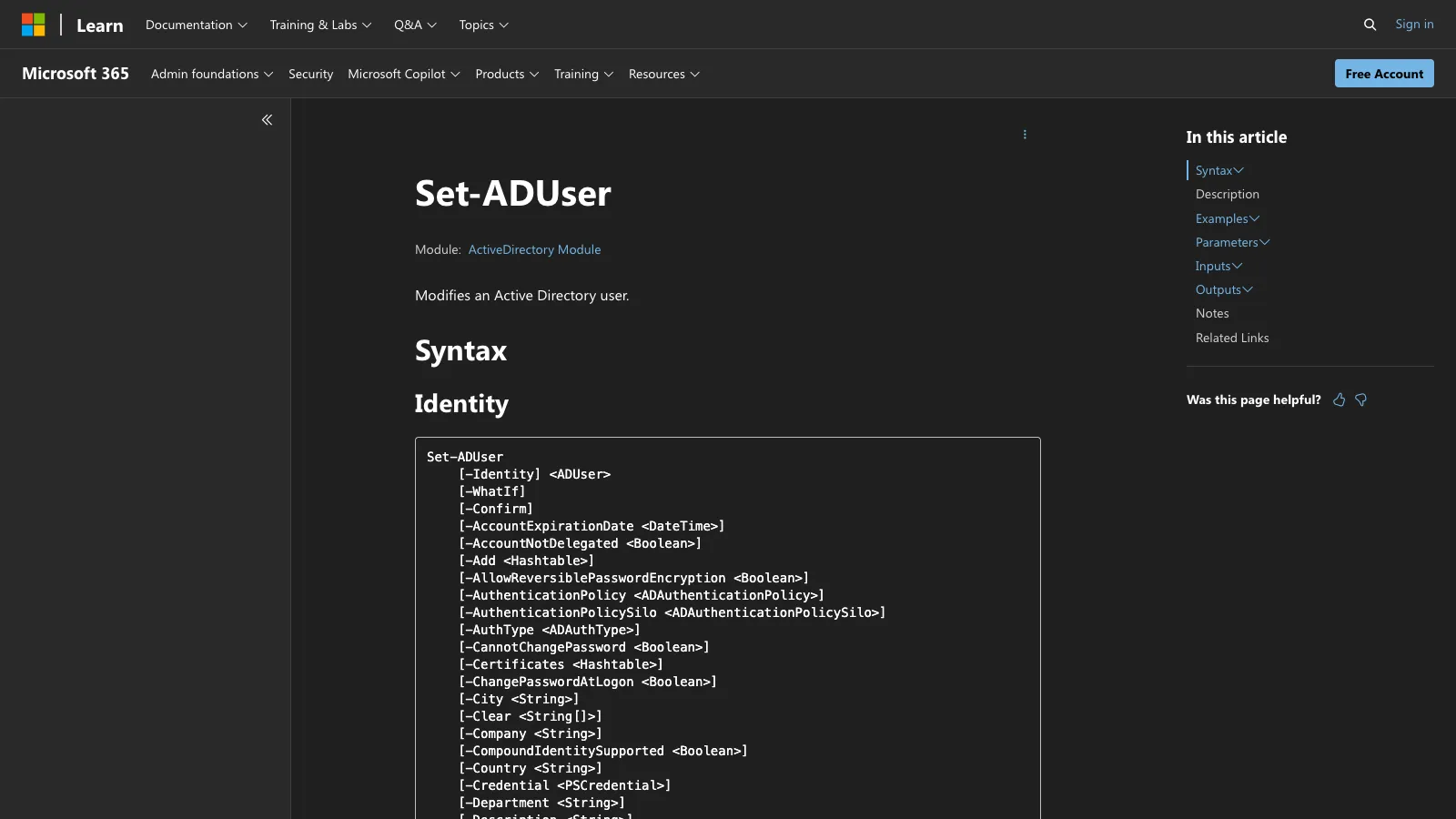
Set-ADUser changes the properties of one Active Directory user. Name the user, then the properties to change:
Set-ADUser -Identity amyc -Title "Facilities Manager" -Department "Operations"
For an attribute that has no parameter of its own, use -Replace with the attribute's LDAP display name:
Set-ADUser -Identity amyc -Replace @{title="Facilities Manager"; mail="amyc@contoso.com"}
The cmdlet is part of the ActiveDirectory module. If PowerShell doesn't recognize it, install the Remote Server Administration Tools (RSAT). On Windows 10 from the October 2018 Update onward, RSAT is a set of Features on Demand: open Manage optional features in Settings, choose Add a feature and pick the Active Directory tools.
What does Set-ADUser do?
It modifies a user object in Active Directory Domain Services or AD LDS. You pick the user with -Identity, by distinguished name, GUID, SID or SAM account name. You can also pipe in a user from Get-ADUser.
By default it prints nothing. Add -PassThru to get the changed user object back. Add -WhatIf to see what it would do without changing anything.
Related cmdlets in the same module:
| Cmdlet | What it does |
|---|---|
Get-ADUser |
Gets users, to read properties or pipe into Set-ADUser |
Set-ADAccountPassword |
Changes or resets an account's password |
Enable-ADAccount / Disable-ADAccount |
Turns an account on or off |
Unlock-ADAccount |
Clears a lockout on an account |
Set-ADAccountControl |
Changes user account control (UAC) values |
For user details in Exchange rather than Active Directory, see Set-User.
Examples
| Goal | Command |
|---|---|
| Change title and department | Set-ADUser -Identity amyc -Title "Facilities Manager" -Department "Operations" |
| Set the email address | Set-ADUser -Identity amyc -EmailAddress amyc@contoso.com |
| Set the manager | Set-ADUser -Identity amyc -Manager danj |
| Clear the description | Set-ADUser -Identity amyc -Clear description |
| Replace two attributes at once | Set-ADUser -Identity amyc -Replace @{title="director"; mail="amyc@contoso.com"} |
| Force a password change at next sign-in | Set-ADUser -Identity amyc -ChangePasswordAtLogon $true |
| Set an expiry date on the account | Set-ADUser -Identity amyc -AccountExpirationDate "2027-06-30" |
| Disable the account | Set-ADUser -Identity amyc -Enabled $false |
| See the result | Set-ADUser -Identity amyc -Office "Building 2" -PassThru |
Which properties have their own parameter?
Many common ones do. Each sets one LDAP attribute:
| Parameter | LDAP attribute |
|---|---|
-Title |
title |
-Department |
department |
-Description |
description |
-EmailAddress |
mail |
-Office |
physicalDeliveryOfficeName |
-OfficePhone |
telephoneNumber |
-Manager |
manager |
-AccountExpirationDate |
accountExpires |
-SamAccountName |
sAMAccountName |
Others include -DisplayName, -GivenName, -Surname, -Company, -MobilePhone, -City, -State, -PostalCode, -StreetAddress, -Country, -EmployeeID, -HomeDirectory, -ProfilePath, -ScriptPath and -UserPrincipalName.
-Manager takes the manager's distinguished name, GUID, SID or SAM account name. If the manager is in another domain, get them from that domain's server first and pass the object:
$Manager = Get-ADUser -Identity danj -Server dc01.fabrikam.com
Set-ADUser -Identity amyc -Manager $Manager -Server dc01.contoso.com
How do -Add, -Remove, -Replace and -Clear work?
They change attributes that have no parameter of their own. All four take the attribute's LDAP display name, not the PowerShell property name.
| Parameter | What it does | Format |
|---|---|---|
-Add |
Adds values to an attribute | -Add @{url="contoso.com"} |
-Remove |
Removes specific values | -Remove @{otherMailbox="amy.c"} |
-Replace |
Replaces the current values | -Replace @{title="manager"} |
-Clear |
Empties the attribute | -Clear description,info |
Give several values to one attribute as a comma-separated list. Separate attributes inside the hash table with a semicolon. If any value is null or empty, the cmdlet returns an error, so use -Clear to empty an attribute instead.
You can use all four in one command. They run in this order: Remove, Add, Replace, Clear.
Set-ADUser -Identity amyc -Remove @{otherMailbox="amy.c"} -Add @{url="contoso.com"} -Replace @{title="manager"} -Clear description
How do I change many users at once?
Get the users with Get-ADUser, then pipe them in. Run it with -WhatIf on Set-ADUser first to see which users it would touch. This sets the display name of everyone in one OU to surname then given name:
Get-ADUser -Filter * -SearchBase "OU=Finance,DC=contoso,DC=com" |
  ForEach-Object { Set-ADUser $_ -DisplayName ($_.Surname + ' ' + $_.GivenName) }
See Get-ADUser for filters and search scope.
To change from a list, read a CSV and look each user up by SAM account name:
Import-Csv titles.csv | ForEach-Object {
  Set-ADUser -Identity $_.SamAccountName -Title $_.Title -Department $_.Department
}
What is the -Instance parameter?
It's another way to make changes. Get a copy of the user with Get-ADUser, change the copy, then pass it back. Set-ADUser writes only the properties you changed. You can't use -Identity or the single-property parameters together with -Instance:
$User = Get-ADUser -Identity amyc -Properties mail,department
$User.mail = "amy.c@contoso.com"
$User.department = "Accounting"
Set-ADUser -Instance $User
How do I reset a password?
Set-ADUser doesn't set passwords. Use Set-ADAccountPassword with -Reset. This prompts for the new password so it isn't typed in plain text:
$NewPassword = Read-Host -Prompt "New password" -AsSecureString
Set-ADAccountPassword -Identity amyc -NewPassword $NewPassword -Reset
Set-ADUser -Identity amyc -ChangePasswordAtLogon $true
You can't set -PasswordNeverExpires $true on an account that also has ChangePasswordAtLogon set to $true. An enabled account needs a password.
Why doesn't Set-ADUser work?
| Symptom | Likely cause | Fix |
|---|---|---|
| The term Set-ADUser isn't recognized | The ActiveDirectory module isn't installed | Add the RSAT Active Directory tools from Manage optional features |
An error from -Replace or -Add |
A value in the hash table is null or empty | Use -Clear for that attribute |
| An attribute name isn't accepted | You used the PowerShell property name with -Replace |
Use the LDAP display name, such as mail or telephoneNumber |
| Nothing is printed | That's the default | Add -PassThru |
An error with -PasswordNeverExpires $true |
ChangePasswordAtLogon is also $true |
Turn off ChangePasswordAtLogon first |
| It fails against one domain controller | It's a read-only domain controller | Point -Server at a writable domain controller |
| It fails against a snapshot | Set-ADUser doesn't work with Active Directory snapshots | Use a live domain controller |
| It can't find the user in AD LDS | No partition was given and there's no default naming context | Pass -Partition |
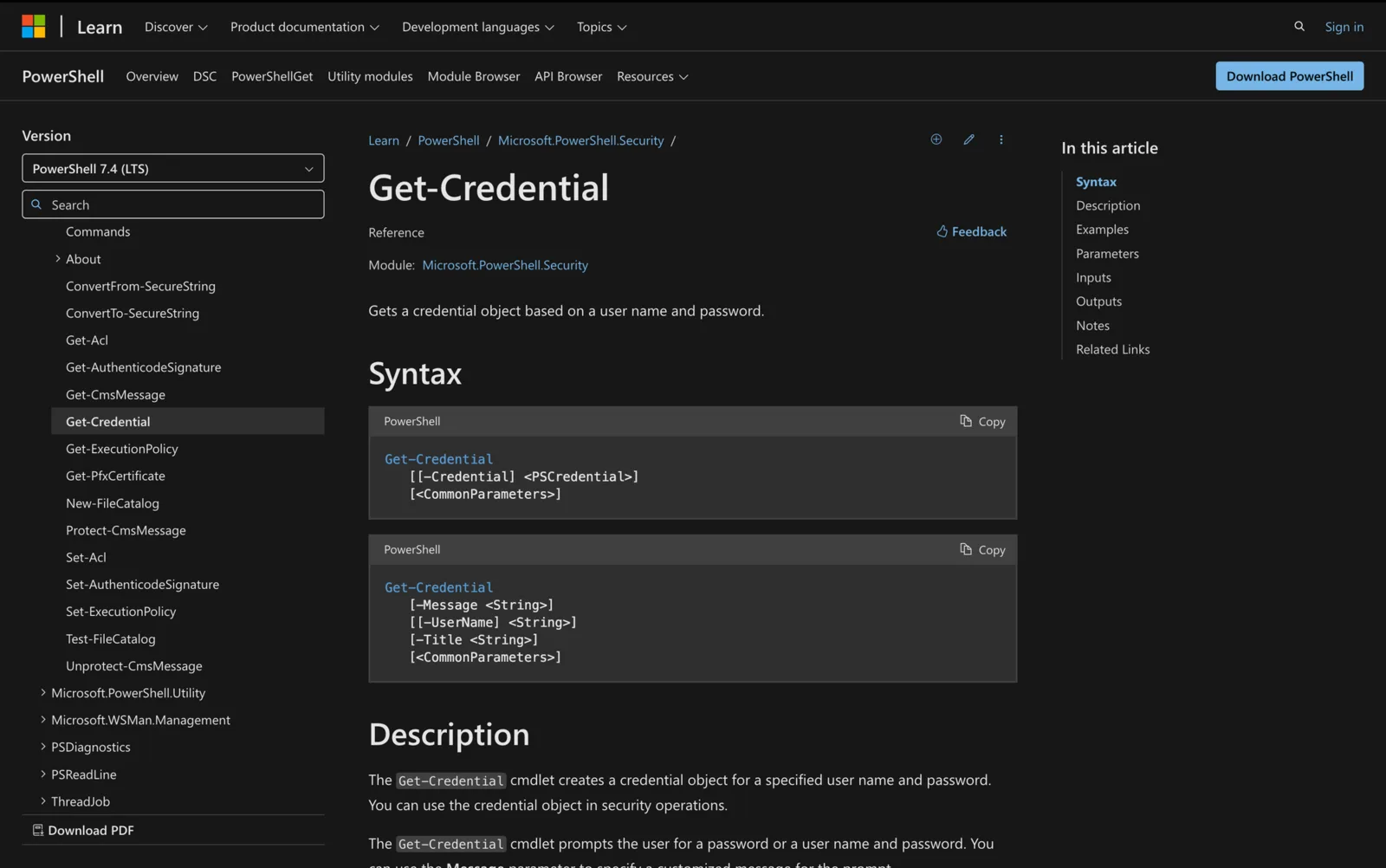
To run as another account, build a credential first. See Get-Credential.
How do I check the result?
Read the properties back with Get-ADUser. Ask for any that aren't in the default set:
Get-ADUser -Identity amyc -Properties Title,Department,Manager,mail |
  Select-Object Name,Title,Department,Manager,mail
Or add -PassThru to the Set-ADUser command to see the object right away.
Sources
- Set-ADUser on Microsoft Learn
- Set-ADAccountPassword on Microsoft Learn
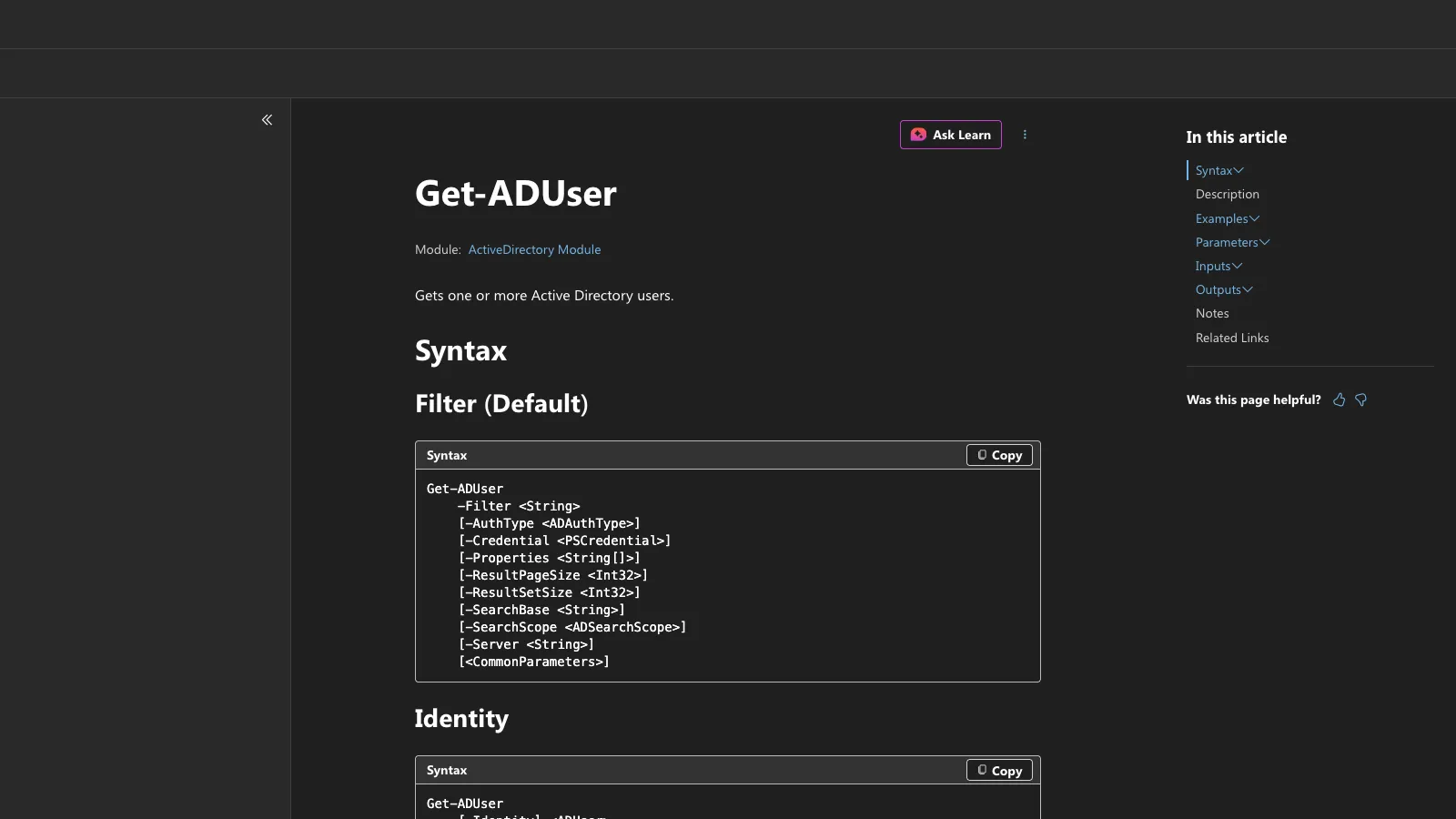
- Get-ADUser on Microsoft Learn
- ActiveDirectory module on Microsoft Learn
Meeting Room 365 turns any iPad or Android tablet into a room display for Exchange and Microsoft 365 calendars. See the features or pricing: $9 a room a month.