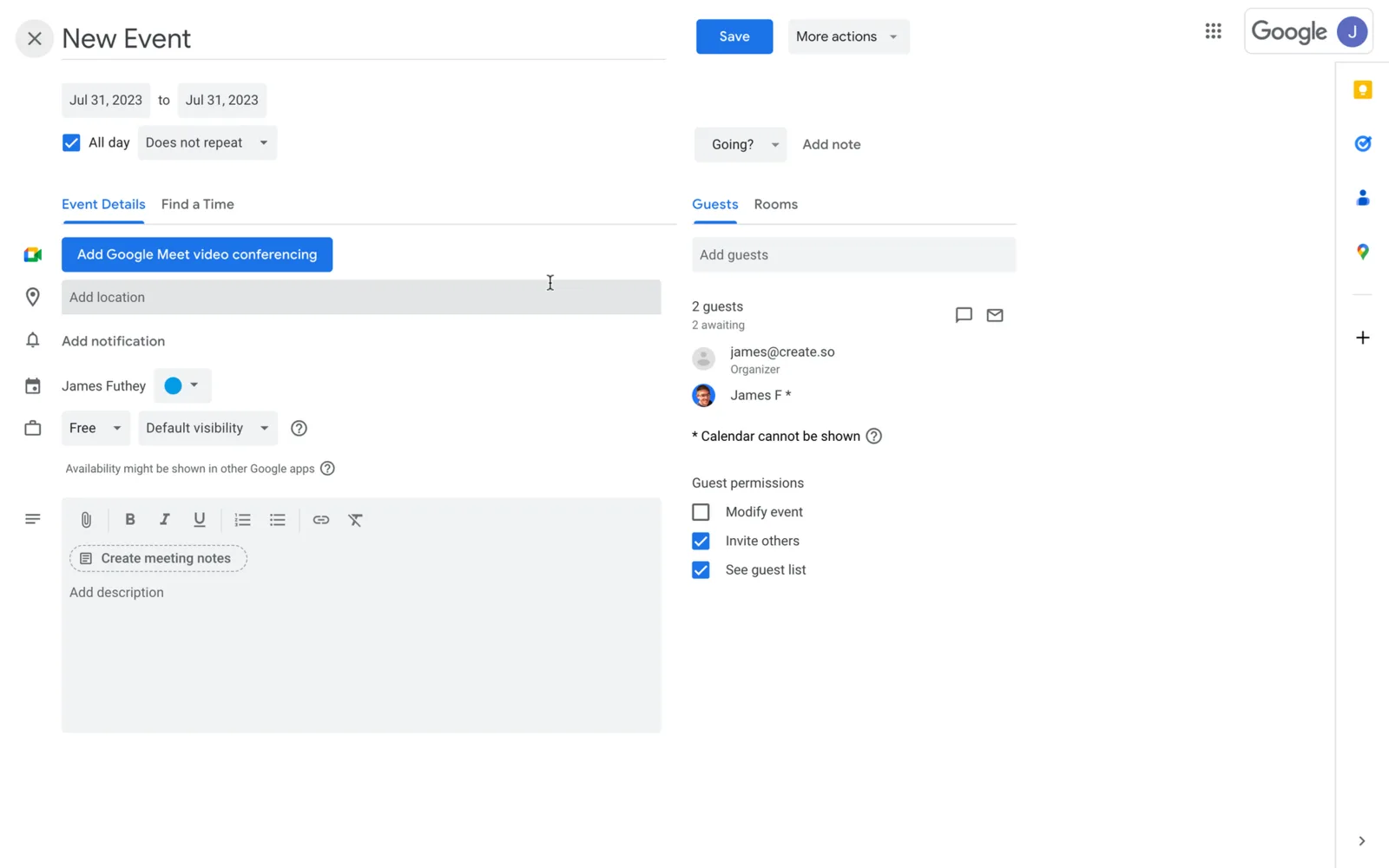
By inviting people to Google Calendar meetings, you can give them permission to forward meeting invites.
This will allow them to invite more people to a meeting if necessary. However, many new Google Calendar users struggle to find this feature.
Today’s guide shows you how to forward Google Calendar invite via web or via the Calendar-Gmail integration.
How do I forward a Google Calendar invite?
The first way to forward a Google Calendar invite is by doing so via the main Google Calendar web platform.
To do this, you must have received an invite to a Google Calendar event with Invite Permissions. Follow these four steps to learn how to do this.
Step 1: Open Google Calendar and Select the Calendar Event
Log into your Google account, and open Google Calendar. Click on the Event that you want to forward to others, and select the pencil icon (Edit Event Option).
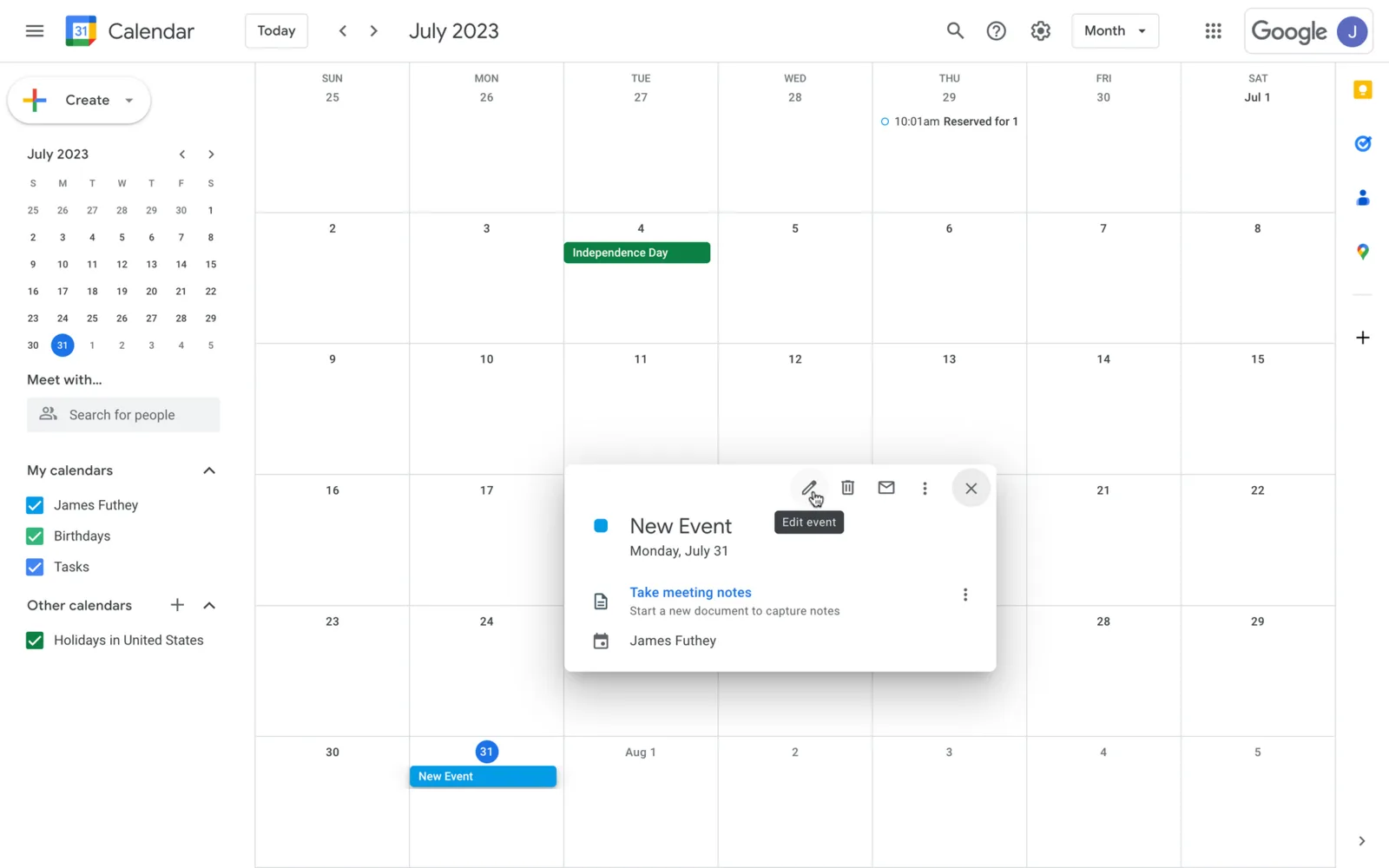
It’s not necessary to change the Google Calendar organizer or to have sharing permissions in the entire calendar to forward an invite, but the meeting organizer should give you Invite Permissions prior to sharing the event.
Step 2: Go to “Add Guests” On the Event Details Tab
After clicking on “Edit Event,” the Event Details Tab will open. Here, look for the option that says “Add Guests.”
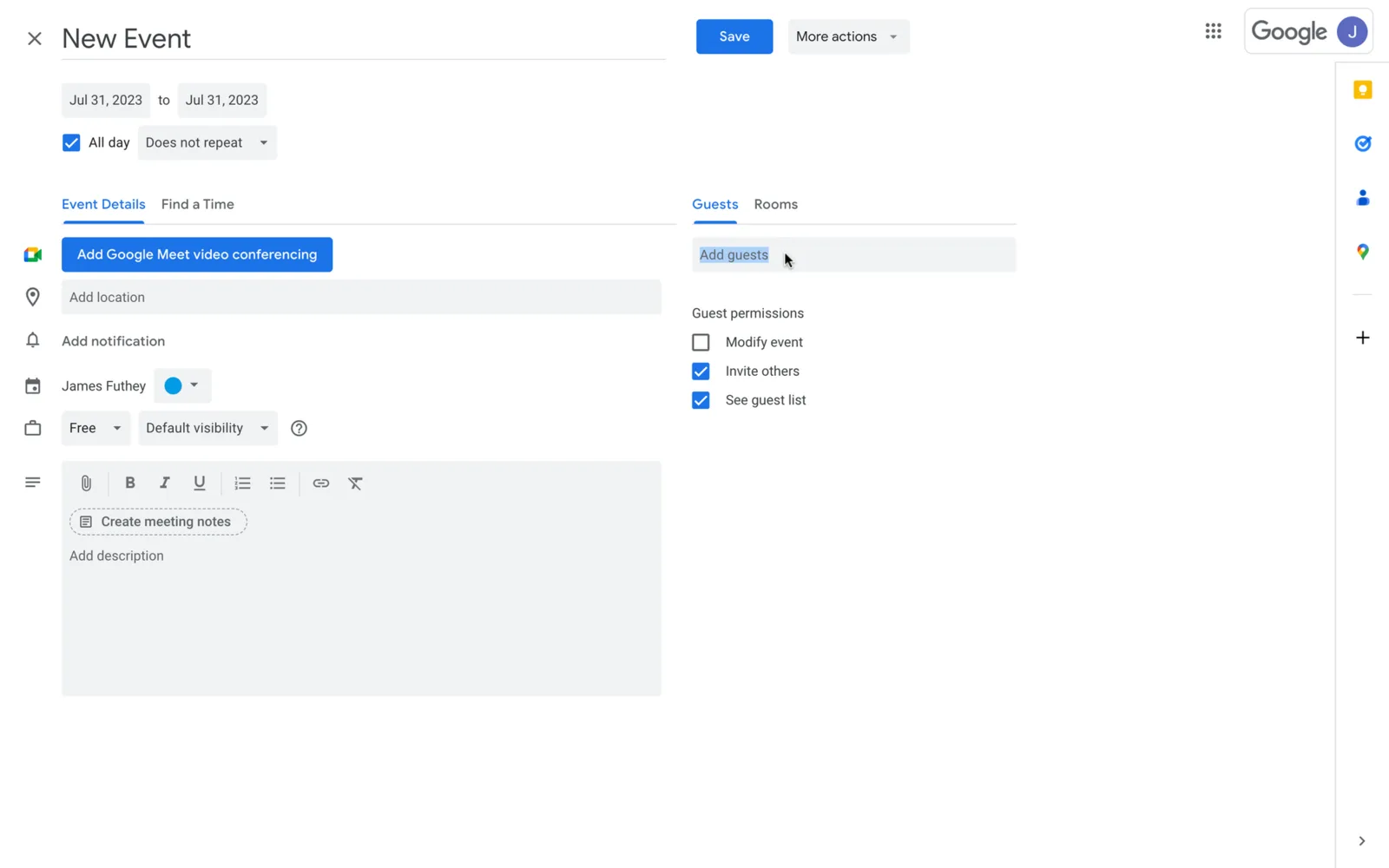
Type in the email addresses of the people you want to forward the invitation to and proceed with the following step.
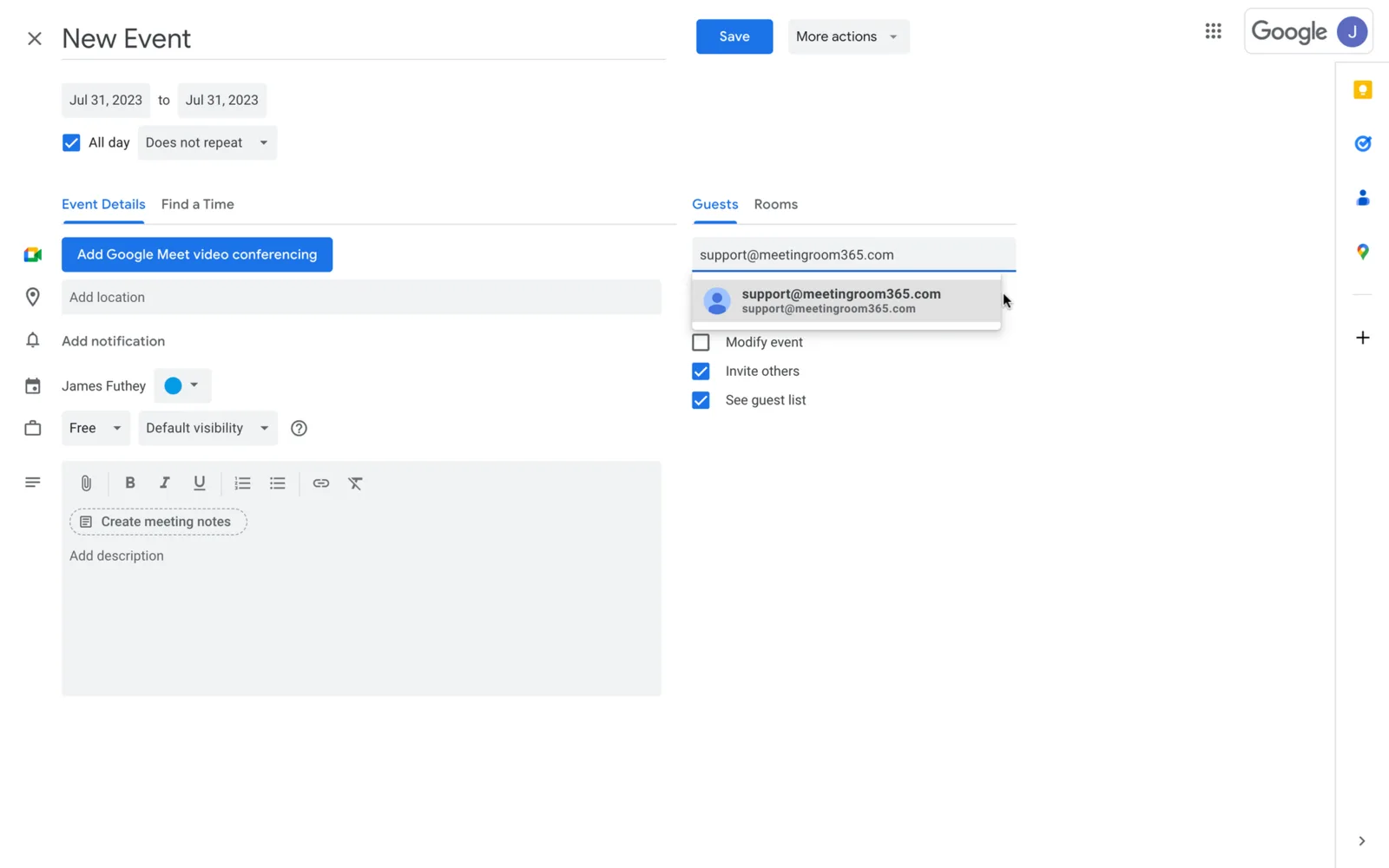
Step 3: Add New Guests and Forward the Meeting Invitation
After adding the email addresses of the new guests, Google will ask you to confirm your decision.
Click “Save,” and then click “Send.” The meeting invitation will be forwarded to the people you choose.
Step 4: Wait for the Attendee to Accept the Event Invitation
New attendees will receive an email invitation with the calendar link and the details of the event.
They can simply accept the invite or propose a new time on Google Calendar. That’s how you forward a meeting invite on Google Calendar’s web version.
How to forward a Google Calendar invite in Gmail
According to Google, it is also possible to forward a calendar invitation email directly via Gmail thanks to the Calendar-Gmail association of Google products.
This means that you can simply forward a meeting invite by forwarding the main invitation email received in your Gmail inbox - let’s learn how to do it.
Step 1: Open Gmail and Look for the Gmail Calendar Event Invitation
Log into your Gmail account. Keep in mind that you must log into the Gmail account associated with Google Calendar.
Then, browse your inbox until you find the Google Calendar Event Invitation. Open the email, and proceed to the following step.
Step 2: Click the Three-Dot Icon and Select “Forward”
After opening the invitation email, click the three-dot icon that appears at the top right corner of the email and select “Forward.”
You will be redirected to the Forward Email screen. Here, simply add the email address of the person you want to forward the invitation to.
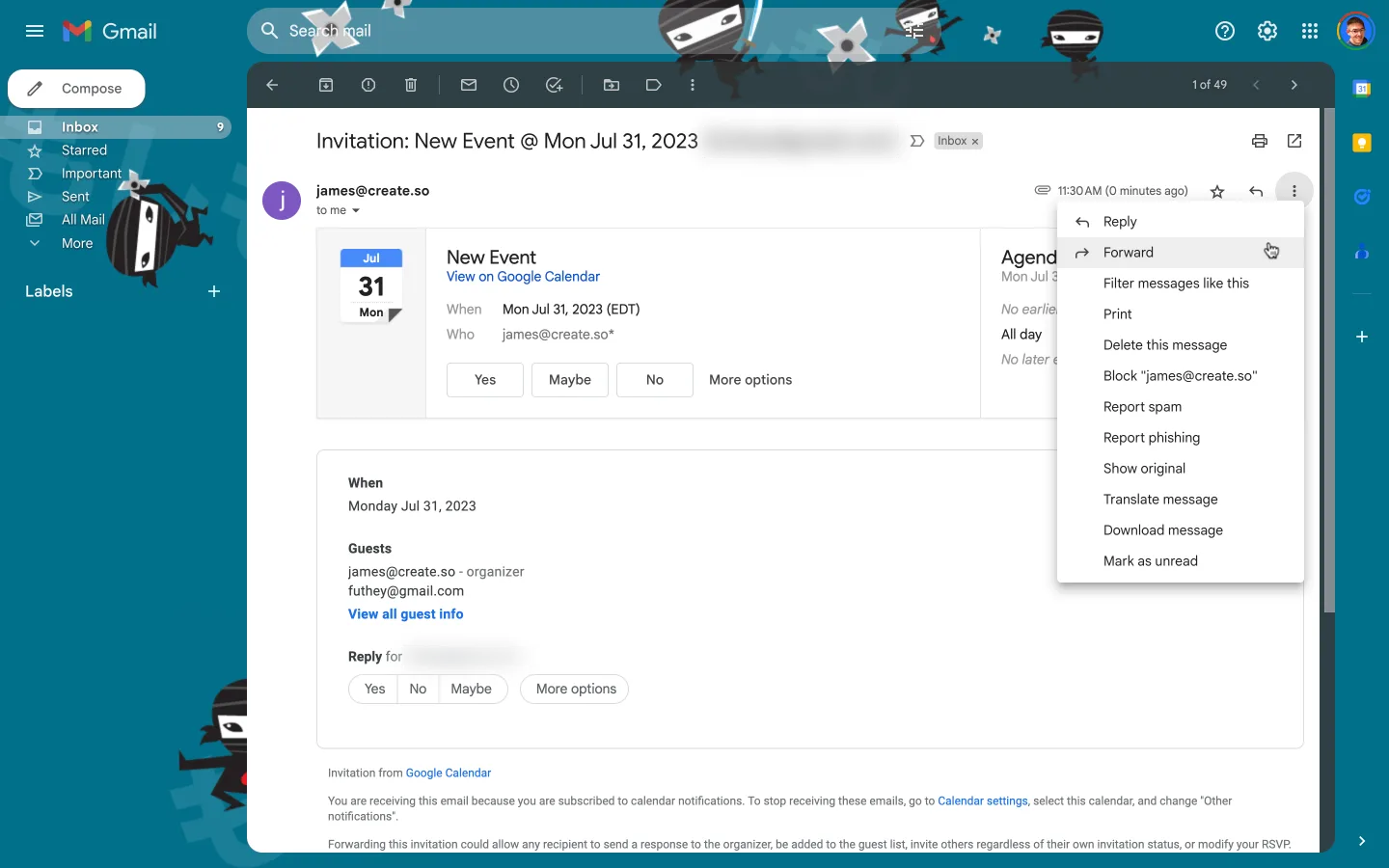
Step 3: Forward the Invite to the Gmail of the Other Person and Wait for Them to Accept it
Send the forwarded email, and the people you have invited will receive the Calendar invitation in their Gmail inbox.
They will receive an email with an ics file attached (universal calendar format) and the information about the scheduled meeting.
To accept the invitation, they can click “Yes” directly from Gmail. This way, Google Calendar users are able to forward Google Calendar invites directly from the Gmail platform without major problems.
Why Can’t I Forward a Google Calendar Invite?
To forward a Google Calendar invite, you don’t need to be the meeting organizer or do it from your own calendar.
However, the event organizer must give you Invite permissions before sending the original meeting invite to you.
When an organizer creates a meeting, they can manage Guests Permissions directly from Google Calendar.
If they didn’t select the “Invite Others” checkbox, then you will be unable to forward Google Calendar invites related to that specific event.
That’s why when you try to click “Edit Event,” you’ll see a message that says, “The full guest list has been hidden at the organizer’s request” - you don’t have enough permissions to forward that Google Calendar invite.
There are two ways to fix this:
- Ask the meeting organizer to give you “Invite Others” permissions.
- Ask the main Google Calendar meeting owner to forward the invitation to other people.
Will the Event Organizer Know I Forwarded the Google Calendar Invite?
Yes - as mentioned above, if you have been granted “Invite Permissions” to the Google Calendar event, you can forward the invite without asking the event owner.
However, they will receive an email notification telling them that the invite has been accepted or denied by the people you have forwarded the invitation to.
How do I forward a Google Meet invite?
The Meet link is part of the calendar event, so forwarding the event by either method above forwards the link with it. Guests can also paste the link to someone directly. Anyone who wasn't on the invite has to ask to join, and someone from the organizer's organization has to let them in. If the organizer used a personal Google account, only the organizer can let them in.
Can you forward a Google Calendar invite from another person?
Yes, if the person who sent it gave guests the "invite others" permission. You don't need to own the event or the calendar. If the permission is off, the organizer has to add the new guest.
What happens when you forward the invite email?
Google warns that whoever gets the forwarded email can change your RSVP and invite other people. To avoid that, add them from the event's guest list instead, so they get their own invitation.