Online meeting behavior can become inconsistent across a Microsoft 365 organization. Some users create every meeting as a Teams meeting, others disable the option, and some mailboxes inherit the Office 365 tenant default.
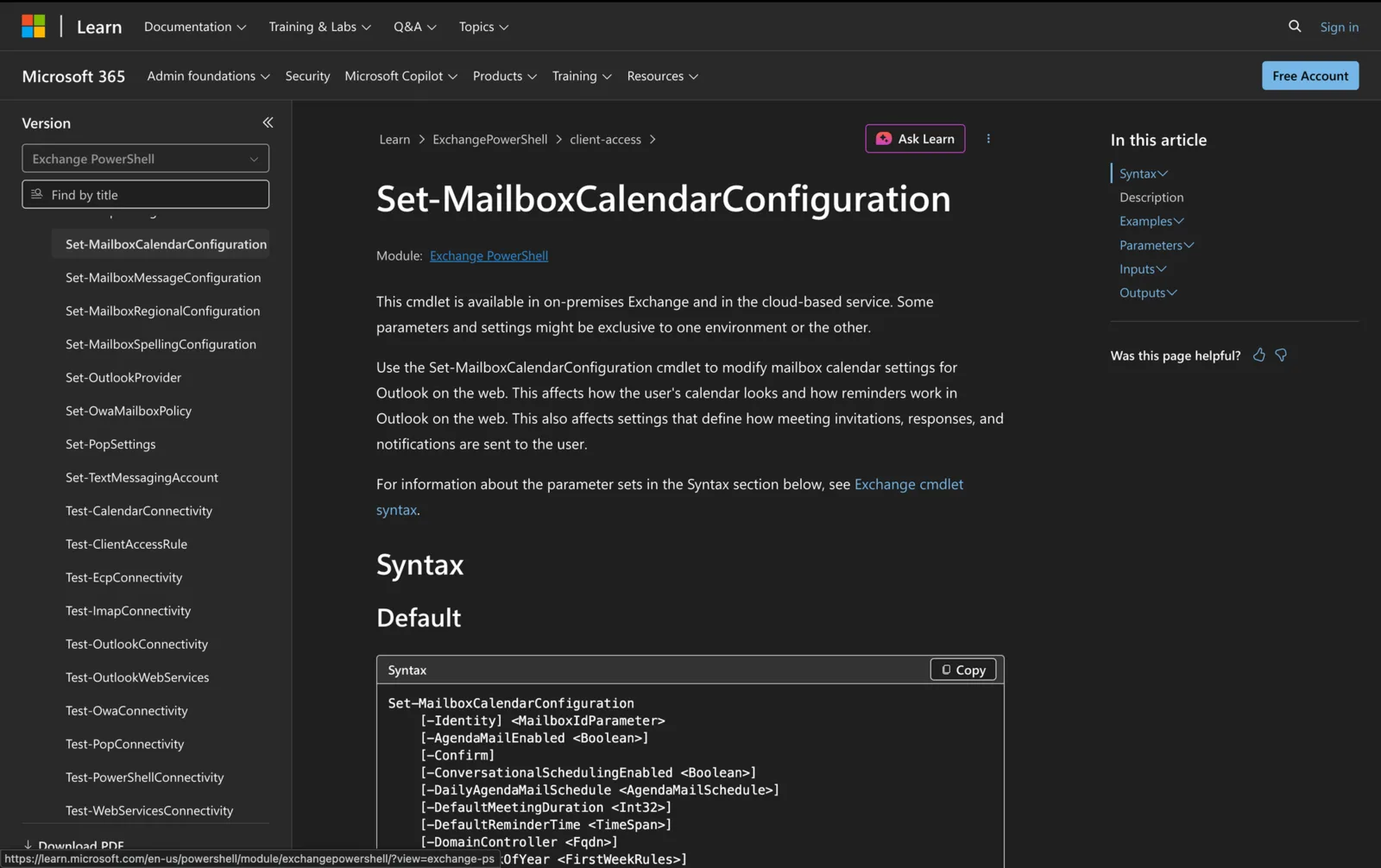
Exchange Online administrators can manage these settings with Set-MailboxCalendarConfiguration and review them with Get-MailboxCalendarConfiguration. The main parameters are OnlineMeetingsByDefaultEnabled, DefaultOnlineMeetingProvider, and ConversationalSchedulingEnabled.
These settings define defaults for new meeting creation. They do not change existing meetings, install an Office add-in, configure a provider account, or permanently prevent users from changing Outlook settings.
For wider coverage of the cmdlet, see the Set-MailboxCalendarConfiguration PowerShell guide.
How Outlook Online Meeting Defaults Work
The online-meeting default can exist at two levels:
- Mailbox level: Configured with Set-MailboxCalendarConfiguration.
- Organization level: Configured with Set-OrganizationConfig.
The mailbox setting takes a Boolean value, but it also accepts $null. A $null mailbox value tells Exchange Online to use the organization-level OnlineMeetingsByDefaultEnabled value.
| Mailbox value | Result |
|---|---|
| $true | New meetings are online meetings by default. |
| $false | New meetings are not online meetings by default. |
| $null | Exchange Online uses the organization-level value. |
At the organization level, $true makes meetings online by default and $false makes them offline by default. Microsoft also documents $null at the organization level. When the organization value has not been specified, the documented default behavior is for meetings to be online.
The Outlook Client-Setting Caveat
OnlineMeetingsByDefaultEnabled should not be treated as a locked policy.
Microsoft states that the mailbox parameter currently sets a default. When a user has already interacted directly with the corresponding setting in an Outlook client, the mailbox default can be ignored. Microsoft gives a similar warning for the organization-level setting when the user has changed the option in Outlook or Outlook on the web.
In Outlook for Windows, the related user-facing option is Add online meeting to all meetings. Users can enable or disable that option when Teams is used for online meetings.
This means an administrator can configure the expected starting behavior, but should not assume every Outlook client will follow that value after the user has modified the setting.
Focused Parameters
OnlineMeetingsByDefaultEnabled
OnlineMeetingsByDefaultEnabled controls whether newly created meetings are online meetings by default.
Valid mailbox-level values are:
- $true: All meetings are online by default.
- $false: Meetings are not online by default.
- $null: Use the organization-level setting.
The parameter is available only in Exchange Online. Microsoft describes the resulting online meetings as Teams or Skype for Business meetings, depending on the applicable configuration.
Do not confuse this default with meeting conversion. The cmdlet does not modify existing appointments or meetings already stored in the calendar.
DefaultOnlineMeetingProvider
DefaultOnlineMeetingProvider selects the mailbox’s default online-meeting provider.
The provider value must match one of Microsoft’s documented OnlineMeetingProviderType values. TeamsForBusiness is the documented default. This parameter is available only in Exchange Online.
Selecting a provider does not configure or license that service. It also does not install the Teams meeting add-in, Zoom add-in, Webex add-in, or another Office add-in. Provider availability and Outlook client integration must be handled separately.
ConversationalSchedulingEnabled
ConversationalSchedulingEnabled controls conversational scheduling for the mailbox.
Valid values are:
- $true: Conversational scheduling is enabled. Microsoft documents this as the default.
- $false: Conversational scheduling is disabled.
Unlike the two online-meeting parameters above, Microsoft lists this parameter for Exchange Online, Exchange Server 2016, Exchange Server 2019, and Exchange Server Subscription Edition.
Identity
Identity specifies the mailbox to read or modify. An email address is usually the clearest choice in an Exchange Online PowerShell script.
Microsoft also accepts other unique identifiers, including a name, alias, distinguished name, GUID, user principal name, and legacy Exchange distinguished name.
Example identity:
-Identity [email protected]
WhatIf
The WhatIf switch previews what a Set-MailboxCalendarConfiguration command would do without applying the change.
It does not take a value:
Set-MailboxCalendarConfiguration -Identity [email protected] -OnlineMeetingsByDefaultEnabled $true -WhatIf
Remove -WhatIf when you are ready to apply the configuration.
Supported Online Meeting Provider Values
Microsoft currently documents the following exact values for DefaultOnlineMeetingProvider:
AlibabaDingTalk, AmazonChimePrivate, AmazonChimePublic, AppleFacetime, BlueJeans, ClaroVideoconferencia, FacebookWorkplace, GoogleMeet, GoToMeeting, JioMeet, RingCentral, SkypeForBusiness, SkypeForConsumer, TeamsForBusiness, Webex, and Zoom.
TeamsForBusiness is the documented default value. Provider names must be passed as listed. For example, use Webex, not WebEx, and use AppleFacetime, not a renamed variation.
Check Current Mailbox and Organization Settings
Use Get-MailboxCalendarConfiguration to read mailbox calendar properties. Select only the properties relevant to online meetings and conversational scheduling:
Get-MailboxCalendarConfiguration -Identity [email protected] | Select-Object OnlineMeetingsByDefaultEnabled,DefaultOnlineMeetingProvider,ConversationalSchedulingEnabled
Use Get-OrganizationConfig to read the organization-level default:
Get-OrganizationConfig | Select-Object OnlineMeetingsByDefaultEnabled
Get-MailboxCalendarConfiguration returns the calendar settings for a specified mailbox, while Get-OrganizationConfig returns configuration data for the Exchange organization.
How to Configure Online Meeting Defaults
Run these commands from an Exchange Online PowerShell session with the required administrative permissions.
1. View the Mailbox-Level Online Meeting Configuration
Command:
Get-MailboxCalendarConfiguration -Identity [email protected] | Select-Object OnlineMeetingsByDefaultEnabled,DefaultOnlineMeetingProvider,ConversationalSchedulingEnabled
This command displays James’s mailbox-level default, selected provider, and conversational scheduling value. It avoids returning unrelated properties such as WorkDays, WorkingHoursTimeZone, DefaultReminderTime, and ShowWeekNumbers.
2. View the Organization-Level Default
Get-OrganizationConfig | Select-Object OnlineMeetingsByDefaultEnabled
This command displays the Office 365 tenant setting used when a mailbox has OnlineMeetingsByDefaultEnabled set to $null.
Checking both levels prevents a common troubleshooting error. A $null mailbox value is not enough to determine the resulting default without also reading the organization configuration.
3. Enable Online Meetings by Default for James
Command:
Set-MailboxCalendarConfiguration -Identity [email protected] -OnlineMeetingsByDefaultEnabled $true
This command configures James’s mailbox so newly created meetings are online meetings by default.
It does not modify existing calendar items. It also remains subject to Microsoft’s warning about users who have already interacted with the corresponding Outlook setting.
4. Disable Online Meetings by Default for Simon
Command:
Set-MailboxCalendarConfiguration -Identity [email protected] -OnlineMeetingsByDefaultEnabled $false
This command makes newly created meetings offline by default for Simon.
Simon can still add an online meeting when creating an individual event. The command changes the default behavior rather than removing online-meeting functionality.
5. Make James Use the Organization Setting
Command:
Set-MailboxCalendarConfiguration -Identity [email protected] -OnlineMeetingsByDefaultEnabled $null
This command sets the mailbox-level value to $null. Exchange Online then uses the organization-level OnlineMeetingsByDefaultEnabled value. James’s mailbox then uses the value returned by:
Get-OrganizationConfig | Select-Object OnlineMeetingsByDefaultEnabled
If the organization setting later changes, a mailbox that remains set to $null continues to reference that organization-level value.
6. Set TeamsForBusiness as the Default Provider
Command:
Set-MailboxCalendarConfiguration -Identity [email protected] -DefaultOnlineMeetingProvider TeamsForBusiness
This command sets TeamsForBusiness as James’s default online-meeting provider. Microsoft documents TeamsForBusiness as the default provider value.
This setting does not assign a Microsoft Teams license, enable Teams for the user, or repair a missing Teams meeting add-in. Those requirements must be managed through the relevant Microsoft 365 and Outlook administration tools.
7. Set Zoom as the Provider and Disable Conversational Scheduling
Command:
Set-MailboxCalendarConfiguration -Identity [email protected] -DefaultOnlineMeetingProvider Zoom -ConversationalSchedulingEnabled $false
This command selects Microsoft’s documented Zoom provider value and disables conversational scheduling for Simon.
The presence of Zoom in the accepted provider list does not mean the Zoom service, account, Office add-in, or Outlook integration is ready for use. Service availability and client integration are separate from the mailbox property.
To enable conversational scheduling again, set ConversationalSchedulingEnabled to $true.
After making changes, verify the resulting properties:
Get-MailboxCalendarConfiguration -Identity [email protected] | Select-Object OnlineMeetingsByDefaultEnabled,DefaultOnlineMeetingProvider,ConversationalSchedulingEnabled
Parameters Not Covered
Microsoft currently lists these related parameters without enough public documentation to describe their behavior safely:
- AutoDeclineWhenBusy
- DefaultMinutesToReduceLongEventsBy
- DefaultMinutesToReduceShortEventsBy
- DeleteMeetingRequestOnRespond
- PreserveDeclinedMeetings
- ShortenEventScopeDefault
- WorkspaceUserEnabled
Microsoft marks DefaultMeetingDuration as reserved for internal Microsoft use. No behavior, accepted values, or PowerShell examples are supplied here for these parameters.
5 Common Problems
1. The User Already Changed the Outlook Setting
A user’s direct interaction with the setting in Outlook or Outlook on the web can cause the administrative default to be ignored. Repeatedly running the same PowerShell command may not produce the client behavior an administrator expects.
Review the user’s Outlook setting before assuming the command failed.
2. Mailbox and Organization Settings Are Being Confused
Set-MailboxCalendarConfiguration changes one mailbox. Set-OrganizationConfig changes the organization-level value used for inheritance.
A mailbox value of $null means “use the organization setting.” It does not mean $false, disabled, or unconfigured behavior.
3. The Provider Value Is Unsupported
Use only the exact provider values documented by Microsoft. A brand name that appears correctly spelled to a person can still be invalid as a PowerShell enumeration value.
For example, the documented values include TeamsForBusiness, SkypeForBusiness, Webex, and AppleFacetime.
4. The Parameter Is Exchange Online Only
OnlineMeetingsByDefaultEnabled and DefaultOnlineMeetingProvider are available only in Exchange Online. Their presence in Set-MailboxCalendarConfiguration does not make them available in Exchange Server 2010, Exchange Server 2013, Exchange Server 2016, or Exchange Server 2019.
5. A Default Is Being Mistaken for a Locked Policy
These properties set meeting defaults. Microsoft explicitly warns that direct user interaction with the Outlook setting can affect whether the administrative value is applied.
Do not present these commands internally as a permanent restriction or compliance control.
Final Note
For consistent results, read both the mailbox and organization settings before making changes, use only documented provider values, and verify the mailbox again after each command.
Online meeting defaults are only one part of calendar administration. You can separately manage Outlook working hours with PowerShell and configure Outlook calendar reminders with PowerShell without mixing those properties into the online-meeting commands.