Overview
Map Display turns scans of your office into floor maps in Microsoft Places. People see your floors when they book a room or desk in Outlook, Teams, and the Places app, and on your Meeting Room 365 Status Boards. You can start from either of two places, and both lead to the same editor:
- Scan each floor with the Meeting Room 365 Floor Plan Scanner app on a LiDAR iPhone Pro or iPad Pro. Rooms are drawn from the scan for you.
- Upload a floor plan you already have, as an image or PDF, and trace over it. Either way, you fine-tune the map in the Admin Portal and publish it. You don't need CAD files, a conversion service, or PowerShell. Setup has three stages:
- Scan or upload: walk each floor with the Floor Plan Scanner app, or use an existing floor plan image or PDF.
- Edit: bring it into the Admin Portal. A scan gives you rooms already drawn; a floor plan gives you an outline to trace. Name them, adjust walls and doors, place furniture, and link each room to its Microsoft room resource.
- Publish: send each finished floor to Microsoft Places in one click.
Intended Use
Map Display is a good fit for:
- Offices with meeting rooms or desks across one or more floors
- Teams with no up-to-date floor plans (scan), or with plans only as images or PDFs (upload)
- Microsoft 365 organizations that want maps in Microsoft Places without a conversion partner or PowerShell uploads
- Lobbies that show live room status on a Meeting Room 365 Status Board
How It Works
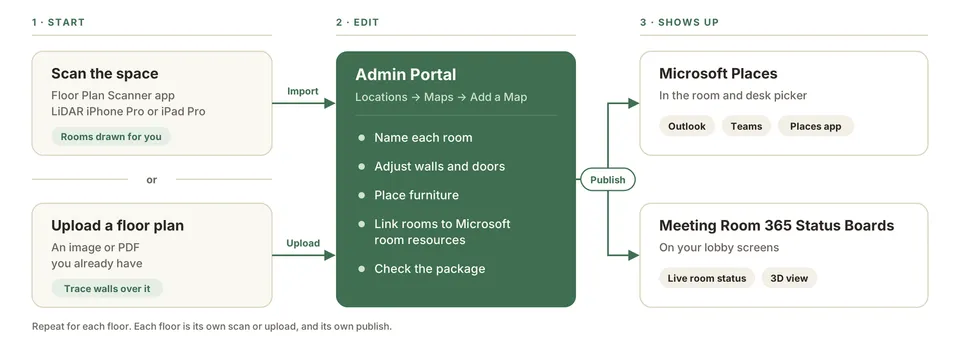
You scan each floor on your phone or tablet, or upload a floor plan you already have, then do the rest in the Admin Portal. Once you publish, the floor shows up in Microsoft Places, usually within the hour.
Where Your Maps Show Up
Published floors become Microsoft Places maps. There's nothing extra to install and no link to share. People see them in the room and desk picker in:
- Outlook: new and classic Outlook on Windows, and Outlook on the web
- Teams: on Windows, macOS, and the web
- The Places app: on the web and inside Outlook, Teams, and Microsoft 365 The same floors also appear on your Meeting Room 365 Status Boards, with each room shown as free, in use, or starting soon.
Note: Outlook, Teams, and Places draw your floor in Microsoft's own map style, which can't be restyled. The layout matches, but only Meeting Room 365 screens show your theme colors, live room status, and the 3D view.
Your Scans Stay Private
The Floor Plan Scanner app works entirely on your iPhone or iPad. It doesn't send any data to Meeting Room 365.
- No sign-in. The app needs no Meeting Room 365 or Microsoft account.
- The scan is a file you keep. It stays on your device until you export it and import it into the Admin Portal yourself.
- Only your admins see it. In the Admin Portal, scans are visible only to your organization's admins.
- Microsoft never gets the raw scan. Publishing sends only the finished floor map: rooms, walls, doors, and furniture.
What You Need to License
Map Display is licensed per floor. Each floor license covers the map editor, keeping that floor in sync with Microsoft Places, and as many screens as you show it on. There are no per-room, per-seat, or per-screen fees. Every plan starts with a 30-day free trial, no credit card needed. [See all pricing] On the Microsoft side, you don't need Teams Premium. Places finder, including floor plans, has been part of the core Microsoft 365 and Teams licenses since April 2026. Tenants set up before August 2026 may need an admin to switch Places finder on first; newer tenants have it on by default.
Before You Start
You'll need:
- A LiDAR-equipped iPhone Pro or iPad Pro if you're scanning. You don't need one to upload a floor plan. [List of supported models]
- A Meeting Room 365 account with access to the Admin Portal (a free trial works).
- Places finder turned on in your Microsoft 365 tenant (see above).
- Room resources in Microsoft 365 for each bookable room, so you can link rooms on the map to them.
- A Microsoft admin to give a one-time consent for the Places map permission, and an Exchange administrator to sign in when you publish.
- Microsoft Places set up for your building and floor. Maps are published floor by floor, one building at a time. [Confirm whether the floor must exist in Places before you publish, or whether publishing creates it]
- If scanning, time on the floor while it's quiet. Scans are cleanest when rooms are empty and doors are open.
Setting Up Map Display
Start by choosing how to get your floor into Meeting Room 365. You can mix both across floors.
| Scan the space | Upload a floor plan | |
|---|---|---|
| Best when | You have no plans, or they're out of date | You already have an accurate plan |
| You need | A LiDAR iPhone Pro or iPad Pro | An image or PDF of the floor plan |
| In the editor | Rooms are drawn from the scan for you | You trace walls and doors over the plan |
| Steps | 1 to 5 | Skip Step 1, start at Step 2 |
Step 1: Scan the Space
Uploading a floor plan instead? Skip to Step 2. You don't need the app or a LiDAR device. Download Meeting Room 365 Floor Plan Scanner from the App Store on a LiDAR-equipped iPhone Pro or iPad Pro. [App Store link, add at launch] Open the app, start a new scan [Confirm button label], and walk the floor slowly. The app maps the walls, doors, and furniture as you go. There's no account to create. Tip: Scan one floor at a time. Step into each room and pan across all four walls before moving to the next.
When you're happy with the scan, save it and export the scan file. Send it somewhere you can reach from your computer, such as AirDrop, email, or OneDrive.
Step 2: Add Your Floor in the Admin Portal
Sign in to the Meeting Room 365 Admin Portal and go to Locations → Maps. Click Add a Map, then add your floor:
- From a scan: drop the scan file you exported in Step 1 onto the map builder.
- From a floor plan: upload the image or PDF of your floor plan. [Confirm accepted file types and size limit]
Tip: For uploads, use the cleanest plan you have: a high-resolution image or a vector PDF, with walls and doors clearly visible.
Step 3: Fine-Tune the Details
How you start depends on what you added:
- From a scan, the rooms are already drawn from the walls in your scan, so you start with a nearly finished map.
- From a floor plan, the plan sits underneath as a guide. Trace the walls and doors over it first, then carry on with the steps below. [Confirm how tracing works: does the editor detect walls from the image?] The step-by-step editor then walks you through the rest:
- Name each room.
- Adjust walls and doors where the scan needs a nudge.
- Place furniture, such as tables, desks, chairs, and screens.
- Link each bookable room to its Microsoft room resource. [Confirm the order and names of the editor's steps]
Step 4: Publish to Microsoft Places
The portal checks the map package before it sends anything. Review the check, then click Publish [Confirm button label]. You need:
- A one-time consent for the Places map permission, the first time you publish
- An Exchange administrator signed in when you publish There's no PowerShell and no CSV to prepare.
Step 5: See It in Outlook and Teams
Usually within the hour, people see the floor wherever they pick a room or desk: in Outlook, Teams, and the Places app. The floor also appears on your Meeting Room 365 Status Boards automatically. Repeat for each floor. Each floor is its own scan or upload, and its own publish.
Next Steps
After publishing, we recommend:
- Booking a room from Outlook or Teams and checking the floor shows in the room picker
- Checking that each room on the map is linked to the right room resource
- Opening a Status Board to confirm live room status on the map
- Scanning your remaining floors, one building at a time
- Trying the 3D view on a lobby TV [Confirm how admins turn it on]