View and edit room metadata in Meeting Room 365.
We've recently added a new feature to view and organize the room metadata inside Meeting Room 365. This is under the Places Metadata tab. This will appear if you sign in with a Microsoft 365 account using SSO.
This feature pulls your room lists and all the Places metadata for all the bookable resources in your Microsoft tenant. You can view your traditional room lists and how displays are currently organized in those room lists so you can see how it'll appear in Room Finder.
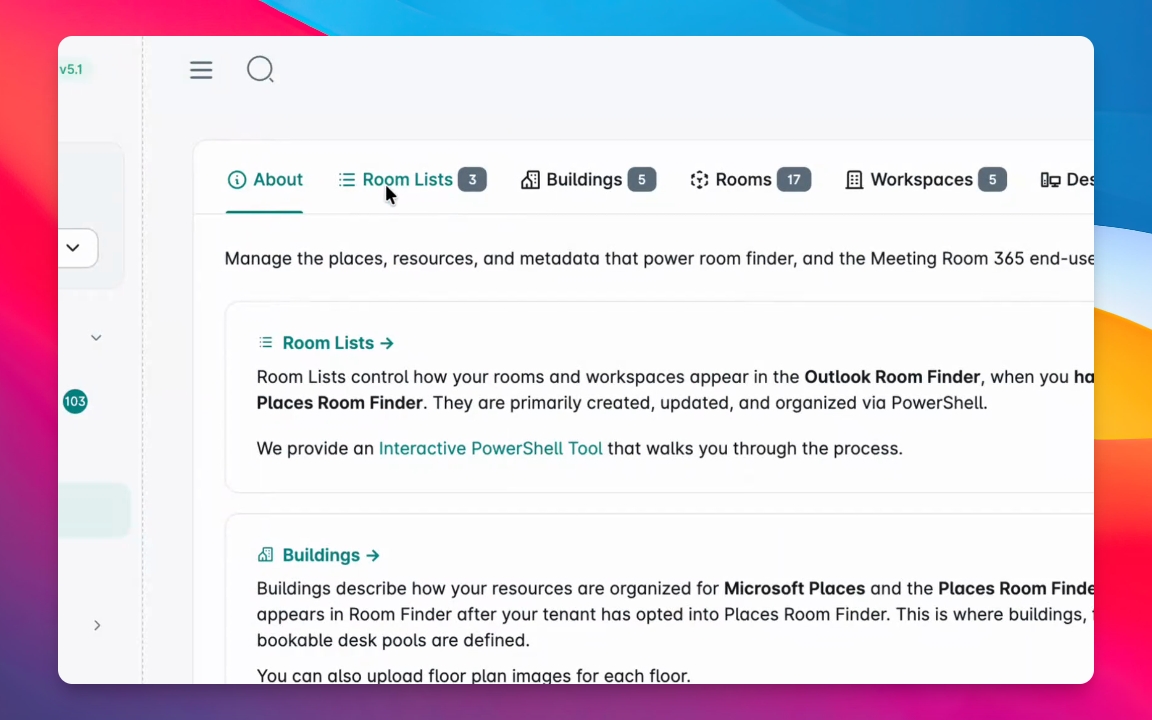
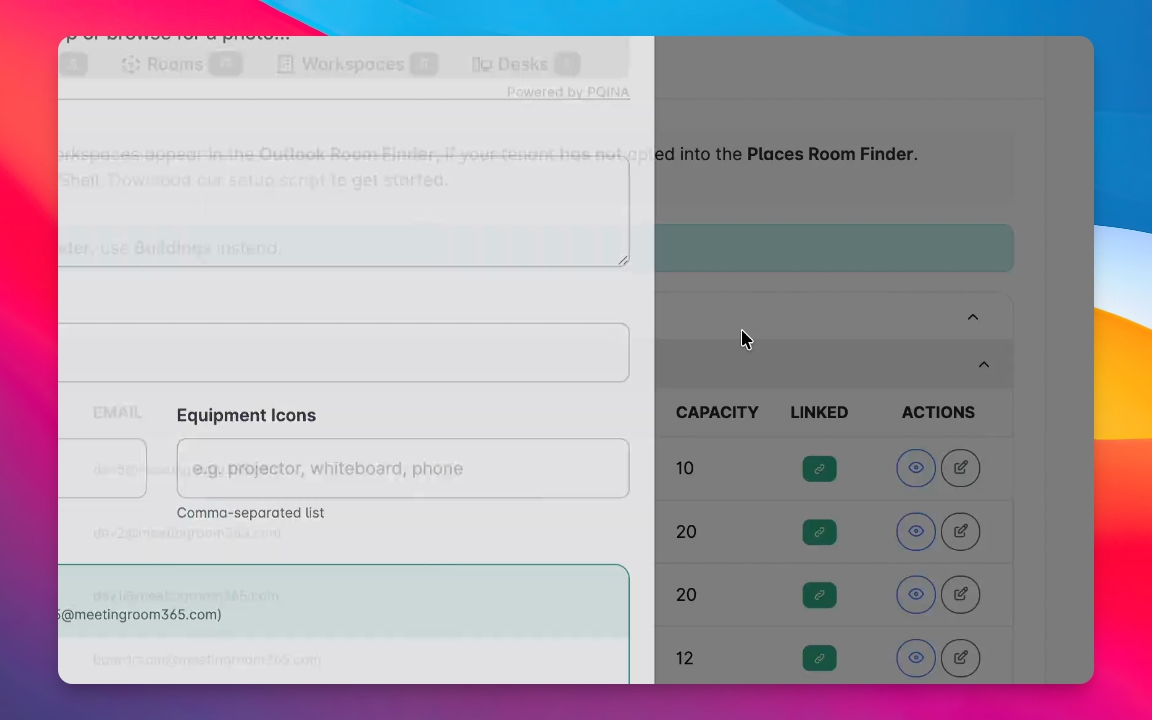
You can view the data and edit the metadata that we use in Meeting Room 365 to display icons and photos in the Room Finder Status board and Shared calendar displays.
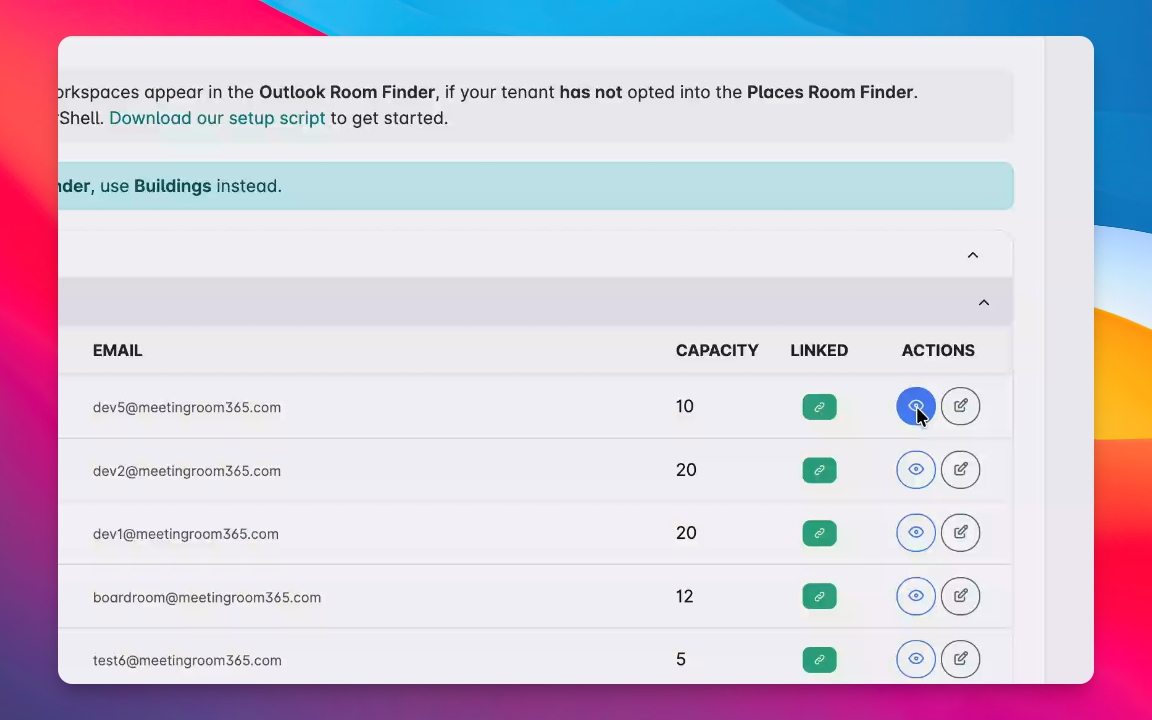
Additionally, if your Microsoft configuration is out of sync with your Meeting Room 365 data, it'll give you the ability to sync some of that data like an updated room name or capacity.
If you're not sure whether you have the Places Room Finder or the original Outlook Room Finder, you probably have the Outlook Room Finder.
Step 1: Upgrade to Places Room Finder
It's a pretty involved process to upgrade to the Places Room Finder. However, if you do have the Places Room Finder, instead of being organized by room lists, your Places Room Finder will be organized by buildings and this is managed in the Microsoft Places Admin.
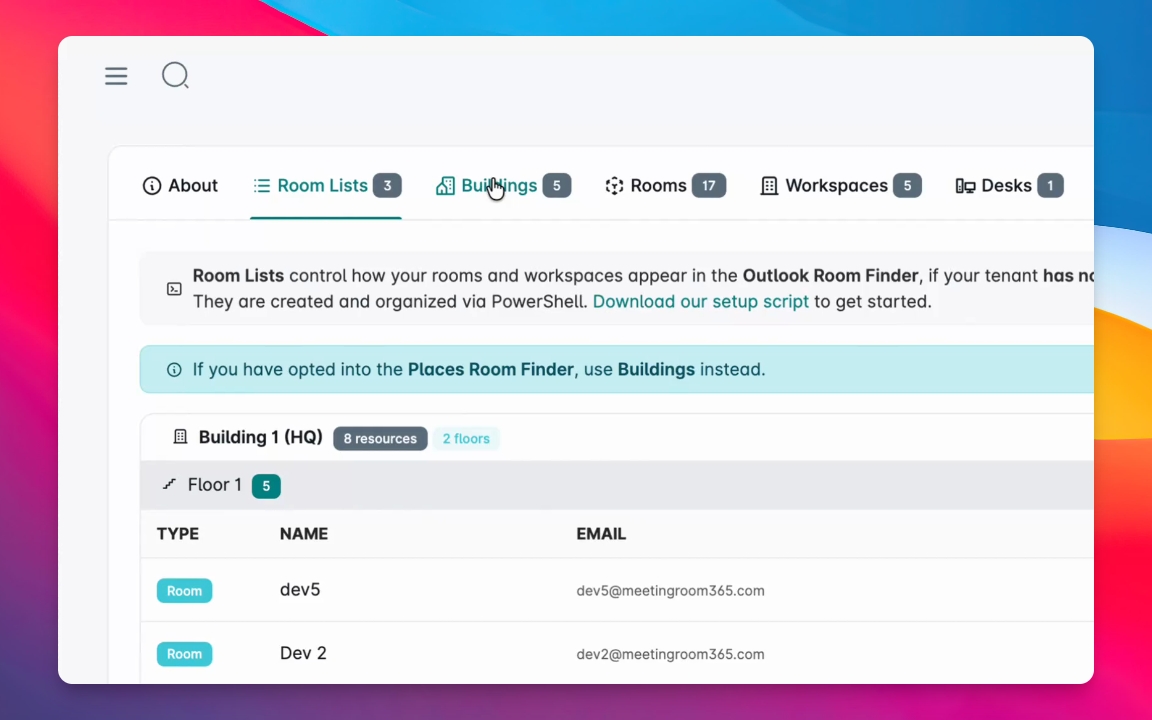
If you're not opted in to the Places Room Finder, this will actually show some of the information from your room lists as well. However, that can only be edited via PowerShell.
As it stands today, if you are using the traditional Outlook Room Finder, this is something you still have to update in PowerShell. It still takes about 24 hours for it to sync and become visible in Outlook.
Step 2: Use the Room Finder Setup Tool
To facilitate that, we have a Room Finder setup tool you can run from PowerShell. This helps you create room lists, create resource mailboxes, change settings, and organize your room lists.
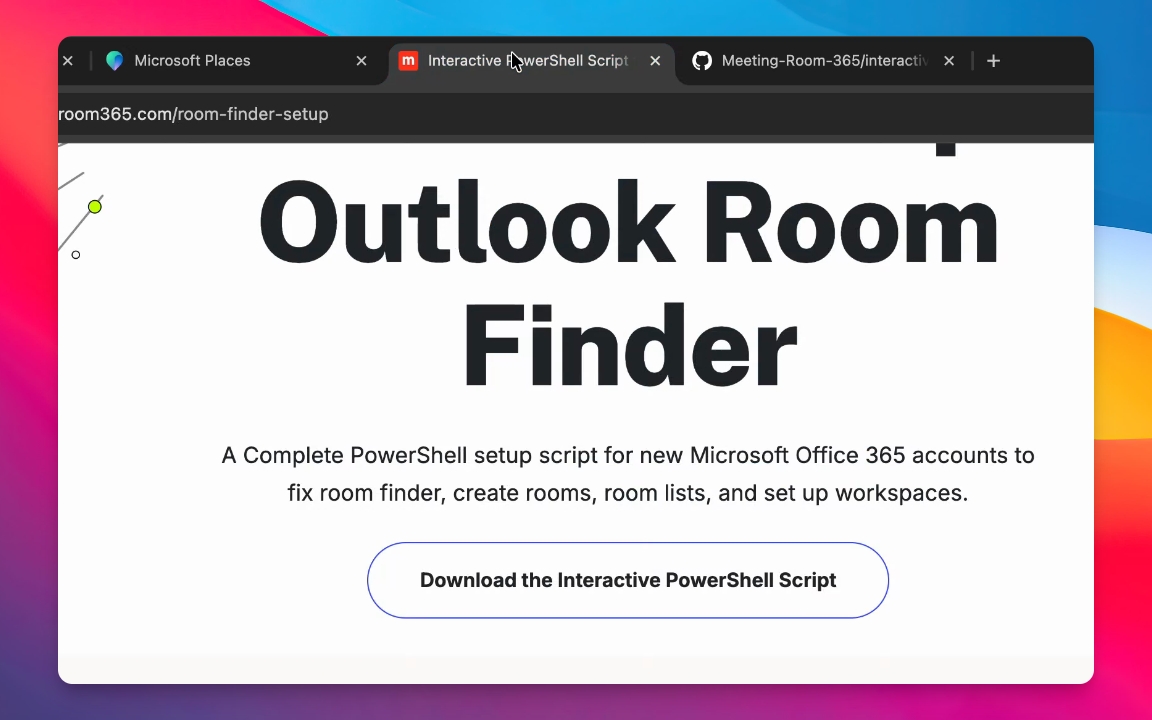
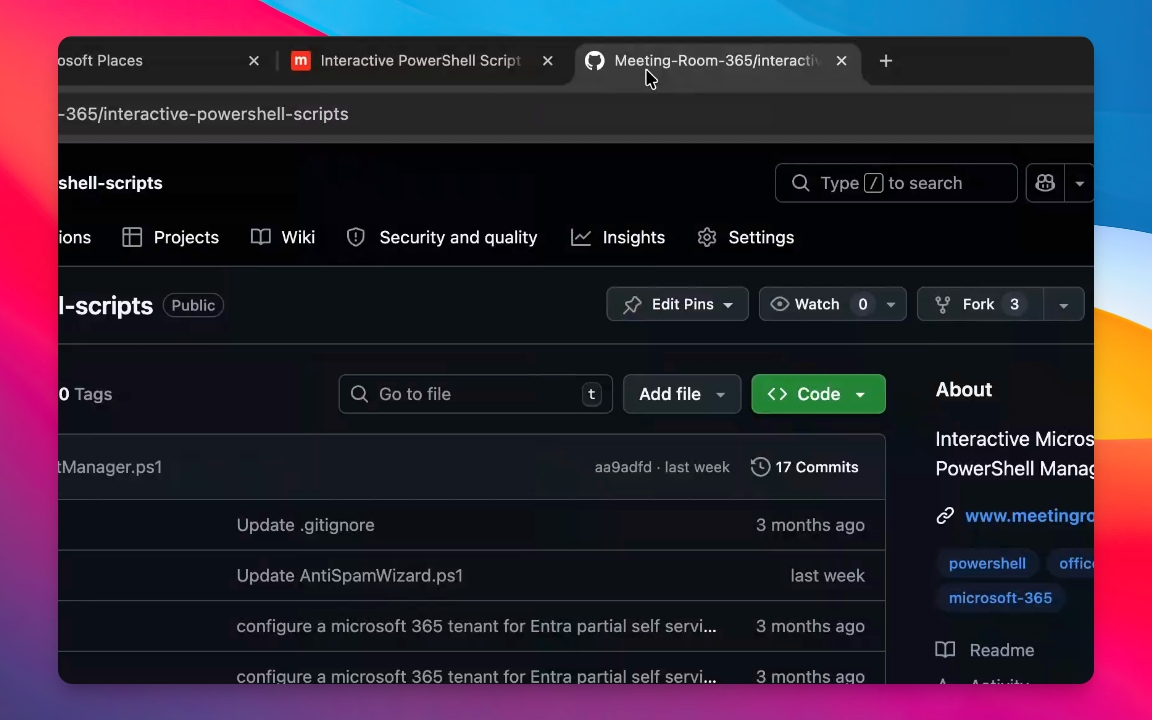
It's everything you need to set up the Room Finder basically, and it's open source published to our GitHub account.
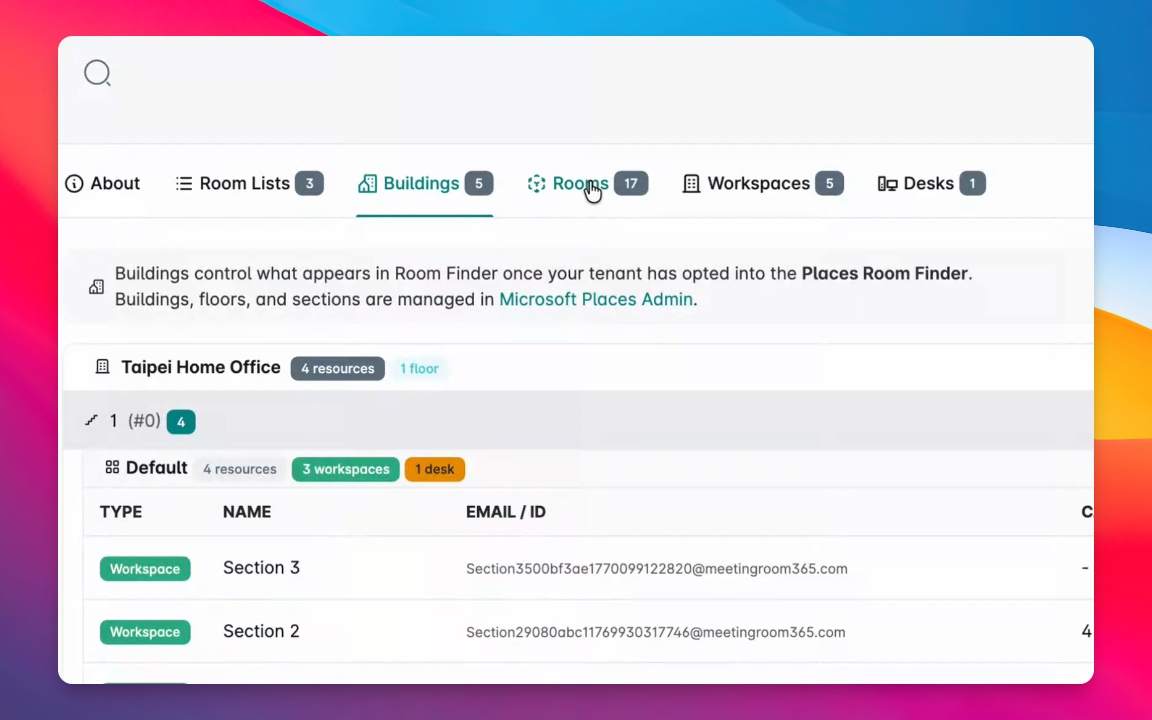
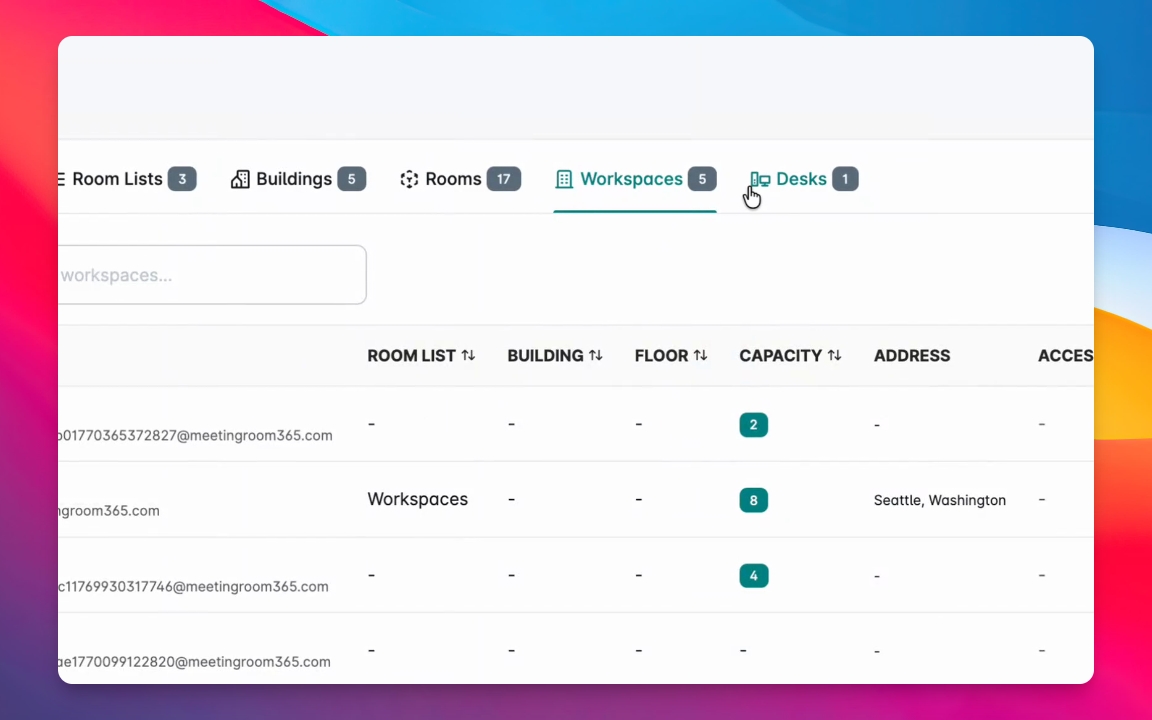
Inside Meeting Room 365, you can view all of your resources which are organized into buildings. You can also view them in the Rooms Workspaces or Desks tab, and when you open one of these you'll be able to update the photo description, location, and the things that appear on your status boards, Room Finder, shared calendars, and a few upcoming products.
Since desks and workspaces only exist in Microsoft Places, you can create those through the Places Manage Space Management link. You can also create and edit resources even if you don't use Microsoft Places, however, you still cannot organize room lists for the traditional Outlook Room Finder.
You do have a lot of ability to update the Places metadata for your resources, however, in some cases those do and in some cases those do not sync bi-directionally.
For example, capacity exists as both a Places property and a traditional Room Property set in PowerShell. I believe a few tags about your video and audio devices also exist in both places.
Some of these things, if you update them in Places, will sync back and some of them will not. If you do not use Places Room Finder to keep everything simple, either update that information in the Microsoft Admin Portal, Exchange admin or via PowerShell.
Using a combination of these three tools, no matter what scenario you are looking at, whether you use the Outlook Room Finder or the Places Room Finder, you will have the tools you need to update the metadata for each of your meeting rooms and attach an optional room photo and description that will show up on your status board or in Room Finder in the Meeting Room 365 products.
Thanks!