This guide covers the tablet itself. If you haven't added your calendar and room yet, start with the Getting Started Guides.
You need an Android tablet running Android 8.0 or later.
1. Install the app
Install Meeting Room 365 from Google Play, open it and enter your display URL. Without Google Play, download the APK from meetingroom365.com/apps.
You don't need Developer Options or the Stay awake setting. App version 1.0.23 and later keeps the screen on while Meeting Room 365 is open.
2. Make it the home app
When Android asks, set Meeting Room 365 as the home app. You can also change it later under Settings > Apps > Default apps > Home app. The app (version 1.0.20 or later) then replaces the home screen, so the tablet opens straight into your display after a reboot or power cut.
3. Turn on App pinning
App pinning stops people leaving the display. Open Settings > Security > Advanced > App pinning and turn it on. Some makers put it elsewhere; search Settings for "pin" if you can't find it.
4. Pin Meeting Room 365
- Open Meeting Room 365.
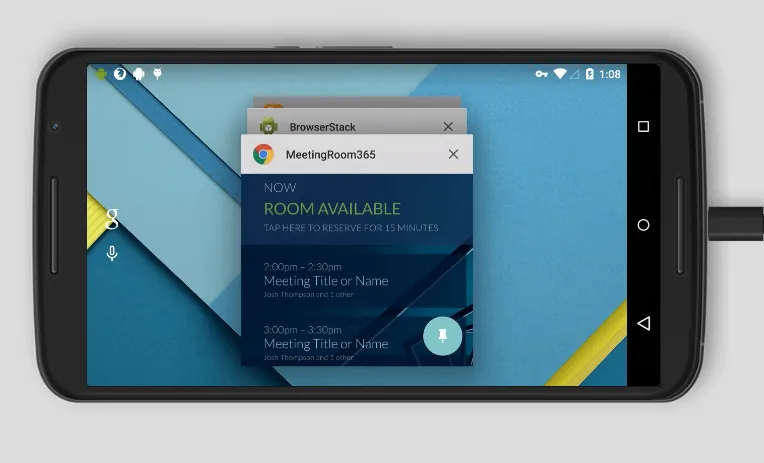
- Open Overview: swipe up to the middle of the screen and hold, or tap the square Overview button if you use 3-button navigation.
- Tap the Meeting Room 365 icon at the top of its preview, then tap Pin.
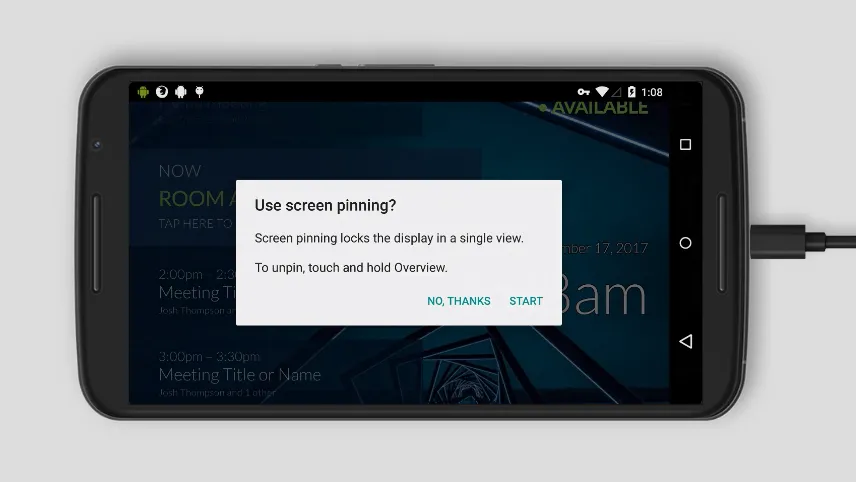
To unpin, touch and hold Back and Overview (3-button navigation) or swipe up and hold (gesture navigation). Google's app pinning help covers the other navigation modes.
On Android 8.1 and earlier
Open Overview, swipe up on the Meeting Room 365 card, and tap the pin icon at its lower right. Tap Start to confirm.
5. Mount it
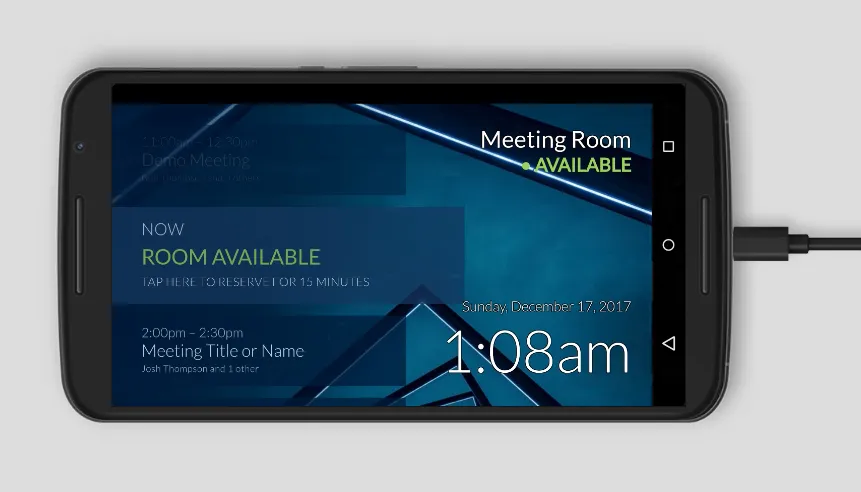
Mount the tablet outside the room on a powered mount so it stays charged.
See also: Android tablet meeting room display.