1. Install & Configure MacroDroid
- Install MacroDroid from the Play Store (if not already installed).
- In Android Settings:
- Turn off battery optimization for MacroDroid (set to “Not optimized”).
- Allow MacroDroid to auto-start / run in background (if your OEM UI has such toggles).
- Grant "Display over other apps" or overlay permission if MacroDroid asks (especially for UI actions).
2. Create a Macro
- Open MacroDroid → tap “Macros” → “+ Add Macro”
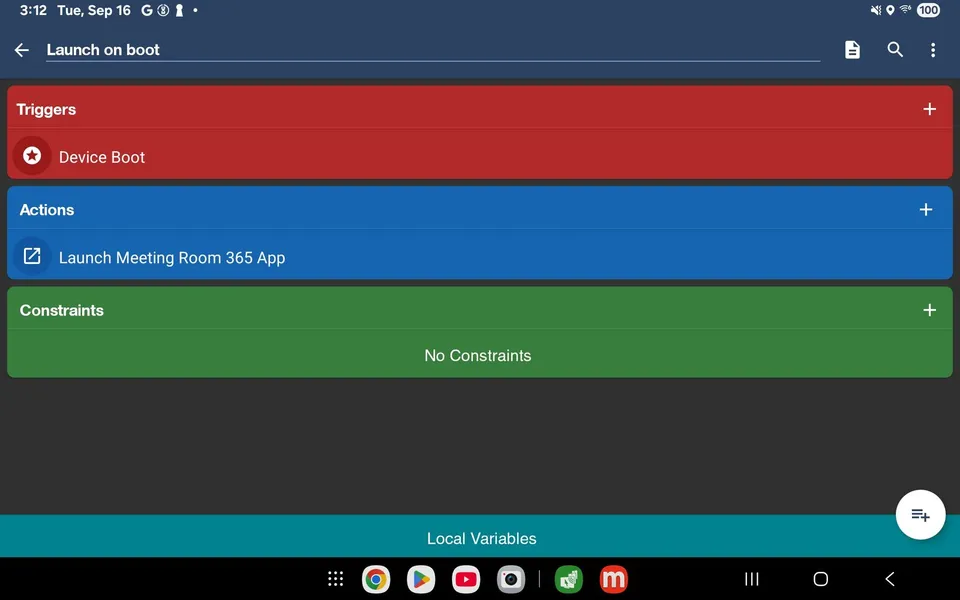
- Name the macro: e.g. “AutoLaunch Meeting Room 365”
3. Set Trigger
- Tap “+” under Triggers
- Go to Device / System → Device Boot (or “Boot Completed”)
- (Optional) Add a constraint “Time since boot > 5 s” to give Android time to settle
4. Add Action
- Tap “+” under Actions
- Choose Applications → Launch Application
- Select Meeting Room 365 from your installed apps
- (Optional) Add a Wait action before launching, e.g. 2–5 seconds, to allow system resources to become ready
5. Add Constraints (optional but recommended)
You may add constraints to prevent the macro from running in unwanted situations. Some examples:
- Only run when MacroDroid is enabled
- Only run when device is plugged into power
- Only run if screen is off or unlocked
- Only run at certain times of day
6. Save & Enable Macro
- Tap the checkmark / save
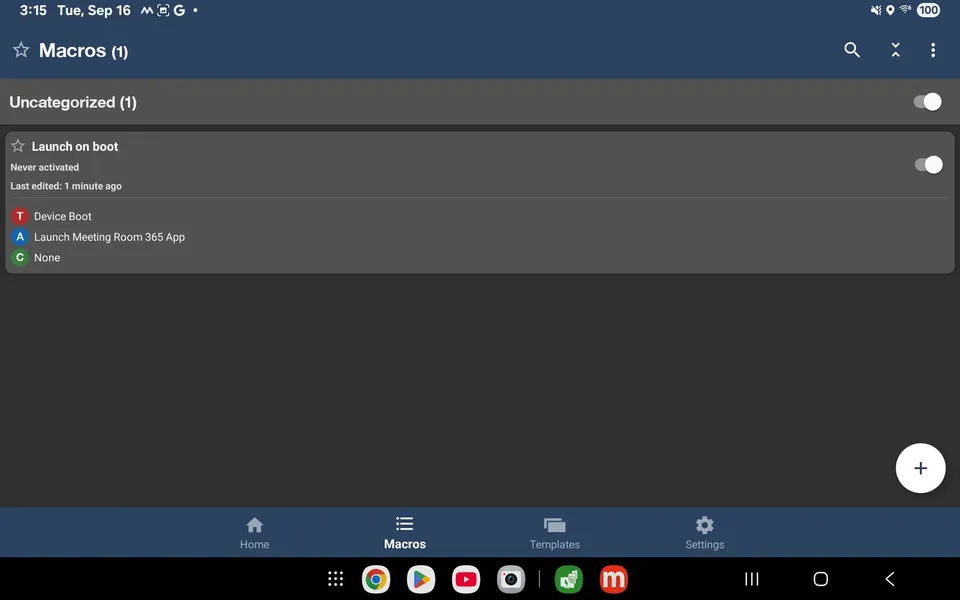
- Ensure the macro is toggled on / enabled
- Test by rebooting the tablet; verify whether Meeting Room 365 opens automatically
7. Troubleshooting & Tips
- If the macro doesn’t fire, open MacroDroid’s Logs to see if the “Device Boot” trigger was recorded.
- Add a small delay (wait of a few seconds) before launching the app if the system is still initializing.
- If you have a lock screen, consider disabling it or shifting to a constraint that waits for “device unlocked.”
- On some devices, MacroDroid may not respond to boot until after user unlock, which is a known limitation. :contentReference[oaicite:3]{index=3}
- Consider combining triggers (e.g., “Device Boot” or “Screen On”) with logical OR to ensure reliability across device states.