Microsoft 365 has a tenant-wide setting that controls whether users can give apps access to their data. This is user consent. If user consent is off, Microsoft asks for an admin's approval when someone signs in to Meeting Room 365.
Which sign-in needs which consent
In the admin portal, you connect a display to Microsoft 365 in one of 3 ways.
- Connect to Calendar Directly asks for Calendars.ReadWrite and User.Read. A user can consent to these if user consent is on.
- Set up a Service User Account also asks for User.Read.All and Place.ReadWrite.All. Microsoft requires admin consent for these 2 permissions. The user consent setting doesn't change this. Follow Admin Consent Workflow (Office 365 sign-in) instead.
- Client Consent (RBAC) uses an Entra configuration. It doesn't use user consent.
Turn user consent on or off
You must be a Global Administrator to change this setting in the Microsoft Entra admin center.
- Sign in to the Microsoft Entra admin center.
- Go to Identity > Applications > Enterprise apps > Consent and permissions > User consent settings. You can also search for "consent" and select User consent settings.
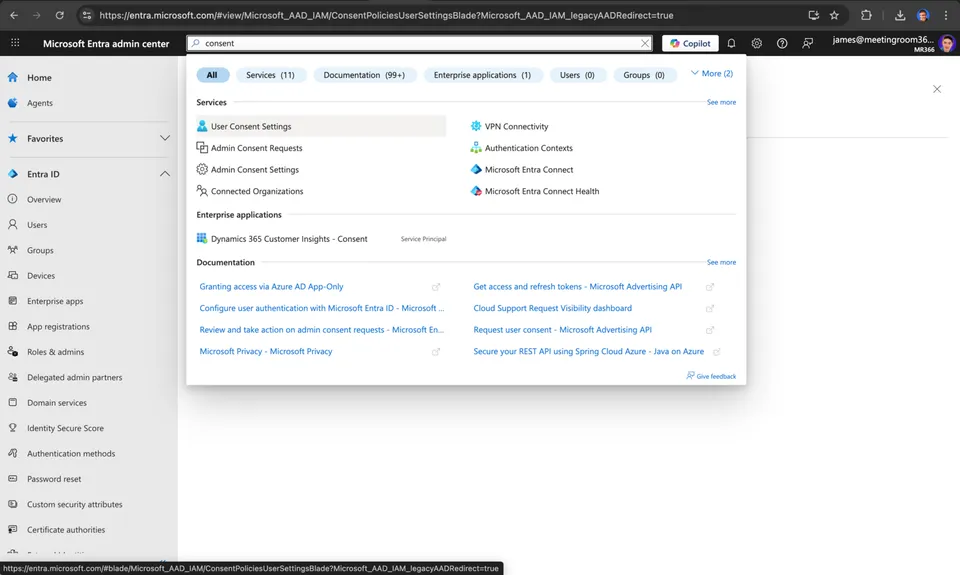
- Under User consent for applications, select an option.
- Select Save.
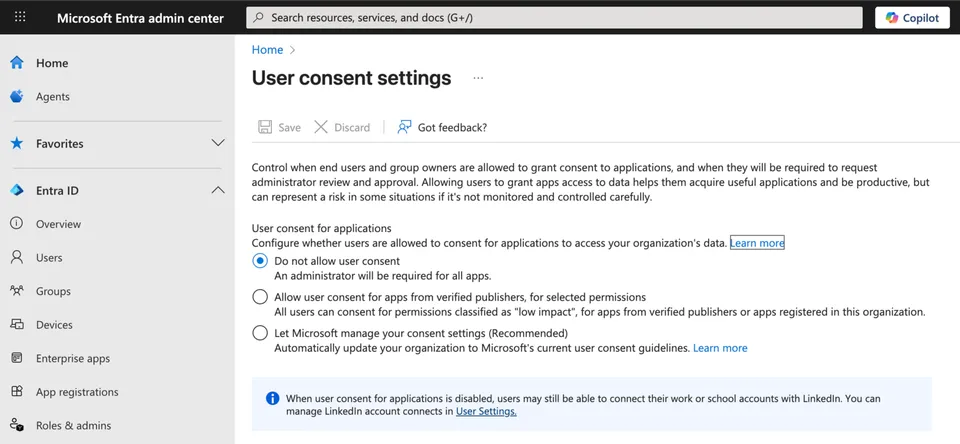
The options are:
- Allow user consent for apps from verified publishers, for selected permissions. Users can consent only to permissions that your admin classifies as low impact. Microsoft recommends this option.
- Allow user consent for apps. Users can consent to any permission that doesn't need admin consent.
- Turn user consent off. Every app then needs an admin's approval.
The change applies only to new sign-ins. Access that users already granted stays in place.
If a user still sees Need admin approval after you change the setting, an admin must grant consent. See Admin Consent Workflow (Office 365 sign-in).
Microsoft's full guide is Configure how users consent to applications.