You can add a split screen display as a custom display in the Meeting Room 365 Admin Portal. This allows you to create a new display key, that can be used to set up a tablet with multiple displays.
To set this up, head to the New Custom Display page. Then, you will be prompted to name your display, and enter a URL.
You can select either side by side (split/2x1), or stacked (split/1x2).
Side by Side (split/2x1)
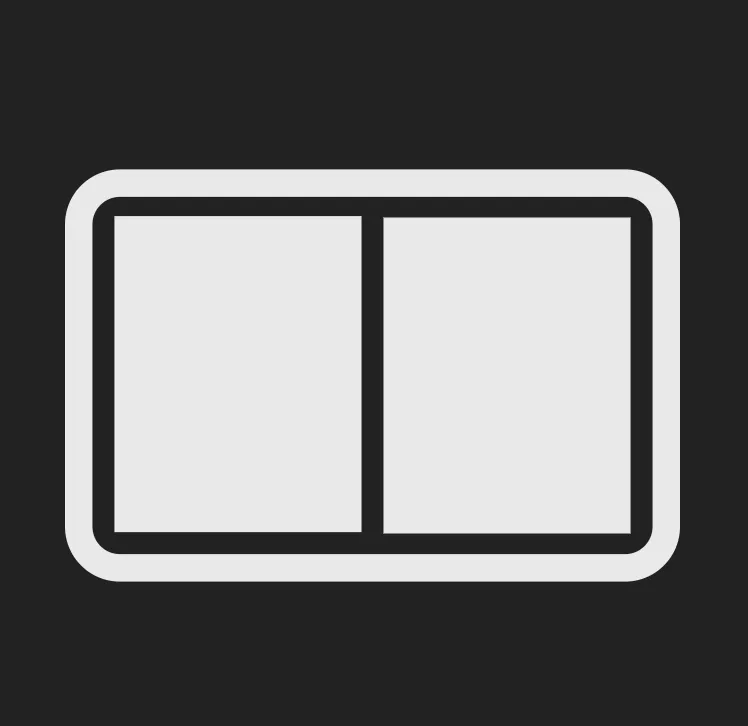
URL: https://app.meetingroom365.com/split/2x1/?displays=keyone,keytwo
Where KEYONE and KEYTWO are your two display keys, separated by commas. All keys should be lowercase.
Stacked (split/1x2)
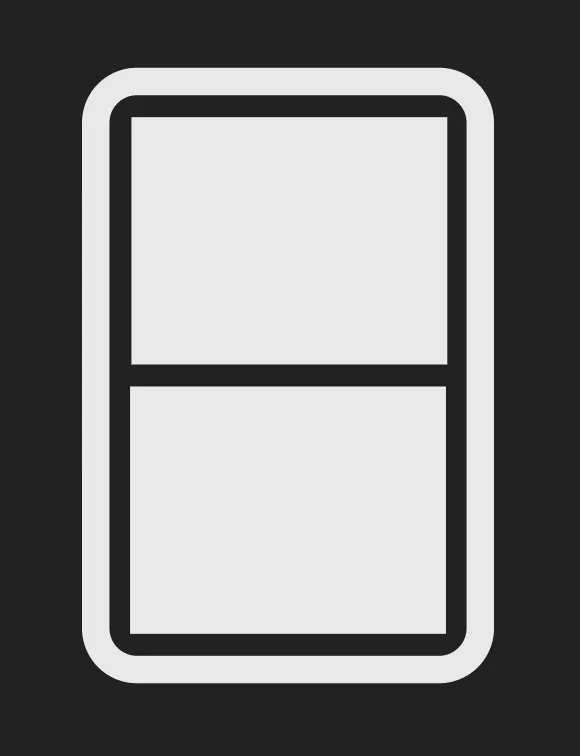
URL: https://app.meetingroom365.com/split/1x2/?displays=keyone,keytwo
Where KEYONE and KEYTWO are your two display keys, separated by commas. All keys should be lowercase.
Feel free to reach out and have us set this up for you if you have any questions!