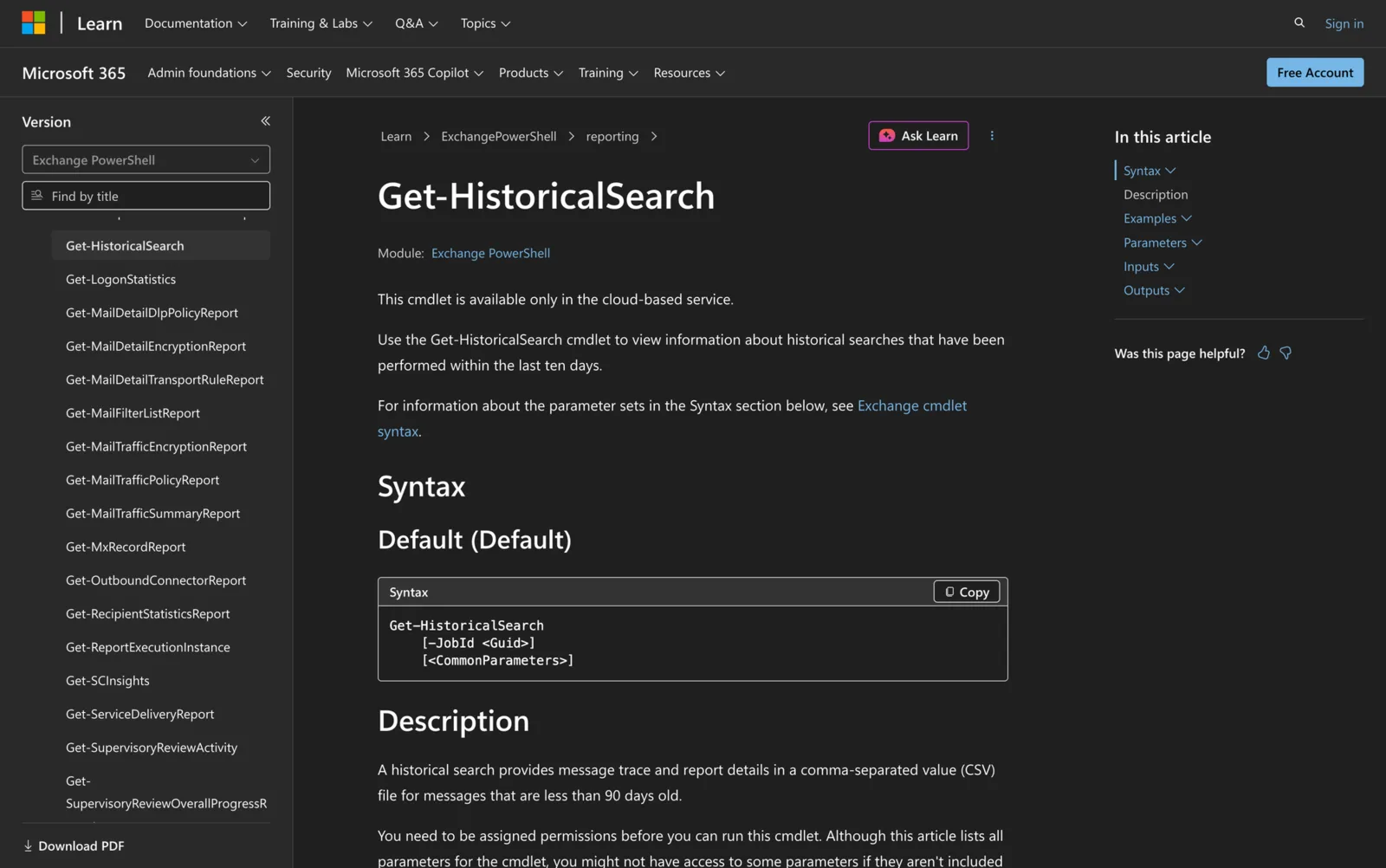
Understanding historical search activity is useful for administrators managing Exchange Online. When historical message trace searches have already been created with Start-HistoricalSearch, the Get-HistoricalSearch cmdlet lets administrators view information about those searches within the last ten days. A historical search provides message trace and report details in a comma-separated value (CSV) file for messages that are less than 90 days old.
This article will guide you through the Get-HistoricalSearch cmdlet's purpose, parameters, and practical applications. We'll cover scenarios where this cmdlet is useful and provide examples to help you review historical search jobs effectively.
What is the Get-HistoricalSearch Cmdlet?
The Get-HistoricalSearch cmdlet is a PowerShell command available in Exchange Online. It provides administrators with the ability to view information about historical searches conducted in the last ten days.
A historical search provides message trace and report details in a comma-separated value (CSV) file for messages that are less than 90 days old. This functionality is useful for administrators who need to review recent historical search jobs, check their status, or retrieve details for a specific search by JobId.
Syntax
Below is the official syntax for the Get-HistoricalSearch cmdlet as per the Microsoft documentation:
Get-HistoricalSearch
[-JobId <Guid>]
[<CommonParameters>]
Parameters
- JobId: Specifies the GUID identifier of the historical search you want to view.
- CommonParameters: Supports standard PowerShell common parameters like Debug, ErrorAction, and others.
Practical Uses
1. Reviewing Recent Historical Searches
Administrators can use the Get-HistoricalSearch cmdlet to view a summary of historical searches performed in the last ten days. This is useful when you need to check which historical searches were recently created or reviewed in Exchange Online.
2. Checking the Status of a Historical Search
Historical searches may still be in progress when you check them. By using Get-HistoricalSearch with a specific JobId, administrators can view detailed information about that search and check its current state.
3. Finding the JobId for a Historical Search
Running Get-HistoricalSearch without parameters returns a summary list of recent historical searches. Administrators can use this list to find the GUID identifier for a specific historical search, then use that value with the JobId parameter.
4. Reviewing Details for a Specific Search
When you already know the JobId of a historical search, you can use the JobId parameter to return information for that specific search. This is useful when the summary list does not provide enough detail.
5. Supporting Message Trace Review Workflows
The Get-HistoricalSearch cmdlet does not create message traces or directly search by sender, recipient, date range, or transport rule. However, it can support message trace review workflows by helping administrators review information about historical search jobs that were already performed.
Prerequisites
Before using the Get-HistoricalSearch cmdlet, the following requirements must be met:
- You must have the necessary permissions assigned to use this cmdlet.
- This cmdlet is available only in the cloud-based Exchange Online service.
How to Use Get-HistoricalSearch: 5 Practical Uses
The Get-HistoricalSearch cmdlet has a focused purpose: viewing information about historical searches performed within the last ten days. Below are five practical examples based on what the cmdlet is documented to do.
1. Retrieve a Summary of Recent Searches
Command:
Get-HistoricalSearch
This command provides a summary list of all historical searches performed in the last ten days. By running this, administrators can quickly see which historical searches were recently performed.
2. View Detailed Information for a Specific Search
Command:
Get-HistoricalSearch -JobId f9c66f83-b5c8-4a0c-91f4-a38376f74182 | Format-List
When an administrator needs detailed information about a specific search, they can use the JobId parameter to filter the results. This example returns detailed information about the historical search with the specified GUID. Replace the GUID with the JobId of the historical search you want to view.
3. Check a Search That Is Still in Progress
Command:
Get-HistoricalSearch -JobId f9c66f83-b5c8-4a0c-91f4-a38376f74182 | Format-List
This command can be used to review detailed information about a historical search that is still in progress. This is useful when you need to confirm whether a historical search has completed or still requires more time.
4. Find the JobId Before Running a Detailed Lookup
Command:
Get-HistoricalSearch
If you do not know the JobId of the historical search you want to inspect, start by running Get-HistoricalSearch without parameters. Review the summary list, identify the relevant historical search, and then use its GUID with the JobId parameter.
5. Format Search Details for Easier Review
Command:
Get-HistoricalSearch -JobId f9c66f83-b5c8-4a0c-91f4-a38376f74182 | Format-List
Using Format-List displays the returned details in a list format, which can make the output easier to review when checking a specific historical search. Replace the example GUID with the JobId from your own Exchange Online environment.
Final Note
The Get-HistoricalSearch cmdlet is a focused Exchange Online cmdlet for viewing information about historical searches performed within the last ten days. Use it to list recent historical searches, find a historical search JobId, or retrieve detailed information for a specific historical search.
Frequently Asked Questions
1. How far back can Get-HistoricalSearch retrieve historical search information?
Get-HistoricalSearch can view information about historical searches performed within the last ten days. This ten-day limit applies to the historical search job information returned by the cmdlet, not the message age covered by the historical search. Historical searches can provide message trace and report details for messages that are less than 90 days old.
2. Can Get-HistoricalSearch download the CSV report file?
No. Get-HistoricalSearch returns information about historical search jobs, but it does not directly download the CSV report file. The historical search itself produces the CSV report with message trace or report details. Use this cmdlet to review the search job information, not as a file download command.
3. Why does Get-HistoricalSearch not show an older historical search?
Get-HistoricalSearch only shows information about historical searches performed within the last ten days. If the historical search job was created more than ten days ago, it will not appear in the output. In that case, you may need to create a new historical search if you still need message trace or report details for eligible messages.