In a cloud-based organization, managing permissions is a vital task for administrators who need to ensure that the right people have the correct access to resources. In the context of Microsoft Exchange, permissions such as SendAs play a significant role in how email communication is handled.
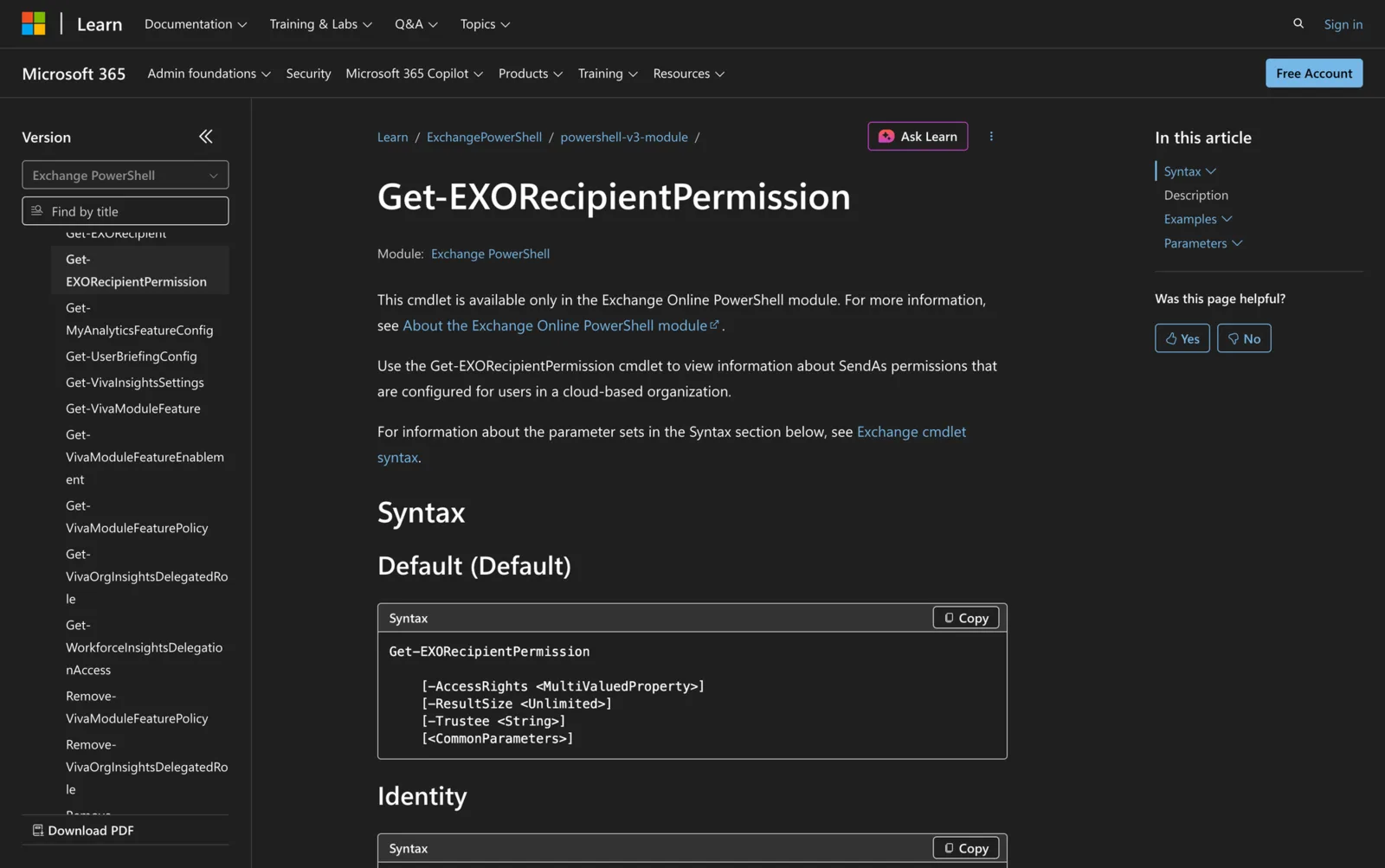
The Get-EXORecipientPermission cmdlet is an essential tool for administrators, allowing them to view information about SendAs permissions configured for users. This cmdlet is specifically available in the Exchange Online PowerShell module, making it an integral part of managing email systems in a cloud environment.
What is the Get-EXORecipientPermission Cmdlet?
The Get-EXORecipientPermission cmdlet is a tool used in Exchange Online PowerShell to view and manage information about SendAs permissions configured for users. SendAs permission is a feature that allows a delegate to send emails on behalf of another mailbox or group, ensuring that the sent messages appear as though they were sent by the mailbox owner.
This permission is critical in scenarios where multiple users manage communications for shared mailboxes or where assistants handle correspondence for executives.
Syntax
Here's official syntax as per Microsoft source.
Default:
Get-EXORecipientPermission
[-AccessRights <MultiValuedProperty>]
[-ResultSize <Unlimited>]
[-Trustee <String>]
[<CommonParameters>]
Identity:
Get-EXORecipientPermission
[[-Identity] <String>]
[-AccessRights <MultiValuedProperty>]
[-ExternalDirectoryObjectId <Guid>]
[-PrimarySmtpAddress <String>]
[-ResultSize <Unlimited>]
[-Trustee <String>]
[-UserPrincipalName <String>]
[<CommonParameters>]
Parameters
- AccessRights: Filters results by permission, with SendAs being the only valid value.
- ExternalDirectoryObjectId: Identifies the recipient by ObjectId in Microsoft Entra ID. You can't use this parameter with the Identity, PrimarySmtpAddress, or UserPrincipalName parameters.
- Identity: Identifies the recipient, with options like User ID, UPN, or email address. You can't use this parameter with the ExternalDirectoryObjectId, PrimarySmtpAddress, or UserPrincipalName parameters.
- PrimarySmtpAddress: Identifies the recipient by their primary SMTP email address. You can't use this parameter with the ExternalDirectoryObjectId, Identity, or UserPrincipalName parameters.
- ResultSize: Specifies the maximum number of results to return, with an option for unlimited. The default value is 1000.
- Trustee: Filters results by the user or group with SendAs permissions. You need to use this parameter with the Identity, PrimarySmtpAddress, UserPrincipalName, or ExternalDirectoryObjectId parameters.
- UserPrincipalName: Identifies the recipient by UPN. You can't use this parameter with the ExternalDirectoryObjectId, Identity, or PrimarySmtpAddress parameters.
- CommonParameters: Supports standard PowerShell parameters like Verbose or WarningAction.
Practical Uses
1. Auditing User Permissions
In an organization where security is paramount, auditing permissions is a regular task. Administrators can use the Get-EXORecipientPermission cmdlet to review SendAs permissions for all users. This helps in identifying unnecessary permissions that might have been granted and ensures compliance with internal security policies.
2. Managing Shared Mailbox Access
Shared mailboxes are common in departments like customer service or sales. By using Get-EXORecipientPermission, administrators can verify which users have SendAs permissions for these mailboxes, ensuring that only authorized personnel can send emails on behalf of the mailbox.
3. Troubleshooting Email Sending Issues
When users experience issues with sending emails from another account, the Get-EXORecipientPermission cmdlet can be invaluable. By checking the SendAs permissions, administrators can quickly identify if a user lacks the necessary permission, allowing for faster resolution of the issue.
Prerequisites
Before using the Get-EXORecipientPermission cmdlet, the following requirements must be met:
- Access to the Exchange Online PowerShell module.
- Necessary permissions to view recipient permissions.
- An active Microsoft 365 subscription with Exchange Online.
How to Use Get-EXORecipientPermission: 7 Practical Uses
In this section, we will walk through practical examples of how to use the Get-EXORecipientPermission cmdlet for various administrative tasks.
1. View SendAs Permissions for All Users
Command:
Get-EXORecipientPermission -ResultSize Unlimited
This command retrieves SendAs permissions for all users within the organization. By setting the ResultSize to Unlimited, you ensure that the command returns all results, providing a comprehensive view of who has SendAs permissions across the organization. This is particularly useful for large organizations with many users and shared mailboxes.
2. Filter Permissions by Specific User
Command:
Get-EXORecipientPermission -Trustee simon@meetingroom365.com -Identity <RecipientIdentity>
This command filters the SendAs permissions to show only those where Simon has been granted permission. It's useful when you need to audit or verify the permissions of a specific user, ensuring they align with their role within the organization.
3. Check Permissions for a Specific Mailbox
Command:
Get-EXORecipientPermission -Identity james@meetingroom365.com
By using the Identity parameter, you can view who has SendAs permissions for James's mailbox. This is essential when managing high-profile or executive mailboxes to ensure that only authorized personnel have access to send emails on their behalf.
4. Using Primary SMTP Address for Specific Checks
Command:
Get-EXORecipientPermission -PrimarySmtpAddress james@meetingroom365.com
This command is similar to using the Identity parameter but explicitly uses the primary SMTP address to identify the mailbox. It's useful in environments where users have multiple aliases, ensuring that you are checking permissions against the correct account.
5. Retrieve Permissions Using UserPrincipalName
Command:
Get-EXORecipientPermission -UserPrincipalName james@meetingroom365.com
The UserPrincipalName parameter allows you to retrieve SendAs permissions using the UPN, which is particularly useful in hybrid environments or when managing users with multiple account types. It helps ensure that the permissions are checked accurately in complex directory structures.
6. Limit the Number of Results
Command:
Get-EXORecipientPermission -ResultSize 50
This command limits the number of results returned to 50. It's beneficial in scenarios where you need a quick overview or when managing resources in a large organization. Limiting the results can help reduce clutter and focus on the most critical data.
7. Analyze Permissions Using External Directory Object ID
Command:
Get-EXORecipientPermission -ExternalDirectoryObjectId <Guid>
By specifying the ExternalDirectoryObjectId, you can target specific recipients identified by their Object ID in Microsoft Entra ID. This is useful when integrating with other Microsoft services or when managing a large number of recipients in complex environments.
Final Note
The Get-EXORecipientPermission cmdlet is a versatile tool for administrators managing SendAs permissions in Exchange Online. By understanding and utilizing its parameters effectively, you can streamline permission management processes, enhance security, and ensure that email communication flows efficiently across your organization.
Whether you're auditing permissions or troubleshooting issues, this cmdlet provides the insights needed to maintain control over your Exchange environment.