In the realm of Microsoft Exchange Server, managing system messages is an essential task for administrators. System messages, commonly known as delivery status notifications (DSNs), non-delivery reports (NDRs), or bounce messages, play a critical role in communicating email delivery issues.
Additionally, quota messages inform users about mailbox size limitations. The Set-SystemMessage cmdlet in PowerShell is a valuable tool for customizing these messages, allowing administrators to tailor the information according to organizational needs.
This cmdlet is specifically designed for on-premises Exchange environments, covering versions such as Exchange Server 2010, Exchange Server 2013, Exchange Server 2016, Exchange Server 2019, and Exchange Server SE.
By utilizing Set-SystemMessage, administrators can modify the content of custom system messages to provide more relevant and understandable feedback to users, ultimately enhancing the email management experience.
What is the Set-SystemMessage Cmdlet?
The Set-SystemMessage cmdlet is employed to alter the text of custom system messages within Exchange Server. These messages include delivery status notifications and quota alerts, which are essential for informing users about email delivery issues or mailbox size limits.
The cmdlet allows administrators to modify these messages to better suit their organization's communication style or specific requirements.
Syntax
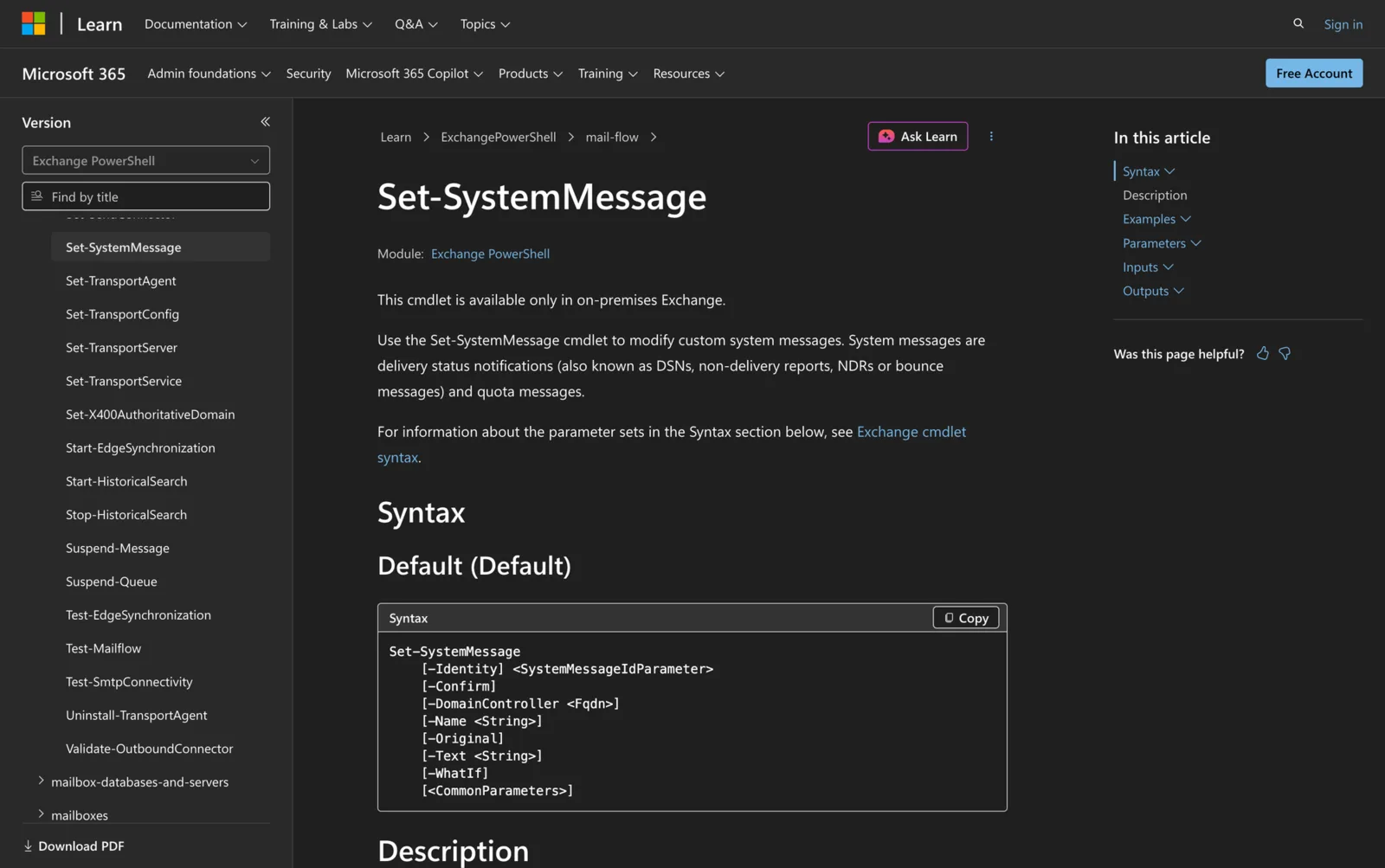
Here's syntax from official Microsoft source:
Set-SystemMessage
[-Identity] <SystemMessageIdParameter>
[-Confirm]
[-DomainController <Fqdn>]
[-Name <String>]
[-Original]
[-Text <String>]
[-WhatIf]
[<CommonParameters>]
Parameters
- Identity: Specifies the custom system message to modify, identified by a unique value.
- Confirm: Controls the confirmation prompt behavior for the cmdlet.
- DomainController: Specifies the domain controller's FQDN used for reading or writing to Active Directory. This parameter isn't supported on Edge Transport servers.
- Name: Provides a descriptive name for the system message. The maximum length is 64 characters. If the value contains spaces, enclose it in quotation marks.
- Original: Specifies whether to stop using the custom system message and start using the default system message. This switch only works on custom system messages for default (not new) enhanced status code values.
- Text: Defines the text for the custom system message. The maximum length is 512 characters, including all text and HTML tags.
- WhatIf: Displays what the command will do without executing it.
Practical Uses
1. Customizing Delivery Failure Reports
In any organization, it is vital to communicate email delivery failures effectively. By customizing the delivery status notifications using Set-SystemMessage, administrators can provide users with clear instructions on the next steps.
For instance, instead of the generic error message, users might receive guidance on contacting the IT department for further assistance.
2. Tailoring Quota Warnings
Mailbox management is crucial in maintaining server performance and ensuring users adhere to storage policies. By modifying quota messages, administrators can specify actions users should take when their mailbox exceeds the allowed size.
This customization can help prevent storage issues and improve compliance with organizational policies.
3. Enhancing User Communication
Communication within an organization can be enhanced by personalizing system messages. Using Set-SystemMessage to adjust message content helps bridge the gap between technical jargon and user-friendly language.
This approach not only aids in reducing user confusion but also encourages a proactive response to email-related issues.
Prerequisites
Before using the Set-SystemMessage cmdlet, ensure the following requirements are met:
- You must have the necessary permissions assigned to your account.
- The cmdlet is available only in on-premises Exchange environments.
- Supported Exchange versions include Exchange Server 2010, 2013, 2016, 2019, and Exchange Server SE.
- Access to a domain controller may be required for operations involving Active Directory.
How to Use Set-SystemMessage: 7 Practical Uses
The Set-SystemMessage cmdlet offers a flexible way to manage custom system messages in Exchange Server environments. Below are several practical examples illustrating its application.
1. Modifying an Internal DSN Message
Command:
Set-SystemMessage -Identity "En\Internal\5.3.5" -Text "The recipient email system can't process this email message. Please contact your system administrator for more information."
This command alters the text of a delivery status notification for internal senders with an enhanced status code of 5.3.5. Customizing this message helps users understand the problem and directs them to appropriate support channels, streamlining issue resolution.
2. Updating a Quota Warning Message
Command:
Set-SystemMessage -Identity "En\WarningMailbox" -Text "Your mailbox has exceeded the warning limit specified by your email administrator. Please reduce the size of your mailbox."
This example modifies the WarningMailbox quota message. By providing specific instructions, users are more likely to take corrective actions, such as deleting unnecessary emails or archiving old messages, to manage their mailbox size effectively.
3. Reverting to Default System Message
Command:
Set-SystemMessage -Identity "En\Internal\5.1.2" -Original
In cases where the custom message is no longer needed, the Original switch allows stopping use of the custom system message and starting to use the default system message. This switch only works on custom system messages for default (not new) enhanced status code values.
4. Adding HTML Tags to System Messages
Command:
Set-SystemMessage -Identity "En\External\5.1.1" -Text 'Please visit Support for assistance.'
Incorporating HTML tags can enhance the readability and functionality of system messages. This example includes a hyperlink, directing users to a support page for additional help, which is particularly beneficial for external communication.
5. Specifying a Domain Controller
Command:
Set-SystemMessage -Identity "En\ProhibitSendMailbox" -DomainController "dc01.meetingroom365.com" -Text "Your mailbox has exceeded the ProhibitSendQuota limit. Please reduce the size of your mailbox before sending more email."
When modifying system messages, specifying a domain controller ensures that the changes are read from or written to the correct instance of Active Directory. This is particularly important in multi-domain environments to maintain consistency. The DomainController parameter isn't supported on Edge Transport servers.
6. Creating a Descriptive Name for a System Message
Command:
Set-SystemMessage -Identity "En\WarningMailbox" -Name "Mailbox Size Warning" -Text "Your mailbox is nearing its capacity. Please take action to free up space."
Naming a system message provides a descriptive label for the message. The maximum length is 64 characters, and values that contain spaces must be enclosed in quotation marks.
7. Utilizing WhatIf for Safe Testing
Command:
Set-SystemMessage -Identity "En\WarningMailbox" -Text "Test message" -WhatIf
The WhatIf switch is a valuable tool for testing changes without applying them. This helps administrators verify the impact of the command, enabling safe experimentation and preventing unintended disruptions.
Final Note
The Set-SystemMessage cmdlet is a versatile tool for customizing custom system messages in Exchange Server. By tailoring these messages, administrators can improve user communication and system management. Whether you need to provide clearer instructions, enforce mailbox policies, or enhance message readability, mastering Set-SystemMessage is a step towards more effective email administration.