Understanding and managing accepted domains is a pivotal part of maintaining a robust email infrastructure. Accepted domains in Exchange are those for which the email server is responsible for handling mail. These can include authoritative domains, internal relay domains, and external relay domains.
They help determine how email is processed and routed within an organization. For Exchange administrators, effectively managing these domains is crucial to ensuring smooth mail flow and organizational communication.
The Get-AcceptedDomain cmdlet in PowerShell is an invaluable tool in this process, providing a way to retrieve configuration information about these domains.
What is the Get-AcceptedDomain Cmdlet?
The Get-AcceptedDomain cmdlet is utilized in Exchange Management Shell to display the configuration information for accepted domains within your organization. Accepted domains are a fundamental component of your organization's mail flow configuration, determining which SMTP namespaces Exchange is responsible for.
This cmdlet is available in both on-premises Exchange and Exchange Online. However, some parameters are environment-specific, so administrators should confirm whether a parameter applies to their Exchange Server or Exchange Online environment before using it.
Syntax
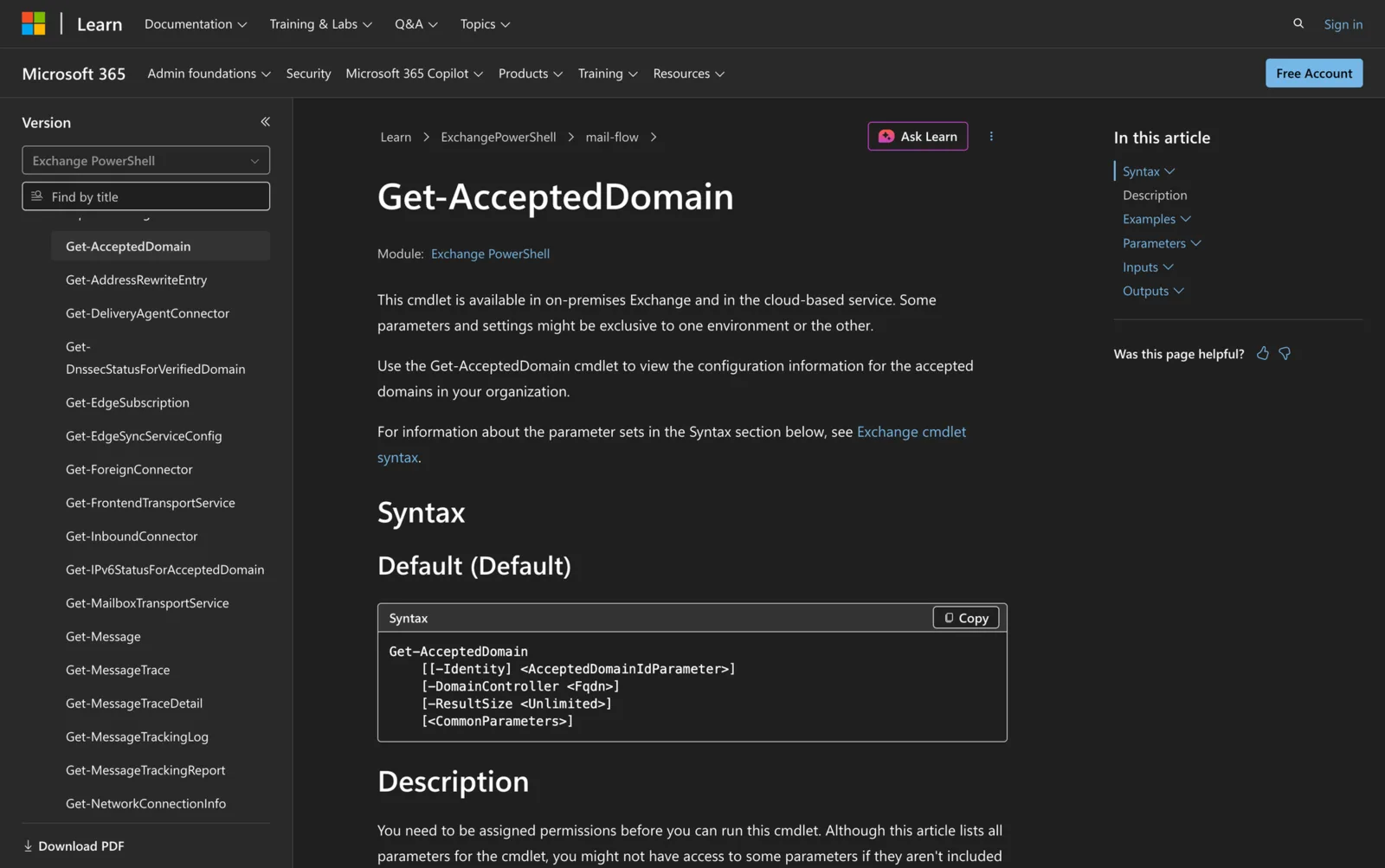
The syntax for the Get-AcceptedDomain cmdlet is as follows:
Get-AcceptedDomain
[[-Identity] <AcceptedDomainIdParameter>]
[-DomainController <Fqdn>]
[-ResultSize <Unlimited>]
[<CommonParameters>]
Parameters
Identity: Specifies a string value for the accepted domain. Enter either the GUID or the name of the accepted domain.
DomainController: Available only in on-premises Exchange. Specifies the domain controller that's used by this cmdlet to read data from or write data to Active Directory. You identify the domain controller by its fully qualified domain name (FQDN), for example dc01.contoso.com. This parameter isn't supported on Edge Transport servers.
ResultSize: Available only in the cloud-based service. Specifies the maximum number of results to return. If you want to return all accepted domains that match the query, use unlimited for the value of this parameter. The default value is 1000.
CommonParameters: This cmdlet supports the common parameters: -Debug, -ErrorAction, -ErrorVariable, -InformationAction, -InformationVariable, -OutBuffer, -OutVariable, -PipelineVariable, -ProgressAction, -Verbose, -WarningAction, and -WarningVariable.
Practical Uses
1. Auditing Accepted Domains
Before making any changes to an organization's domain infrastructure, it's important to audit the existing accepted domains. The Get-AcceptedDomain cmdlet can be used to list all domains currently configured.
This information is helpful when planning migrations, upgrades, or when integrating new domains. By knowing which domains are currently accepted, administrators can ensure continuity in email delivery and prevent potential disruptions in service.
2. Identifying Authoritative Domains
In complex environments, distinguishing between different types of domains is essential. Authoritative domains are those for which the Exchange server is fully responsible for delivering emails.
Using Get-AcceptedDomain to filter for authoritative domains can help administrators maintain proper mail flow and ensure emails are delivered as expected. This is particularly useful when troubleshooting mail delivery issues or configuring specific mail flow rules.
3. Managing Internal Relay Domains
Internal relay domains are used in scenarios where part of the organization's mail delivery is handled by another email system. This setup is common in hybrid environments. The Get-AcceptedDomain cmdlet allows administrators to identify and review these internal relay domains, ensuring that they are configured correctly to route mail to the appropriate external systems while maintaining internal communication efficiency.
Prerequisites
Before using the Get-AcceptedDomain cmdlet, ensure the following requirements are met:
- You must have the necessary permissions assigned in your Exchange environment.
- The cmdlet is available in Exchange Server 2010, 2013, 2016, 2019, Exchange Server SE, and Exchange Online.
- For on-premises Exchange, the DomainController parameter can be used to specify the domain controller by FQDN, but it isn't supported on Edge Transport servers.
How to Use Get-AcceptedDomain: 6 Practical Uses
This section provides detailed examples of how to use the Get-AcceptedDomain cmdlet in various scenarios.
Each example focuses on a specific administrative task, demonstrating the cmdlet's practical applications in real-world settings.
1. List All Accepted Domains
Command:
Get-AcceptedDomain
By running this command, administrators can view all accepted domains configured in their Exchange environment. This is useful for gaining an overview of the current domain setup, ensuring that all necessary domains are accounted for. It provides a comprehensive list, which can be essential for documentation and auditing purposes.
2. Retrieve Specific Accepted Domain by Name
Command:
Get-AcceptedDomain -Identity "domain.com"
This command retrieves detailed information about a specific accepted domain identified by its name. This is particularly useful when administrators need to inspect the configuration of a particular domain, such as verifying its domain type or ensuring its proper integration in the Exchange setup.
3. Filter Authoritative Domains
Command:
Get-AcceptedDomain | Where-Object {$_.DomainType -eq 'Authoritative'}
This example filters the list of accepted domains to show only those that are authoritative. Authoritative domains are critical as they define domains for which the Exchange server is responsible for delivering email. Ensuring these are correctly configured is key to maintaining seamless mail delivery within the organization.
4. Use Domain Controller to Retrieve Data
Command:
Get-AcceptedDomain -DomainController "dc01.contoso.com"
For on-premises Exchange environments, specifying a domain controller can be useful when you want the cmdlet to read from a specific Active Directory domain controller. Use the fully qualified domain name, such as dc01.contoso.com. This parameter isn't supported on Edge Transport servers.
5. Limit Results with ResultSize
Command:
Get-AcceptedDomain -ResultSize 100
In Exchange Online, the ResultSize parameter can be used to limit the amount of data returned. This command specifies the maximum number of accepted domain results to return. To return all matching results, use unlimited.
6. Verify Internal Relay Domains
Command:
Get-AcceptedDomain | Where-Object {$_.DomainType -eq 'InternalRelay'}
Internal relay domains are often used in hybrid configurations where mail is routed between different systems.
This command filters the accepted domain list by the DomainType property, allowing administrators to verify internal relay domain configurations and ensure that mail routing is functioning as intended between different parts of the organization's email infrastructure.
Final Note
The Get-AcceptedDomain cmdlet is a versatile tool for Exchange administrators, providing essential insights into the accepted domains within an organization. By understanding these domains, administrators can ensure effective mail flow and maintain robust email operations.
Whether you're managing an on-premises Exchange environment or working with Exchange Online, mastering this cmdlet is an invaluable part of your administrative toolkit.