
Setting up a Meeting Room Display with SimpleMDM


Why do I need an MDM?
If your requirements are few, as well as your devices under management, you can get away without an MDM solution. However, if you manage multiple locations, or a large number of devices, they can quickly become a support burden. Even routine updates can knock your meeting room displays offline until someone taps a few buttons on the display. If you're managing 5 displays in a single location, that doesn't matter. But, if you're managing dozens across multiple buildings or multiple locations, automating your mobile device infrastructure pays for itself in no time.
New: View this guide as a Video Tutorial
What is SimpleMDM?
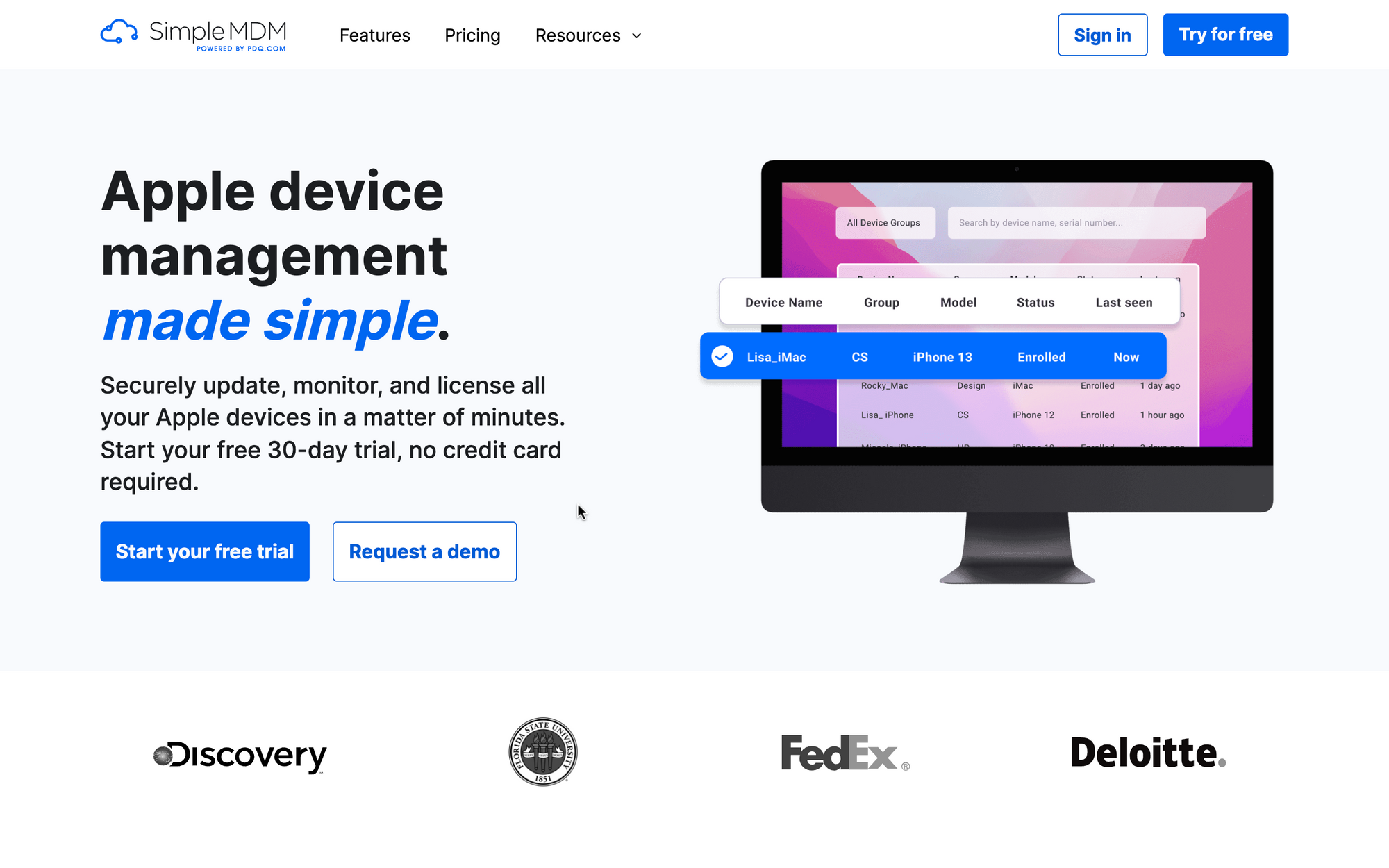
SimpleMDM is a cloud-based mobile device management solution that helps organizations manage and secure their mobile devices. By far, it is the fastest and easiest solution to set up, if you haven't needed an MDM solution for your company, up until now.
Pricing is $2.50 per device/month, when paid annually. And, it supports the AppConfig standard (just like JAMF and most other MDM software for iOS), so you can deploy the Meeting Room 365 app with a custom configuration profile, with no additional on-device setup.
SimpleMDM has all the basic features of an MDM: it enables IT teams to manage and monitor their mobile devices from a single dashboard, making it a breeze to oversee your devices' security and configuration. It's easy to customize MDM policies according to your organization's specific needs.
When it comes to security, SimpleMDM has you covered. The platform offers several features to keep your sensitive data safe. You can remotely wipe and lock devices, set password policies, and use app-level VPN to ensure data protection in the event of device loss or theft.
The one drawback is that it doesn't cover Android devices: this is purely for managing Apple devices.
How do I set up SimpleMDM with Meeting Room 365?
1. Sign up with SimpleMDM
Start by signing up for a free trial at https://simplemdm.com. We're not affiliated with SimpleMDM, they're just super easy to set up, and easy to recommend to users who didn't really need an MDM solution until they implemented their Meeting Room display project.
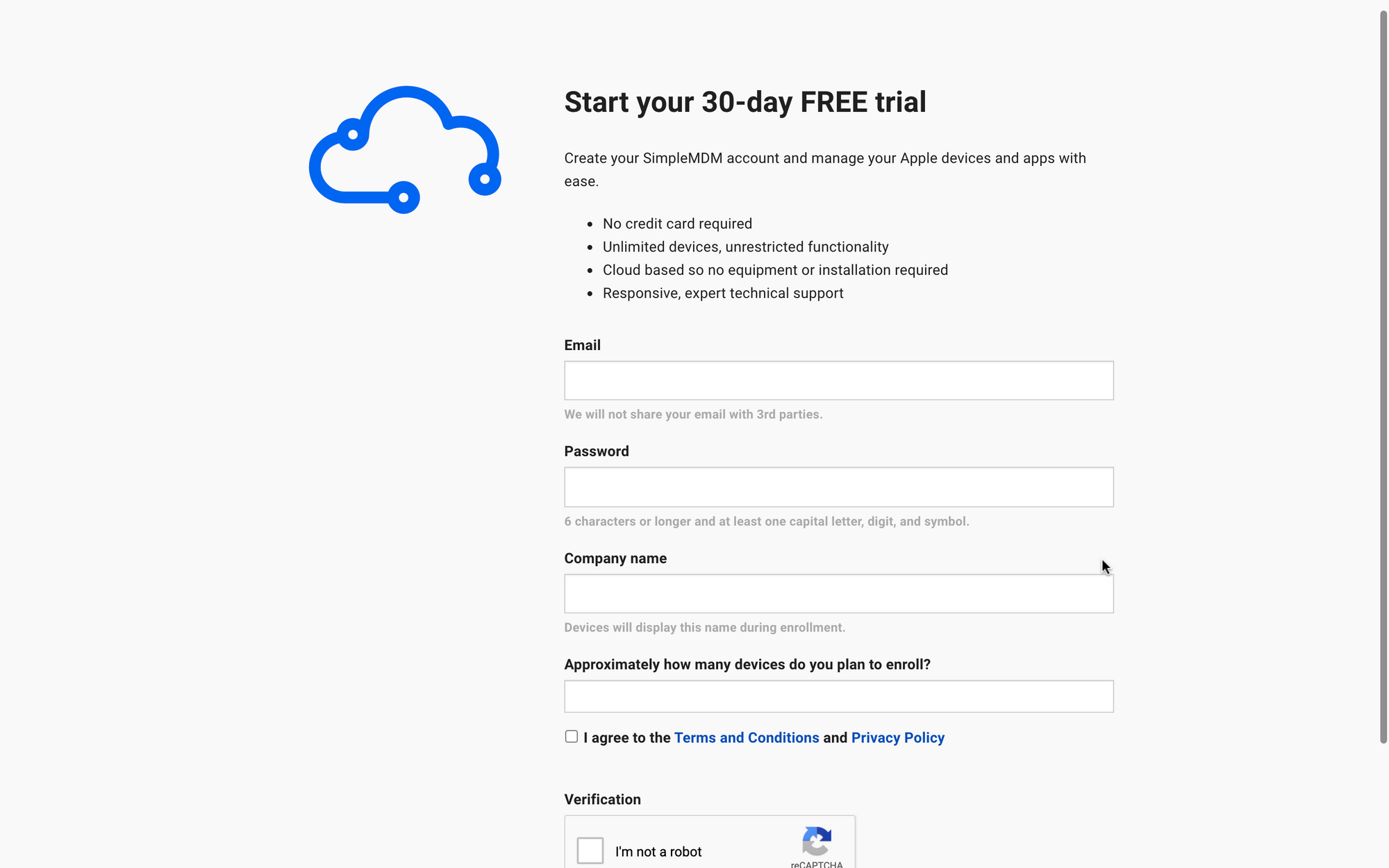
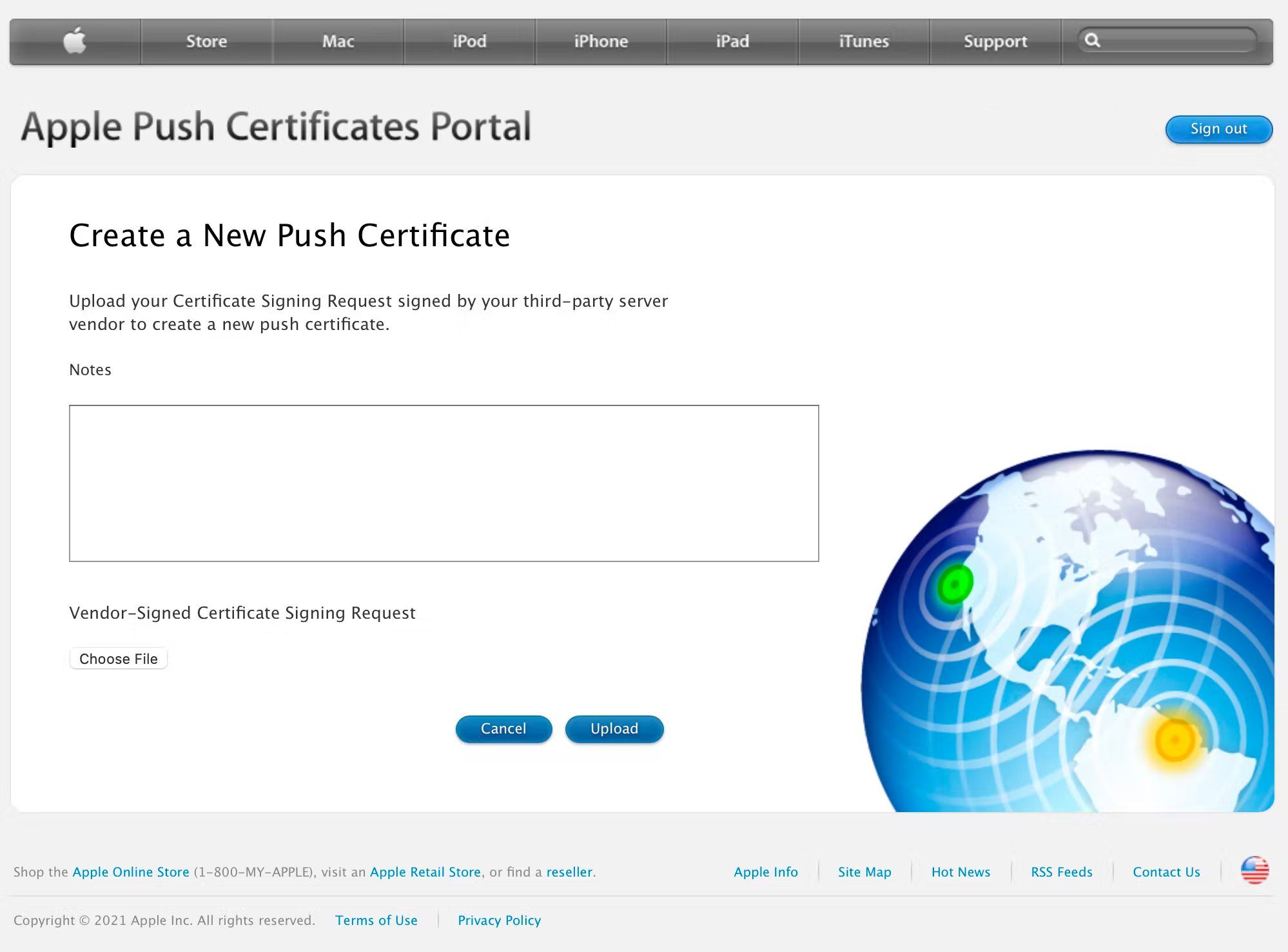
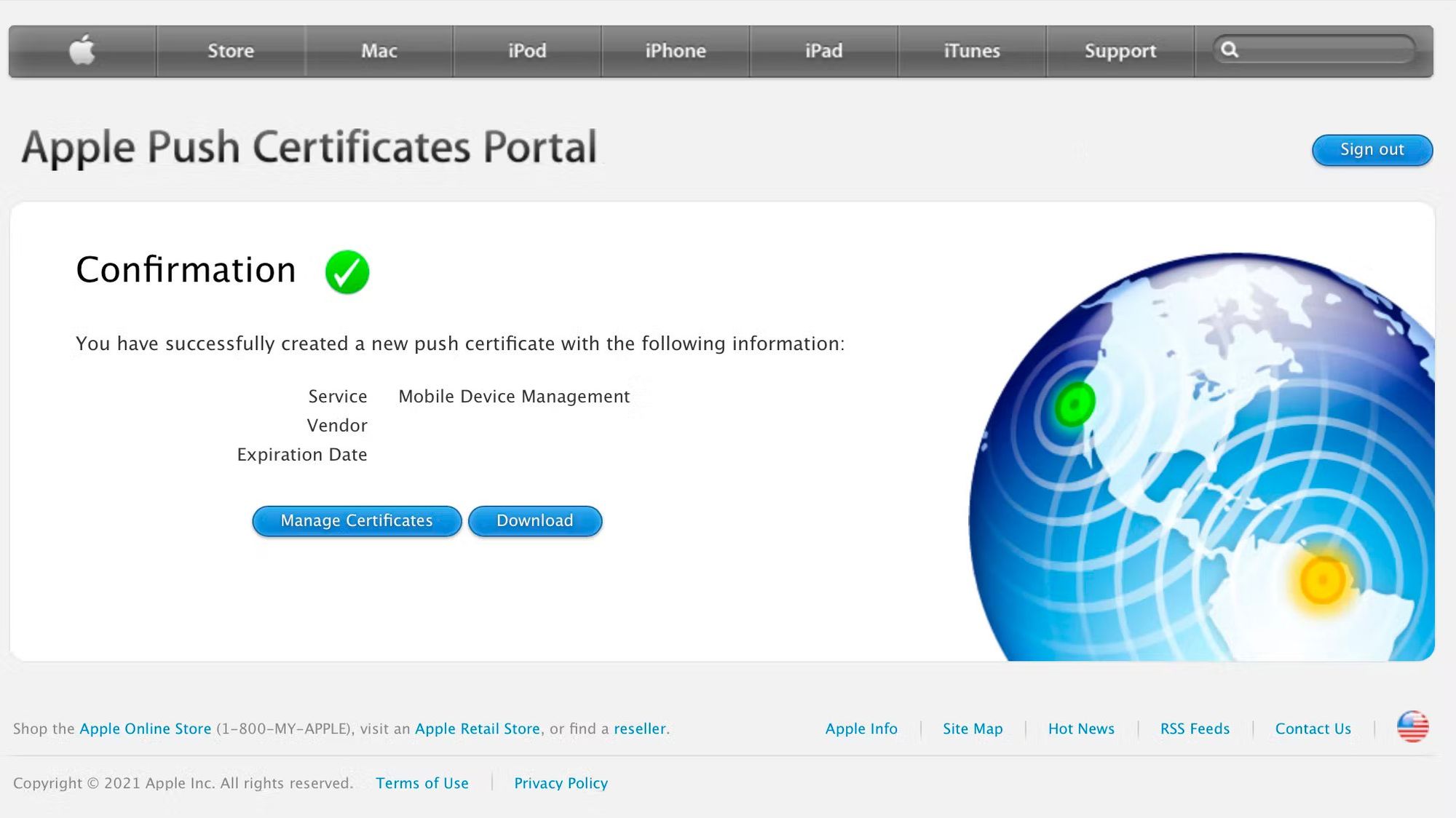
2. Create an Apple Push Certificate
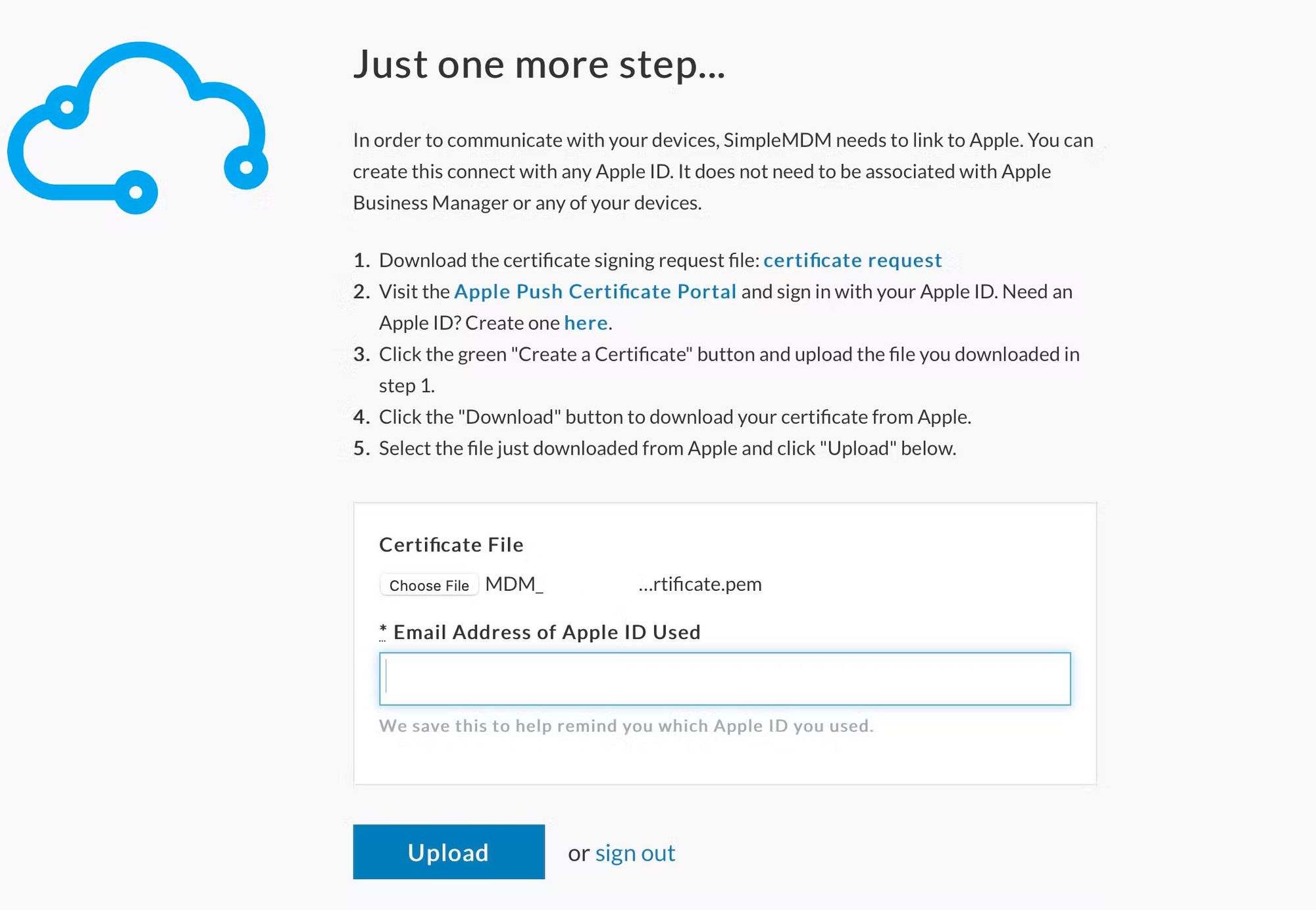
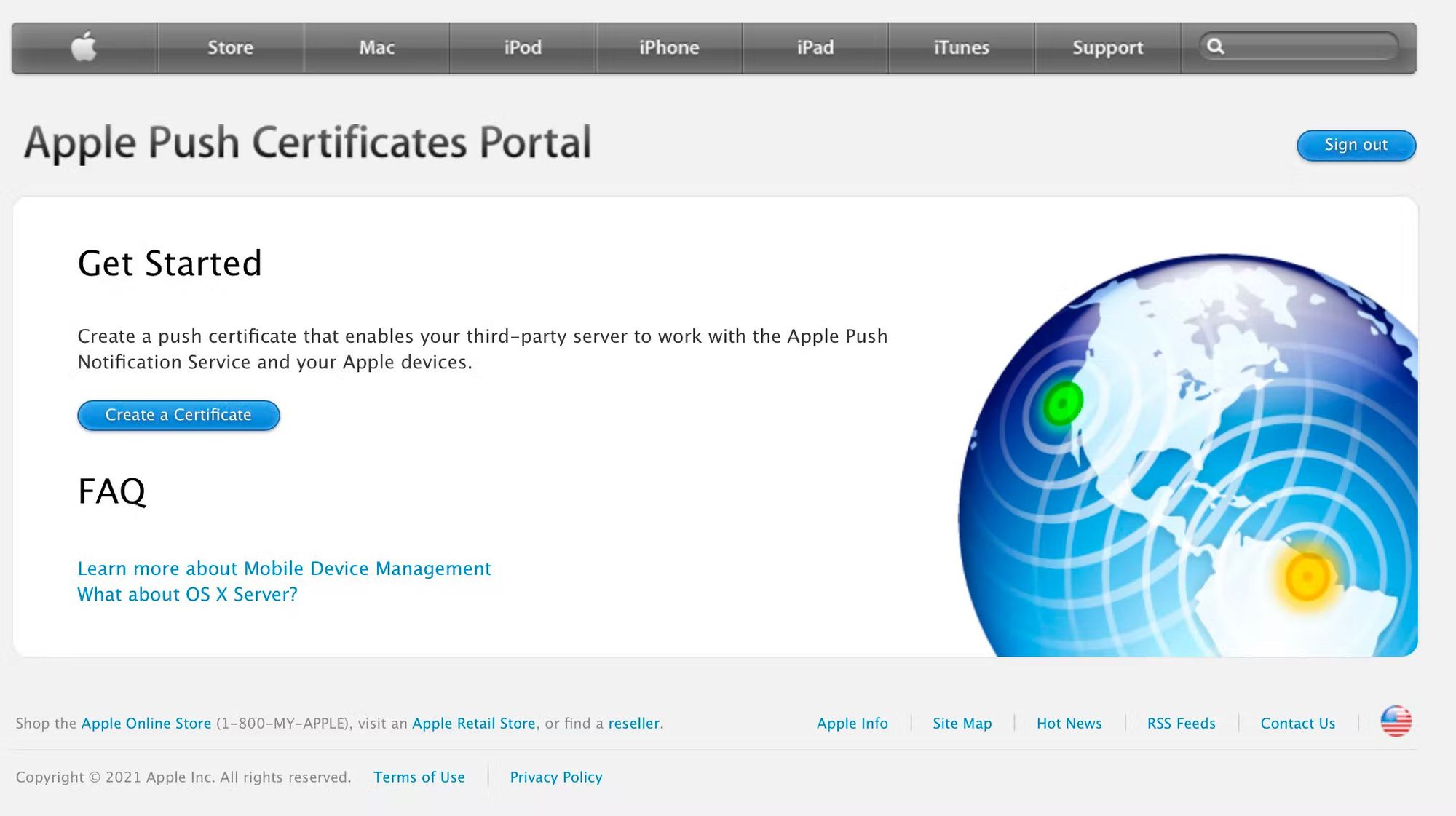
Next, you'll need to download a Certificate Signing Request & create an Apple Push Certificate. SimpleMDM makes this pretty easy – if you have your login information this should take under a minute.
3. Enroll a Mobile Device
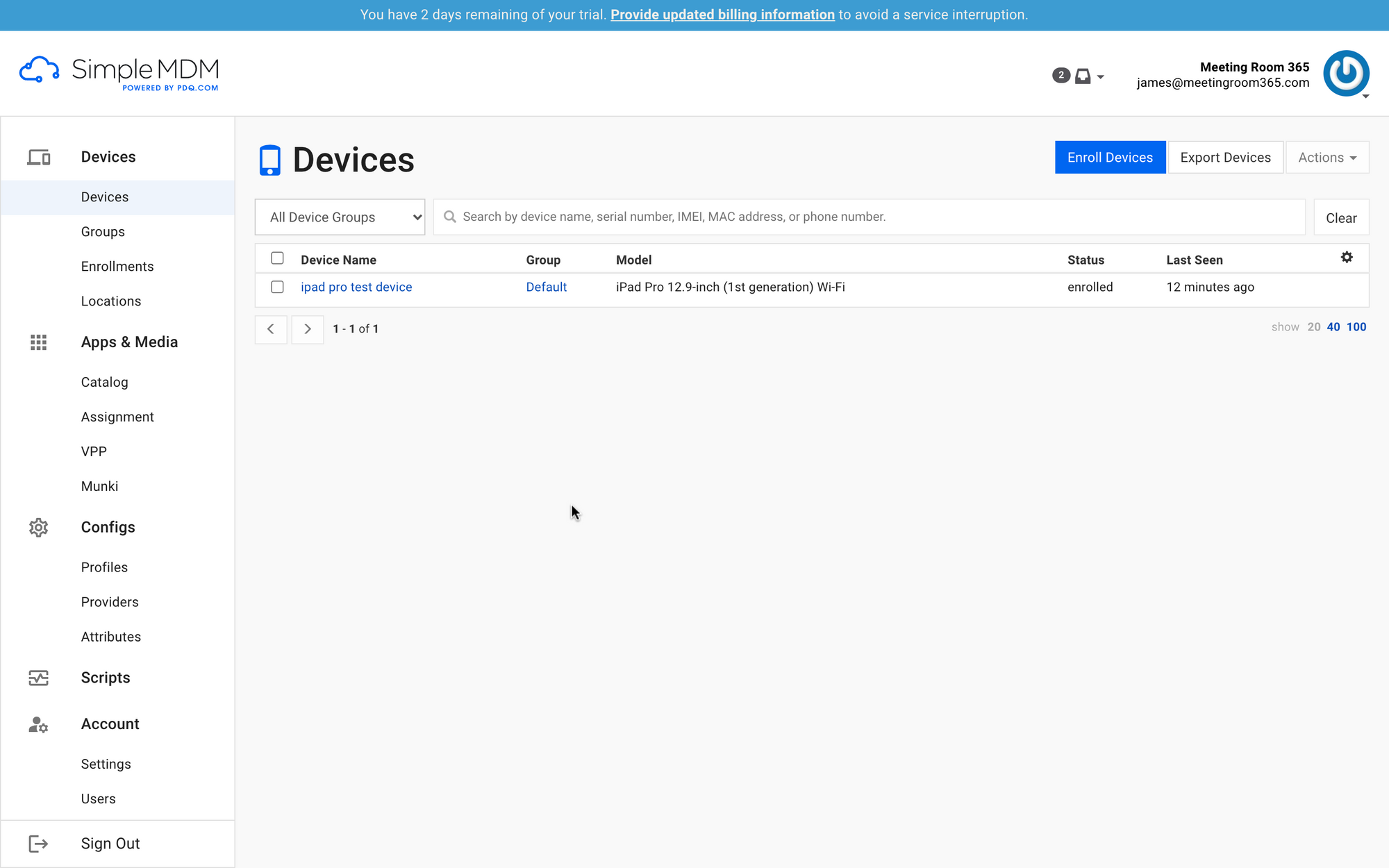
Next, you can enroll your mobile devices in SimpleMDM. There are plenty of options for this, but it should be relatively simple.
4. Add the Meeting Room 365 App to your App Catalog
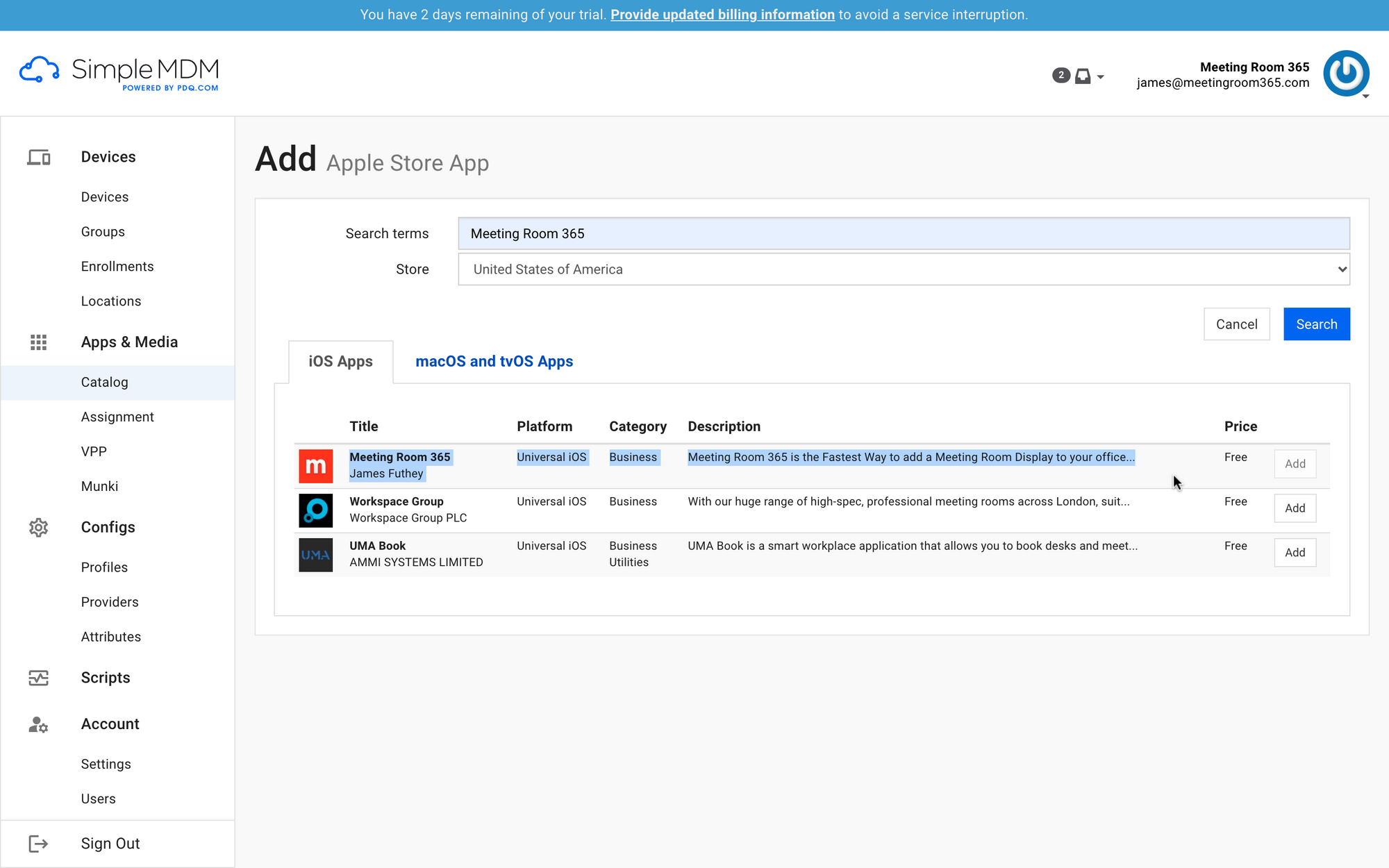
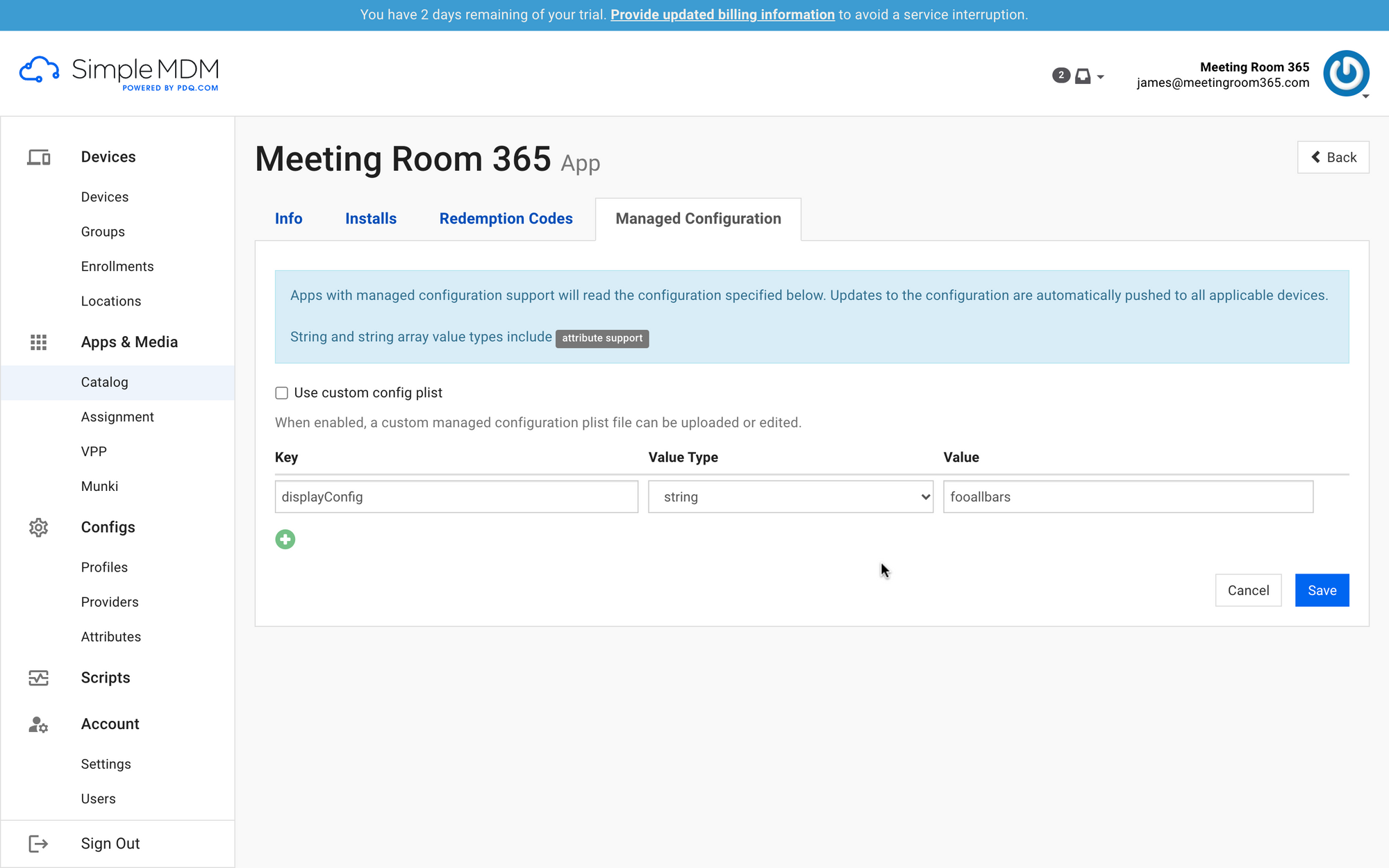
Next, you can add the Meeting Room 365 (App Store) app to your SimpleMDM App catalog. This lets you deploy it to devices as part of a profile. You can also define Managed App Configuration values for the app, which let you assign a display key to the device from the MDM software, instead of entering it manually.
We use the key displayKey to tell the Meeting Room 365 App which display to load.
Additional Configuration for Simplified Management (optional)
Updated May 16, 2024: You can now set up your devices to use a single managed configuration profile, which uses a domainKey and deviceId to associate hardware with your Meeting Room 365 account.
Simply navigate to the devices tab of Meeting Room 365: https://admin.meetingroom365.com/devices
There, you will see instructions for configuring SimpleMDM (or any MDM software in the Apple ecosystem) with a domainKey and deviceId. The deviceId should use a variable provided by your MDM software to automatically forward the device's name or serial number to the Meeting Room 365 app. This is how you will identify it in Meeting Room 365.
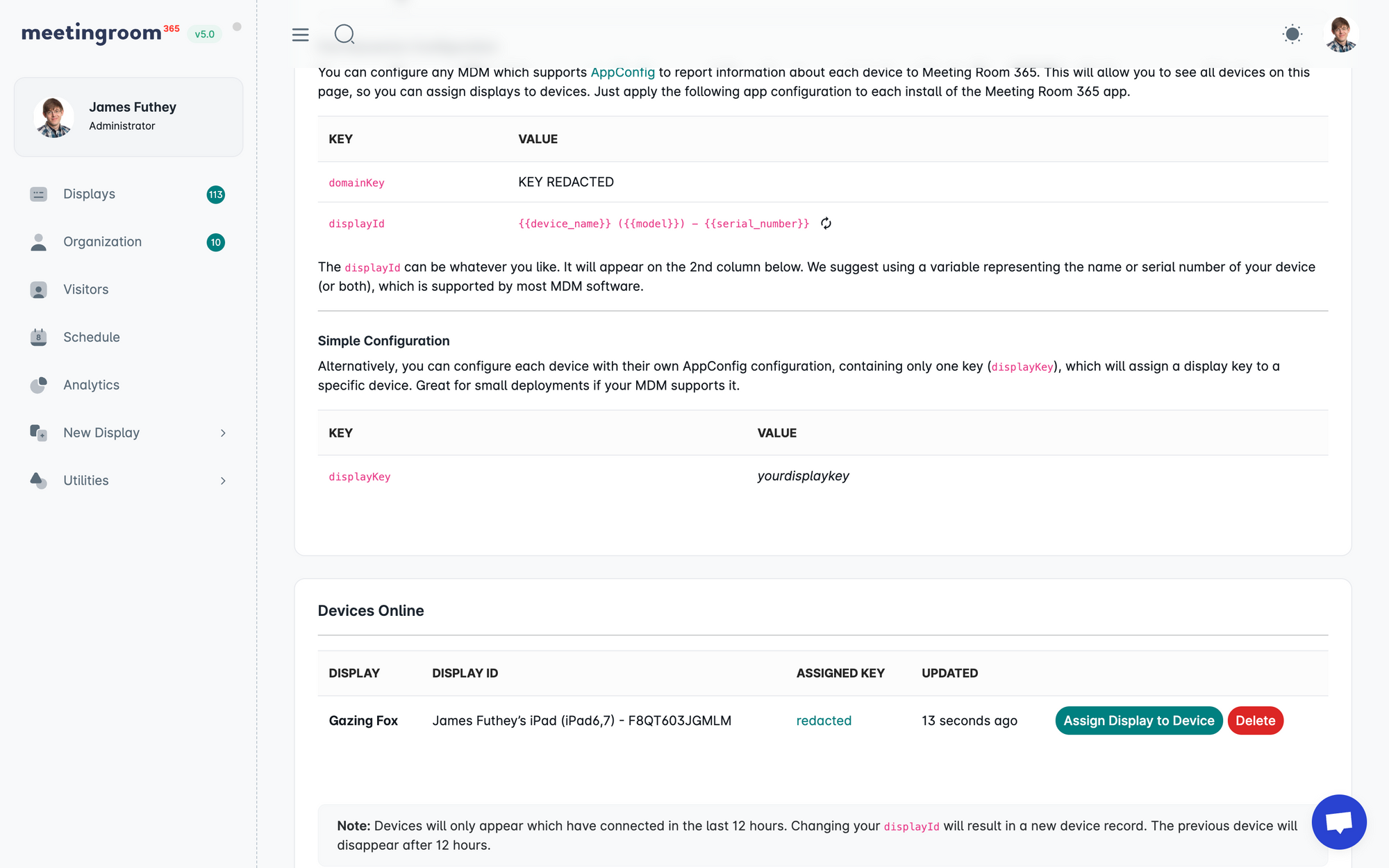
In this scenario, you do not need to assign a displayKey to your device under the AppConfig / Managed configuration editor.
5. Enabling Single-App Mode (Optional)
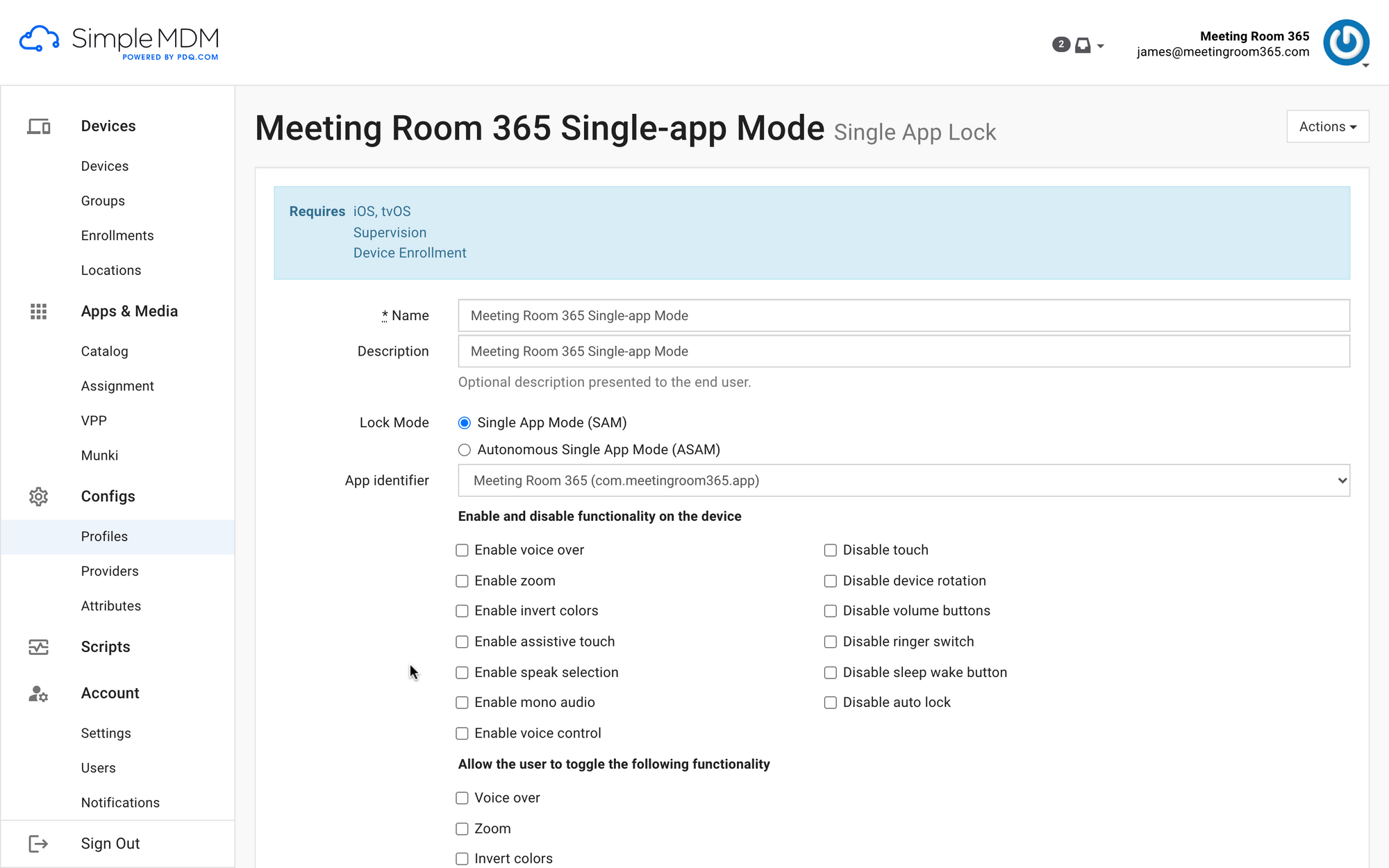
For a true kiosk display experience, you will need to enable Single-App Mode via Apple Configurator. You can read more about how to do so in Apple's Documentation. Your device will need to be supervised.
Once your device is supervised, you can set up a SimpleMDM profile to enable Single-App Mode, and set that app to be Meeting Room 365. No other options need to be set.
6. Assigning Profiles and Pushing Assigned Apps & Media
Next, you can assign profiles to your devices and push assigned apps from SimpleMDM. This step varies based on whether you create groups to perform this operation en masse, have created a profile for Single-App Mode, or are doing this for each device individually.
The following example uses our Single-App Mode Profile:
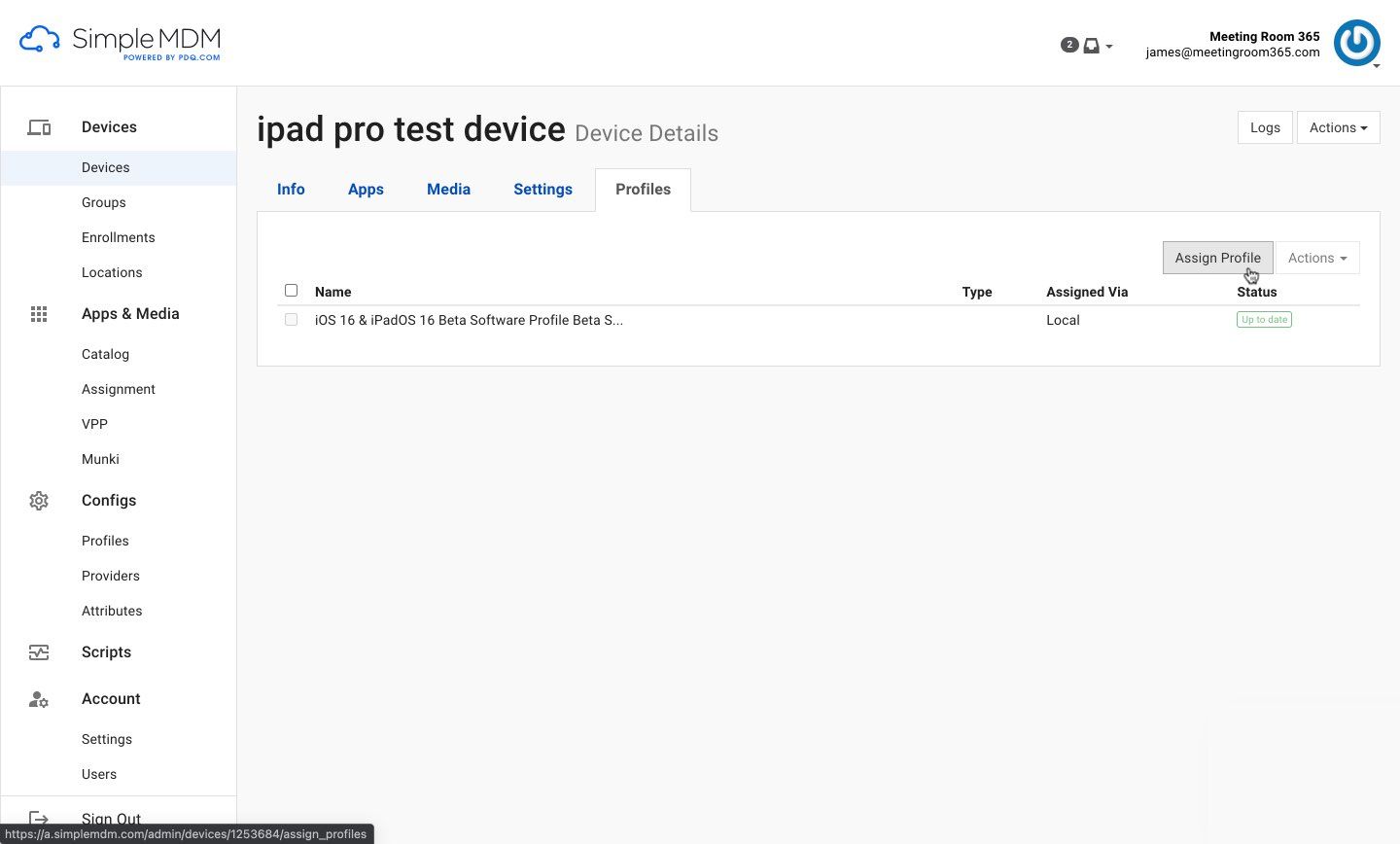
And, this is what it looks like if you assign the app(s) directly:
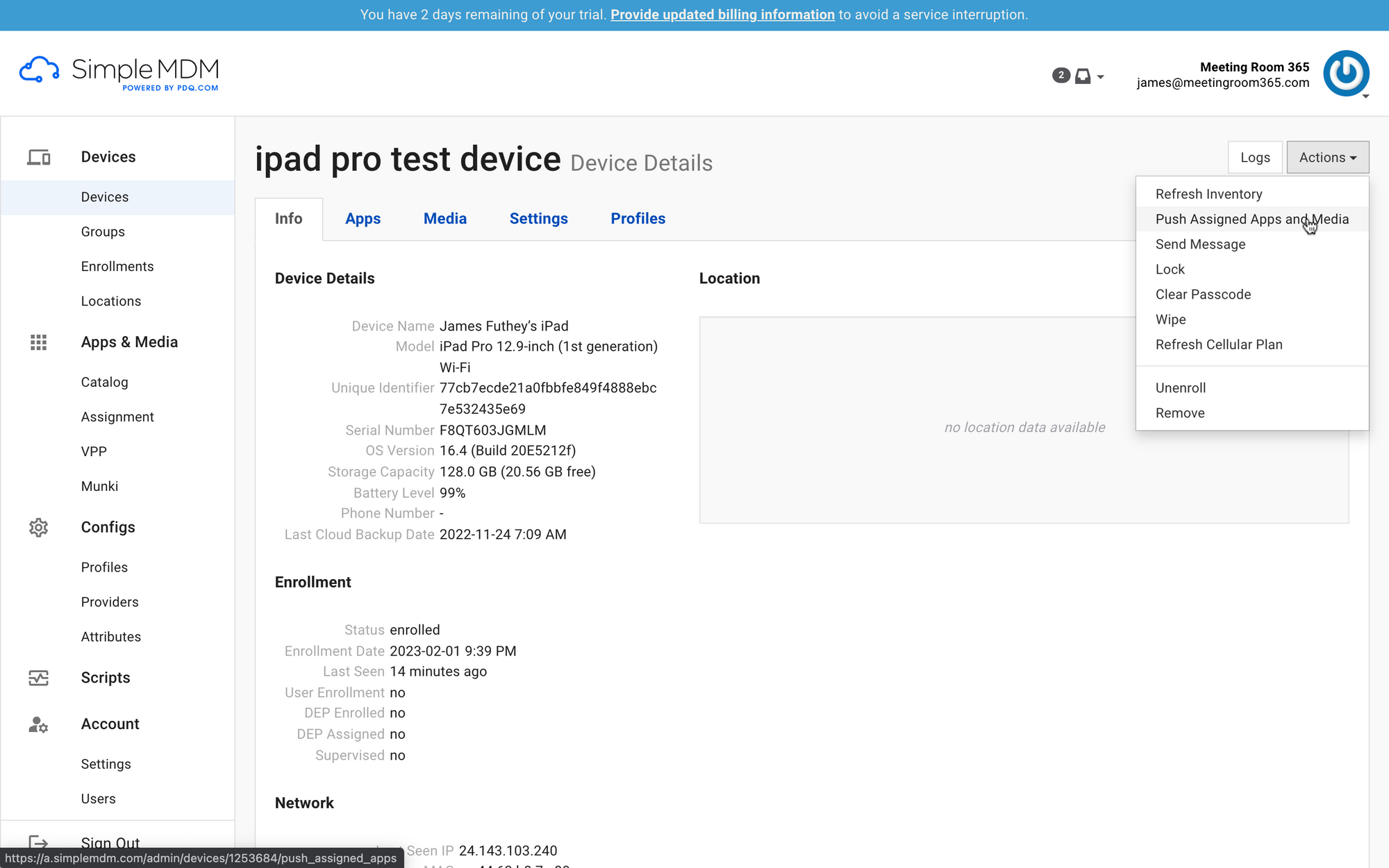
That's it! Now you will be able to manage the deployment of the Meeting Room 365 app, updates, and remote management of your iOS devices with SimpleMDM.
If you have any questions, feel free to reach out. You can read more about Getting Started with SimpleMDM in their Getting Started Guide.