In the world of Microsoft Exchange, managing permissions for mailboxes and distribution groups is a routine task for administrators. Permissions like SendAs allow one user to send emails on behalf of another. The Remove-RecipientPermission cmdlet plays a vital role in managing these permissions, specifically by revoking SendAs rights from users in Exchange Online.
The Remove-RecipientPermission cmdlet is essential not only for maintaining security but also for ensuring that permissions remain up-to-date as roles and responsibilities change within an organization. Whether you're dealing with shared mailboxes, distribution groups, or individual user mailboxes, understanding how to effectively use this cmdlet is key.
This article will guide you through the purpose, syntax, parameters, and practical applications of the Remove-RecipientPermission cmdlet.
What is the Remove-RecipientPermission Cmdlet?
The Remove-RecipientPermission cmdlet is a tool used within Exchange Online to revoke SendAs permissions from users. SendAs permission allows a user to send emails as if they were another user, which can be crucial for roles such as assistants or shared services like help desks.
By removing these permissions, you can ensure that only authorized individuals have the ability to send emails on behalf of others, thereby maintaining organizational security and compliance.
For more insights on managing recipient permissions in PowerShell, consider exploring how to add recipient permissions or retrieve existing permissions.
Syntax
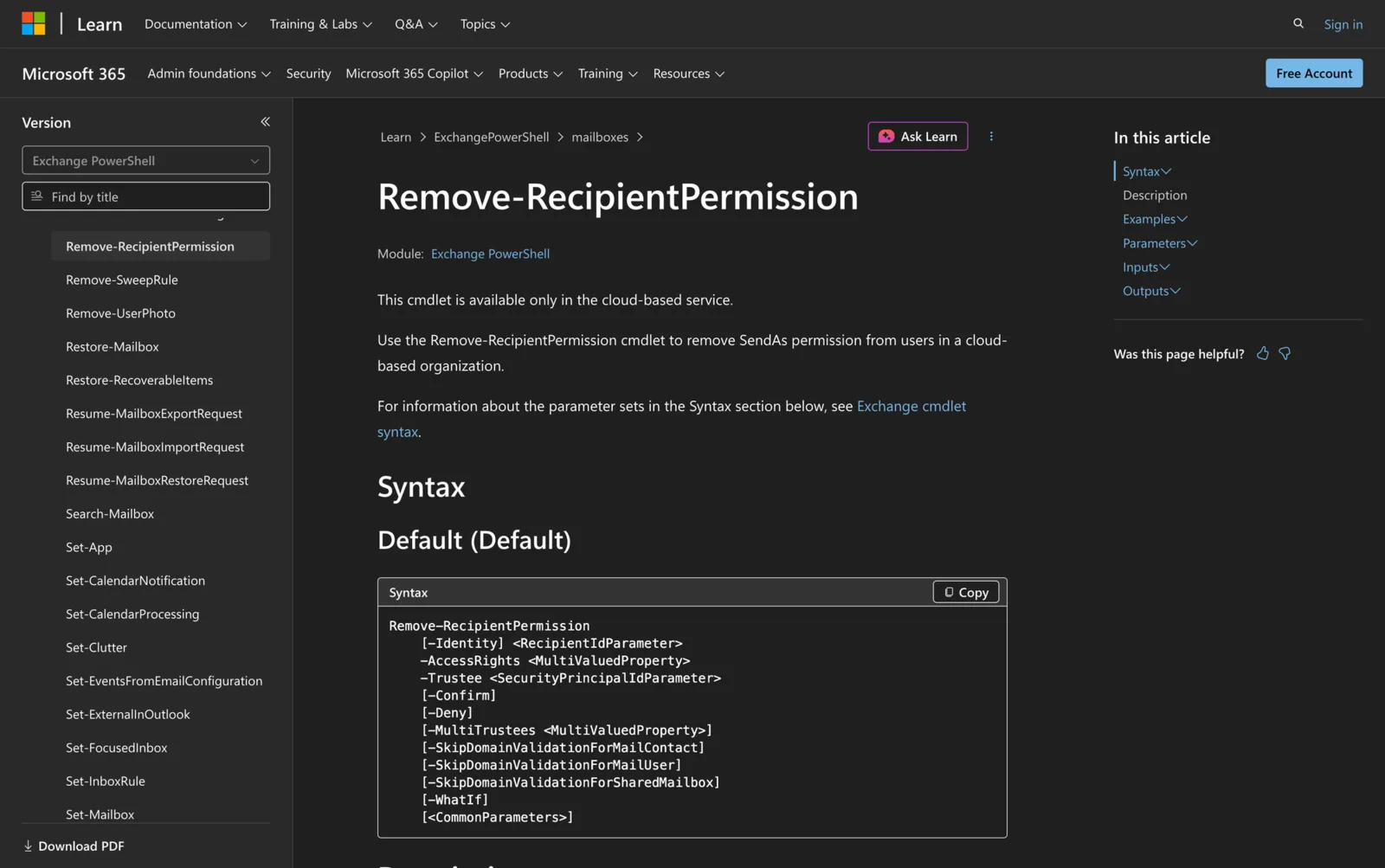
Here is the official syntax as per Microsoft documentation:
Remove-RecipientPermission
[-Identity] <RecipientIdParameter>
-AccessRights <MultiValuedProperty>
-Trustee <SecurityPrincipalIdParameter>
[-Confirm]
[-Deny]
[-MultiTrustees <MultiValuedProperty>]
[-SkipDomainValidationForMailContact]
[-SkipDomainValidationForMailUser]
[-SkipDomainValidationForSharedMailbox]
[-WhatIf]
[<CommonParameters>]
Parameters
- Identity: Specifies the target recipient from whom permissions are being removed. This can be a mailbox, mail user, external contact, distribution group, or dynamic distribution group.
- AccessRights: Specifies the permission to remove. The only valid value is SendAs.
- Trustee: Specifies the user or group from whom the SendAs permission is being revoked.
- Confirm: Controls whether the confirmation prompt is shown.
- Deny: Not documented in detail.
- MultiTrustees: Not documented in detail. -SkipDomainValidationForMailContact: Skips the check that confirms the proxy addresses of the external contact specified by the Identity parameter are in an accepted domain of the organization.
- SkipDomainValidationForMailUser: Skips the check that confirms the proxy addresses of the mail user specified by the Identity parameter are in an accepted domain of the organization.
- SkipDomainValidationForSharedMailbox: Skips the check that confirms the proxy addresses of the shared mailbox specified by the Identity parameter are in an accepted domain of the organization.
- WhatIf: Shows what the command would do without making changes.
Practical Uses
1. Revoking SendAs Permissions for a Departed Employee
When an employee leaves an organization, it's important to revoke any permissions that allow them to send emails on behalf of others. The Remove-RecipientPermission cmdlet can be used to remove such permissions, ensuring that no unauthorized emails are sent from their accounts.
2. Managing Security for Shared Mailboxes
Shared mailboxes often have multiple users with SendAs permissions. Regularly auditing and revoking unnecessary permissions helps maintain security. By using this cmdlet, administrators can ensure that only current team members have access to send emails as the shared mailbox.
3. Adjusting Permissions After Organizational Changes
As an organization evolves, roles and responsibilities may change, requiring updates to who can send emails on behalf of others. This cmdlet facilitates the removal of outdated permissions, allowing the organization to align email capabilities with current operational needs.
Prerequisites
Before using the Remove-RecipientPermission cmdlet, ensure the following requirements are met:
- You must be assigned the appropriate permissions in Exchange Online.
- The cmdlet is only available in the cloud-based service.
- You should have access to the Exchange Online PowerShell environment.
How to Use Remove-RecipientPermission: 6 Practical Uses
Understanding how to use the Remove-RecipientPermission cmdlet can streamline the process of managing email permissions in your organization. Below are practical examples of how this cmdlet can be employed to manage permissions effectively.
1. Remove SendAs Permission from a User
Command:
Remove-RecipientPermission -Identity "Help Desk" -AccessRights SendAs -Trustee "Ayla Kol"
This command removes the SendAs permission for Ayla Kol on the Help Desk mailbox. After executing this command, Ayla will no longer be able to send emails as the Help Desk. This is particularly useful when an employee no longer requires access to send from another account due to a role change or departure.
2. Confirm Before Removal
Command:
Remove-RecipientPermission -Identity "Marketing" -AccessRights SendAs -Trustee "Simon" -Confirm
Here, the command revokes Simon's SendAs permission for the Marketing mailbox, but it will prompt for confirmation before executing. This helps prevent accidental removal of permissions, providing a safeguard when making changes that could impact email flow within the organization.
3. Use WhatIf for Testing
Command:
Remove-RecipientPermission -Identity "Finance" -AccessRights SendAs -Trustee "James" -WhatIf
The WhatIf parameter allows you to test the command without making any changes. This is useful for administrators who want to understand the impact of the command before actually executing it, ensuring that the correct permissions are targeted for removal.
4. Skip Domain Validation for Mail Contacts
**Command:**Remove-RecipientPermission -Identity "External Contacts" -AccessRights SendAs -Trustee "John Doe" -SkipDomainValidationForMailContact
This command removes SendAs permission for John Doe on the External Contacts recipient and skips the accepted-domain proxy-address check for the external contact specified by the Identity parameter.
5. Revoke Permission from a Group
Command:
Remove-RecipientPermission -Identity "HR" -AccessRights SendAs -Trustee "HR Team"
This command revokes the SendAs permission for the entire HR Team on a specific recipient. It is beneficial when a group-wide permission needs to be adjusted, such as when a team no longer performs a specific function.
6. Remove SendAs Permission Without Confirmation
Command:
Remove-RecipientPermission -Identity "IT" -AccessRights SendAs -Trustee "Michael" -Confirm:$false
When you're confident about the changes and want to bypass the confirmation prompt, this command ensures the removal happens immediately without additional prompts. It is useful in automated scripts where manual confirmation is not feasible.
Final Note
The Remove-RecipientPermission cmdlet is an essential tool for Exchange Online administrators tasked with managing email permissions. By understanding its parameters and practical applications, you can maintain a secure and efficient email environment.
Whether you're revoking permissions for individual users or entire groups, this cmdlet offers the flexibility and control needed to manage SendAs permissions effectively across your organization.
Frequently Asked Questions
1. Does Remove-RecipientPermission remove Full Access permissions?
No. Remove-RecipientPermission removes recipient-level permissions such as SendAs. To remove mailbox-level permissions such as Full Access, use Remove-MailboxPermission instead.
2. What is the difference between SendAs and Send on Behalf?
SendAs lets a user send a message as the mailbox or recipient, so the message appears to come directly from that recipient. Send on Behalf shows that the message was sent by one user on behalf of another. Remove-RecipientPermission is used for removing SendAs, not Send on Behalf permissions.
3. How can I check existing SendAs permissions before removing them?
Use Get-RecipientPermission to review existing SendAs permissions before running Remove-RecipientPermission. This helps confirm the correct recipient and trustee before making changes.
4. Can I preview the change before removing a permission?
Yes. Add the -WhatIf parameter to preview what the command would do without removing the permission. This is useful when testing commands or checking the target recipient and trustee.
5. Why do I still see the permission after removing it?
Permission changes in Exchange Online may not appear everywhere immediately. Wait a few minutes, then check again with Get-RecipientPermission. Also confirm that the user does not still have access through another security group or permission assignment.