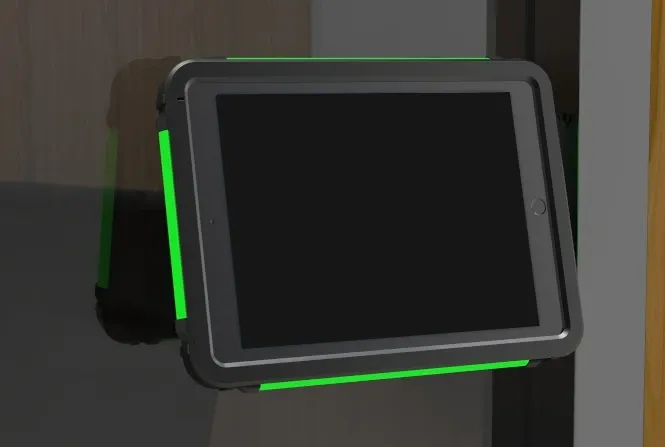
Some tablet cases have status lights that turn green or red. Meeting Room 365 controls these lights with sound. The display plays one tone when the room is available and a different tone when it is occupied. The case hears the tone and changes the light.
Cases that work with tones
The Magtarget VisualTarget cases work with Meeting Room 365 tones. VisualTarget cases fit Android tablets, iPad mini, iPad Air, iPad and iPad Pro. Every VisualTarget case needs PoE+ (802.3at) or higher.
Other cases that change their lights from a tone can also work. Ask the case maker which tone each color needs.
Set the tones
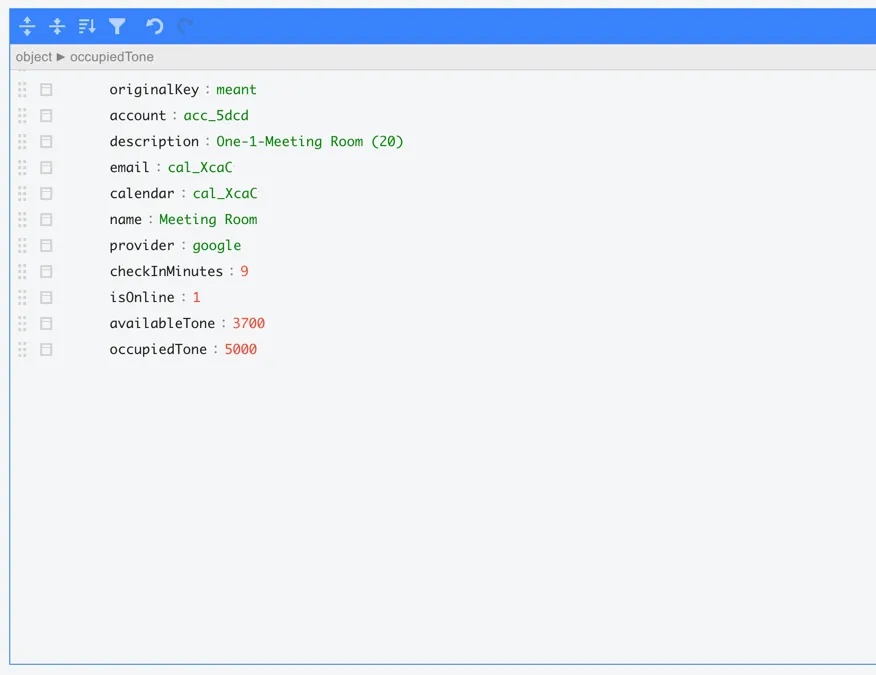
Each tone is a frequency in hertz. Get the two frequencies from the case maker. You must set both keys. If you set only one, the display plays no tone.
In the old admin:
- Sign in to the Meeting Room 365 admin.
- Open the display.
- Open the Advanced tab.
- Add
availableToneandoccupiedToneto the JSON, with a frequency for each. - Click Save.
In the new admin at next.meetingroom365.com:
- Open the display.
- Open the Advanced tab.
- Turn on Enable editing.
- Add
availableToneandoccupiedToneto the JSON, with a frequency for each. - Click Save.
This example plays 3700 Hz when the room is available and 5000 Hz when it is occupied:
{
  "availableTone": 3700,
  "occupiedTone": 5000
}
When the display plays a tone
The display plays the tone for the current status each time it refreshes its meetings. It also plays the tone when someone taps the screen, and after someone ends a meeting early. The display does not play tones in the admin preview.
The tablet must not be muted. Turn the volume up, or the case cannot hear the tone.
Status lights without tones
Android and iOS have no standard way for an app to control a case's lights. Each case maker uses its own software. If your case does not use tones, Meeting Room 365 can only control its lights with the case maker's documentation and help. This is a paid custom integration. Ask the case maker for their documentation before you contact us.