Overview
Meeting Room 365 Desk Booking lets employees reserve a place to work in the office and share their plans with teammates. It runs entirely on Microsoft 365.
Desk Booking works with desk pools (called workspaces in Microsoft Places). A desk pool is a group of interchangeable desks. Employees reserve a spot in a pool for the day, then take any open desk in it when they arrive.
Desk pools sit inside your office layout in Microsoft Places:
Building → Floor → Section → Desk pool
A desk pool can be any size, from a handful of desks to an entire section.
Intended Use
Desk Booking is a good fit for:
- Hybrid teams that come into the office on different days
- Offices without assigned seating
- Microsoft 365 organizations that want desk booking without per-desk licensing
How It Works
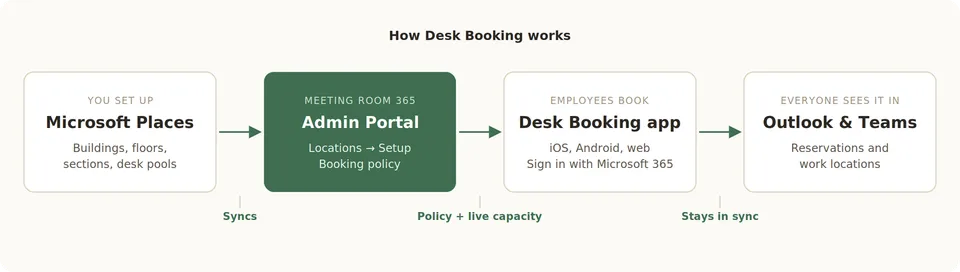 You set up your spaces in Microsoft Places. Meeting Room 365 syncs them into the Admin Portal, where you add a booking policy for employees. Employees sign in with their Microsoft 365 work account and reserve a desk. Their reservations and work locations appear in Outlook and Teams automatically.
What You Need to License
Desk Booking uses only the free features of Microsoft Places. It does not require Places Premium or a per-desk license for any workspace or user. Microsoft only charges for booking a specific, named desk, which requires a Teams Shared Space license. Desk Booking reserves space in desk pools, so that license isn't needed. Employees don't need a Meeting Room 365 seat either. They sign in with their existing work account. For the full breakdown, see Places Premium is now free.
Before You Start
Make sure you have:
- A Meeting Room 365 account
- Microsoft 365 with mailboxes on Exchange Online (Microsoft Places isn't available for Exchange on-premises)
- An admin who can manage spaces in Microsoft Places and run PowerShell
Already using Meeting Room 365?
- If you've already connected Microsoft 365 using Application access (RBAC), skip Step 2.
- Most organizations already have their buildings in Microsoft Places. If yours does, go through Step 1 to confirm your sections and desk pools are set up, since those are usually what's missing.
Setup
Step 1: Set Up Your Spaces in Microsoft Places
Open Microsoft Places space management.
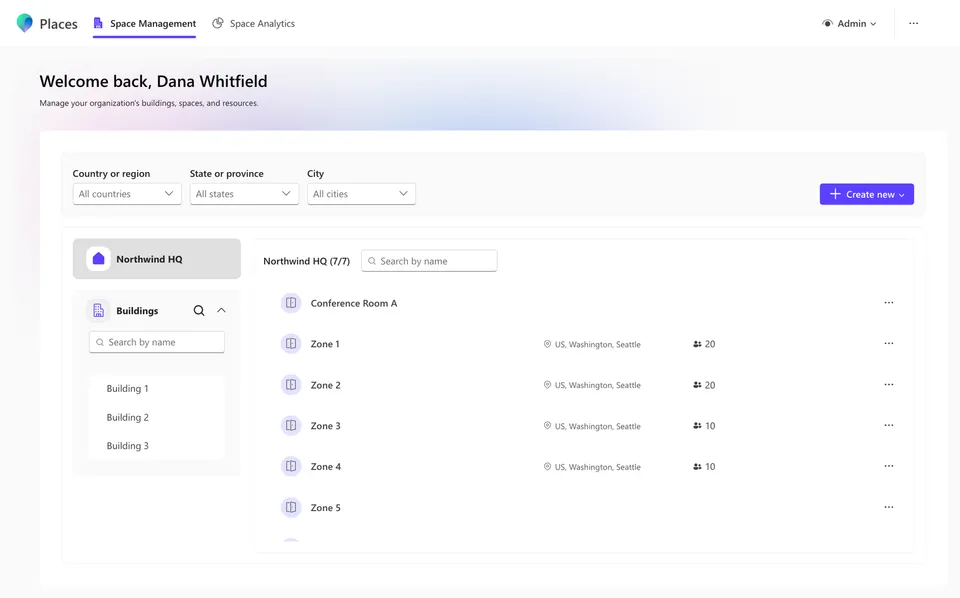
Places organizes your office from the top down:
- Building: each office location
- Floor: each level of the building
- Section: an area of a floor, such as "North wing" or "Engineering"
- Desk pool: the bookable desks inside a section, with a capacity equal to the number of desks
Create any buildings, floors, sections, and desk pools that are missing. Set each desk pool's capacity to the number of desks it contains.
Tip: Create one desk pool per team area rather than one per floor. Employees can then book near the people they work with.
Step 2: Connect Microsoft 365 with Application Access (RBAC)
Desk Booking needs Application access (RBAC) to your Microsoft 365 tenant. This is what lets Meeting Room 365 see how many desks in each pool are booked across your whole organization (for example, "7 of 15 desks booked"). Employees' own sign-ins only cover their own calendars, so they aren't enough on their own. Follow Configuring Role-Based Access Control via PowerShell.
Step 3: Review Your Locations in Meeting Room 365
In the Meeting Room 365 Admin Portal, go to Locations → Setup (open).
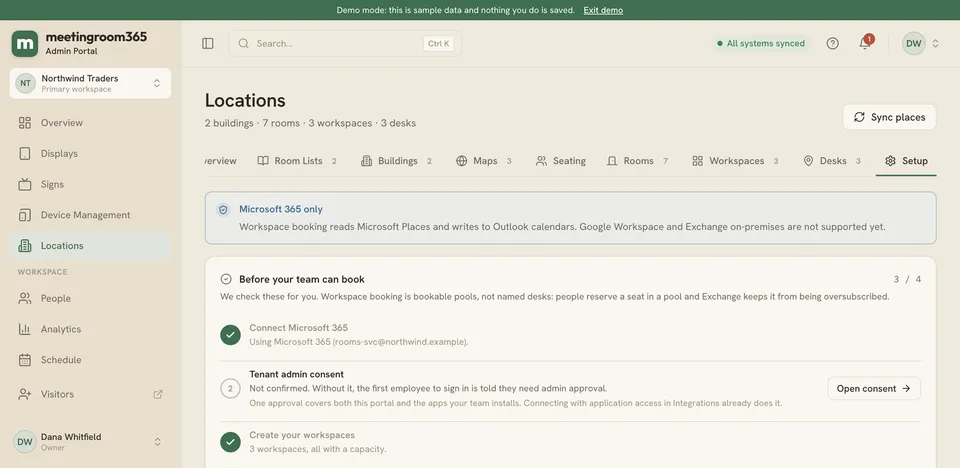
Your buildings, floors, sections, and desk pools sync from Microsoft Places automatically. Check that each building shows the sections and desk pools you expect, with the right capacities. Changes you make in Places later will sync here too.
Step 4: Set a Booking Policy
On the same Locations → Setup page, find Booking policy. This is a short set of house rules shown to employees in the app before they book. A suggested policy is filled in for you. Edit it to match your office, then click Save policy. Things worth covering:
- How far ahead people can book
- Whether people should check in when they arrive
- What to do when plans change
- Any areas with special rules, such as quiet zones or team-only sections
Step 5: Invite Your Employees
Share these links with your team:
- iOS: https://apps.apple.com/us/app/meeting-room-365-desk-booking/id6808900879	
- Android: https://play.google.com/store/apps/details?id=com.meetingroom365.desks
- Web: https://next.meetingroom365.com/
Employees sign in with their Microsoft 365 work account. There are no invitations to send and no seats to assign.
How Employees Use Desk Booking
- Set a work location each day: In Office, Remote, or Vacation.
- See their team's plans: a quick daily summary of who's coming in.
- Reserve a desk: pick a desk pool for the day, then use any open desk in it on arrival.
- Check in (optional): mark the section or desk they're sitting at, so teammates can find them.
Everything stays in sync with Microsoft 365. Reservations and work locations appear in Outlook and Teams as well as in the Desk Booking app.
Next Steps
After setup, we recommend:
- Booking a desk yourself and confirming it appears in your Outlook calendar
- Checking that the desk pool count updates in the app after booking
- Sharing your booking policy with employees when you announce Desk Booking