
How to Use Undo-SoftDeletedMailbox in Powershell

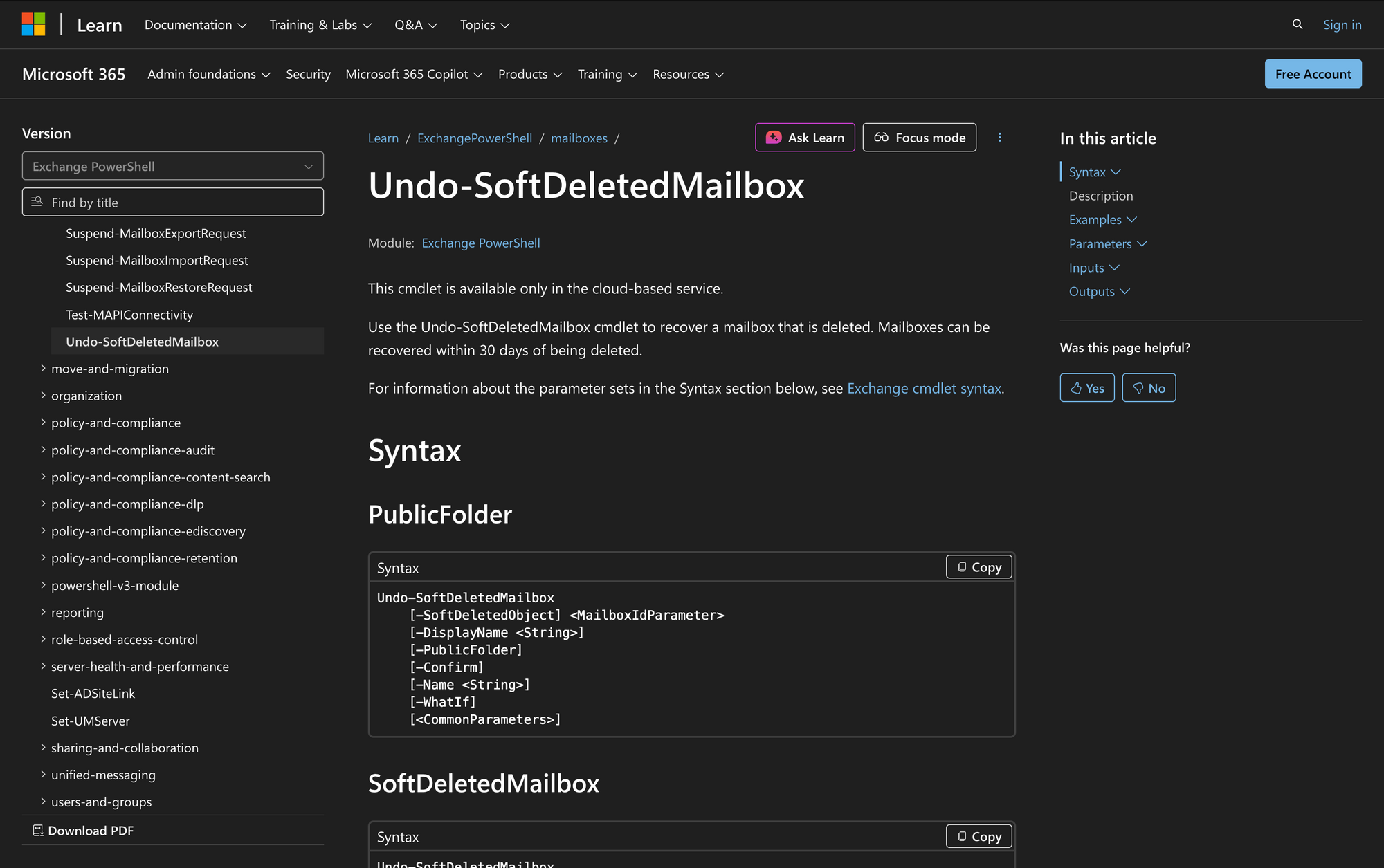
In the world of Microsoft Exchange, managing user mailboxes efficiently is crucial for maintaining seamless communication within an organization. One common scenario that administrators face is the accidental deletion of user mailboxes. Fortunately, Exchange Online provides a way to recover those deleted mailboxes through the Undo-SoftDeletedMailbox cmdlet.
When a mailbox is deleted using the Remove-Mailbox or Disable-Mailbox cmdlets, it is not permanently removed immediately. Instead, it is moved to a temporary state called "soft-deleted," where it remains in a recoverable soft-deleted state for the duration specified by the mailbox retention policy (default is 30 days).
During this period, administrators can recover the mailbox, restoring access to all of its data. This ability is vital for organizations that may need to retrieve important information after a deletion, whether it was intentional or accidental.
In this article, we will explore the Undo-SoftDeletedMailbox cmdlet in detail, including its syntax, parameters, practical uses, and various examples to illustrate its implementation.
What is the Undo-SoftDeletedMailbox Cmdlet?
The Undo-SoftDeletedMailbox cmdlet is a command used in Exchange Online PowerShell to recover a mailbox that has been soft-deleted. When a mailbox is deleted, it is not completely erased; instead, it is moved into a special state within Active Directory where it can remain recoverable for a limited time. This cmdlet allows administrators to restore access to the mailbox, along with all its associated data, as long as the restoration occurs within the specified recovery period.
Administrators can utilize this cmdlet to either restore a mailbox linked to a deleted Microsoft account or to recover a public folder mailbox. The flexibility of the cmdlet makes it an essential tool for managing mailbox recoveries effectively.
Syntax
The syntax for the Undo-SoftDeletedMailbox cmdlet is as follows:
Undo-SoftDeletedMailbox
[-SoftDeletedObject] <MailboxIdParameter>
[-DisplayName <String>]
[-PublicFolder]
[-Confirm]
[-Name <String>]
[-WhatIf]
[<CommonParameters>]
Parameters
- SoftDeletedObject: Specifies the deleted mailbox to recover. You can use the alias or the email address of the deleted mailbox for this parameter.
- DisplayName: Specifies the new display name for the recovered mailbox.
- PublicFolder: Specifies that the soft-deleted mailbox to recover is a public folder mailbox. This switch is required for recovering public folder mailboxes.
- Confirm: Indicates whether to show a confirmation prompt before executing the command.
- Name: Specifies a new name for the recovered mailbox.
- WhatIf: Simulates the command without applying changes to view the potential impact.
- WindowsLiveID: Specifies the Microsoft account (email address) to associate with the recovered mailbox. Required if the mailbox is being recovered to a Microsoft account that was not deleted.
- Password: Specifies the password for the Microsoft account when recovering a mailbox to an existing account. Required along with -WindowsLiveID.
Practical Uses
1. Recovering an Accidental Deletion
In organizations, it is not uncommon for a user or administrator to accidentally delete a mailbox, either through a misunderstanding or a miscommunication. The Undo-SoftDeletedMailbox cmdlet allows administrators to quickly recover the mailbox within the 30-day retention period.
This ensures that important emails and data are not lost permanently, allowing users to regain access to their communication history and resources promptly.
2. Restoring Mailboxes for Departing Employees
When an employee leaves an organization, their mailbox may be deleted during the offboarding process. However, there may be instances where the organization needs to retain access to that mailbox for legal or compliance reasons.
Using the Undo-SoftDeletedMailbox cmdlet, administrators can recover the mailbox and its contents for audits or eDiscovery purposes. This capability is crucial for maintaining compliance with legal obligations and for organizational governance.
3. Managing Public Folder Mailboxes
Public folder mailboxes serve as centralized repositories for shared content within an organization. If a public folder mailbox is inadvertently deleted, the Undo-SoftDeletedMailbox cmdlet can be used to recover it.
This action restores the entire content and hierarchy of the public folder structure, ensuring that users can continue to access shared information without significant disruption.
Prerequisites
Before using the Undo-SoftDeletedMailbox cmdlet, ensure the following requirements are met:
- You must have the necessary permissions assigned to run this cmdlet.
- The cmdlet is available only in Exchange Online PowerShell.
- The mailbox you wish to recover must be within the 30-day retention period following its deletion.
How to Use Undo-SoftDeletedMailbox: 6 Practical Uses
The following examples illustrate various scenarios where the Undo-SoftDeletedMailbox cmdlet can be effectively utilized to recover soft-deleted mailboxes.
1. Preview Changes Before Execution
Command:
Undo-SoftDeletedMailbox -SoftDeletedObject florencef -WhatIf
The WhatIf parameter is a valuable feature that allows administrators to simulate the command without actually performing the recovery. This is particularly useful for double-checking the parameters and ensuring the right mailbox will be restored before executing the cmdlet.
2. Recover a Soft-Deleted Mailbox by Alias
Command:
Undo-SoftDeletedMailbox -SoftDeletedObject simons
In this scenario, the mailbox for user Simon S. has been deleted. By using the alias in the SoftDeletedObject parameter, the cmdlet will recover her mailbox. This command is straightforward and allows administrators to restore access quickly, minimizing downtime for the user.
3. Recover a Mailbox with a New Microsoft Account
Command:
Undo-SoftDeletedMailbox -SoftDeletedObject [email protected] -WindowsLiveID [email protected] -Password (ConvertTo-SecureString -String 'password' -AsPlainText -Force)
This recovers the soft-deleted mailbox for Brian Johnson to his existing Microsoft account. The -WindowsLiveID and -Password parameters are required when restoring a mailbox to an account that was not deleted.
4. Recover a Public Folder Mailbox
Command:
Undo-SoftDeletedMailbox -SoftDeletedObject publicfolder1 -PublicFolder
When a public folder mailbox is deleted, it is crucial to restore it to maintain the shared resources and content for users. By specifying the PublicFolder switch, this command recovers the public folder mailbox, ensuring users can access the shared folders and their hierarchy without significant disruption.
5. Change the Display Name During Recovery
Command:
Undo-SoftDeletedMailbox -SoftDeletedObject jdoe -DisplayName "John Doe's Mailbox"
This example illustrates how to recover a mailbox for a user with a new display name. Changing the display name during recovery can help clarify ownership or differentiate between similar mailboxes within the organization. It’s a simple yet effective way to manage mailbox identities.
6. Recover Mailbox with a New Name
Command:
Undo-SoftDeletedMailbox -SoftDeletedObject jane.smith -Name "JaneSmithRecovered"
In this case, the cmdlet is used to recover Jane Smith's mailbox while also assigning a new name to the mailbox. The new name will also be reflected in its DistinguishedName property, allowing for easier identification in the future.
Final Note
The Undo-SoftDeletedMailbox cmdlet is an essential tool for Exchange Online administrators. It provides the capability to recover mailboxes that have been accidentally deleted, whether they are user mailboxes or public folder mailboxes. By understanding how to use this cmdlet effectively, administrators can ensure that important data is preserved and accessible, thus maintaining the integrity of their organization's communication channels.
Whether dealing with routine mailbox management or unexpected deletions, mastering this cmdlet will enhance your administrative capabilities in the Microsoft Exchange environment.