
Using Set-User in Powershell: All You Need To Know

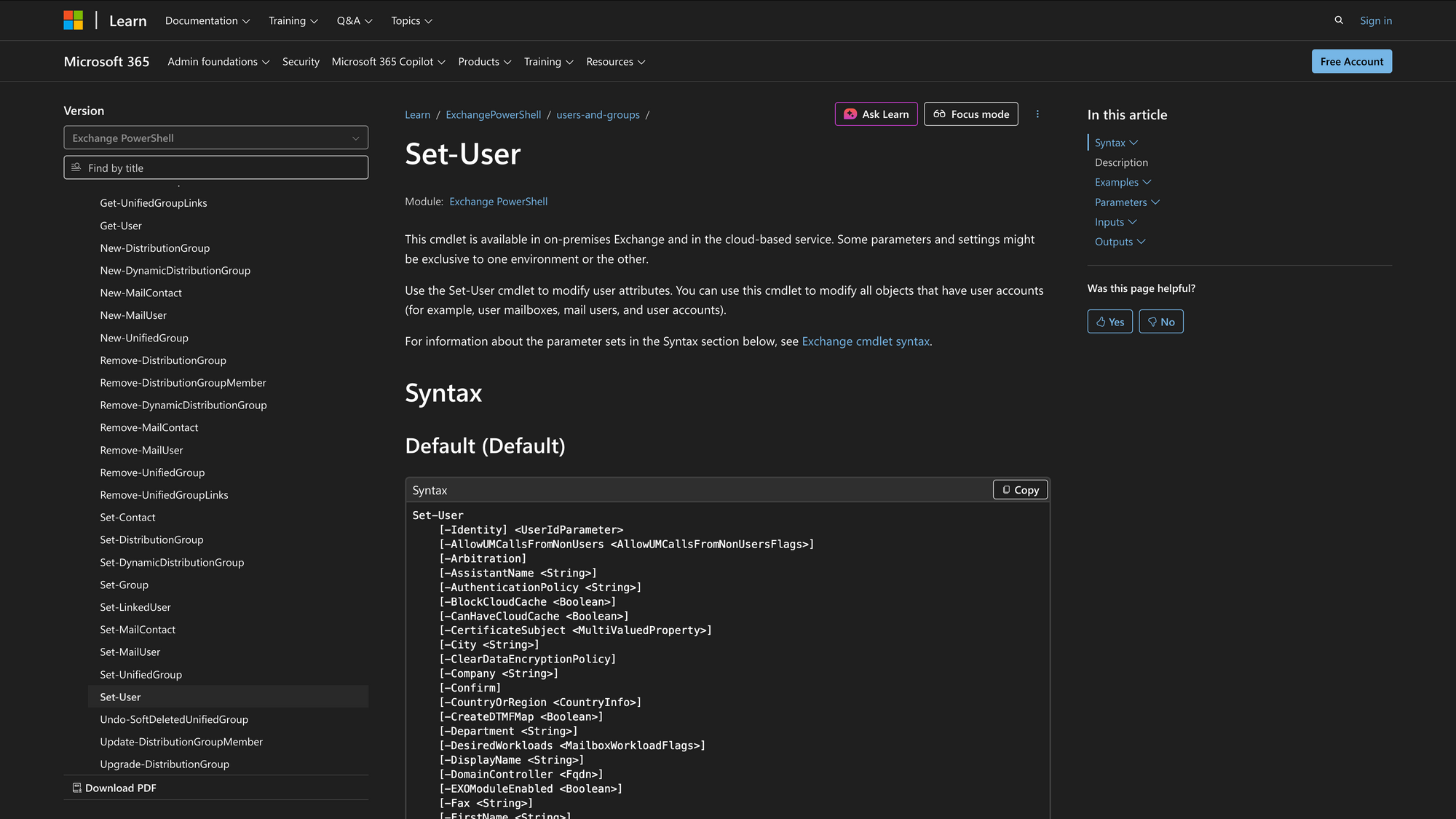
In Microsoft Exchange, user attributes are critical for managing accounts and their associated properties. The Set-User cmdlet is a core PowerShell tool that enables administrators to modify these attributes for various user types, including user mailboxes and mail users. As organizations scale, maintaining accurate user information ensures operational efficiency, proper permissions, and alignment with internal policies.
This cmdlet is supported in both on-premises Exchange environments and Exchange Online, making it a versatile option for administrators managing mailboxes or integrating with Active Directory. Understanding the parameters, their implications, and interaction with other PowerShell cmdlets is crucial to avoid misconfigurations.
This article covers the Set-User cmdlet comprehensively, including syntax, parameters, practical scenarios, and examples relevant to administrators managing Exchange, Active Directory, and user attributes with PowerShell.
What is the Set-User Cmdlet?
The Set-User cmdlet in Exchange PowerShell is used to modify user attributes such as names, titles, departments, phone numbers, and other metadata associated with user accounts. Accurate user attributes are essential for directory services, organizational compliance, and effective communication within Exchange and Active Directory environments.
The Set-User cmdlet does not directly modify mailbox-specific properties such as mailbox size or email forwarding. For mailbox-specific updates, administrators should use Set-Mailbox, Set-MailUser, or Update-MgUser in Microsoft Graph PowerShell when working with Exchange Online. Properly distinguishing these cmdlets ensures safe and accurate administration of user accounts and mailboxes.
This cmdlet integrates closely with Active Directory, allowing modifications to attributes like SAMAccountName, UserPrincipalName, OfficePhone, mobile phone, streetAddress, and other user attributes. It supports operations in Exchange Management Shell, PowerShell sessions, or scripts, enabling automation via PowerShell script or CSV fileimports for bulk updates.
Syntax
Official syntax for Set-User (Exchange PowerShell) is:
Set-User
[-Identity] <UserIdParameter>
[-AllowUMCallsFromNonUsers <AllowUMCallsFromNonUsersFlags>]
[-Arbitration]
[-AssistantName <String>]
[-AuthenticationPolicy <String>]
[-BlockCloudCache <Boolean>]
[-CanHaveCloudCache <Boolean>]
[-CertificateSubject <MultiValuedProperty>]
[-City <String>]
[-ClearDataEncryptionPolicy]
[-Company <String>]
[-Confirm]
[-CountryOrRegion <CountryInfo>]
[-CreateDTMFMap <Boolean>]
[-Department <String>]
[-DesiredWorkloads <MailboxWorkloadFlags>]
[-DisplayName <String>]
[-DomainController <Fqdn>]
[-EXOModuleEnabled <Boolean>]
[-Fax <String>]
[-FirstName <String>]
[-Force]
[-GeoCoordinates <GeoCoordinates>]
[-HomePhone <String>]
[-IgnoreDefaultScope]
[-IsShadowMailbox <Boolean>]
[-Initials <String>]
[-LastName <String>]
[-LinkedCredential <PSCredential>]
[-LinkedDomainController <String>]
[-LinkedMasterAccount <UserIdParameter>]
[-MailboxRegion <String>]
[-MailboxRegionSuffix <MailboxRegionSuffixValue>]
[-ManagedOnboardingType <ManagedOnboardingType>]
[-Manager <UserContactIdParameter>]
[-MobilePhone <String>]
[-Name <String>]
[-Notes <String>]
[-Office <String>]
[-OtherFax <MultiValuedProperty>]
[-OtherHomePhone <MultiValuedProperty>]
[-OtherTelephone <MultiValuedProperty>]
[-Pager <String>]
[-PermanentlyClearPreviousMailboxInfo]
[-Phone <String>]
[-PhoneticDisplayName <String>]
[-PostalCode <String>]
[-PostOfficeBox <MultiValuedProperty>]
[-PublicFolder]
[-RemotePowerShellEnabled <Boolean>]
[-RemoveMailboxProvisioningConstraint]
[-ResetPasswordOnNextLogon <Boolean>]
[-SamAccountName <String>]
[-SeniorityIndex <Int32>]
[-SimpleDisplayName <String>]
[-SkipDualWrite]
[-StateOrProvince <String>]
[-StreetAddress <String>]
[-StsRefreshTokensValidFrom <DateTime>]
[-TelephoneAssistant <String>]
[-Title <String>]
[-UMCallingLineIds <MultiValuedProperty>]
[-UMDtmfMap <MultiValuedProperty>]
[-UserPrincipalName <String>]
[-VIP <Boolean>]
[-WebPage <String>]
[-WhatIf]
[-WindowsEmailAddress <SmtpAddress>]
[<CommonParameters>]
Parameters
Here are some of the most important parameters:
- Identity: Specifies the user to modify. Accepts values like UserPrincipalName, SAMAccountName, email, or GUID. Essential for uniquely identifying users in Exchange, Active Directory, or AD DS.
- AllowUMCallsFromNonUsers: Controls whether the user is included in Unified Messaging (UM) directory searches (on-premises only).
- Arbitration: Required to modify arbitration mailboxes (on-premises only).
- AssistantName: Sets the user’s assistant for organizational directories.
- AuthenticationPolicy: Assigns an authentication policy to the user, applicable in Exchange Online.
- BlockCloudCache / CanHaveCloudCache: Configure cloud cache permissions (Exchange Online only).
- CertificateSubject: Sets the subject field for a user’s digital certificate.
- City, StateOrProvince, CountryOrRegion, StreetAddress, PostalCode: Geographical and address-related user attributes for compliance, directories, and reporting.
- ClearDataEncryptionPolicy: Clears data encryption policy (Exchange Online only).
- Company / Department / Title: Organizational attributes useful for Active Directory Users and Computers and internal directories.
- DisplayName / SimpleDisplayName / PhoneticDisplayName: Modifies how the user appears in Exchange, mailboxes, and directory searches.
- DomainController: Specifies which domain controller to query or update (on-premises only).
- EXOModuleEnabled / RemotePowerShellEnabled: Controls connection access to Exchange Online via PowerShell session or Exchange Management Shell.
- Fax, Phone, HomePhone, MobilePhone, OtherFax, OtherTelephone, OtherHomePhone, Pager, Office, WebPage: Contact information parameters. Note: In Exchange Online, some parameters like MobilePhone and Phone require Microsoft Graph PowerShell (Update-MgUser) instead of Set-User.
- Manager: Assigns the user’s reporting manager (UserContactIdParameter) in Active Directory or Exchange.
- ResetPasswordOnNextLogon: Forces a password change at the next logon. Works for user accounts integrated with AD DS.
- SamAccountName / UserPrincipalName: Sets the user’s SAM account name or User Principal Name. Critical for domain logins and authentication.
- MailboxRegion / MailboxRegionSuffix / PermanentlyClearPreviousMailboxInfo: Cloud mailbox management parameters for Exchange Online.
- PublicFolder: Required to modify public folder mailboxes.
- Force / Confirm / WhatIf: Standard PowerShell cmdlet switches for confirmation prompts, safety, and testing scripts.
These parameters enable administrators to manage user attributes, enforce compliance, update contact info, and control access policies across Exchange, Active Directory, and Azure Active Directory environments.
Practical Uses
1. Updating User Information
Organizations frequently undergo changes that affect user roles, departments, and office locations. Using the Set-User cmdlet in PowerShell, administrators can update user attributes such as Title, Department, Office, and DisplayName.
Keeping these attributes accurate ensures that Active Directory, Exchange, and Azure Active Directory reflect the current organizational structure. This reduces confusion, improves internal communication, and allows automated workflows - like mail flow, approvals, or RBAC permissions - to function correctly.
By maintaining up-to-date user attributes, administrators also support compliance and reporting. Attributes like Company, City, and StateOrProvince can feed into audits or directory exports in CSV files. Accurate records also help IT teams troubleshoot issues related to AD logins, mailboxes, or user access on domain controllers.
2. Resetting Passwords
The ResetPasswordOnNextLogon parameter allows admins to enforce a password change at the next login, either for a single user or in bulk via PowerShell scripts. This ensures that compromised or outdated credentials are updated promptly, reducing the risk of unauthorized access to Exchange Online, on-premises mailboxes, or domain accounts.
This process integrates with Active Directory User Account Control and can be included in automated administrative routines. By combining Set-User with other PowerShell cmdlets like Get-ADUser or Set-ADUser, administrators can manage large numbers of accounts efficiently, ensuring that authentication policies and security information are consistently applied.
3. Managing User Attributes for Compliance
Using Set-User, administrators can update critical user attributes such as Company, Department, City, or StreetAddress to meet reporting obligations. These updates ensure that Active Directory, Exchange, and Azure AD remain synchronized and auditable.
Beyond regulatory needs, accurate attributes support operational tasks like assigning managers, configuring Unified Messaging, and enforcing mailbox-related settings.
For example, maintaining up-to-date OfficePhone, mobile phone, and WebPage attributes ensures internal directories and automated processes - like Exchange PowerShell scripts - function correctly without errors. Consistent user data also facilitates role-based access control and simplifies audits by providing a single source of truth for user environment variables and account properties.
Prerequisites
Before using the Set-User cmdlet, make sure the following requirements are met:
- You must have administrative permissions or the necessary RBAC permissions in Exchange, Active Directory, or Azure Active Directory to modify user attributes.
- The cmdlet is available in the following environments:
- Exchange Online
- Exchange Server 2010, 2013, 2016, 2019
- PowerShell must be installed and configured, and you may need Exchange Management Shell or a connected PowerShell session (PSsession) for cloud-based tasks.
- For bulk updates or automation, familiarity with CSV files, PowerShell scripts, and Get-ADUser / Set-ADUsercmdlets is recommended.
- Optional: RSAT module installed on Windows for Active Directory provider drive access, allowing modification of local users, domain accounts, and user attributes.
How to Use Set-User: 9 Practical Uses
The Set-User cmdlet enables administrators to manage user attributes, security policies, and organizational data across Exchange, Active Directory, and Azure AD.
The following examples demonstrate practical applications in real-world scenarios, showing how each parameter can streamline administration, enforce compliance, and maintain accurate user information.
1. Update Display Name
Command:
Set-User -Identity "[email protected]" -DisplayName "James Futhey"
Updating the DisplayName ensures that users appear correctly in Exchange Online, on-premises mailboxes, and internal directories. Accurate display names improve email address lookups, internal directory searches, and overall user experience.
This is particularly important for large organizations where directory information is used for automated processes such as mail flow rules, RBAC permissions, or PowerShell scripts that query users based on display names.
2. Set User’s Job Title
Command:
Set-User -Identity "[email protected]" -Title "Senior Developer"
The Title attribute reflects an employee’s role within the organization and is used in Active Directory Users and Computers, Exchange Global Address Lists, and automated reporting systems. Updating job titles ensures managerial reporting structures, role-based access control, and email signature generation remain accurate.
Administrators can also leverage this attribute in PowerShell scripts for bulk updates or reporting on departmental structures.
3. Assign a User’s Manager
Command:
Set-User -Identity "[email protected]" -Manager "[email protected]"
Assigning a Manager creates a clear reporting structure in Active Directory and Exchange. This attribute is essential for workflow automation, such as approval chains, performance review notifications, and delegation of tasks.
Properly configured Manager attributes ensure Exchange PowerShell scripts and organizational reporting tools can correctly generate hierarchy-based outputs, improving compliance and internal accountability.
4. Reset Password on Next Logon
Command:
Set-User -Identity "[email protected]" -ResetPasswordOnNextLogon $true
The ResetPasswordOnNextLogon parameter enforces a password change at the user’s next login. This is critical for security compliance, especially after account compromises or periodic password rotation policies. It integrates with Active Directory User Account Control (UAC) and can be applied to multiple users through PowerShell scripts.
Using this parameter helps maintain secure domain accounts, reduces unauthorized access risks, and ensures alignment with organizational authentication policies.
5. Update User Phone Numbers
Command:
Set-User -Identity "[email protected]" -MobilePhone "123-456-7890" -HomePhone "098-765-4321"
Accurate contact information is essential for collaboration, notifications, and compliance. By updating MobilePhone and HomePhone, administrators ensure that internal directories, Exchange address lists, and communication tools reflect current user data.
In Exchange Online, administrators should use Microsoft Graph PowerShell for mobile phone updates if the Set-User parameter is restricted. Maintaining correct phone numbers also supports emergency notifications and workflow automation in PowerShell scripts that depend on user contact data.
6. Modify User Location
Command:
Set-User -Identity "[email protected]" -City "Seattle" -StateOrProvince "WA"
Updating City, StateOrProvince, and Office attributes ensures accurate geographical data for resource allocation, multi-office collaboration, and compliance reporting. These user attributes can feed into automated Exchange PowerShell scripts, directory queries, and bulk reporting tools. Maintaining correct location information also improves mail flow configuration, organizational charts, and auditing for Active Directory, Azure AD, and Exchange Online environments.
7. Assign a SAM Account Name or UPN
Command:
Set-User -Identity "[email protected]" -SamAccountName "james123" -UserPrincipalName "[email protected]"
The SAMAccountName and UserPrincipalName determine login credentials for domain accounts, local users, and Exchange Online mailboxes. Updating these ensures consistent authentication across Windows Server, AD DS, and cloud-based Exchange PowerShell environments.
Accurate account names are critical for RSAT module queries, PowerShell scripts, and auditing of security information, especially when migrating users or standardizing naming conventions.
8. Clear Previous Mailbox Information
Command:
Set-User -Identity "[email protected]" -PermanentlyClearPreviousMailboxInfo
Clearing previous mailbox metadata is necessary when migrating or re-licensing a user’s mailbox. This parameter ensures that Exchange Online does not retain stale mailbox information, preventing conflicts in mail flow, delegation, and automated scripts that rely on mailbox attributes.
Administrators can combine this with PowerShell scripts to clean up multiple accounts efficiently, ensuring a consistent and error-free environment.
9. Update Manager and Compliance Attributes Together
Command:
Set-User -Identity "[email protected]" -Manager "[email protected]" -Company "MeetingRoom365" -City "Seattle"
This combined update ensures both organizational structure and compliance data are accurate. Attributes like Manager, Company, and City feed into directory listings, automated reporting, and compliance audits. Using Set-User in this way reduces manual work, ensures consistency across Exchange, Active Directory, and Azure AD, and supports other administrative tools that rely on up-to-date user attributes.
Conclusion
The Set-User cmdlet is an essential tool for administrators managing user attributes in Exchange, Active Directory, and Azure AD. It enables accurate updates to display names, job titles, contact information, and security settings, while supporting compliance, workflow automation, and organizational reporting.
Mastering Set-User ensures efficient, secure, and consistent user account management across both on-premises and cloud-based environments.
FAQ
1. Can I update both on-premises and cloud user attributes with a single Set-User command?
No, Set-User runs in either on-premises Exchange or Exchange Online, but it does not sync changes across environments automatically. To manage hybrid deployments, administrators often use PowerShell scripts combined with Azure AD Connect to ensure that user attributes remain consistent across Active Directory, Exchange, and Azure AD.
2. Which Set-User parameters are restricted in Exchange Online?
Some parameters, such as MobilePhone, Phone, and RemotePowerShellEnabled, are restricted or behave differently in Exchange Online. For example, mobile numbers should be updated via Microsoft Graph PowerShell using Update-MgUser. Always check parameter compatibility before running Set-User in cloud environments to avoid errors in PowerShell sessions.
3. How can I audit changes made with Set-User?
Changes made with Set-User can be tracked using Exchange audit logging, Active Directory change logs, or PowerShell scripts that capture user attribute updates. This is essential for compliance and security, especially when modifying sensitive attributes like Manager, UserPrincipalName, or ResetPasswordOnNextLogon. Administrators can export logs to CSV files for reporting and review.