Quick answer: run Set-MailboxAutoReplyConfiguration with -AutoReplyState Enabled and an -InternalMessage to turn on a mailbox's Automatic Replies (out of office). Use Scheduled with -StartTime and -EndTime for a date range, and Disabled to turn them off.
Set-MailboxAutoReplyConfiguration -Identity tony@contoso.com -AutoReplyState Enabled -InternalMessage "Internal auto-reply message." -ExternalMessage "External auto-reply message." -ExternalAudience All
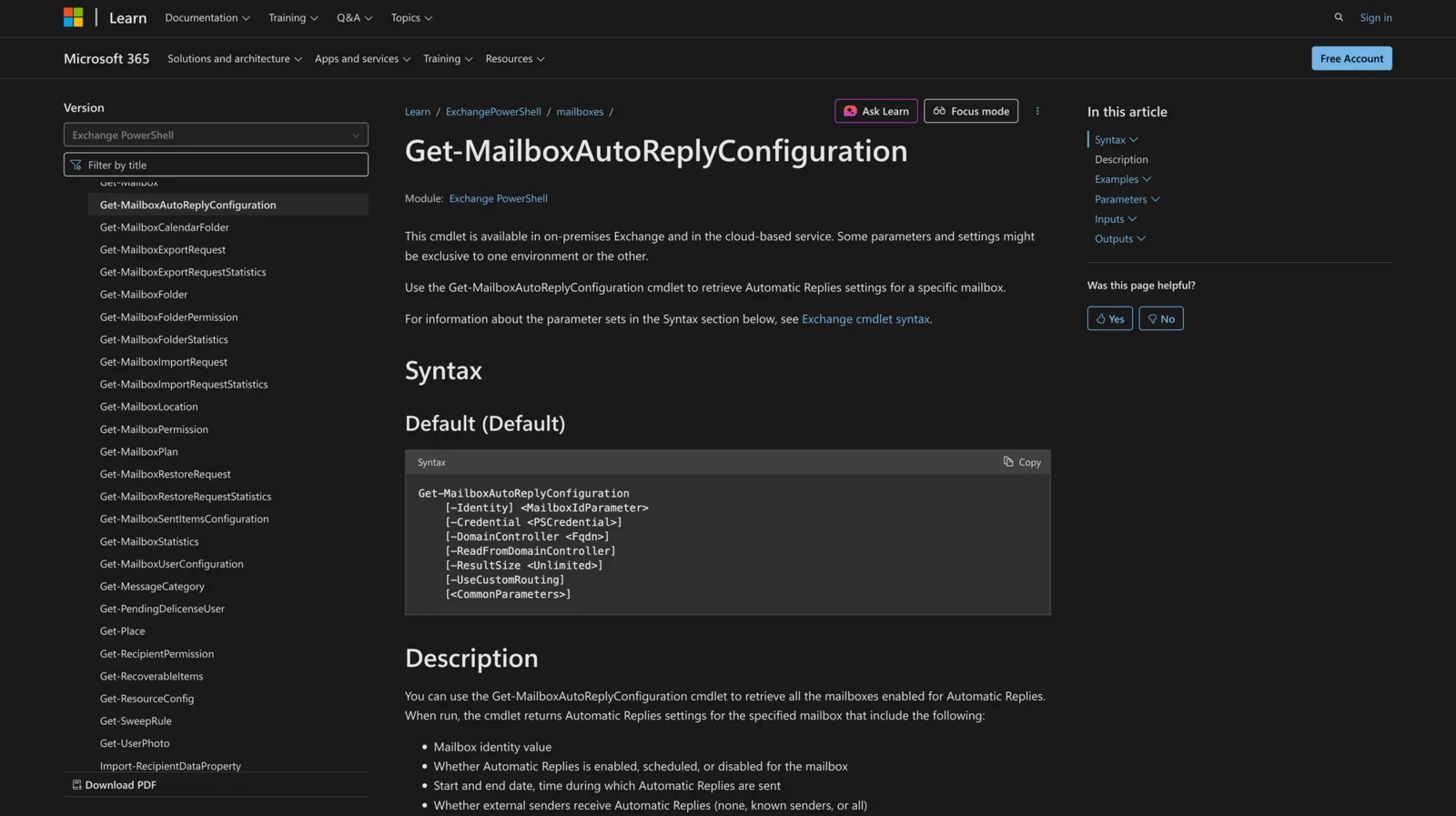
To check the current settings first, use Get-MailboxAutoReplyConfiguration.
Before you start
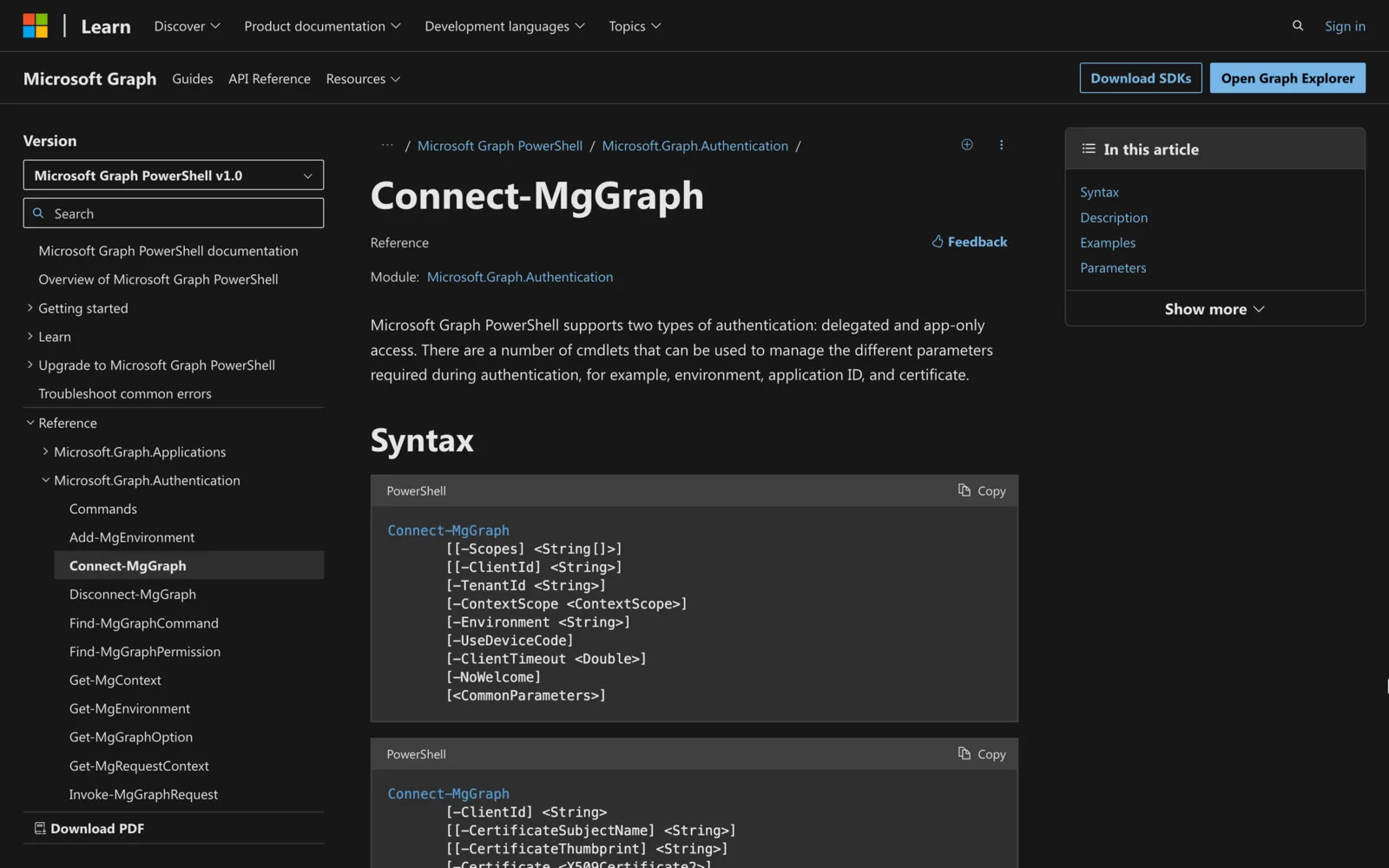
Connect. For Exchange Online, connect with the Exchange Online PowerShell module:
Connect-ExchangeOnline -UserPrincipalName admin@contoso.com
On Exchange Server 2010, 2013, 2016, 2019 or SE, open the Exchange Management Shell.
Permissions. You need permissions assigned before you can run the cmdlet, and some parameters may be missing if your role doesn't include them. Microsoft's Find the permissions required to run any Exchange cmdlet shows how to check which role you need.
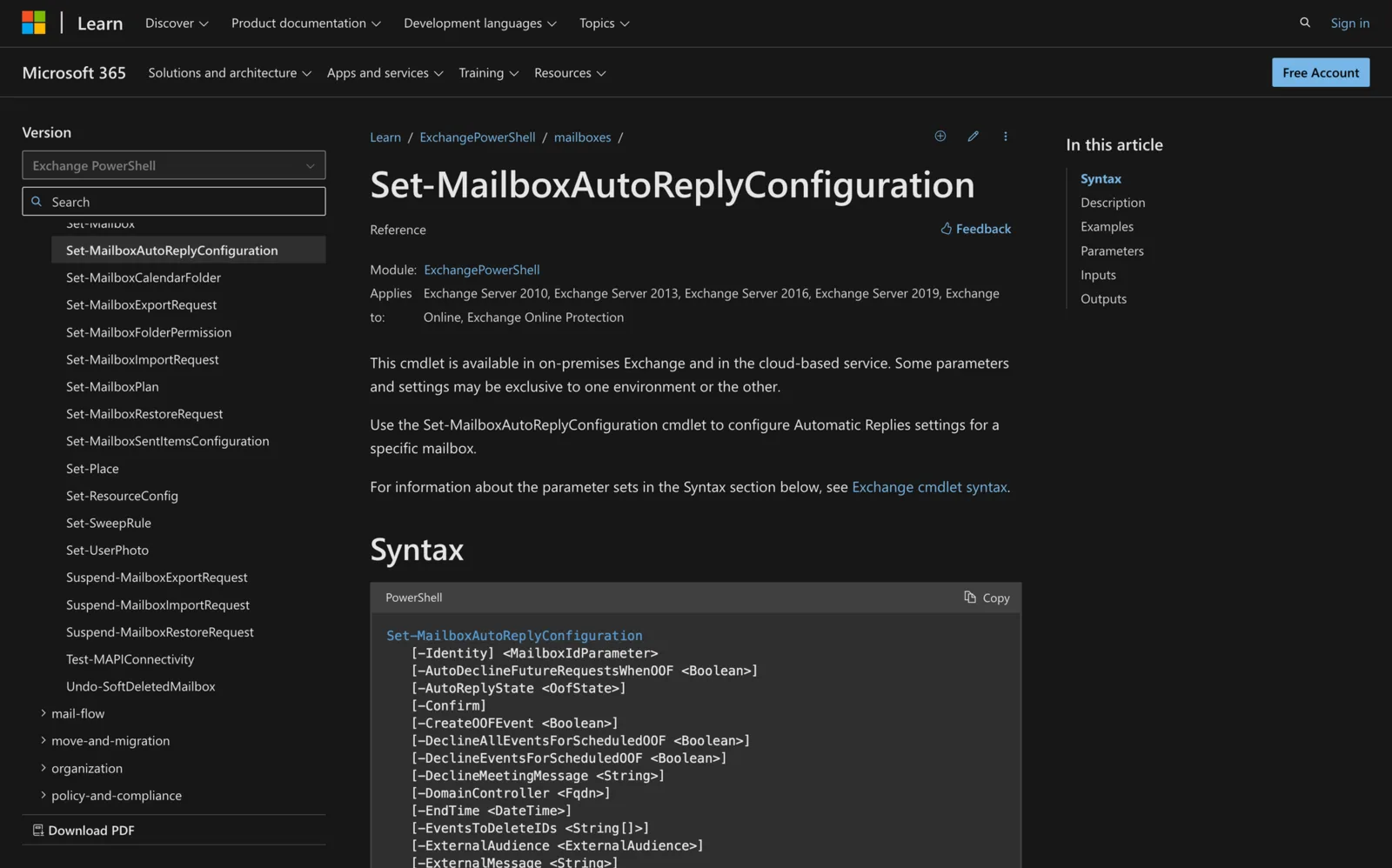
Syntax
Set-MailboxAutoReplyConfiguration
    [-Identity] <MailboxIdParameter>
    [-AutoDeclineFutureRequestsWhenOOF <Boolean>]
    [-AutoReplyState <OofState>]
    [-Confirm]
    [-CreateOOFEvent <Boolean>]
    [-DeclineAllEventsForScheduledOOF <Boolean>]
    [-DeclineEventsForScheduledOOF <Boolean>]
    [-DeclineMeetingMessage <String>]
    [-DomainController <Fqdn>]
    [-EndTime <DateTime>]
    [-EventsToDeleteIDs <String[]>]
    [-ExternalAudience <ExternalAudience>]
    [-ExternalMessage <String>]
    [-IgnoreDefaultScope]
    [-InternalMessage <String>]
    [-OOFEventSubject <String>]
    [-StartTime <DateTime>]
    [-WhatIf]
    [<CommonParameters>]
Reply parameters
These work in Exchange Online and on-premises.
| Parameter | What it does |
|---|---|
-Identity |
The mailbox to change. Required, position 1, accepts pipeline input. Takes a name, alias, email address, UPN, GUID, DN, Domain\Username and similar values. |
-AutoReplyState |
Enabled: replies are sent. Disabled: no replies (default). Scheduled: replies are sent only between StartTime and EndTime. |
-InternalMessage |
The reply sent to senders inside the organization. Required for Enabled and Scheduled. |
-ExternalMessage |
The reply sent to outside senders. Required for Enabled and Scheduled when ExternalAudience is Known or All. |
-ExternalAudience |
None: no external replies. Known: only senders in the mailbox's contacts. All: every external sender (default). |
-StartTime, -EndTime |
The reply window. Only used when AutoReplyState is Scheduled. |
-WhatIf |
Shows what the command would do without changing anything. |
-Confirm |
Adds a confirmation pause before the change. |
-IgnoreDefaultScope |
Uses the whole forest as the scope. You can then only identify the mailbox by DN, and can't use -DomainController. |
-DomainController |
The domain controller to use, by FQDN, for example dc01.contoso.com. On-premises only. |
Messages are HTML. Exchange wraps plain text in <html><body>...</body></html>. You can pass your own HTML, for example "<html><body>I'm on vacation. <b>Please contact my manager.</b></body></html>". To clear a message, set it to $null.
Dates follow your regional format. -StartTime and -EndTime use the short date format of the computer running the command. If you include a time, quote the value, for example "09/01/2018 5:00 PM".
Calendar parameters
Microsoft says these only work in Exchange Online, and most need AutoReplyState set to Scheduled.
| Parameter | What it does |
|---|---|
-AutoDeclineFutureRequestsWhenOOF |
$true declines new meeting requests that arrive during the scheduled window. Default $false. |
-DeclineEventsForScheduledOOF |
$true lets existing events in the window be declined and removed. Needed for the next two parameters. Default $false. |
-DeclineAllEventsForScheduledOOF |
$true declines and removes every existing event in the window. Can't be used with -EventsToDeleteIDs. |
-EventsToDeleteIDs |
Declines only the listed events, separated by commas. Can't be used with -DeclineAllEventsForScheduledOOF. |
-DeclineMeetingMessage |
The text sent when a meeting is declined. HTML isn't added for you. |
-CreateOOFEvent |
$true adds a calendar event for the scheduled window. Default $false. |
-OOFEventSubject |
The subject of that calendar event. |
Careful with declines: if the mailbox organized a meeting that gets declined, Microsoft says the meeting is cancelled for every other attendee.
Examples
Schedule replies for a date range
Microsoft's first example, with internal replies only:
Set-MailboxAutoReplyConfiguration -Identity tony@contoso.com -AutoReplyState Scheduled -StartTime "7/10/2018 08:00:00" -EndTime "7/15/2018 17:00:00" -InternalMessage "Internal auto-reply message"
Reply only to internal senders
Set-MailboxAutoReplyConfiguration -Identity tony@contoso.com -AutoReplyState Enabled -InternalMessage "I'm out until Monday." -ExternalAudience None
Reply only to known external contacts
Set-MailboxAutoReplyConfiguration -Identity tony@contoso.com -AutoReplyState Enabled -InternalMessage "I'm out until Monday." -ExternalMessage "I'm out until Monday and will reply when I'm back." -ExternalAudience Known
Set replies on a shared mailbox
Shared mailboxes use the same command:
Set-MailboxAutoReplyConfiguration -Identity support@contoso.com -AutoReplyState Enabled -InternalMessage "Our team is closed for the holiday." -ExternalMessage "Our team is closed for the holiday and will reply on Monday."
Block the calendar and decline meetings (Exchange Online)
Set-MailboxAutoReplyConfiguration -Identity tony@contoso.com -AutoReplyState Scheduled -StartTime "12/22/2026" -EndTime "1/2/2027" -InternalMessage "I'm on leave until January 2." -CreateOOFEvent $true -OOFEventSubject "Out of office" -AutoDeclineFutureRequestsWhenOOF $true -DeclineEventsForScheduledOOF $true -DeclineAllEventsForScheduledOOF $true -DeclineMeetingMessage "I'm on leave and can't attend."
Preview a change
Set-MailboxAutoReplyConfiguration -Identity tony@contoso.com -AutoReplyState Disabled -WhatIf
Turn replies off
Set-MailboxAutoReplyConfiguration -Identity tony@contoso.com -AutoReplyState Disabled
Set the same reply on several mailboxes
foreach ($mailbox in 'tony@contoso.com', 'kim@contoso.com') {
    Set-MailboxAutoReplyConfiguration -Identity $mailbox -AutoReplyState Enabled -InternalMessage "Our office is closed today."
}
Troubleshooting
The term isn't recognized as a cmdlet. You're not connected. Run Connect-ExchangeOnline or open the Exchange Management Shell.
A parameter is missing or rejected. Your role doesn't include it. Check the role with Microsoft's permissions guide linked above.
Replies turned on but none go out. For Scheduled, the current time is outside StartTime and EndTime. Check with Get-MailboxAutoReplyConfiguration and compare with Get-Date.
Outside senders get no reply. ExternalAudience is None, or Known and the sender isn't in the mailbox's contacts. Also check that ExternalMessage is set.
The dates came out wrong. The command read them in your computer's regional date format. Use that format, or check with Get-MailboxAutoReplyConfiguration after setting.
Calendar parameters do nothing on-premises. Microsoft says they only work in Exchange Online.
-DomainController isn't recognized. It only exists on-premises. Drop it in Exchange Online.
FAQ
How do I set out of office for another user with PowerShell?
Run Set-MailboxAutoReplyConfiguration -Identity user@contoso.com -AutoReplyState Enabled -InternalMessage "..." as an admin with the right permissions. Add -ExternalMessage to reply to outside senders.
How do I turn off out of office with PowerShell?
Set -AutoReplyState Disabled. To also clear the old text, set -InternalMessage $null and -ExternalMessage $null.
How do I check that it worked?
Run Get-MailboxAutoReplyConfiguration for the same mailbox and read AutoReplyState, StartTime, EndTime and the messages.
Can users set this themselves?
Yes. Users can set automatic replies in Outlook. See how to set out of office in Outlook.
Is Set-MailboxAutoReplyConfiguration the same as Set-MailboxMessageConfiguration?
No. Set-MailboxAutoReplyConfiguration sets Automatic Replies. Set-MailboxMessageConfiguration sets Outlook on the web options, such as signatures.
How do I find a mailbox's identity?
Run Get-Mailbox and use the PrimarySmtpAddress or Alias it returns.
Sources: Set-MailboxAutoReplyConfiguration, Set-MailboxMessageConfiguration and Find the permissions required to run any Exchange cmdlet on Microsoft Learn.
Managing Microsoft 365 rooms too? Meeting Room 365 turns any tablet into a room display for Outlook and Teams calendars.