
How to Use Set-EventsFromEmailConfiguration in Powershell

The modern workplace relies heavily on effective scheduling tools, with email playing a central role in communications and logistics. In Exchange Online, email is more than just a conversation medium; it's a hub for scheduling and managing events.
The Set-EventsFromEmailConfiguration cmdlet is a tool designed for administrators to control how events are automatically detected from email messages. This cmdlet is pivotal for managing whether emails containing reservation details or other event-related information are seamlessly integrated into a user's calendar.
With the functionality to customize settings for different types of reservations and deliveries, administrators can tailor the email-to-calendar automation to suit various organizational needs. This capability not only streamlines calendar management but also ensures that users have a coherent and up-to-date view of their schedules.
What is the Set-EventsFromEmailConfiguration Cmdlet?
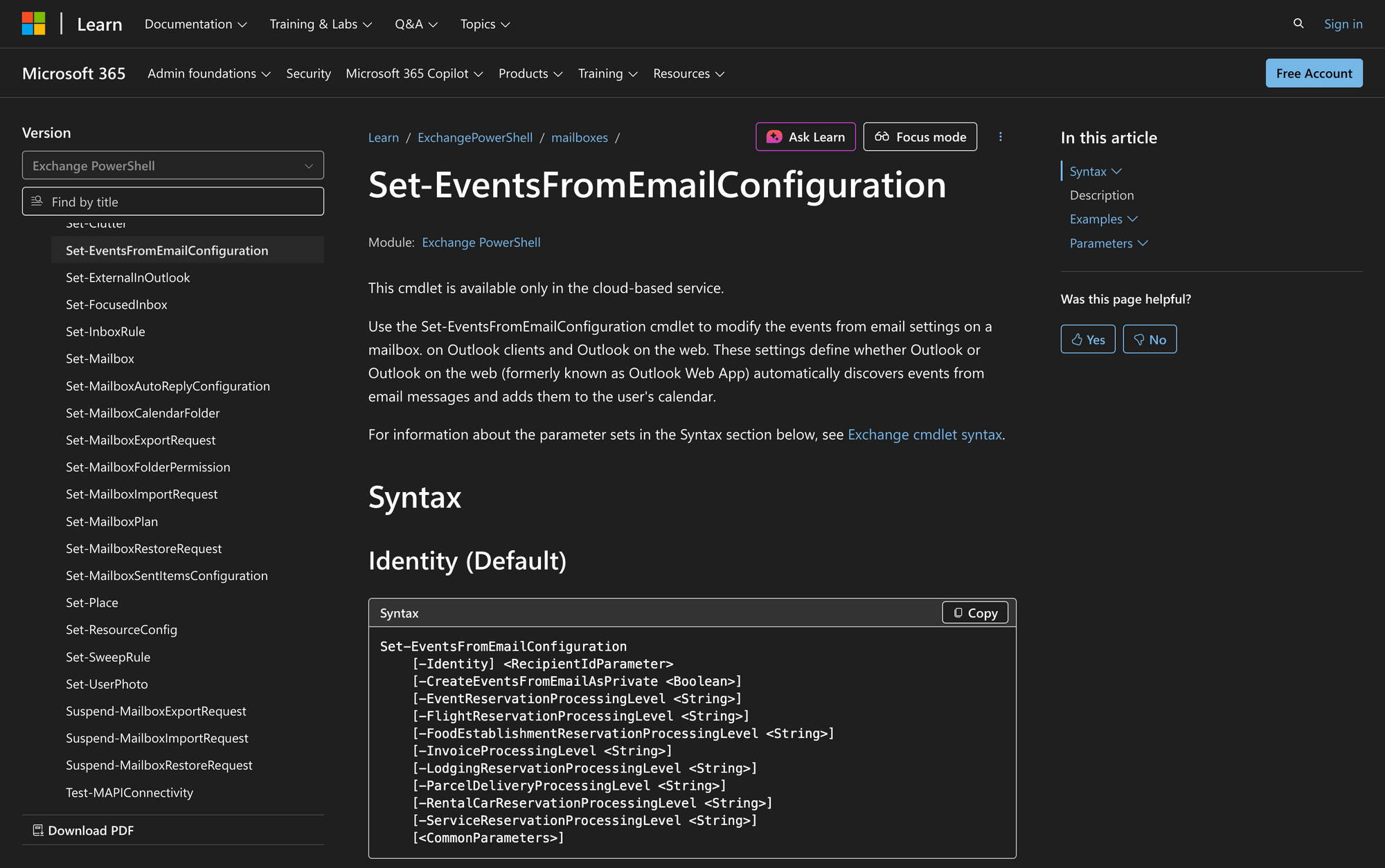
The Set-EventsFromEmailConfiguration cmdlet is used in Exchange Online to modify settings that dictate whether Outlook or Outlook on the web automatically discovers events from email messages and adds them to a user's calendar. These settings can include flights, hotel reservations, rental cars, and more.
By configuring these options, administrators can enhance user experiences by ensuring that important events are not missed and are easily accessible in the user's calendar.
Syntax
Set-EventsFromEmailConfiguration
[-Identity] <RecipientIdParameter>
[-CreateEventsFromEmailAsPrivate <Boolean>]
[-EventReservationProcessingLevel <String>]
[-FlightReservationProcessingLevel <String>]
[-FoodEstablishmentReservationProcessingLevel <String>]
[-InvoiceProcessingLevel <String>]
[-LodgingReservationProcessingLevel <String>]
[-ParcelDeliveryProcessingLevel <String>]
[-RentalCarReservationProcessingLevel <String>]
[-ServiceReservationProcessingLevel <String>]
[-ResetSettings]
[<CommonParameters>]
Parameters
- Identity: Specifies the mailbox to modify by email address.
- CreateEventsFromEmailAsPrivate: Specifies whether to create events discovered from messages as private events. The default value is $true.
- EventReservationProcessingLevel: Deprecated and not used.
- FlightReservationProcessingLevel: Controls flight reservation discovery and calendar addition.
- FoodEstablishmentReservationProcessingLevel: Deprecated and not used.
- InvoiceProcessingLevel: Deprecated and not used.
- LodgingReservationProcessingLevel: Manages lodging reservation discovery and calendar integration.
- ParcelDeliveryProcessingLevel: Handles parcel delivery discovery and calendar updates.
- RentalCarReservationProcessingLevel: Manages rental car reservation discovery and calendar integration.
- ServiceReservationProcessingLevel: Deprecated and not used.
- ResetSettings: Resets all settings to default values.
Practical Uses
1. Automating Travel Itineraries for Frequent Travelers
For organizations with employees who travel frequently, managing travel details can be cumbersome. By using the Set-EventsFromEmailConfiguration cmdlet, administrators can ensure that flight, lodging, and rental car reservations are automatically added to the travelers' calendars. This automation reduces manual entry, helping employees focus on their work rather than logistics.
2. Centralized Management of Parcel Deliveries
Companies that receive numerous parcel deliveries can benefit from having these events automatically tracked. By configuring the parcel delivery processing level, organizations can have deliveries automatically added to specific users’ calendars, ensuring that the right personnel are informed of incoming packages.
3. Enhanced Privacy for Sensitive Meetings
In some cases, meetings or reservations need to be kept private due to their sensitive nature. This cmdlet allows the setting of events as private by default, ensuring that such events are not visible to unauthorized users. This feature is particularly useful for HR or legal departments that handle confidential appointments.
Prerequisites
Before using the Set-EventsFromEmailConfiguration cmdlet, ensure the following requirements are met:
- Exchange Online access is required.
- Appropriate permissions must be assigned to use the cmdlet.
- The cmdlet is available only in the cloud-based service of Exchange Online.
How to Use Set-EventsFromEmailConfiguration: 6 Practical Uses
The Set-EventsFromEmailConfiguration cmdlet offers a variety of practical applications. Below are detailed examples of how administrators can use this cmdlet to improve organizational efficiency.
1. Automatically Add Flight Reservations to Calendars
Command:
Set-EventsFromEmailConfiguration -Identity [email protected] -FlightReservationProcessingLevel Calendar
This command ensures that all flight reservations sent to James' email are automatically added to his calendar. By setting the flight reservation processing level to "Calendar", James can effortlessly keep track of his travel plans without manually inputting flight details. This automation is especially beneficial for frequent travelers who need to focus on their work rather than itinerary management.
2. Maintain Privacy of Automatically Added Events
Command:
Set-EventsFromEmailConfiguration -Identity [email protected] -CreateEventsFromEmailAsPrivate $true
Setting Simon’s events to be created as private means that any automatically added events from emails will not be visible to others who have access to his calendar. This is crucial in maintaining confidentiality for sensitive appointments or reservations, such as internal HR meetings or confidential client consultations.
3. Reset Event Discovery Settings to Default
Command:
Set-EventsFromEmailConfiguration -Identity [email protected] -ResetSettings
If an administrator wants to return James’ settings to default, this command will reset all event discovery configurations. This is useful if previously customized settings are no longer needed or if there are issues with the current configuration that necessitate a reset to troubleshoot effectively.
4. Disable Automatic Lodging Reservation Discovery
Command:
Set-EventsFromEmailConfiguration -Identity [email protected] -LodgingReservationProcessingLevel Disabled
This command disables the automatic discovery of lodging reservations for Simon, preventing any hotel booking emails from being automatically added to his calendar. This might be necessary if lodging is managed through a different system or if Simon prefers to manually enter his accommodation details.
5. Enable Parcel Deliveries to be Added to Calendar
Command:
Set-EventsFromEmailConfiguration -Identity [email protected] -ParcelDeliveryProcessingLevel Calendar
By configuring parcel deliveries to automatically appear on James' calendar, this command helps keep track of important deliveries. This feature is particularly useful for roles that manage inventory or require awareness of delivery schedules.
6. Customize Rental Car Reservation Handling
Command:
Set-EventsFromEmailConfiguration -Identity [email protected] -RentalCarReservationProcessingLevel Email
With this command, Simon can have rental car reservations discovered from emails but not automatically added to his calendar. This setting allows Simon to review rental details before deciding if they should be included in his schedule, offering a balance between automation and personal oversight.
Final Note
The Set-EventsFromEmailConfiguration cmdlet is an invaluable tool for Exchange Online administrators looking to streamline the process of event management from emails. By understanding and utilizing the various parameters available, organizations can significantly enhance their scheduling efficiency and accuracy.
Whether managing travel itineraries, ensuring delivery visibility, or maintaining event privacy, this cmdlet supports a wide array of scheduling needs in the modern digital workplace.