Quick answer: Yes, you can share your screen in any Teams meeting or call. Select Share in the meeting controls, then choose your whole screen or a single window. Select Stop sharing when you're done. On a phone, tap Share > Share screen.
What Can You Share in a Teams Meeting?
| Option | What others see |
|---|---|
| Screen | Everything on the screen you pick, including notifications. |
| Window | One app window only. Safer if you have other things open. |
| PowerPoint Live | Your slides, with notes and controls only you can see. |
| Excel Live | A workbook others can follow along in. |
| Whiteboard | A shared Microsoft Whiteboard everyone can draw on. |
How to Share Your Screen on Teams (Windows, Mac and Web)
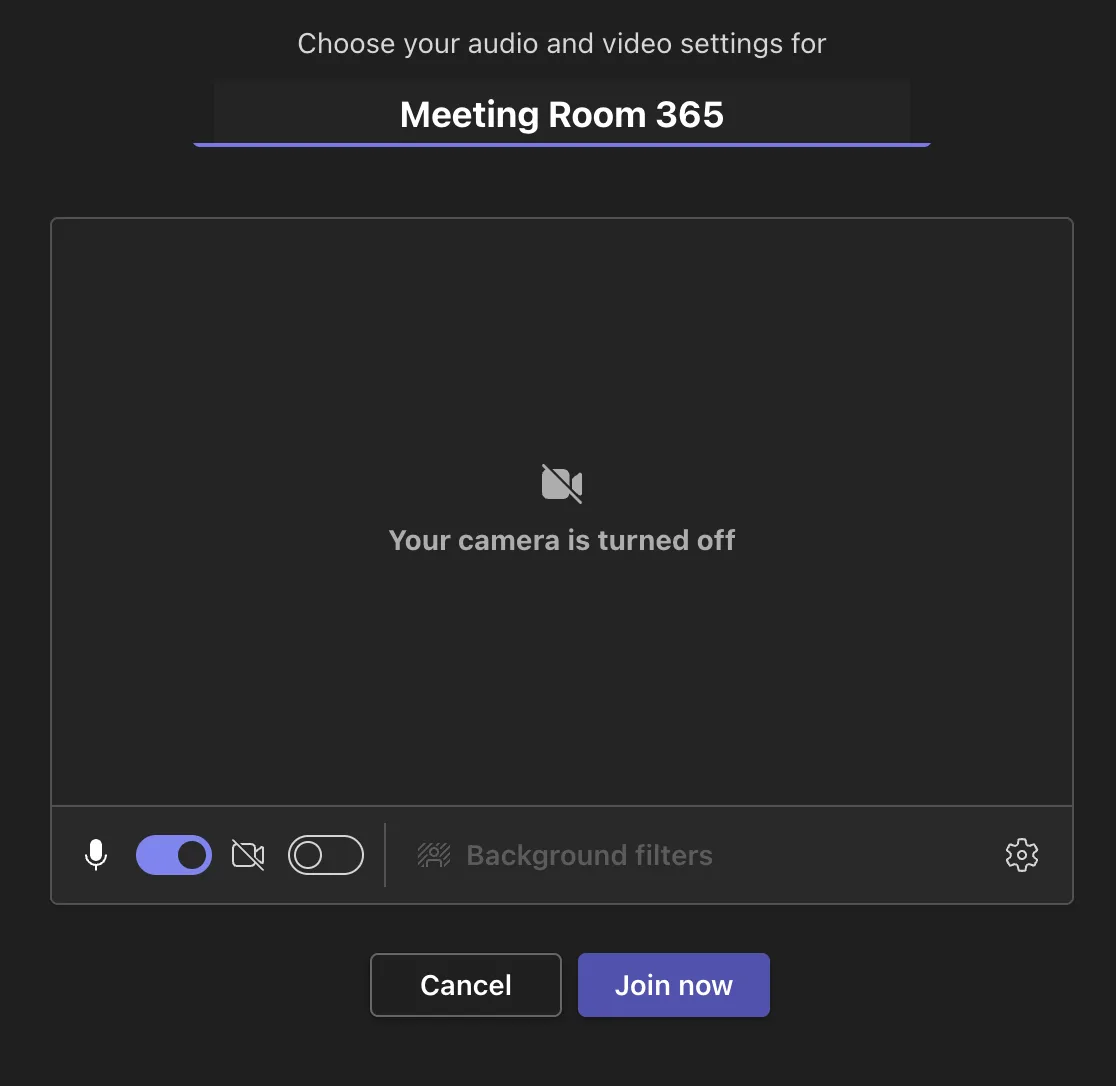
- Join the meeting. From Calendar, open the meeting and select Join, then Join now.
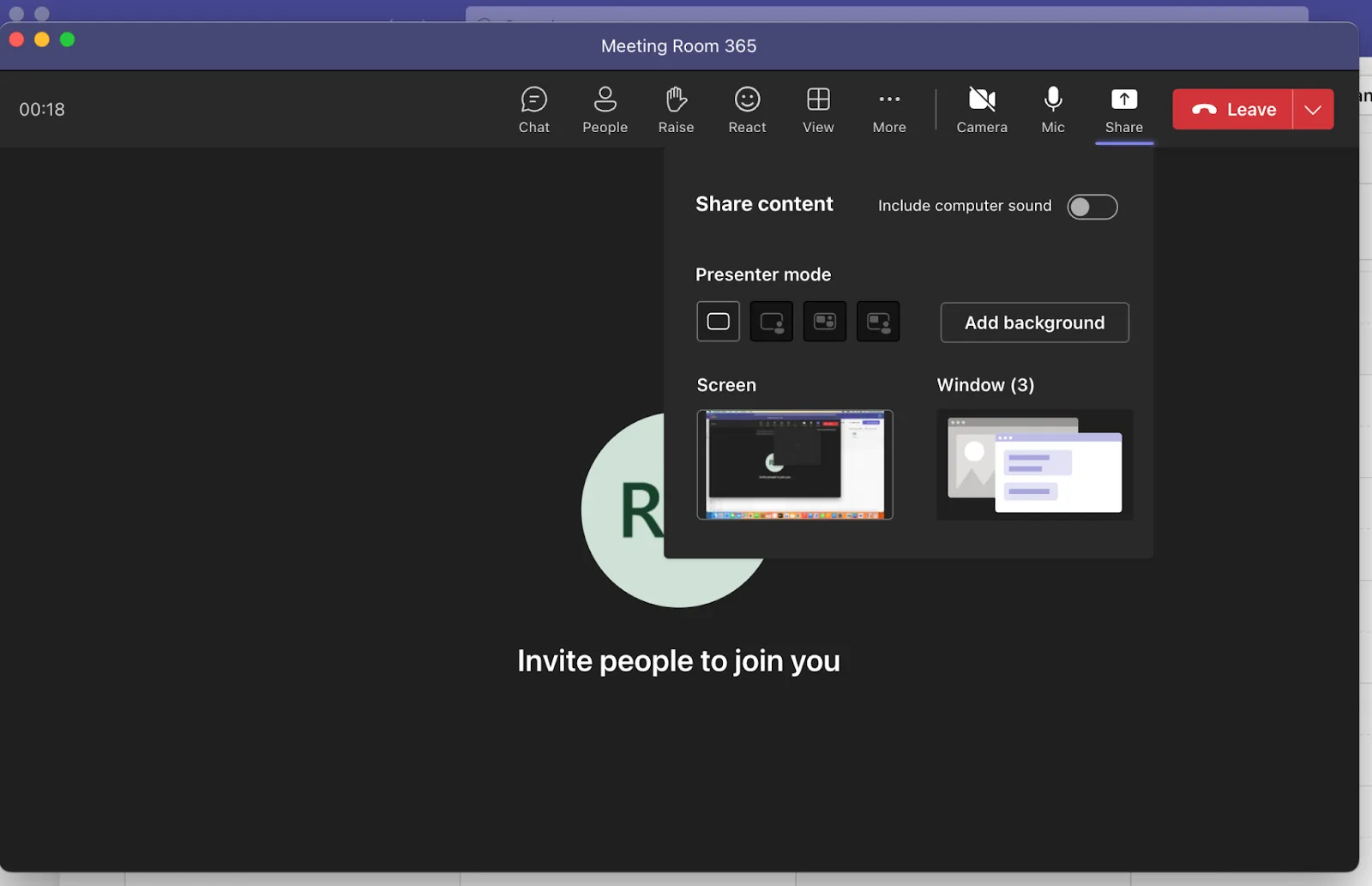
- Select Share in the meeting controls at the top of the window.
- To share computer audio (a video, for example), turn on Include sound.
- Pick a screen or a window. If you have two monitors, each one appears as a separate screen.
What you share is outlined in red. Move your cursor to the top of the shared screen to see the presenter toolbar, which only you can see. It has Give control, Share audio, Layout, Annotate and Stop sharing.
Teams on the web supports sharing in Microsoft Edge and Google Chrome. Linux isn't supported for screen sharing.
Extra Step on a Mac: Allow Screen Recording
The first time you share, macOS asks for permission.
- When Teams prompts, select Allow, or select Open System Settings.
- Under Privacy & Security > Screen & System Audio Recording, turn on Microsoft Teams.
- Go back to the meeting and select Share again.
If you use Teams in a browser, give the browser that permission instead.
How to Share Your Screen on the Teams Mobile App (iPhone and Android)
- Join the meeting in the Teams app.
- Tap Share in the meeting controls.
- Tap Share screen. You can also choose Share PowerPoint, Share photo, Share video or Share Whiteboard.
- Tap Start presenting (iPhone shows Start Broadcast).
Turn on Do not Disturb first if you don't want notifications to show. To stop, tap Stop presenting.
How to Share Your Screen in a Teams Chat
You can't share a screen into a chat itself. Start a call instead:
- Open the chat with the person or group.
- Select Video call or Audio call at the top.
- Once they answer, select Share and pick your screen or window.
How to Give or Take Control of a Shared Screen
- Give control: while sharing, select Give control in the presenter toolbar and pick a person. Select Take back to end it.
- Ask for control: while someone else shares, select Request control. Select Release control to hand it back.
Only give control to people you trust: they can use your mouse and keyboard on whatever you're sharing. Giving control to people outside your organization depends on your admin's meeting policy.
How to Stop Sharing Your Screen
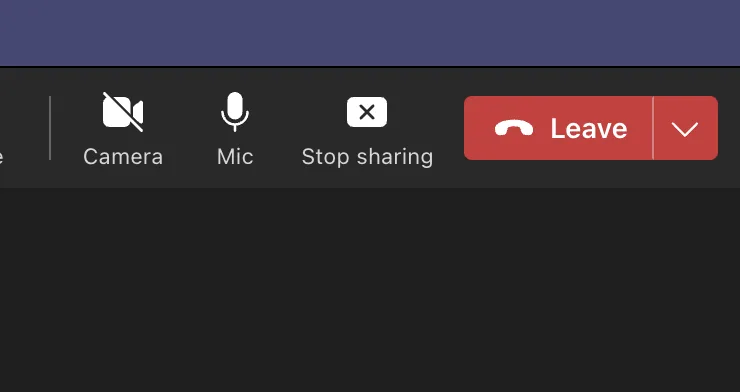
Select Stop sharing in the presenter toolbar or the meeting controls. On mobile, tap Stop presenting.
Why Can't I Share My Screen on Teams?
- You're an attendee, not a presenter. The organizer can limit sharing to presenters. Ask them to make you a presenter.
- Your admin turned it off. In the Teams admin center, the meeting policy's Screen sharing mode can be set to entire screen, single application only, or disabled.
- Mac permission is missing. Turn on Microsoft Teams under Screen & System Audio Recording (see above), then restart Teams.
- Your browser isn't supported. Use Edge or Chrome, or the desktop app.
- You're on Linux. Screen sharing isn't supported there.
FAQ
Can You Share Computer Sound in a Teams Meeting?
Yes. Turn on Include sound before you pick what to share, or select Share audio in the presenter toolbar while sharing. On mobile, choose whether to include audio when you start sharing your screen.
Can You Share a Second Monitor in Teams?
Yes. Each monitor appears as a separate screen when you select Share. Pick the one you want.
Can Others See My Notifications When I Share My Screen?
If you share your whole screen, yes. Share a single window instead, or turn on Do Not Disturb first.
Presenting from a meeting room? Meeting Room 365 shows each room's schedule on a display outside the door, so nobody walks in mid-presentation.