
Using Get-QuarantineMessage in Powershell

Microsoft's cloud-based services like Exchange Online, SharePoint, OneDrive, and Microsoft Teams rely heavily on security features to protect organizations from various threats. Among these features is the capability to quarantine suspicious messages and files, providing an extra layer of protection.
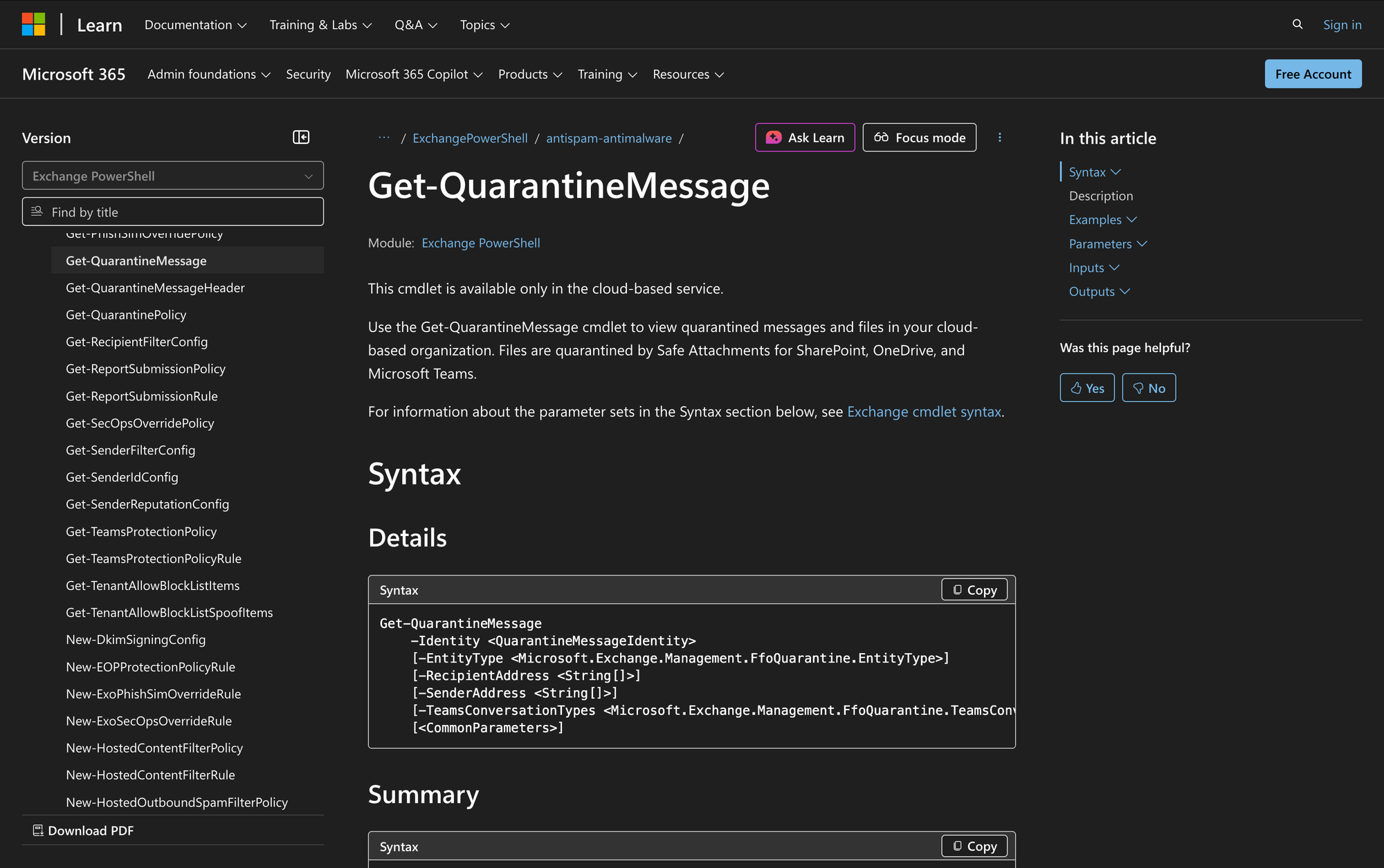
The Get-QuarantineMessage cmdlet in PowerShell is used by administrators to view these quarantined items. It retrieves email messages and files that have been quarantined by security policies.
What is the Get-QuarantineMessage Cmdlet?
The Get-QuarantineMessage cmdlet is used to retrieve quarantined messages and files in Microsoft 365. It allows administrators to view items that have been placed in quarantine based on configured threat and quarantine policies. These items can include email messages as well as files associated with services such as SharePoint Online, OneDrive, and Microsoft Teams.
This cmdlet does not modify or release quarantined items - its purpose is strictly to return information about items currently held in quarantine. Administrators can use it to examine properties such as sender and recipient addresses, subject, message ID, policy type, quarantine type, release status, and relevant timestamps. This makes it suitable for investigation, reporting, and validation of policy behavior.
Get-QuarantineMessage supports filtering through a wide range of parameters, including date ranges, sender or recipient addresses, domains, policy names, quarantine types, and pagination controls. These filters allow administrators to narrow results to specific scenarios, such as reviewing messages received within a certain timeframe, identifying items quarantined by a specific policy, or analyzing messages associated with a particular sender.
Syntax
Here is the official syntax as per the Microsoft documentation:
Get-QuarantineMessage
-Identity <QuarantineMessageIdentity>
[-EntityType <Microsoft.Exchange.Management.FfoQuarantine.EntityType>]
[-RecipientAddress <String[]>]
[-SenderAddress <String[]>]
[-TeamsConversationTypes <Microsoft.Exchange.Management.FfoQuarantine.TeamsConversationType[]>]
[<CommonParameters>]
Get-QuarantineMessage
[-Direction <Microsoft.Exchange.Management.FfoQuarantine.QuarantineMessageDirectionEnum>]
[-Domain <String[]>]
[-EndExpiresDate <System.DateTime>]
[-EndReceivedDate <System.DateTime>]
[-EntityType <Microsoft.Exchange.Management.FfoQuarantine.EntityType>]
[-IncludeMessagesFromBlockedSenderAddress]
[-MessageId <String>]
[-MyItems]
[-Page <Int32>]
[-PageSize <Int32>]
[-PolicyName <String>]
[-PolicyTypes <QuarantinePolicyTypeEnum[]>]
[-QuarantineTypes <QuarantineMessageTypeEnum[]>]
[-RecipientAddress <String[]>]
[-RecipientTag <String[]>]
[-ReleaseStatus <ReleaseStatus[]>]
[-Reported <Boolean>]
[-SenderAddress <String[]>]
[-StartExpiresDate <System.DateTime>]
[-StartReceivedDate <System.DateTime>]
[-Subject <String>]
[-TeamsConversationTypes <Microsoft.Exchange.Management.FfoQuarantine.TeamsConversationType[]>]
[-Type <Microsoft.Exchange.Management.FfoQuarantine.QuarantineMessageTypeEnum>]
[<CommonParameters>]
Parameters
- Identity - Specifies the quarantined message to view.
- EntityType - Filters results by entity type (e.g., Email, SharePointOnline).
- RecipientAddress - Filters results by the recipient's email address.
- SenderAddress - Filters results by the sender's email address.
- TeamsConversationTypes - Filters results by Teams conversation types. This parameter is only available in Security & Compliance PowerShell.
- Direction - Filters results by incoming or outgoing messages. You can specify multiple values separated by commas.
- Domain - Filters results by the recipient domain.
- EndExpiresDate - Specifies the latest expiration date for quarantined messages.
- EndReceivedDate - Specifies the latest received date for quarantined messages.
- IncludeMessagesFromBlockedSenderAddress - Includes messages from blocked senders.
- MessageId - Filters results by the Message-ID header field.
- MyItems - Filters results where the user running the command is the recipient.
- Page - Specifies the page number of results to view.
- PageSize - Specifies the number of entries per page.
- PolicyName - Filters results by the threat policy name.
- PolicyTypes - Filters results by the type of threat policy.
- QuarantineTypes - Filters results by what caused the message to be quarantined.
- RecipientTag - Filters results by the recipient's user tag.
- ReleaseStatus - Filters results by the release status of messages.
- Reported - Filters results by whether messages have been reported as false positives.
- StartExpiresDate - Specifies the earliest expiration date for quarantined messages.
- StartReceivedDate - Specifies the earliest received date for quarantined messages.
- Subject - Filters results by the message subject.
- Type - Filters results by what caused the message to be quarantined.
Practical Uses
1. Reviewing Quarantined Messages for Security Analysis
Administrators can utilize Get-QuarantineMessage to regularly review quarantined messages. By doing so, they can identify trends in phishing attempts, malware, and spam. This analysis helps in understanding the threats an organization faces and in adjusting security policies accordingly.
2. Auditing Quarantine Policies for Compliance
Organizations often need to audit their quarantine policies to comply with internal or external regulations. Using Get-QuarantineMessage, administrators can list all quarantined items and verify that their security policies are working as intended, ensuring that only legitimate threats are quarantined.
3. Troubleshooting Email Delivery Issues
When emails do not reach intended recipients, they might be stuck in quarantine. Administrators can use this cmdlet to find legitimate emails that were incorrectly tagged as threats. This ensures smooth communication and prevents delays in critical business operations.
Prerequisites
Before using the Get-QuarantineMessage cmdlet, ensure the following requirements are met:
- You must have permissions assigned to run this cmdlet.
- This cmdlet is available in Exchange Online Protection and Microsoft Defender for Office 365.
- Ensure your system is configured to use the correct date format for date-related parameters.
How to Use Get-QuarantineMessage: 7 Practical Uses
The Get-QuarantineMessage cmdlet can be applied in various real-world scenarios to review quarantined messages effectively. Below are practical examples demonstrating its use.
1. Retrieve Quarantined Messages for a Specific Date Range
Command:
Get-QuarantineMessage -StartReceivedDate 06/13/2017 -EndReceivedDate 06/15/2017
In this example, the command retrieves a list of messages that were quarantined between June 13, 2017, and June 15, 2017. This is particularly useful for administrators needing to review quarantined items within a specific time frame, perhaps after a known security incident.
2. Display Quarantined Messages with Paging
Command:
Get-QuarantineMessage -PageSize 50 -Page 3
This command is useful when dealing with a large number of quarantined messages. It allows administrators to view 50 messages per page and specifically returns the third page of results.
Paging helps manage and review extensive lists without overwhelming the interface.
3. Retrieve a Specific Quarantined Message by Message ID
Command:
Get-QuarantineMessage -MessageID "<[email protected]>"
This command fetches a quarantined message using its unique Message-ID. This is particularly beneficial when investigating a specific email that a user reported as missing or when verifying if a particular message was correctly quarantined.
4. Get Detailed Information for a Specific Quarantine Message
Command:
Get-QuarantineMessage -Identity c14401cf-aa9a-465b-cfd5-08d0f0ca37c54c2ca98e-94ea-db3a-7eb8-3b63657d4db7 | Format-List
This example provides detailed information for a quarantined message identified by its unique identity. Detailed views are crucial for in-depth investigations, allowing administrators to see all properties associated with the quarantined message.
5. List Files Quarantined by Safe Attachments for SharePoint, OneDrive, and Teams
Command:
Get-QuarantineMessage -QuarantineTypes SPOMalware | Format-List
This command retrieves files quarantined due to SharePoint, OneDrive, or Microsoft Teams malware detections (SPOMalware). It is particularly useful for security teams who need to review threats to collaborative platforms and ensure that malicious files do not spread within the organization.
6. Filter Quarantined Messages by Sender Address
Command:
Get-QuarantineMessage -SenderAddress [email protected]
This command allows administrators to filter and view all messages quarantined from a specific sender. It helps in tracking down messages from a sender that might be part of a phishing campaign or other malicious activity.
7. View Quarantined Messages by Threat Policy Type
Command:
Get-QuarantineMessage -PolicyTypes Malware
Administrators can use this command to filter and view messages quarantined due to malware-related policies. This is essential for understanding the effectiveness of anti-malware strategies and identifying common malware threats targeting the organization.
Final Note
The Get-QuarantineMessage cmdlet is an indispensable tool for administrators managing security in cloud-based environments. By efficiently viewing and analyzing quarantined items, organizations can enhance their security posture, ensure compliance, and mitigate threats effectively. Whether dealing with email threats in Exchange Online or files in collaborative platforms, mastering this cmdlet is key to maintaining a secure environment.